
The Telegram Integration for Smartflows enables end users to get in touch with your organization using one of the most popular instant messaging apps.
Following the instructions below you'll be able to setup a Telegram bot for you customer facing services and treat the incoming conversations automatically, via a bot, or route them to live agents.
Main steps
The procedure goes through 2 main steps:
-
Creating a Telegram bot
-
Connecting the Telegram bot to your Smartflows project
Requirements
Any valid Telegram account.
Main steps
The procedure is really easy and fast, it goes through 2 main steps:
-
Creating a Telegram bot
-
Connecting the Telegram bot to your Smartflows project
-
Testing the Telegram bot
Procedure
Step 1: Creating a Telegram bot
For this step you need to open the Telegram app, either the mobile or desktop version.
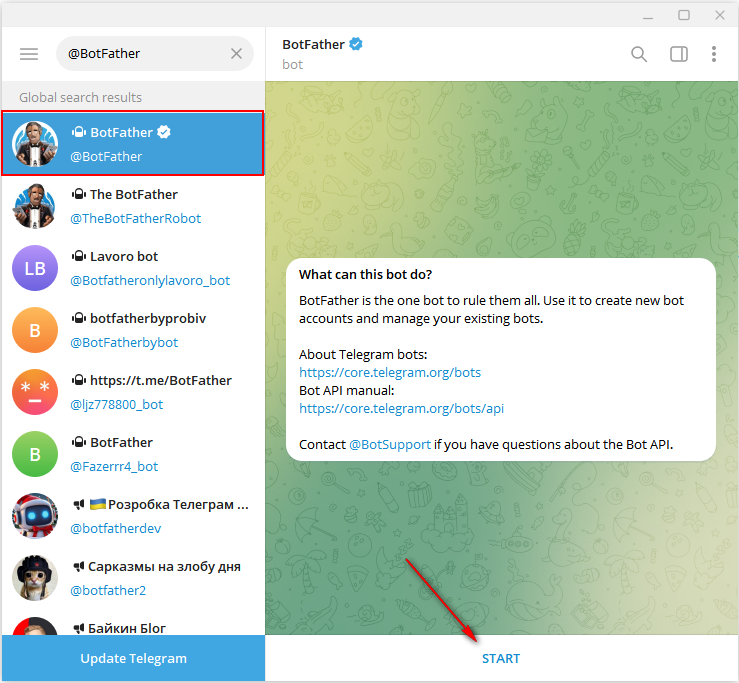
Search the @BotFather bot and start a new conversation:
-
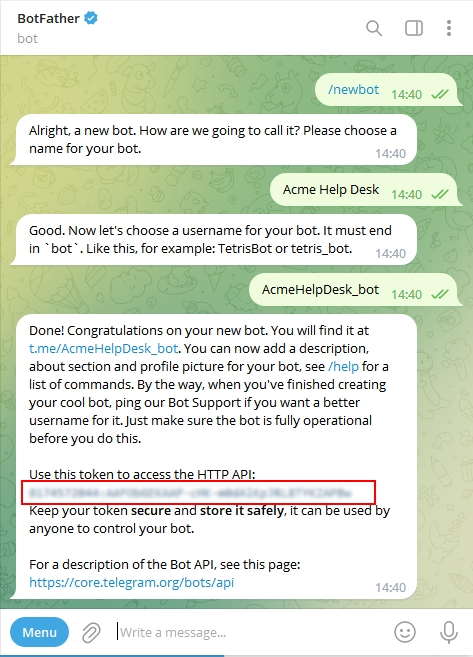
type the command /newbot
-
following the BotFather instructions:
-
enter a display name for your bot, it will be the one visibile to end-users on the Telegram app, e.g. “Acme Help Desk”;
-
enter a bot username ending by ‘bot’. The username is a short name, used in search, mentions and t.me links. Usernames are 5-32 characters long and not case sensitive – but may only include Latin characters, numbers, and underscores. It must end in 'bot’, like acme_bot' or 'AcmeBot'.
-
BothFather will return a unique token: save it in a safe place, it will be needed in the next step of Smartflows integration:
NOTE: you can customize your bot name, description, icon and privacy policies using the BotFather functionalities.
Step 2: Linking the bot to Smartflows
-
Login Smartflows with admin rights
-
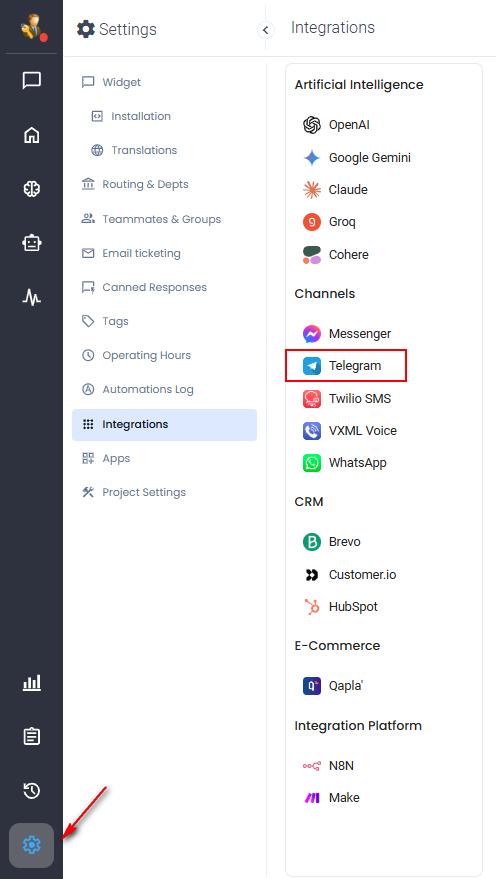
On the leftside menu select Settings > Integrations > Telegram:
-
Enter the Bot name (‘Acme Help Desk’ in our example above) and the token previously returned by BotFather. Also, select the department that will be triggered on new incoming conversations. Then press Connect:
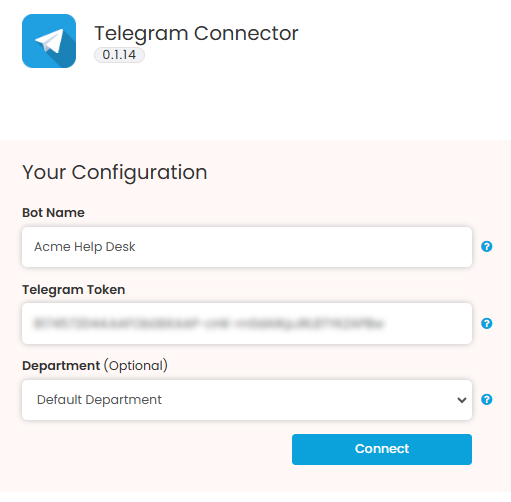
Smartflows integration form
Based on the selected department settings, incoming Telegram conversations will be routed to a chatbot or to the agent group.
Step 3: Test the Telegram bot
The setup is completed, you can test your new bot using Telegram:
-
search the new bot by name or, alternatively, click on a link made this way: https://t.me/<bot_username>
-
where the <bot_username> is the one you’ve chosen ant Step 1, e.g. https://t.me/AcmeHelpDesk_bot
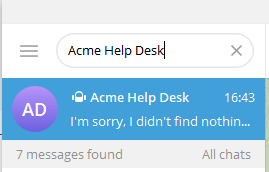
-
Start a new conversation with the bot, this will create a new incoming conversations on Smartflow. The treatment applied will be the one assigned to the department selected at Step 2 above.
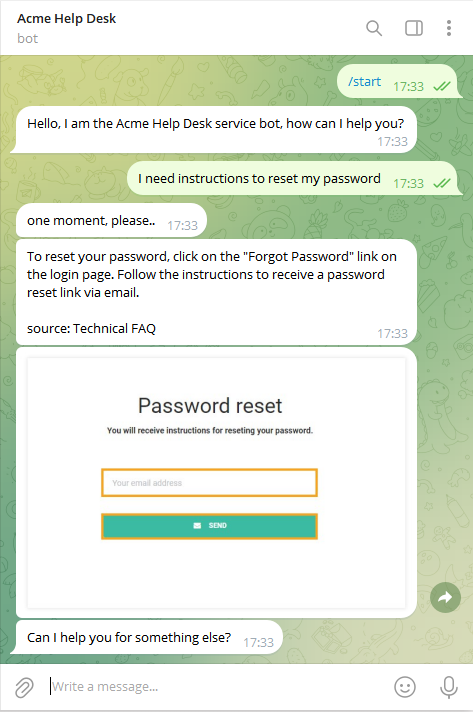
Channel Capabilities
|
Interaction |
Text |
Images |
Video |
|
Audio |
Geo-loc. |
|---|---|---|---|---|---|---|
|
End-user to BOT |
✅ |
✅ |
❌ |
✅ |
❌ |
❌ |
|
BOT to End-user |
✅ |
✅ |
✅* |
✅* |
❌ |
- |
|
End-user to human agent |
✅ |
✅ |
❌ |
✅ |
❌ |
❌ |
|
Human agent to end-user |
✅ |
✅ |
✅* |
✅* |
❌ |
- |
*must be sent as link