
Imagicle AI Receptionist can provide self-service interactions based on specific contents which are added by the administrator within each scripted or autonomous AI Receptionist.
Three different content types are supported:
-
Text documents
-
Topic and contents
-
Web URLs
You can select the proper one upon content 
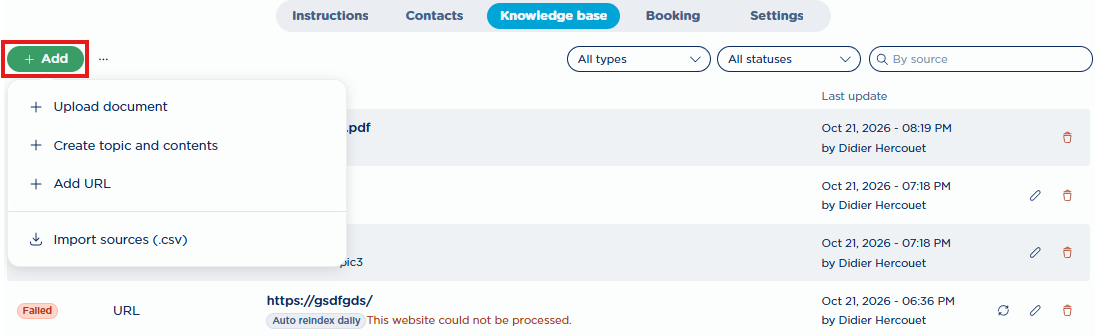
Document KB
By selecting + Upload document, you are invited to drag and drop or just browse your PC for the required document to upload in PDF or Word (DOCX) or generic text format.
As soon as a new document is uploaded in the web interface, its content is processed and indexed for a rapid content match during the AIR conversation. During the processing phase, the entry’s Status displays a “Processing” label. Once the status changes to 
If, for any reason, the document can’t be processed, a 
An existing document can be deleted by hitting the red garbage bin icon besides relevant entry. Document deletion is also required when you need to replace it with a new version of same KB content.
Document constraints
-
Documents exceeding a size of 10MBytes are rejected.
-
Documents including pictures are evaluated for the text part only. No OCR is applied to embedded pictures.
-
If a new version of the same document is released, it must be manually uploaded from this AIR web page, after having deleted the existing version.
-
Documents export option is not available.
Topic and Contents KB
This content type is designed to allow the administrator to upload a list of topics along with their explanations, to be matched by AIR during the voice transaction.
The “Topic and contents” list can be populated in two ways:
-
manually from the web page: by selecting + Create topic and contents and then hit


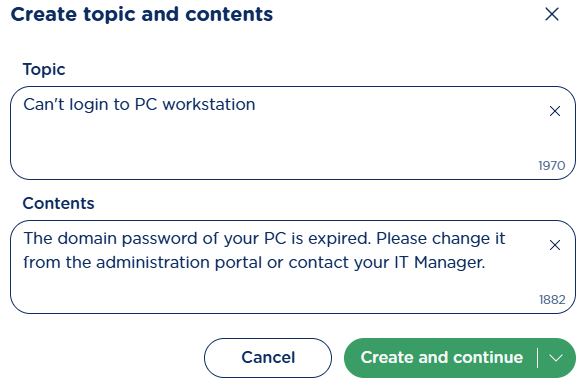
-
manually via CSV file upload: by selecting Import source (.CSV) and then click on “Topic and contents“ radio button. From same popup, you can download the template, fill it in, and then upload it by clicking on “Import CSV”.
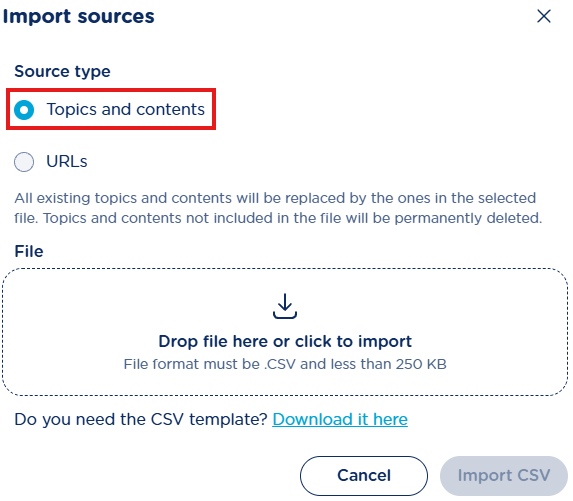
Each time a new CSV is uploaded, it replaces all existing topics and contents, including those created from the web page. It is therefore recommended to first perform an export (see Export options chapter), apply the desired changes, and then re-upload the file.
The following are not allowed:
-
entries without a topic
-
entries without a content
The CSV file must use the comma (,) as the field separator and double quotes (") as the text qualifier. If these guidelines are not followed, the upload fails. Be careful, especially if using Excel to populate the CSV.
General Concepts about Topics and Contents
Let’s take a closer look at the meaning of the available fields:
-
Topic (*): the title of the topic, or, if using the question/answer format, the question
-
Content (*): the explanation of the topic, or, if using the question/answer format, the answer
(*) max 2,000 characters.
It is important to note that the AIR does not read word for word what is configured in the topics and contents. Instead, the response is re-processed by AI. Therefore, you should not expect the configured text to be repeated exactly as written, even though it is typically very similar and the meaning does not change.
The order in which topics or contents are entered does not affect the outcome, because the system uses Retrieval-Augmented Generation (RAG) to search across all configured topics and contents. This approach retrieves the most relevant pieces of content regardless of their order or placement, and then uses them to generate accurate and context-aware answers to user’s query.
The uploaded content can even be in a different language from the one set for the AIR, as the AI automatically translates it in real time before generating an answer. However, for the most accurate and natural results, it is recommended to upload content in the same language used in the AIR.
Each AIR has a limit of 60 topics and contents.
In cases where topics and answers involve time schedules, pay attention to the time zone, as each region has its own default time zone (see below “Default time zones for each region” table). If you want to change it, refer to the section Advanced URL parameters.
Here is the table with the default time zones for each region:
|
Region |
Default time zone |
|---|---|
|
eu |
Europe/Berlin |
|
us |
America/New_York |
|
others |
UTC |
Web URL KB
The third KB content option allows to enter a list of web pages to be fetched during an AIR transaction. By selecting + Add URL, the following window pops-up:
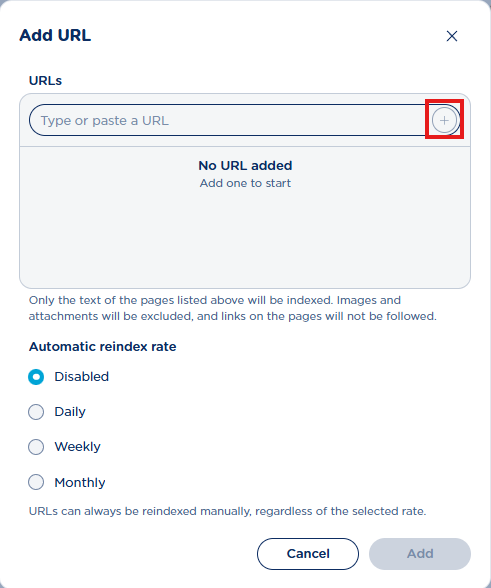
You can enter up to 20 public web URLs and add them to the list by hitting + button. Once done, you can decide how often those web pages are refreshed to update their indexed content. You can also leave this option Disabled and manually reindex their contents from time to time by hitting the 
Imagicle AI Receptionist does not “crawl” each web URL added to the KB. It scrapes the text content of the provided web pages and does not follow child pages to retrieve more content. Therefore, adding a sitemap page is ineffective.
It is also possible to add web URLs by selecting Import source (.CSV) and then click on “URLs“ radio button. From same popup, you can download the template, fill it in, and then upload it by clicking on “Import CSV”.
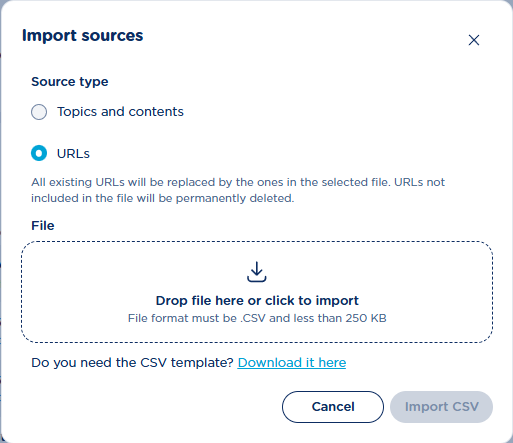
Each time a new CSV is uploaded, it replaces all existing URLs, including those created from the web page. It is therefore recommended to first perform an export (see Export options chapter), apply the desired changes, and then re-upload the file.
The following are not allowed:
-
entries without a web URL
-
entries without AutoReindex option →
disabled,daily,weekly, ormonthly
The CSV file must use the comma (,) as the field separator and double quotes (") as the text qualifier. If these guidelines are not followed, the upload fails. Be careful, especially if using Excel to populate the CSV.
As soon as a new URL content is added in the web interface, each web page appears in the KB contents list as a separate line, to be processed and indexed for a rapid content match during the AIR conversation. During the processing phase, each entry’s Status displays a “Pending” label. Once the status changes to
If, for any reason, the URL can’t be processed, a
KB Content Search
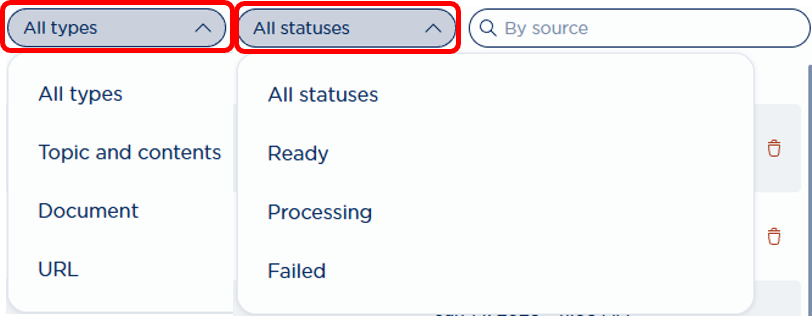
You can perform a text search across al KB contents by leveraging relevant top-right search fields.
-
You can apply a filter by KB type: Topic & contents, Document, URL
-
You can apply a filter by Status: Ready, Processing, Failed
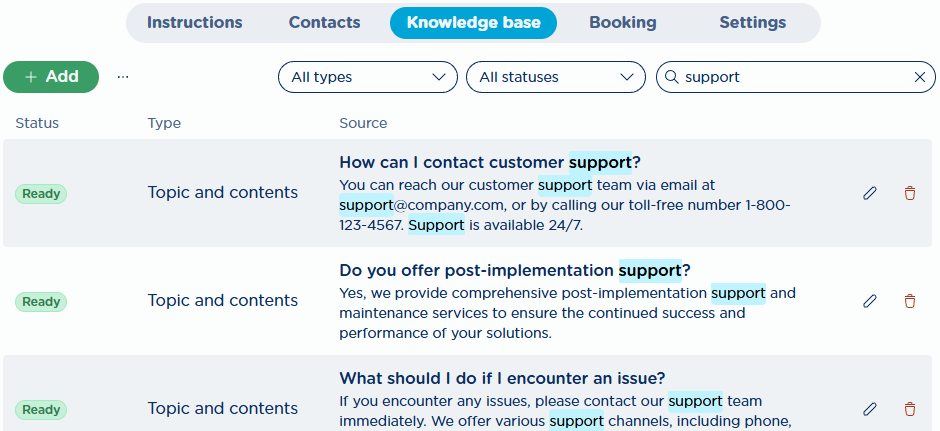
Moreover, a free text search allows searching within topics, contents, URLs, or the document file name. Clear the field to show the full list again.
-
-
Results update automatically, starting from the first character
-
A loading spinner appears inside the search bar to show it’s working
-
Matched text is highlighted in the results
-
it is case-insensitive
-
it matches from the beginning of each word
-
you can enter a maximum of 12 space-separated words
-
the search uses AND logic (all words must match))
-
KB Export options
On top-left of Knowledge base panel, you might find a 3-dots button besides
-
Export topics and contents
-
Export URLs
-
Delete all sources
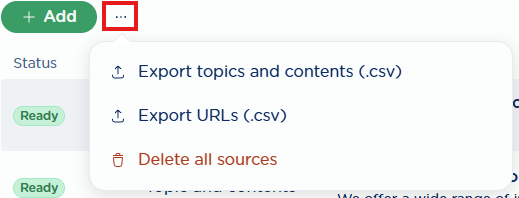
First two options are self-explaining: they generate a CSV file including relevant items in the KB contents list.
The latter option allows to wipe out the whole KB contents list. A confirmation dialog is displayed first:
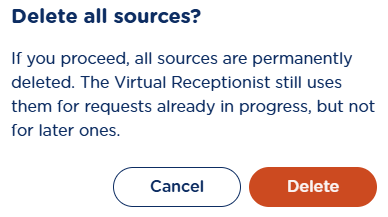
Hit Delete to confirm.