
User's Details
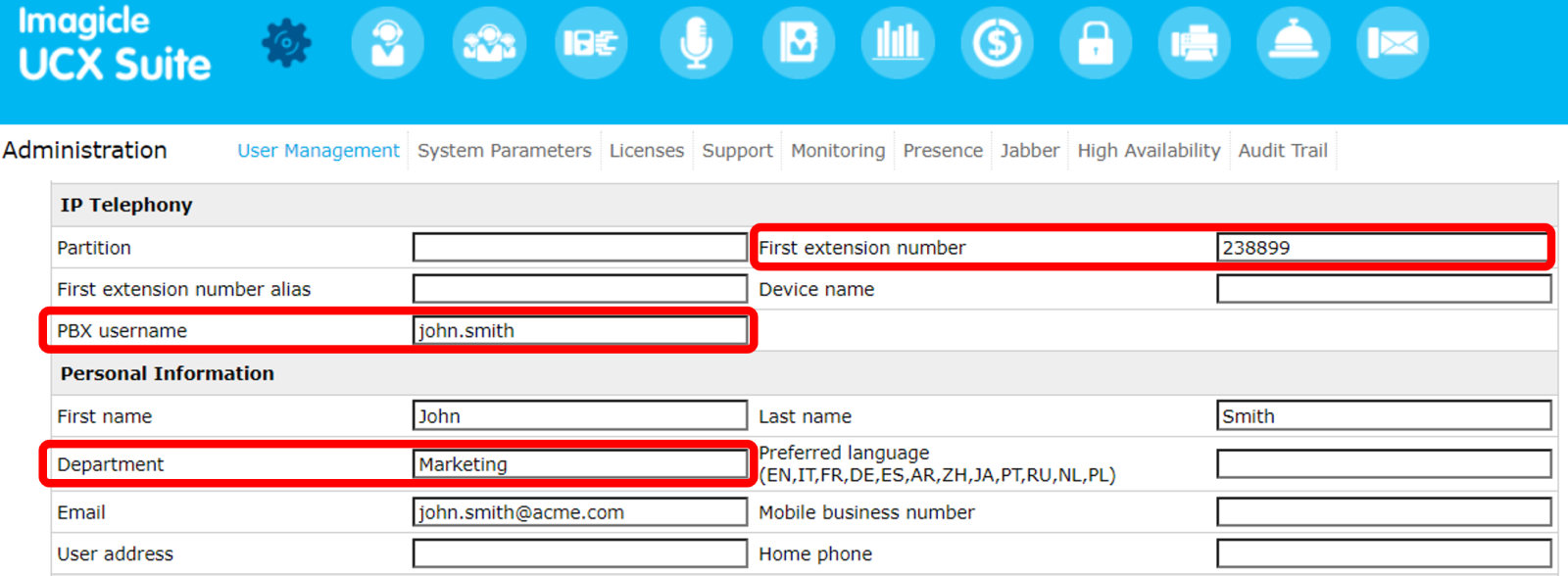
For each UCX Suite user accessing Contact Manager directories, the First Extension Number and PBX username fields must be filled in the User Configuration form. The "Mac Address" might be required on some telephony systems.
You can access the User Configuration from web interface by clicking "Admin ⇒ User Management", selecting a user and the pressing the "Modify" pencil icon.
If you plan to add department directories, you must assign the user to a department, by filling the relevant field. The value must exactly match the Department field entered while creating the directory. See also this KB for further details.
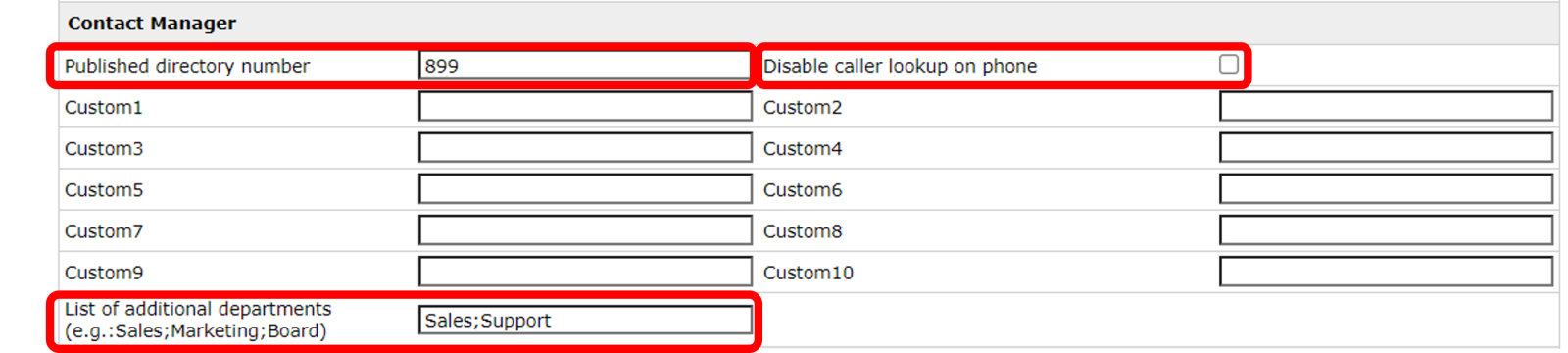
If you want to allow a user to access the directories of more than one department, please add them in the List of additional departments field, separated by semicolon ";".
If you fill other particulars, such as home phone, office location… they are included in the directory of internal contacts. This directory can be accessed either by Contact Manager web search or through Imagicle Attendant Console. The only way to edit those directory contacts is through User Management.
You may want the user to be displayed with a different number whenever you search for it (e.g. in Advanced Queuing lookup, on the Attendant Console, in web searches, Caller ID lookup, ...). If that's the case, in the Published Directory Number field, you can enter the number you want to be displayed in place of the first extension.
-
If you want to hide the user, enter a dash "-" in the Published Directory Number field.
-
If you want the First Extension to be excluded from the Local Contacts directory, but you still want to include other numbers (fax, mobile..) enter a hash "#" in the Published Directory Number field.
A flag named Disable caller lookup on phone allows, if checked, to avoid showing Caller ID upon inbound calls on IP phones/softphones. This is to grant a higher privacy level to managers or CEOs.
User's Permissions
Once above users' details have been set, you can review the user's permissions. The following access levels are available:
-
No access - User has no access to directories and Caller ID features
-
View Directories - The user has read-only access to public and department directories. Full access to Personal directories.
-
Edit Department Directories - Same as View Directories, but the user can edit the directories of own department from web portal, IP phones and Imagicle gadgets.
-
Edit All Directories - Complete read / write access to all public and department directories.
-
Complete Management - Complete access to all the public and department directories. The user can also access to "Manage service" menu to tweak global settings and stop/start the Contact Manager service.
Each user can interact with the directories based upon the directories parameters specified hereafter:
-
Directory Type: public, department, personal, local (including synchronized directories)
-
If the Directory is meant to be modified by anyone, that is adding, editing and removing contacts
-
User Permission Level for the Contact Manager application, which is set in the User Management
-
Department the user belongs to
-
Department to which the directory has been assigned