
Offline activation on Imagicle Licensing Portal
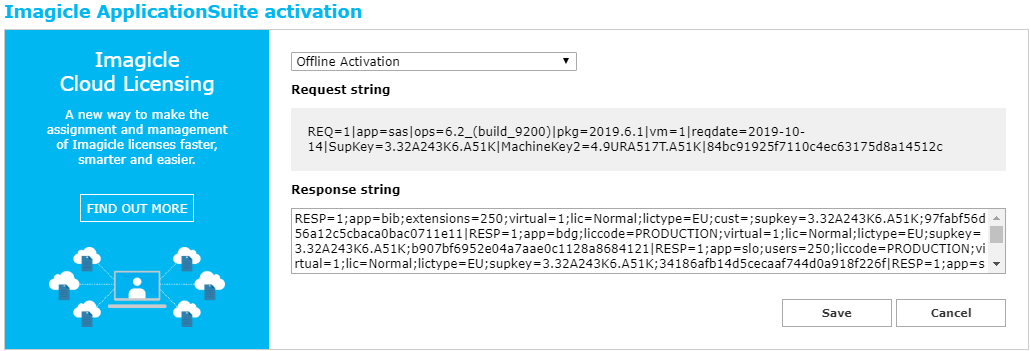
First you need to retrieve the Request String from UCX Suite’s Licenses web page.
Then you can generate the "Response String" from Imagicle licensing portal, by entering License Code (provided by Imagicle) and above Request String.
Once you have the string, pls. enter it in the relevant field "Response String". Hit Save to enable licenses or Cancel to go back to initial license screen.
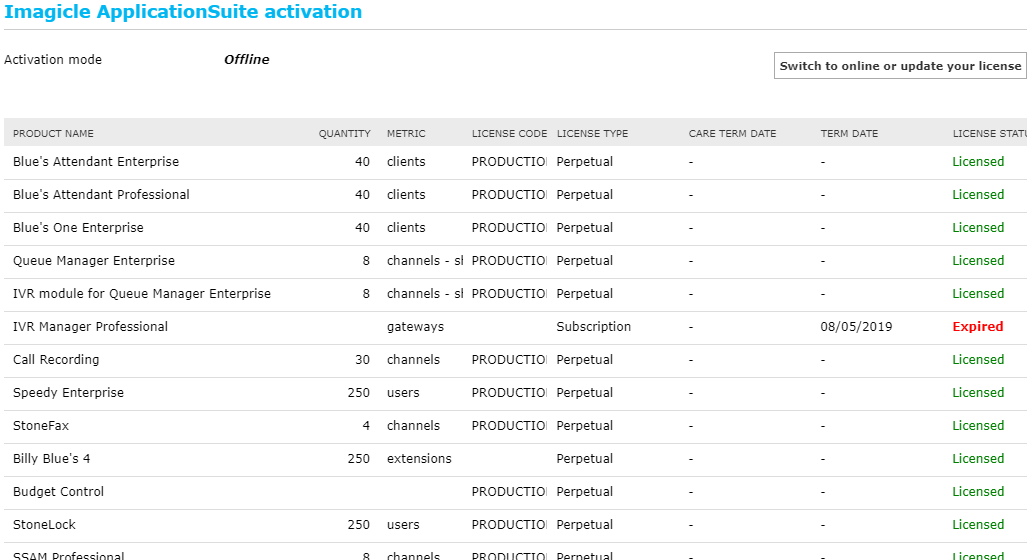
If activation is successful, you are redirected to initial license page, which now shows:
-
Activation Mode: Offline
-
A "Switch to online or update your license" button which allows to change activation mode or add/remove licenses by updating the Response String.
Limitation
-
CARE TERM DATE field is empty, when offline activation is selected. It might include outdated information
-
While updating to latest UCX Suite, from an existing, production 2019.Spring.1 or older release, resulting activation mode is Offline. No need for further activation activities.
-
New UCX Suite installations are configured by default with Online activation.
-
"Licenses" web page is accessible to Admin users only, with level 10 permissions (Complete Management)
-
If an empty Response String is configured, all active licenses are removed. If you are within evaluation period, it doesn't make any difference. To re-activate the node, please enter previously removed valid Response String.
Offline-only Licensing (available up to Imagicle 2019.Spring.1 release)
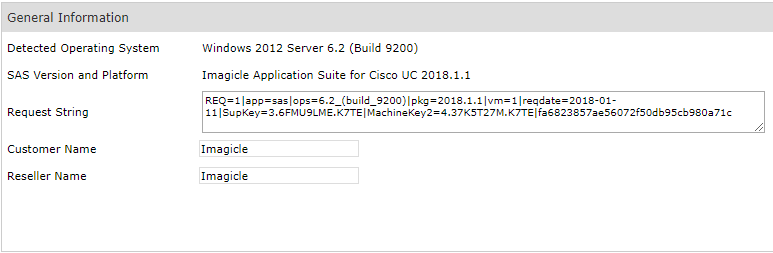
Prior to Imagicle 2019.Summer.1 release, Admin ⇒ License web portal menu includes the following details:
-
Request String
-
Customer name
-
The list of all applications, with relevant license code, status and size
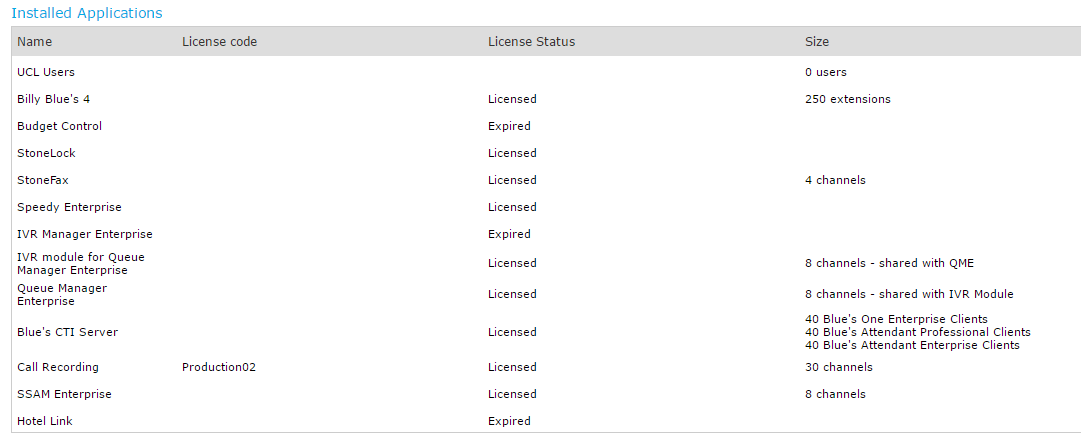
"Response String" fields are available, and they must be filled one-by-one with the string provided by Imagicle team for each application you need to activate, like below screenshot sample:
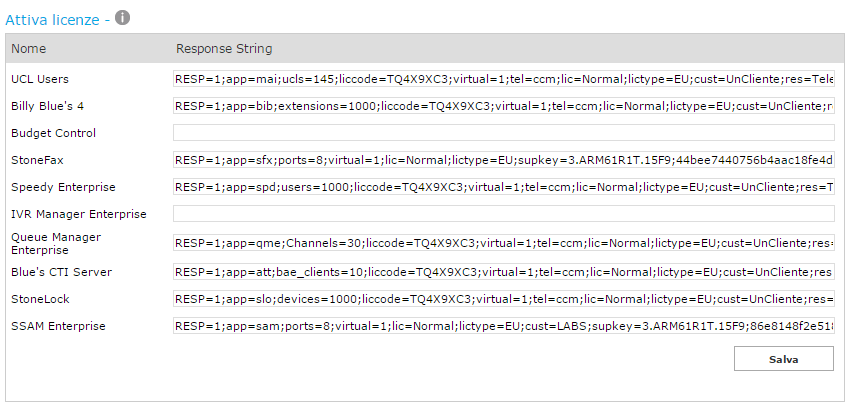
Hit Save to enable licenses.