
This important web page included into UCX on-prem Suite’s Administration menu, allows administrators to access the details of installed UCX Suite release, including hardware resources, enabled licenses, SQL Server version, hard disk size and more.
From this web page, the admin can directly open a Tech Support case and provide all required data for troubleshooting.
When you hit Support from ADMIN menu, the following page appears:
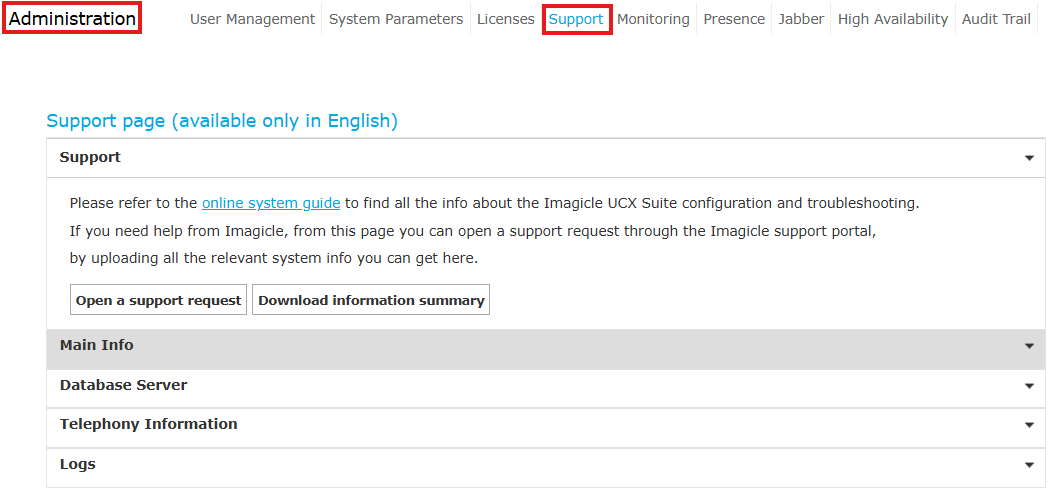
As you notice, this page includes 5 sections, described in below paragraphs:
Support
This section includes a link to Imagicle online Knowledge Base (you are in it now) and it includes a button to open a support request. This button redirects to Imagicle Help Center web site, from which you can open a new case. Before doing so, please make sure you have an ongoing ImagicleCare maintenance plan subscription, otherwise you are not entitled to contact Imagicle Support.
When you open the case, please provide a detailed problem description and attach the Information Summary downloaded from this section. These details are already included in any log file.
Main Info
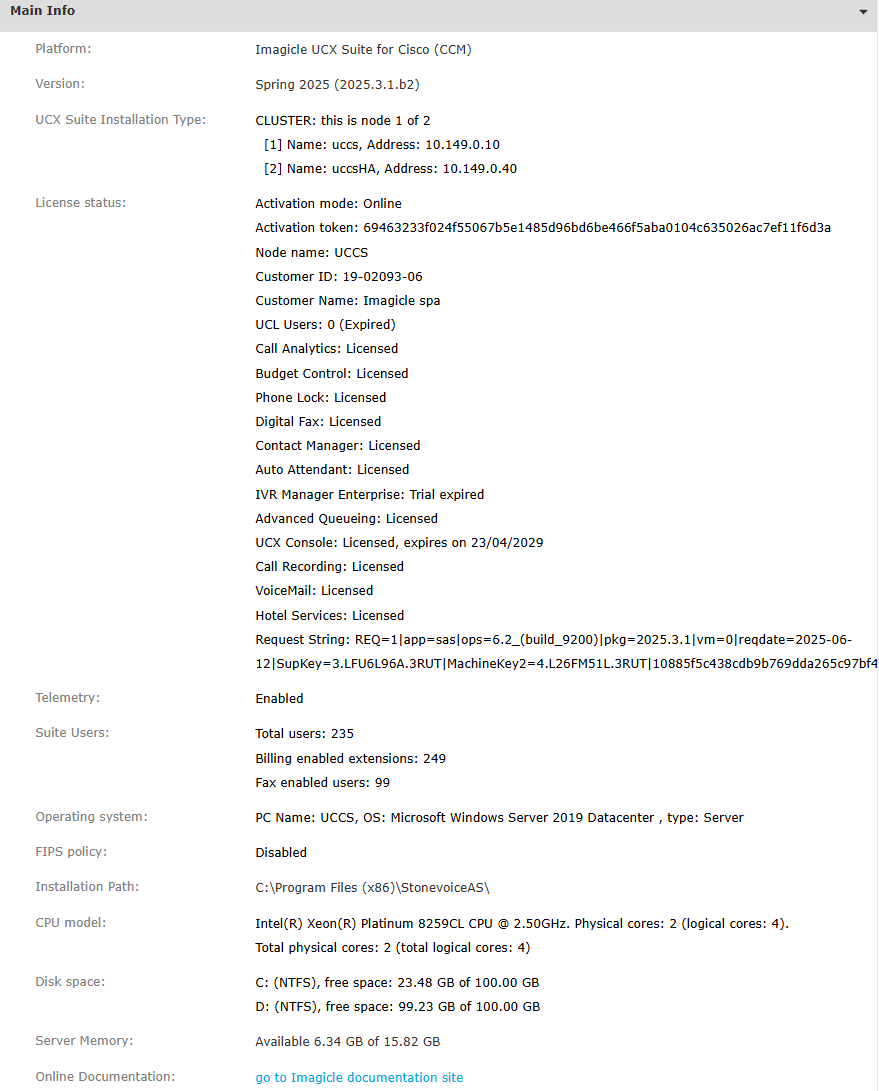
This section displays same UCX Suite summary data you can download from previous section. As you can see in below sample, it includes several details:
-
UCX Suite release
-
HA Cluster details (if enable)
-
Licenses status
-
Telemetry diagnostics data sent to Imagicle (if enabled)
-
Imported/configured users
-
Windows OS version
-
Installation path
-
CPU/HDD/RAM associated to the actual or virtual server
Database Server
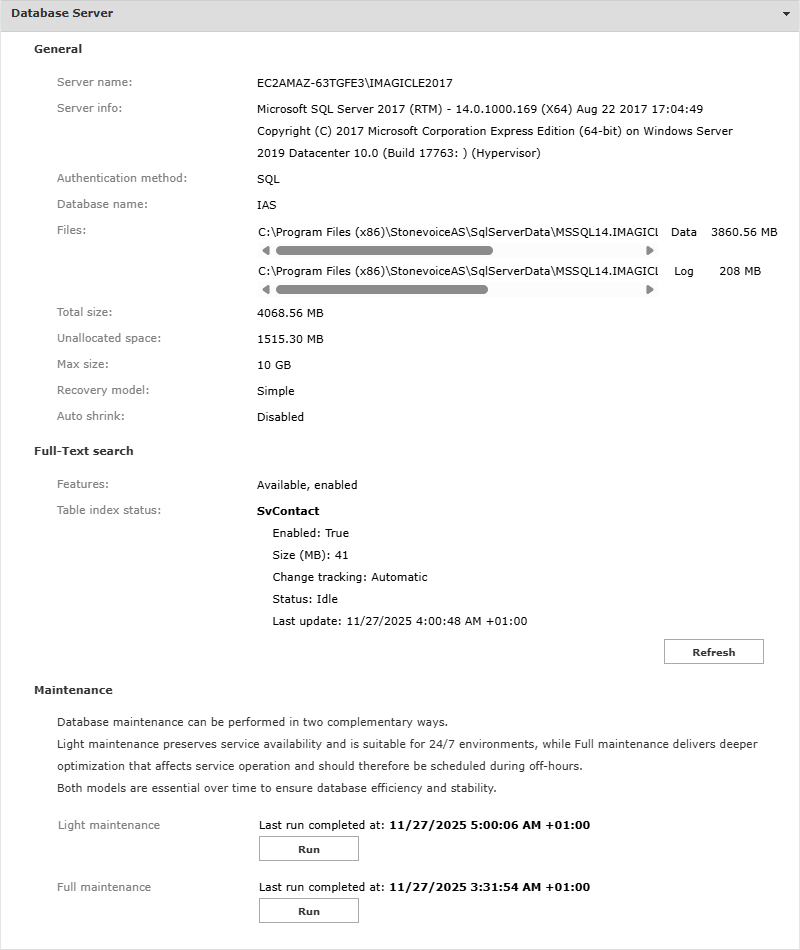
This section displays all details related to MS SQL Server database in use by Imagicle UCX Suite. As you can see in below sample, it includes several SQL details:
-
SQL Instance name
-
SQL Server version and license type
-
Authentication: local user or Windows-based
-
DB name: by default “IAS”
-
SQL Server main files size and path
-
Used/unused DB space
-
Max DB size (when leveraging SQL Server Express Edition)
-
Full-Text search indexing enabled or disabled: this is useful for Contact Manager’s directories fast search across thousands of contacts.
-
Database Maintenance: This tool allows to reallocate DB space within your SQL instance, to increase available space and query performances. A “Light” maintenance routine is automatically executed on a daily base (by default, at 5:00am). A “Full” maintenance routine is also available, to be periodically executed when you are experiencing a performance degradation. Please bear in mind that Full DB maintenance must be executed outside working hours. Please contact Imagicle Support for more details.
Manual DB maintenance execution
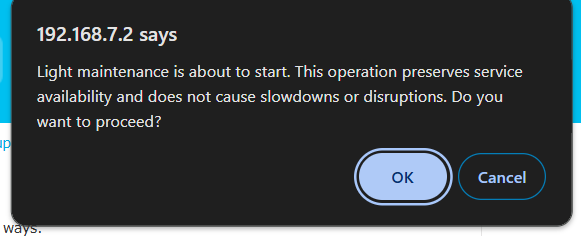
If required, both DB maintenance routines can be manually launched by the Administrator.
When launching the Light maintenance, you get the following confirmation dialog:
Full maintenance triggers the following dialog:
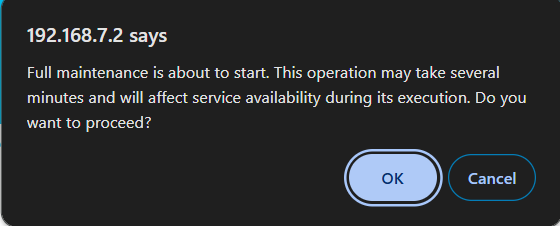
Please consider that DB maintenance executions are mutually exclusive, so if a routine is already in progress, you can’t start a new one, regardless of the type.
Telephony Information
This page is relevant to Cisco UCM integration only. It displays PBX End Users and phone devices counters retrieved by Imagicle Application User via AXL protocol.
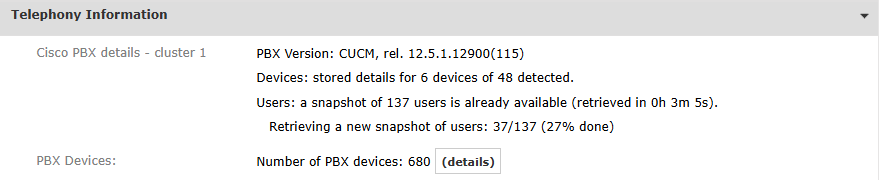
Imagicle UCX Suite continuously polls Cisco UCM to retrieve users and devices, so if you periodically refresh this section, you can monitor in real-time the amount of retrieved users/devices.
The detailed list of all retrieved Cisco Phone Devices is accessible by clicking on (details) button:
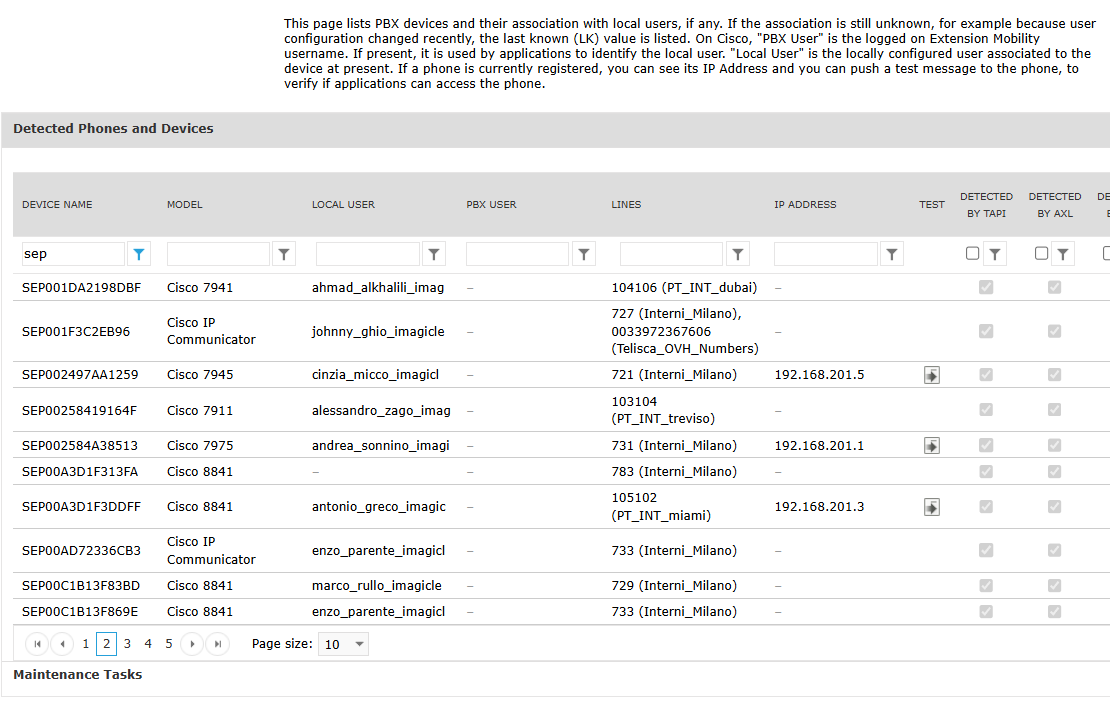
This list shows the proper correlation between CUCM (PBX) username and Imagicle local user, together with http reachability (TEST button) and AXL/TAPI detection.
A Maintenance Tasks section allows to manually clean-up above phone devices list and restart devices collection from scratch.
Logs
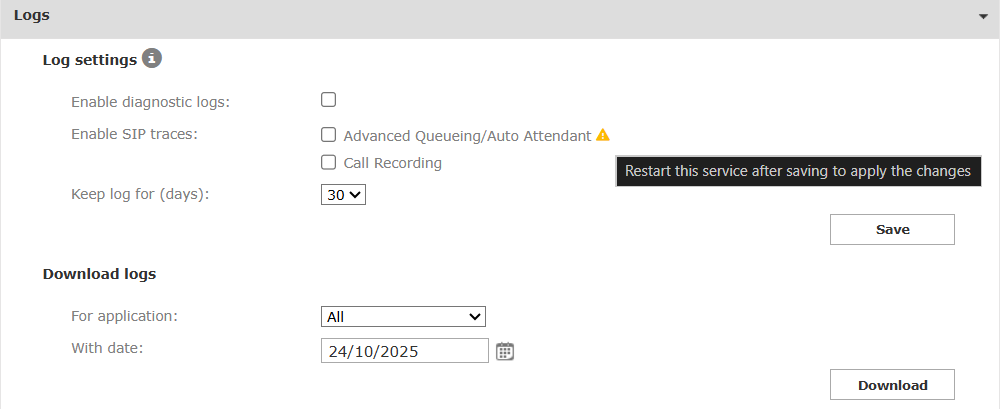
If you are encountering any type of issues related to Imagicle UCX Suite applications and services, you can enable diagnostic logs from this section:
Log settings
Please be aware that UCX Suite is always creating logs about own apps. If you wish to report a problem to tech Support, please enable verbose logs by checking the flag.
If you need to monitor SIP signaling transactions for Advanced Queuing/Auto Attendant or Call Recording, you can also check relevant flags. If a yellow icon is displayed, you must restart Advanced Queuing service from relevant menu option.
If you need to observe UCX Suite behaviors for a certain number of days, you can select relevant logs retention. Hit Save to start collecting verbose logs and then try to replicate the encountered issue.
Please be aware that SIP traces are using a lot of HDD space, so enable them under Imagicle Tech Support guidance, for troubleshooting purposes only.
Download logs
If you manage to replicate the problem, you can download logs by selecting the application under investigation, together with the date when problem occurred.
When you open the Tech Support case, please attach “Information Summary” + collected logs ZIP file. Moreover, please provide a problem description including, if possible, the exact time of problem occurrence.
Please note that ZIP file can’t be opened by leveraging embedded unzip Windows feature. Imagicle decided to provide logs in this format for expert staff usage only, avoiding logs consultation by unskilled personnel.