
Voice Analytics Alarms Management
From any Voice Analytics web page, you can click on Alarms icon  to open relevant web page. See below screenshot sample:
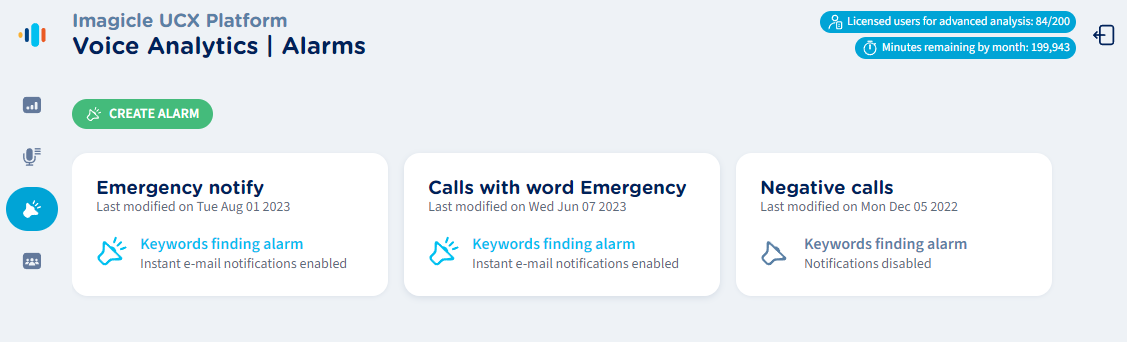
From this page, an Administrator can create, review, or delete own alarms.
Create a new alarm
By clicking on green “CREATE ALARM” button or by editing an existing one, the following pop-up windows appears. See below samples:
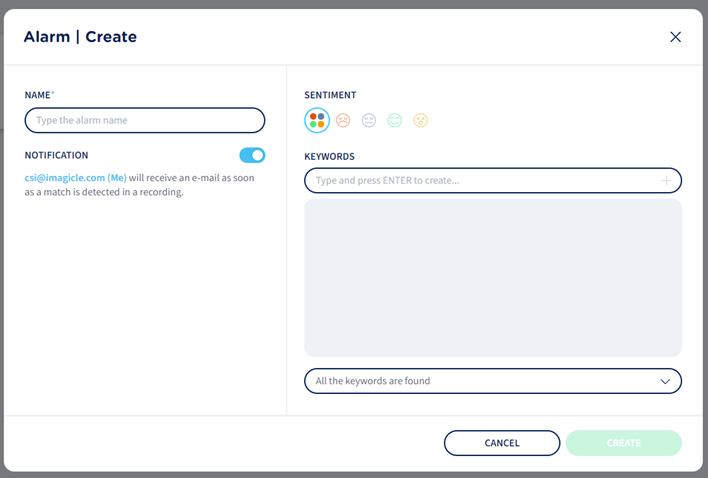
New alarm template
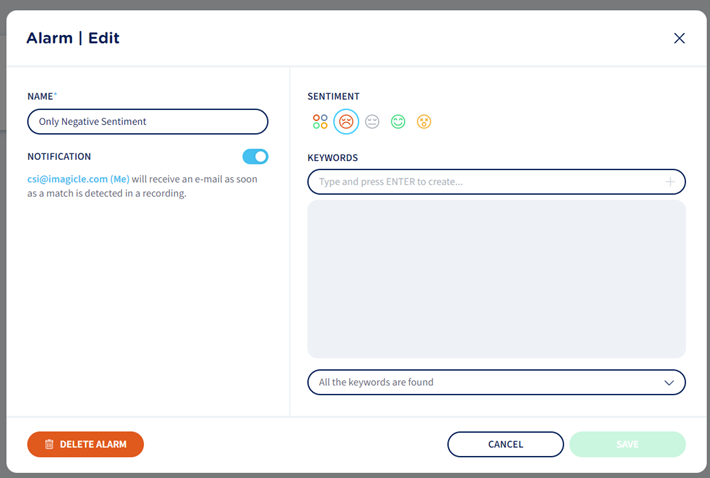
Edit existing alarm
Please enter an Alarm Name (mandatory), toggle “NOTIFICATION” switch to enable email notifications and select one or multiple sentiment moods where you need to get an alert, or just leave the default “All sentiments” option ( icon). Then you can add one or more words or sentences to be notified if they are included into transcribed recordings. Please hit <ENTER> or “+” to add each keyword or sentence into grey area or click “CLEAR ALL” to remove all keywords. Eventually hit “CREATE” or “SAVE” to save the alert.
You can also choose how keywords/sentences are matched within transcribed conversations, by selecting desired matching criteria from relevant pull-down menu:
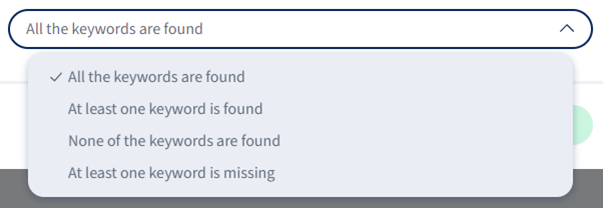
Minimum keyword length is two characters and it can’t be duplicated. Search is case insensitive.
It is not possible to add space(s) at the end of a keyword or sentence.
If you are transcribing English or German conversations, you can enter numeric values into keywords/sentences and they are correctly matched. This is not true for other languages, like French where “2” is different than “deux”.
Alarm notification
If there’s a match at sentiment level or keywords/sentences level, then an email notification is sent to the Administrator who entered the alarm. Two typical email notification samples are shown below:
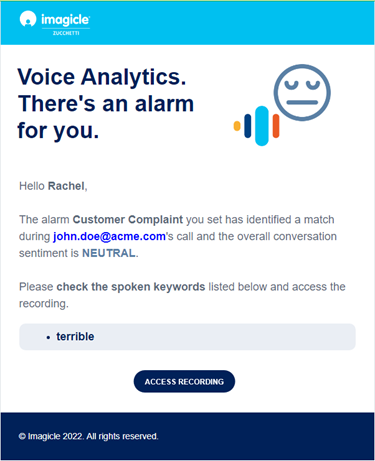
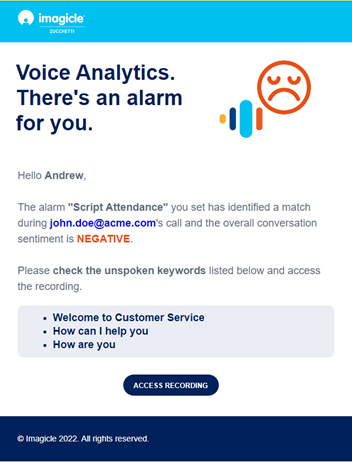
If multiple alarm rules are matched (also within same conversation), you respectively receive multiple email notifications.
You can click on “ACCESS RECORDING” button to open Voice Analytics web portal to the Recording Transcription page, related to involved recording.