
Skip table of contents

Imagicle Call Recording Admin Guide

The access to Imagicle Call Recording is available within Imagicle UCX Platform web portal by selecting relevant option, as highlighted in below screenshot. By leveraging their standard login credentials, with or without SSO, each user accesses the UCX Platform web portal with own, specific permission level.

Username is always the email address. If your company is leveraging Single Sign-On authentication, then your login is redirected to your Identity Provider for multi-factor authentication, where applies.
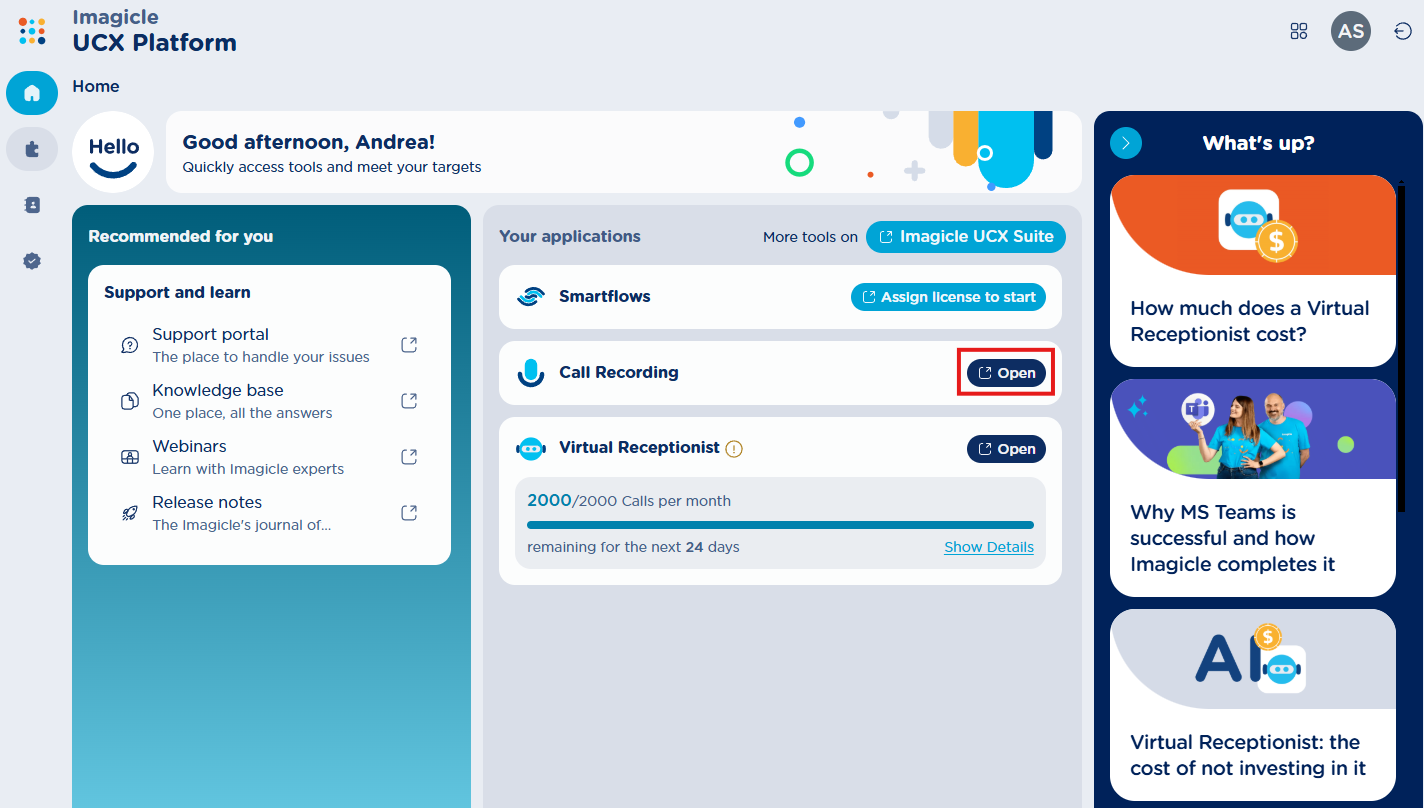
image-20250807-144454.png

Based on your job function, you can have access to Call Recording interface as Administrator or standard User. Administrator can provision new users and view/listen to all recordings, while a standard user can view/listen to own recordings only.

Call Recording Dashboard

Once authenticated, user accesses to Call Recording Dashboard page, which shows statistical data about the users’ behaviors, in terms of volume of recorded calls and relevant duration. Below you can see an Imagicle Call Recording Dashboard sample:

image-20250807-145443.png

On top page header, you can apply multiple filters on collected conversations:

  • Date filter → Filter by a predefined time interval or by a custom date range. See below:

image-20240708-075206.png
image-20240708-075659.png
  • Users’ filter → Allows to apply a filter to consider recorded conversations performed by specific users only. See below: 

image-20240708-075829.png
  • Funnel icon  image-20240708-075936.png → to remove all configured filters.

 Analyzed data involves all selected users and it provides three “widgets” including different data:

Overall Recording counters

Left side panel displays overall number of recorded conversations, split in a slider graph by inbound (cyan) and outbound calls (green).

Below these counters, you can find the average call duration.

Below average call duration, you can find the total number of recording users and how many of them have recorded conversations (green).

Call Trend

This widget includes a graph representing recorded calls trends of those conversations included in applied time frame, by volume and call duration selectable levels.

X-axis represents selected time frame, where a proper time unit is applied depending on filtered time range: hour, day, week, month. 

On top of the widget you can find two buttons, to toggle Volume and Duration graph patterns. 

COMPARE switch on top-right allows to show or hide trend patterns related to previous adjacent time frame. Previous time frame trend patterns are displayed with light blue bar chart for Volume and dotted line for Duration. If you hoover mouse pointer on this widget, additional data is displayed: 

  • Applied time frame and adjacent previous time interval, considered to display relevant trend patterns.

By double-clicking on any Volume or Duration graph bar/line, you are redirected to the Recordings page, where the list of recordings relevant to the graph item is displayed.

Call Volume/Duration variations

Two widgets are included in the right side of the Dashboard, to provide the variation between selected time period and previous adjacent period. This is useful to understand the users' behavior in terms of number of recorded calls and relevant calls duration relative incremental data.

Users by Call Volume/Duration

Two additional widgets are included in the Dashboard, to provide:

  • Users by Call Volume → List of users sorted ascending/descending by amount of recorded calls. Info ballon help are available to display the amount of incoming/outgoing call counters.

  • Users by Call Duration → List of users sorted ascending/descending by total recorded calls duration. For each user, average call duration is displayed too.

COMPARE switch is available in both above widgets, to show or hide volume/duration data related to previous adjacent time frame. Previous time frame variations in percentage are displayed in cyan.

You can click on any user’s entry, to be redirected to the Recordings page, where the list of recordings relevant to that user is displayed.

Other menu options

On left-side bar, four options are available:

  • image-20240708-080629.png → to access recordings dashboard (default landing page)

  • image-20240708-080655.png → to access recorded conversations list

  • image-20240708-080745.png → User Groups management

  • image-20250807-153403.png → to access Call Recording settings

 On top-right corner, you can find two icons:

  • image-20240708-080808.png → Logout to UCX Platform

  • image-20250807-153624.png → Switch to another UCX Platform application

Recordings Page

Next available menu item is Call Recording’s Recordings page, which shows the list of all available recordings performed by one or multiple users. Below you can see an Imagicle Call Recording’s conversations page sample:

image-20250807-155322.png

For each recording entry, the following data is available:

  • Dir → Call direction:image-20250808-083620.png= Inbound; image-20240708-081238.png = Outbound

  • From → Calling Party name or phone number

  • To → Called Party name or phone number

  • Date & duration → Date/time stamp, call duration

  • Info → Icon image-20240708-081830.png indicates that a text note has been added to this recording; Icon image-20250807-155438.png indicates that the recording has been tagged for a longer retention (legal hold)

  • Tags → Matched tag(s) inside the conversation

On top page header, you can apply filters on conversations list, similar to those highlighted in Dashboard section:

  • MORE FILTERS → allows to apply additional search criteria across all recordings. See below: 

image-20250807-155824.png

  • This is the native recording identifier coming from the Calling Platform.

  • This is the unique recording identifier assigned by Imagicle UCX Platform.

Recording details & playback

From Call Recording’s Recordings page, you can click on any available recording to access relevant details page, embedding an audio player. See below screenshot sample:

image-20250808-073259.png

Recording summary header

The following options are included in top header:

  • image-20250808-073343.png→ Legal hold button, to enable additional recording retention.

  • Recording date/time stamp and duration

  • Call parties names and/or phone numbers

  • image-20250623-090109.png → Info button to display recording metadata and download recording audio

  • image-20250807-160928.png → Download recording audio button

  • image-20250808-082902.png → Delete selected recording

Recording Metadata

Immagine 2025-06-24 112855-20250624-092900.png

Metadata tab

  • Recording technology → indicates the Calling Platform is use. This field determines the type and structure of the platform-specific IDs associated to each recording.

  • Calling platform ID, → Displays the identifiers associated to each call, depending on the recording technology. It helps matching the recording between Imagicle Recorder and the native calling platform. If no data is available for a specific field, a dash (-) is displayed.

  • File digest (SHA256) → Displays audio recording checksum value, to make sure nobody has modified its content.

Download tab

To download audio recording in MP3 unencrypted format.

Immagine 2025-06-24 113110-20250624-093114.png

Audio Player

Under recording summary header, you can find a graphic pattern representing audio recording over a blue background. This is actually an audio player, which allows to listen to the whole recording content.

Notes and Tags

Note panel allows the user to add a text note indicating the subject of the conversation and other valuable information. This note is searchable from Recordings page.

Tags panel allows to add specific tags to the recording, for an easier retrieval of several recordings matching one or multiple tags.

Call Recording Groups Management

From any Call Recording web page, you can click on Groups Management icon image-20240708-080745.png to access relevant web page. See below screenshot sample:

image-20250808-065851.png

From this page, an Administrator can create, review, or delete users’ Groups.

Create a new Group

By clicking on green “CREATE GROUP” button or by editing an existing one, the following pop-up windows appears. See below samples:

image-20240708-122124.png

New Group

image-20240708-122201.png

Edit existing Group

Please enter a Group Name (mandatory), and select the supervisors for this group, out of existing UCX Platform users. Then you can add one or more group members, again selected from existing UCX Platform users. Eventually hit “CREATE” or “SAVE” to save the Group.

Call Recording Settings

From any Call Recording web page, you can click on Settings icon image-20250807-153403.png to access relevant web page. See below screenshot sample:

image-20251027-135130.png

Audit Logs

Audit Logs feature collects and stores detailed information about key actions performed by user and administrators, including timestamps, user identity, IP address, application context, action type, and specific operation details.

All above actions are stored in a CSV file with format (text/csv), including the following columns:

Column

Description

Date

UTC timestamp of the action (YYYY-MM-DD HH:MM:SS +0000 UTC)

Email

User email address performing the action

IpAddress

Client’s IP address

AppName

The application where the event occurred (e.g. UCX Platform, CallRec/Voice Analytics)

ActionType

The specific event type (e.g., GetCallsTrend, DeleteRecording, DownloadCsvAudit)

Details

Additional descriptive info about the performed action (filters, IDs, etc.)

Top CSV header line includes the field names:

Date,Email,IpAddress,AppName,ActionType,Details

Available Actions Logged

The Audit CSV file includes all the following action categories:

Area

Example Actions

User Access

User’s login/logout of the UCX Platform; user changes their password.

Voice Analytics (Dashboard)

Admin or user views call statistics, explores call trends, checks overall sentiment, compares sentiment by user or party, or views user ranking dashboards.

Recordings Management

User searches or filters recordings, opens recording details, plays or downloads an audio/video file, or deletes a recording.

Notes and Tags

User adds, edits, or deletes notes linked to a recording; associates or removes tags from a recording.

Alarms Management

Admin creates a new alarm, updates alarm parameters (sentiment, keywords, etc.), reviews the alarm list, or deletes an existing alarm.

Groups Management

Admin creates, edits, or deletes user groups; modifies group membership or supervisors.

Licensing & Platform Actions

Admin grants or revokes Call Recording or Voice Analytics licenses; changes a user’s authentication method (SSO/password); sends user invitations to the platform.

Audit Operations

Admin downloads the audit CSV file for a selected time range.

Time Format & Filters

By hitting Download audit logs button, the admin can choose a time range to filter data before export.

All timestamps are represented in UTC.

image-20251027-135817.png
image-20251027-135912.png

Data Management

This section allows to setup the overall recordings retention period for all recording-enabled users. Typically, you can keep the default “Keep forever” value, because Imagicle provided unlimited storage within its Cloud. To adhere local regulations, you can set a maximum recording retention time in days or hours by clicking on Recording retention panel:

image-20250808-072046.png

In this section, you can also enable recordings tagging for Extra retention (legal hold). If you click on this panel, you can either disable the feature, enable it for an additional retention period in days or enable it for unlimited retention. See below sample:

image-20250808-072510.png

This rule is applied to those recordings which have been tagged by users for legal hold by hittingimage-20250808-073343.pngicon from Recordings page. Each conversation tagged for legal hold displaysimage-20250808-072846.pngicon on top header.

Microsoft Teams Recorder

This section allows to setup the MS-Teams Call Recording scope, such us call direction and traffic type, and populate a black list of phone numbers NOT to be recorded.

Recording filters

This panel enables administrator to decide which call types to be recorded at global level: Group/meeting and unparked calls, internal/external calls and inbound/outbound calls. See below:

image-20250916-120535.png

Recording blacklist

This panel allows to populate a table with phone numbers/ranges that you wish to deny the recording. The application applies the blacklist rule to both calling party and called party numbers. See below:

image-20250808-085446.png

Special wildcard characters can be added in each phone number:

  • + can be used at the beginning to indicate an international prefix (e.g. +39! excludes all numbers starting with +39);

  • * and # symbols, commonly used in telephone dialing;

  • X matches any single digit (e.g. 90XX excludes all 4-digit numbers starting with 90);

  • . matches any digit, *, or # (e.g. 90.. excludes numbers like 9012, 90*#, 901*);

  • ! matches any sequence of digits (e.g. 9! excludes all numbers starting with 9);

Recording policy

Recording policy defines whether recordings are automatic (always-on) or selective (on-demand).

The administrator can filter for the following value:

  1. Default Policy:

    • Always on → All user calls are automatically recorded;

    • On demand (default) → Users can manually start/stop their recordings.

  2. Recording limit for users with Always On policy - The administrator can choose a percentage value that determines what portion of calls will actually be recorded:

    • The available options range from 0% to 100% in increments of 5% (e.g., 0%, 5%, 10%, 15%, …, 100%)

    • The default value is 100%, meaning all calls for Always On users are recorded.

if 60% is applied, the system records 60% of the conversations of Always On users, including both those who inherit it through the default policy and those who have an explicit override set to Always On.

  1. Policy by User – Administrator can override above default policy for individual licensed users, by selecting an override value from pull-down menu:

    • Default

    • Always on

    • On demand

The user list is searchable by name, surname, or email. Administrator can filter the list by all users or users with overridden policies.

image-20251107-144449.png

Additional Content

JavaScript errors detected

Please note, these errors can depend on your browser setup.

If this problem persists, please contact our support.