From UCX Platform Admin Home Page, you can click on Users Management icon 
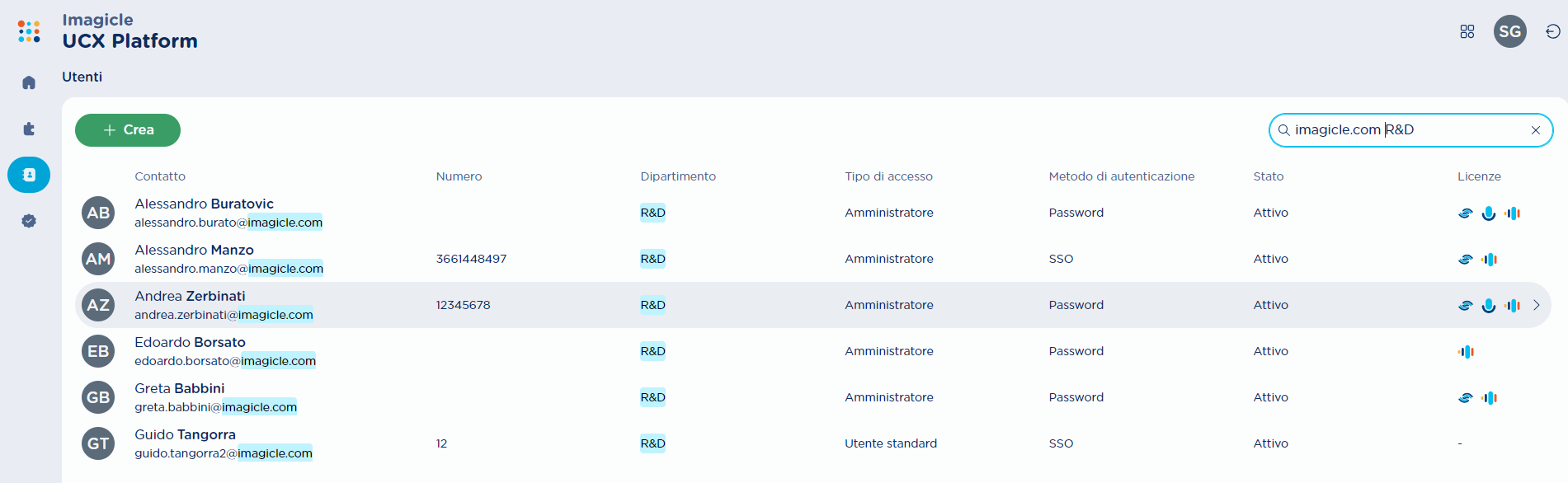
For each enabled user, the following data are available:
-
Contact picture → Picture coming from MS Entra ID, if relevant synch is enabled
-
Contact → User’s name, surname and email address (corresponding to username)
-
Number → Internal phone extension or SIP URI
-
Department → Optional department field
-
Location → Optional office location field
-
Access type → UCX Platform permission level: Admin, Standard user or No Access.
-
Authentication method → Password or SSO
-
Status → Active or Inactive user. User becomes Active when first web access is performed
-
Licenses → License assignment. Current options are the following:
-

-

-

-

-
If you are synching users against Cisco Webex Control Hub, you might find some users with a 
Search users
Search field is available on top-right and it allows to search users by:
-
First name
-
Last name
-
Email
-
Phone number
-
Department
-
Location
Search highlights matched terms in results, so you can immediately spot the relevance. Matching works even if your input is lowercase or partially typed. See below examples:
|
Search Term |
Matches |
|
|
|
|
|
|
|
|
|
|
|
|
Add or Edit user’s data
By hitting green + CREATE top button or by just clicking on any existing user, the user’s data window appears. See below sample:
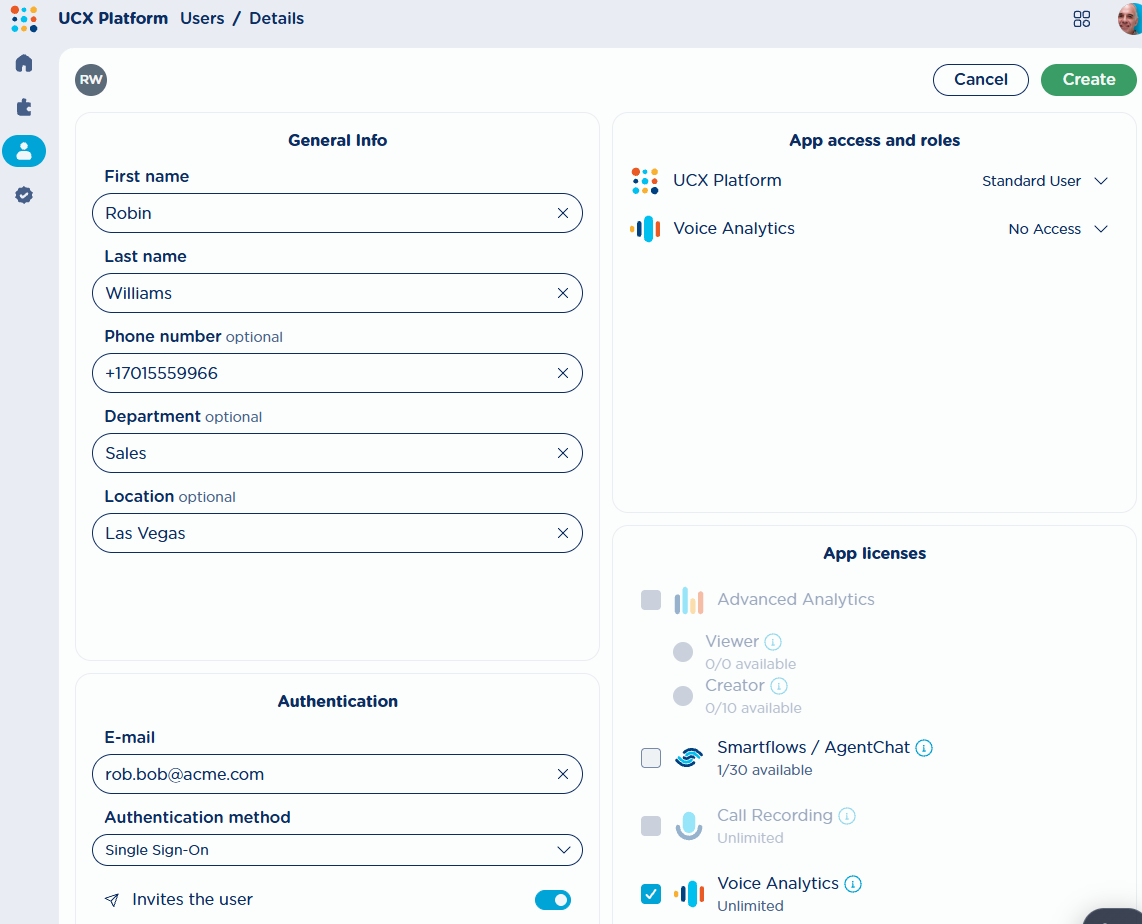
Above page includes the following items:
General Info
-
First Name/Last Name → user’s name & surname
-
Phone Number → Optional internal extension number or SIP URI
-
Department → user’s department (optional)
-
Location → user’s office location (optional)
Authentication
-
E-Mail → User’s own username/email address. Empty for synched Webex resources
-
Authentication Method → Password or Single sign-on
-
Invites the user → Toggle on this switch to send an email invitation to the user upon creation.
If you are changing the authentication method of an existing user, you can optionally send a new email invitation to the user by clicking the 
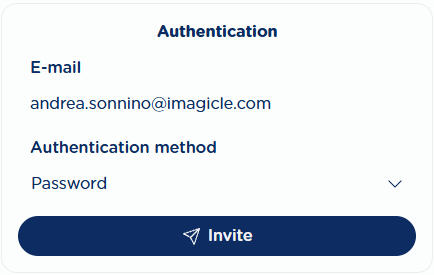
Before configuring users with SSO authentication, make sure that relevant SSO Integration has been accomplished, otherwise the users can’t login to the web portal.
App access and roles
For each licensed application, you can set the user’s permission level to: Admin, Standard user or No Access. By default, each user is set to:
-
UCX Platform → Standard User
-
Other apps → No Access
See below table for details about allowed actions per access type.
|
|
Admin |
Standard user |
No access user |
|
Own recordings CAN be transcribed and analyzed (admin can still disable such feature) |
YES |
YES |
YES |
|
Can query and access own recordings, transcriptions, analysis |
YES |
YES |
NO |
|
Can delete own recordings, transcriptions, analysis |
YES |
YES |
NO |
|
Can rate own transcriptions |
YES |
YES |
NO |
|
Can query and access all recordings, transcriptions, analysis |
YES |
NO |
NO |
|
Can access user management |
YES |
NO |
NO |
|
Can delete a user |
YES |
NO |
NO |
|
Can access the Dashboard |
YES |
YES |
NO |
|
Can apply a filter on own recordings in the Dashboard |
YES |
YES |
NO |
|
Can apply a filter on all recordings in the Dashboard |
YES |
NO |
NO |
|
Can create an alarm for specific sentiments or specific words/sentences within transcribed recordings |
YES |
NO |
NO |
App licenses
The user can be assigned to one or multiple purchased license, by just flagging the relevant options:
-
-

-
-

Some fields might be marked with 
Voice Analytics and Call Recording integration for Cisco/Avaya/MS-Team self-hosted requires same users to be configured in Imagicle UCX Suite (on-prem or Cloud), otherwise recordings automatic upload doesn’t work.
If a per-customer Voice Analytics license is activated, including an overall number of minutes available to all users, then users are already licensed by default upon creation. To save licensed minutes, the administrator can manually revoke some licenses assigned to selected users.
Delete a user
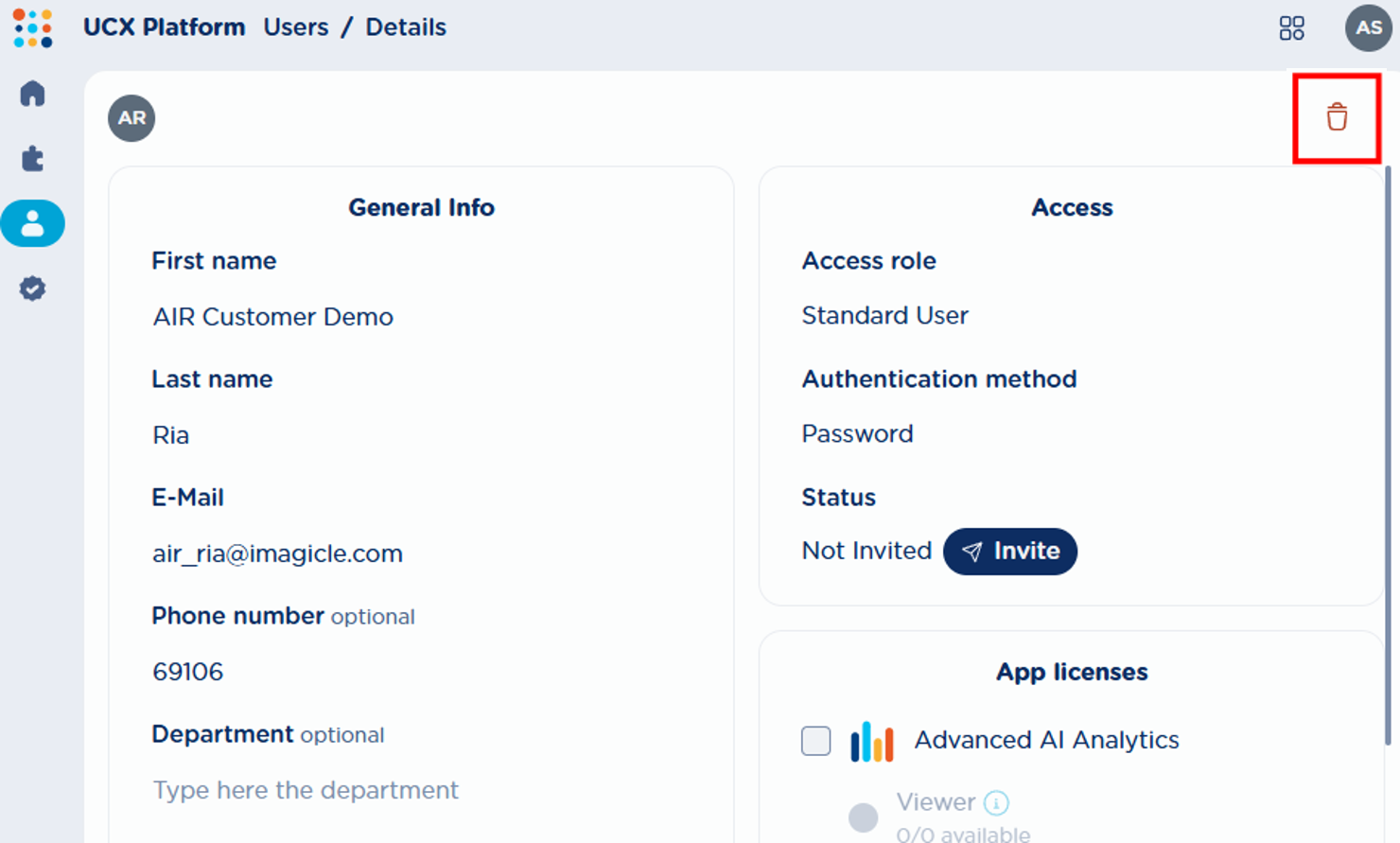
If you need to delete a user, just select it from users' list. Once user’s details appear on screen, you can click the top-right red garbage bin icon to delete it. See below screenshot sample:
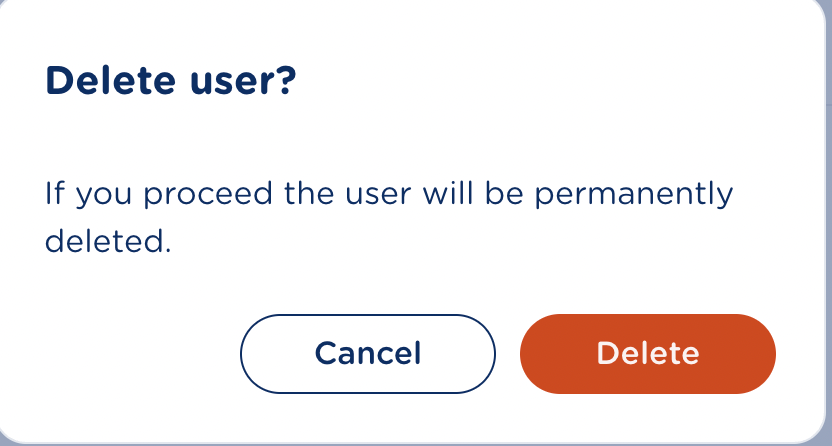
A confirmation dialog appears:
You can’t delete the following user types:
-
The user you are currently logged in to UCX Platform
-
Users synchronized against an external source
-
Resource users: Webex Virtual Lines, Workspaces, Queues, Auto Attendants, etc.
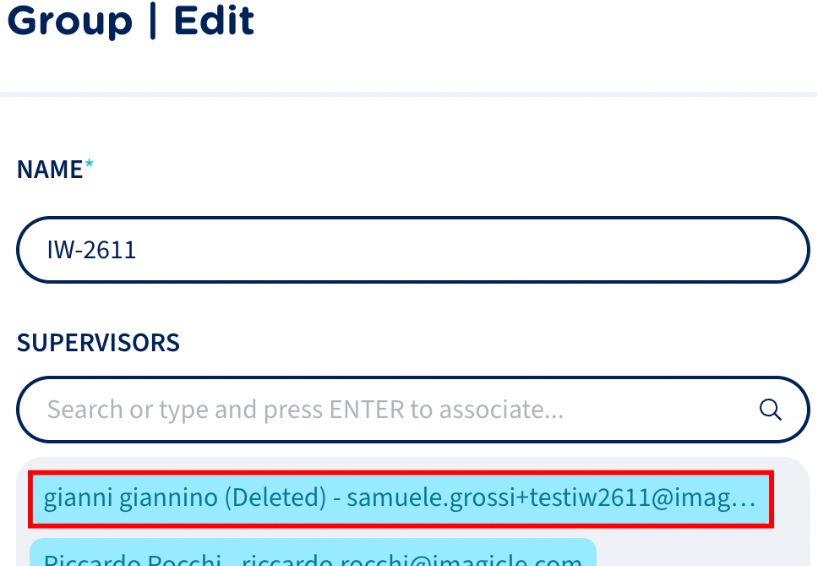
If deleted user has created an AI Receptionist or it has some recorded conversations or it is part of a group, then relevant artifacts are not deleted. they are just marked as associated to a deleted user. See below sample: