
Requirements
To enable Imagicle UCX Suite to retrieve Calendar information, leveraging Graph APIs-based OAuth2 authentication, you must configure an application on Azure Web Portal, taking note of Application ID, Directory ID and Client Secret data, needed later on while configuring this authentication method on Imagicle UCX Suite. Please find below the procedure.
Azure web portal configurations
Please access to Azure portal and go to "App Registrations":


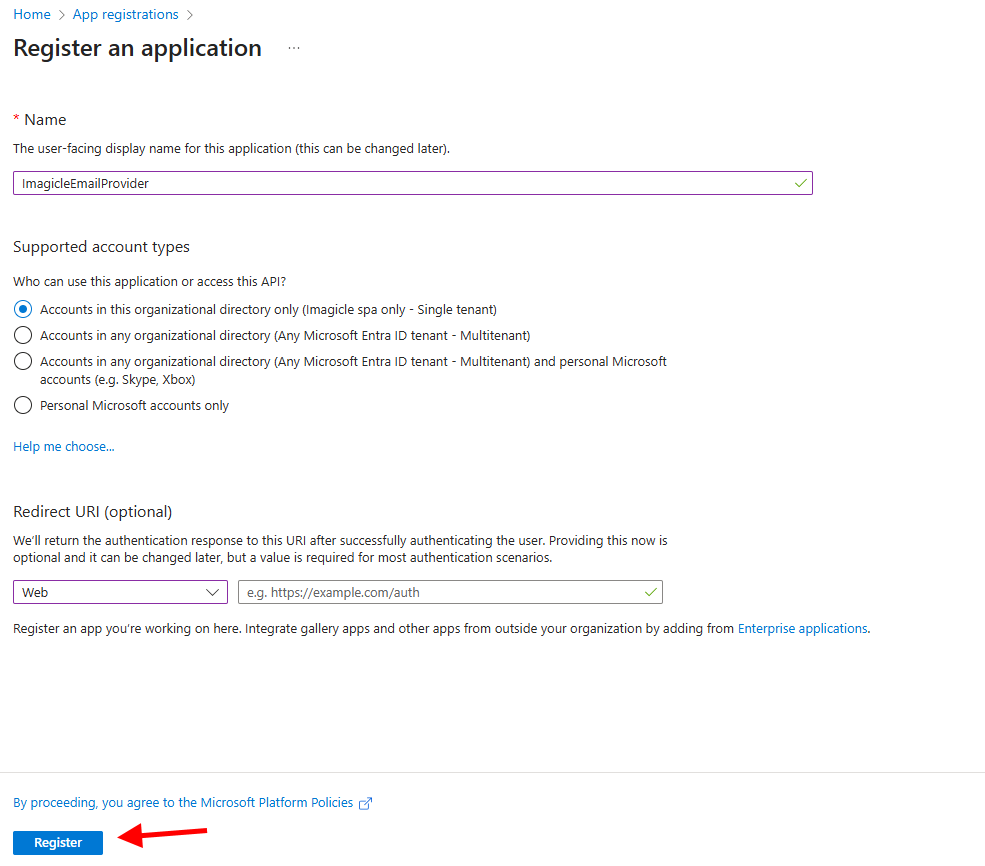
Click on "New registration" and add a name of your choice like "ImagicleEmailProvider". Then select "Accounts in this organizational directory only" and hit "Register"
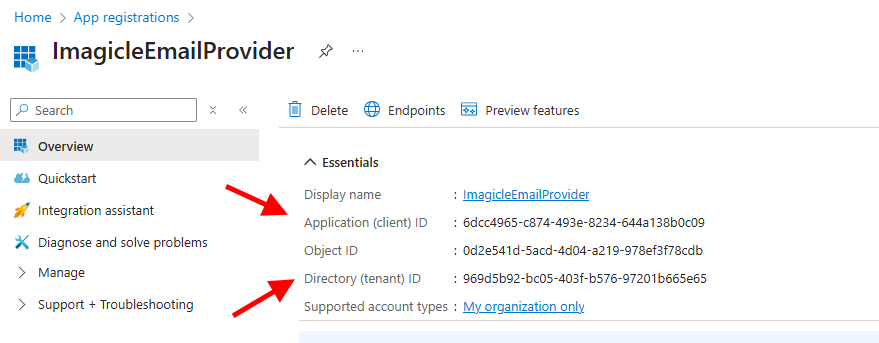
The following window appears, including Application ID and Directory ID. Please copy both data, for later usage.
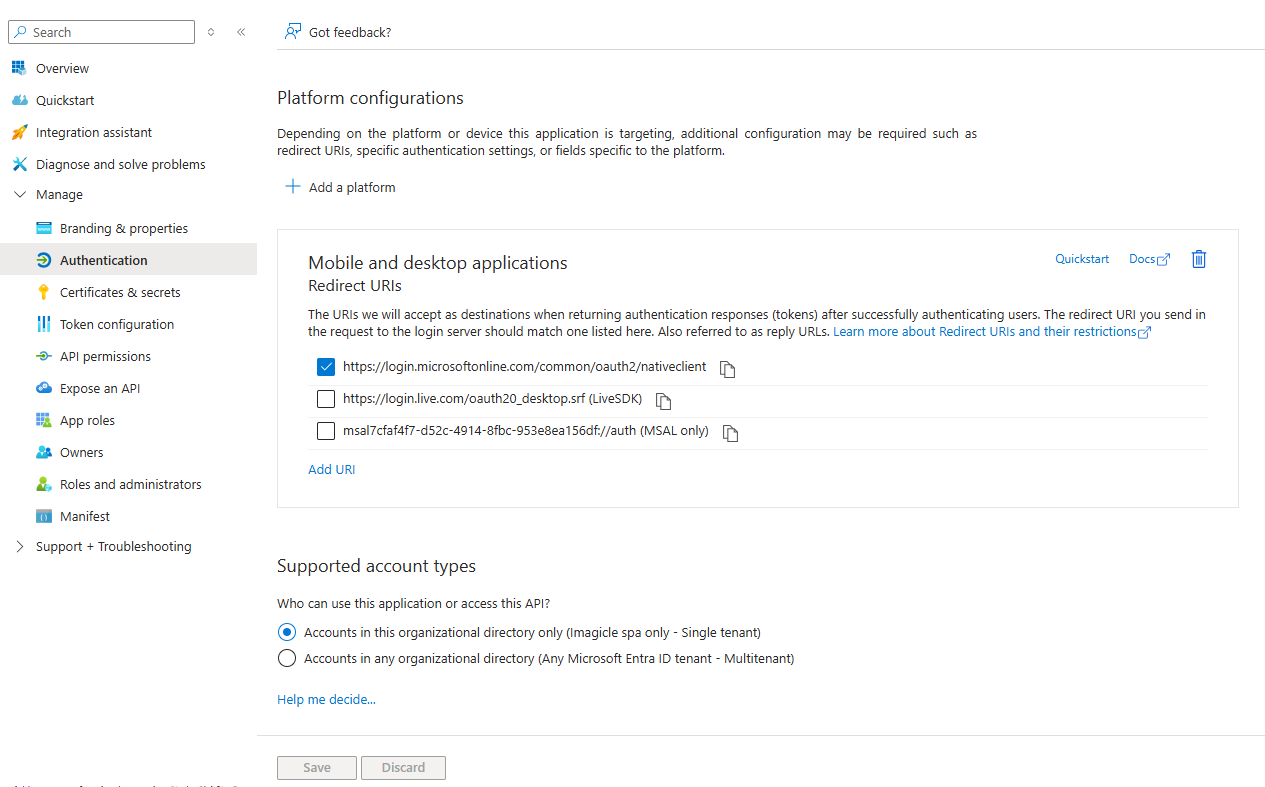
Click on left panel’s “Authentication” and select proper option as the following screenshot. Click “Save” once done:
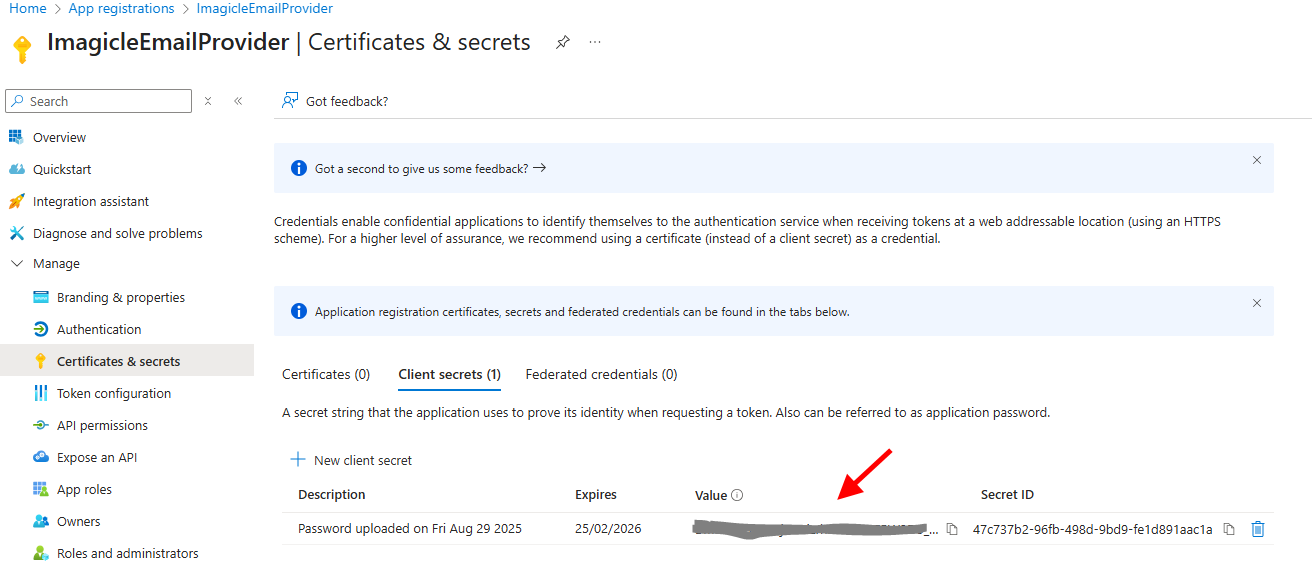
Now please click on "Certificates & secrets" option, included in left pane, and add a new "client secret" with the name of your choice and a long expiration period.
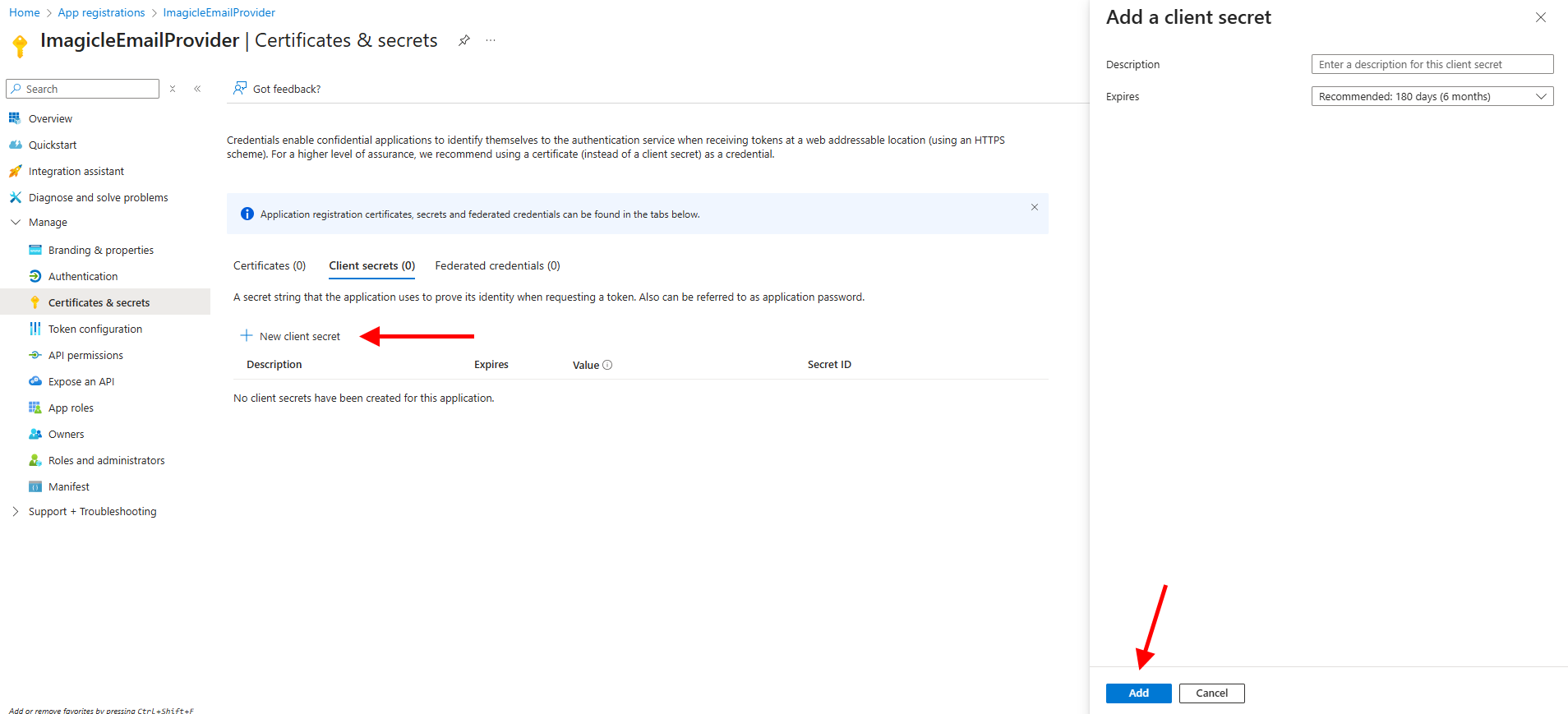
Once added, you'll get some data associated to it. Please copy "Value" field for later usage. Copy the field immediately after having created the client secret, because it will be automatically hidden after few minutes, for security reasons.
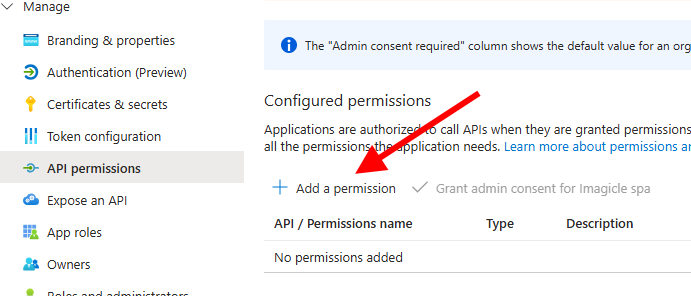
Now click on left panel’s API Permissions → Add permissions:
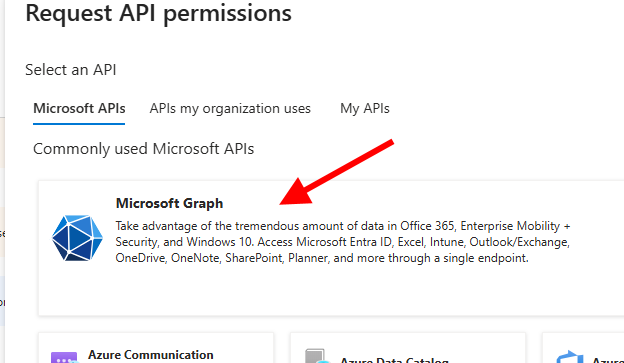
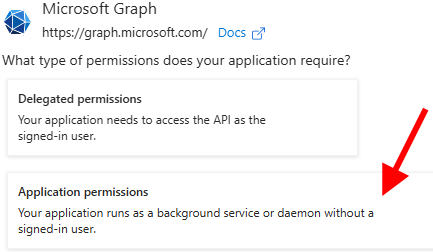
Select Microsoft API’s → Microsoft Graph → Application permissions:
Then search for “calendar” and flag Calendars.Read permission:
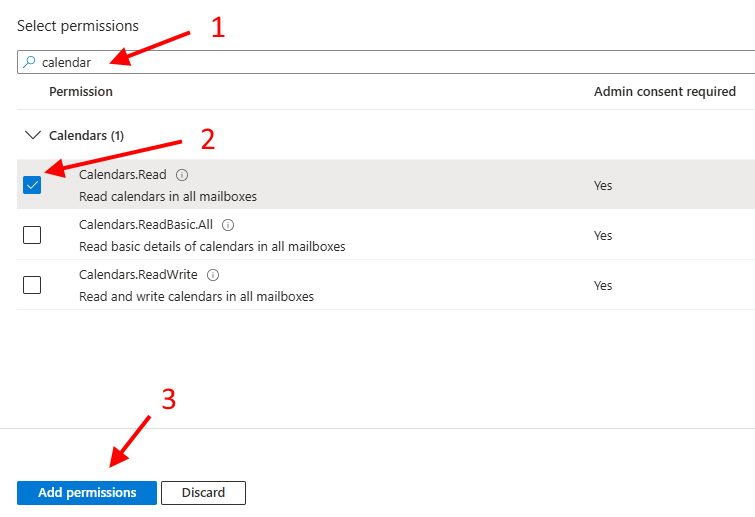
Now search for “User.read” and flag User.Read.All permission too.
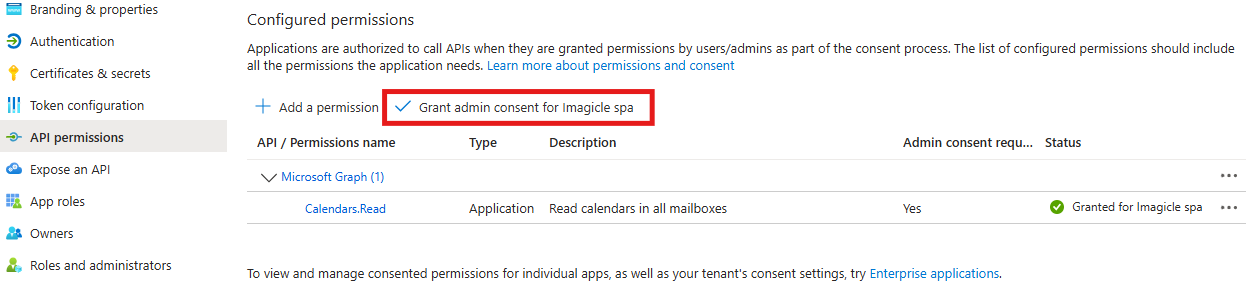
Once permissions have been added, you must authorize it for your organization, by clicking on "Grant admin consent for <company_name>". See below:
Migration Path
If a customer is using the EWS|Deprecated calendar provider and wants to migrate to the new Microsoft 365 provider, it can use the old App Registration and just apply the required changes from the Azure portal, as highlighted in this KB article.