
Cisco Webex Contact Center infrastructure provides own audio convenience recording feature, where WXCC agents can be enabled for on-demand or always-on recording.
Recorded conversations are stored in Cisco WXCC Cloud for a limited period of time, with a limited access available to administrators and single users.
That’s why Imagicle proposes the import of such WXCC Recorder conversations from Cisco Cloud to Imagicle Cloud, supporting unlimited retention and multiple permission levels for standard users, group supervisors and administrators.
Moreover, Imagicle Call Recording provides an enhanced web portal and Agent Desktop gadget to browse and listen to recorded conversations, with search features and call tagging for Legal Hold.
Integration Requirements
-
Imagicle UCX Platform must be in place, with Call Recording Essentials (or greater) license activated.
-
A Webex Full Admin account, to apply configurations on Control Hub
-
Agents to be enabled for WXCC/Imagicle Call Recording must have a Webex Professional license at least.
Limitations
As per Cisco documentation, Calls on Webex can't be recorded because they are not Webex Calling calls. These are the calls made using webex client, selecting "Call on webex" and not the user's phone number. Please note that a recording solution for this kind of calls doesn't currently exist.
Check for Webex Contact Center Recorder enablement
Please access to Webex Contact Center Management Portal with admin credentials and click on Recording Management from left panel. The following page appears:
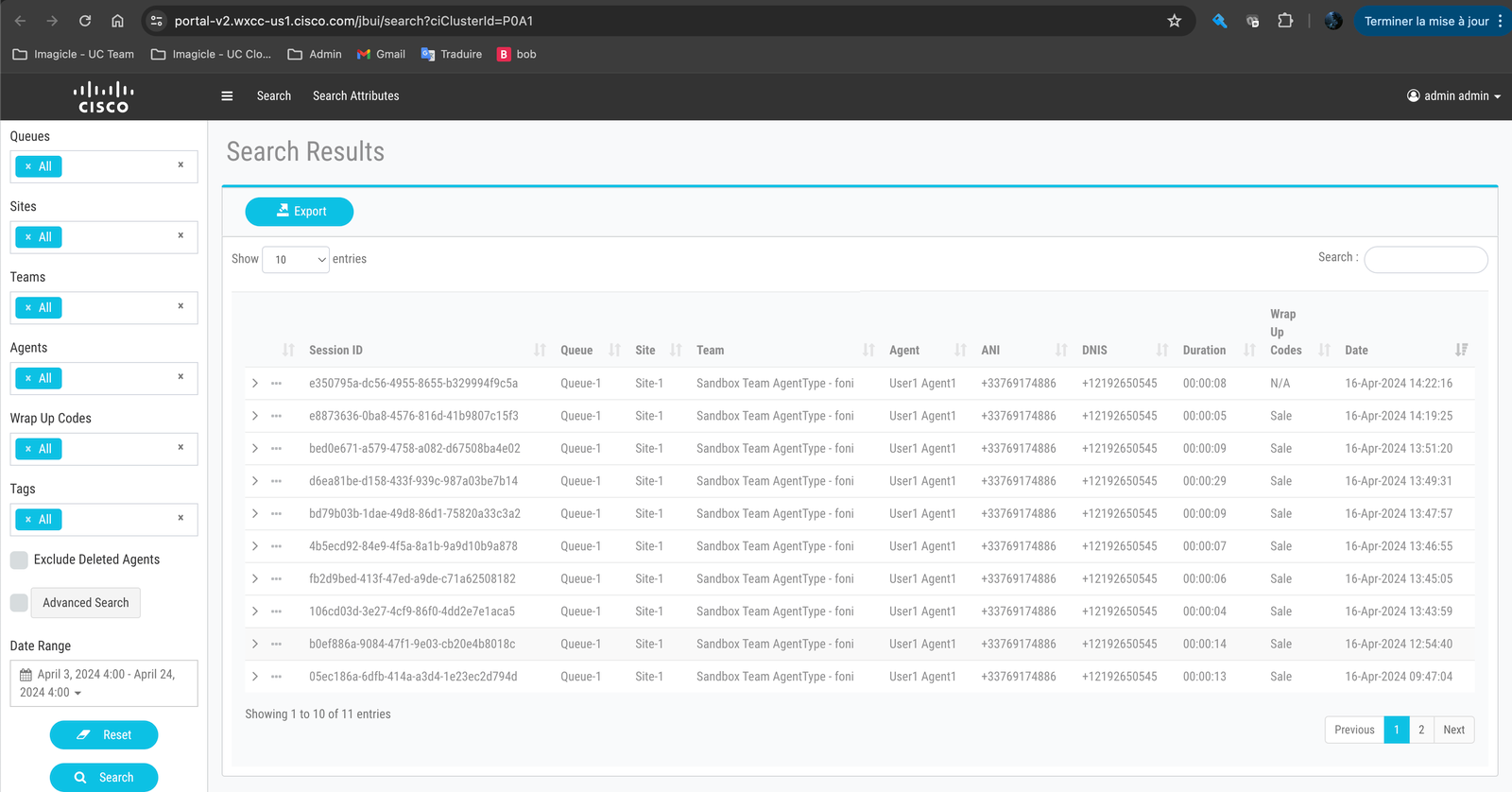
If the native WXCC Recorder is enabled, here you can find some recorded conversations performed by agents. If that’s the case, you can proceed with next steps.
Configurations from Webex Control Hub
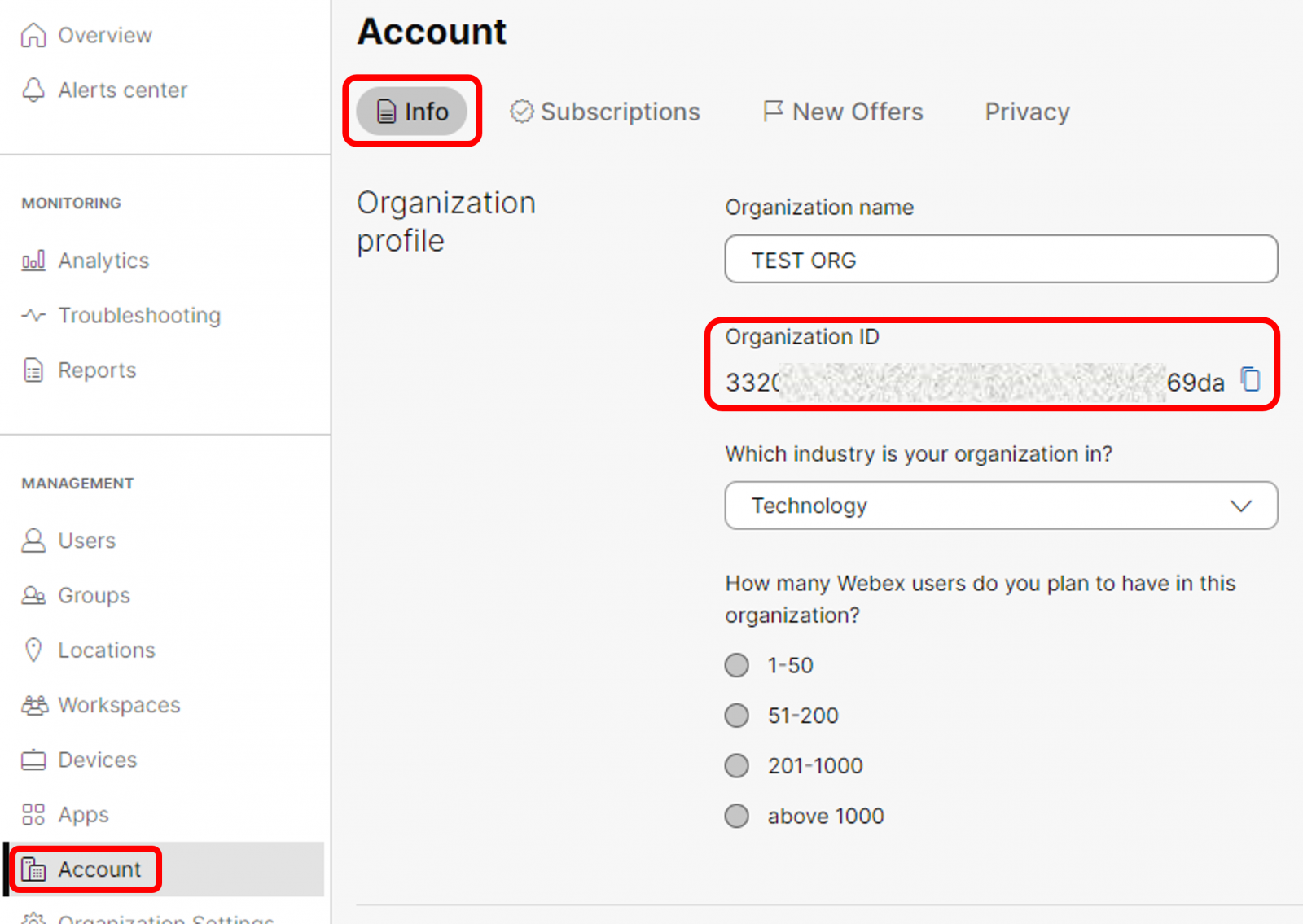
Please access to Cisco Webex Control Hub with Full Admin credentials and go to Account from left panel and, within "Info" tab, take note of Organization ID. It is required later on in this procedure:
Now click on Users menu item from left panel:
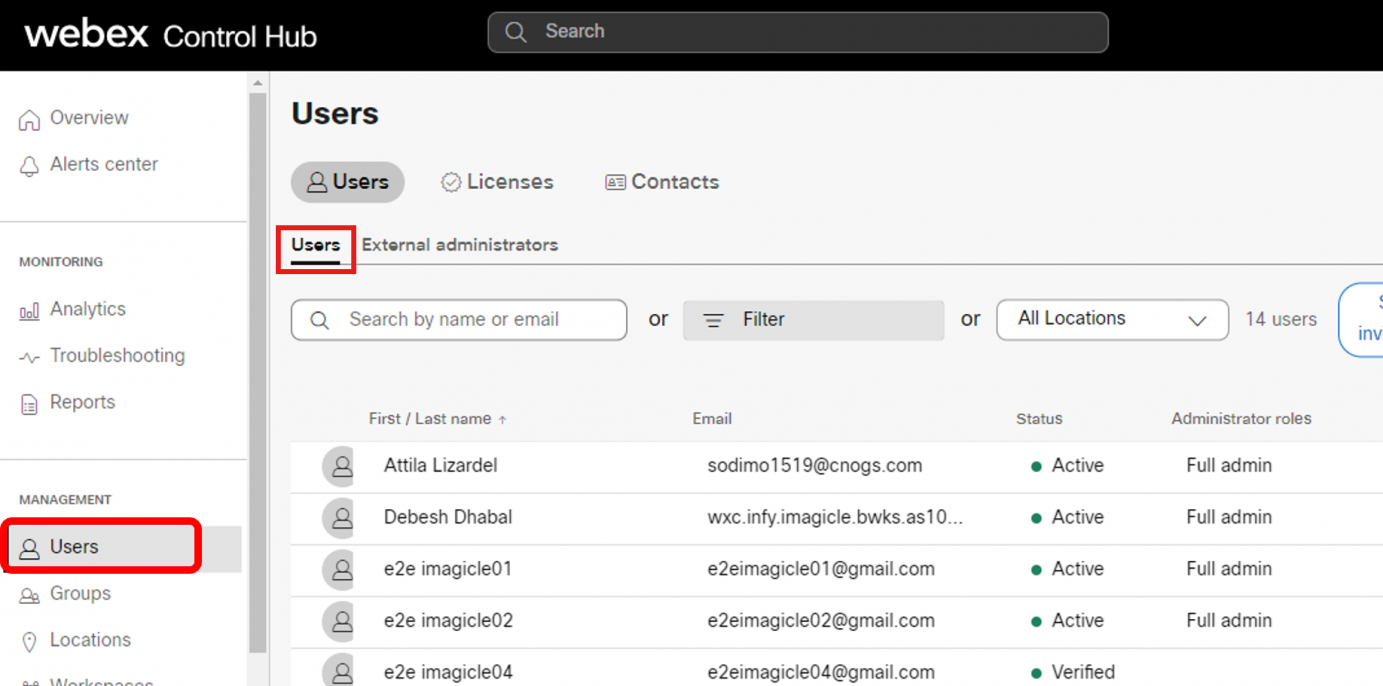
Please locate a local user within customer’s domain which should be elected to “Compliance Officer”, to allow the required integrations. Click on selected user to access the Summary page:
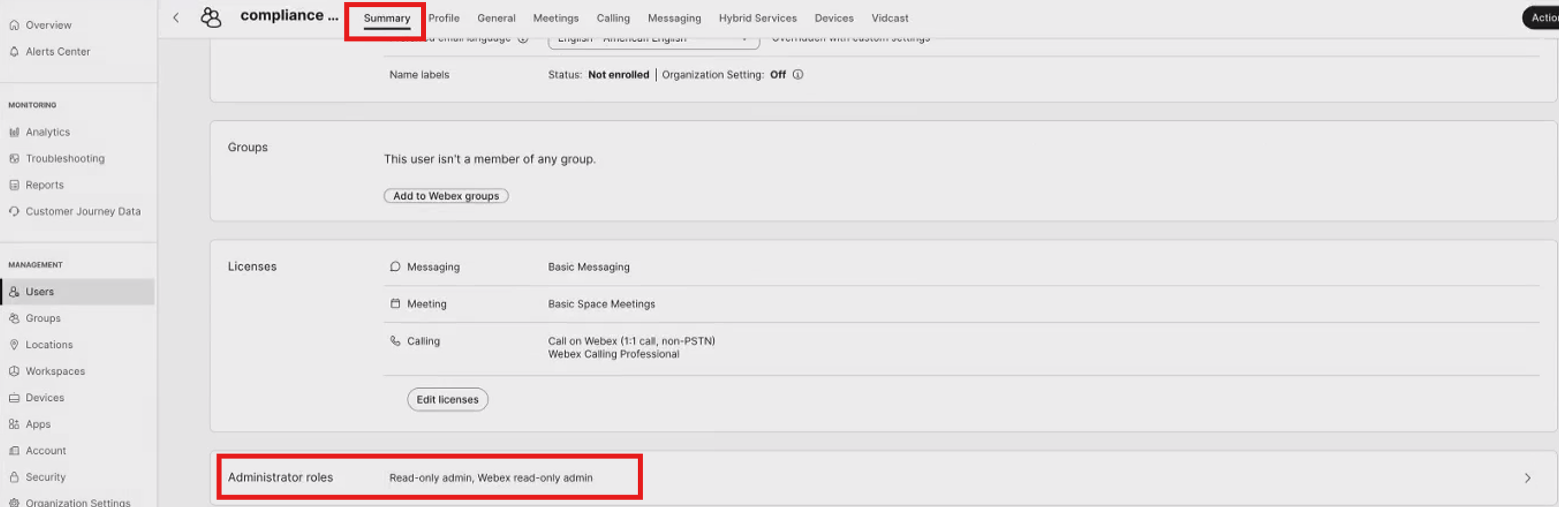
Click on Administrator roles and make sure that user has Organizational Read-only admin permissions; moreover, the user must have Compliance officer and Webex Calling Detailed Call History API access roles. See below sample:
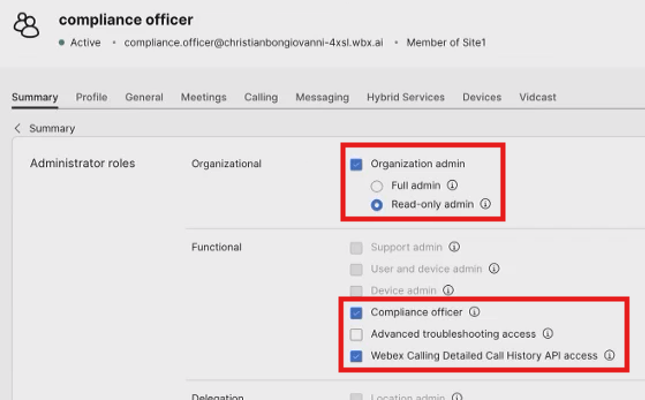
Save new roles setting.
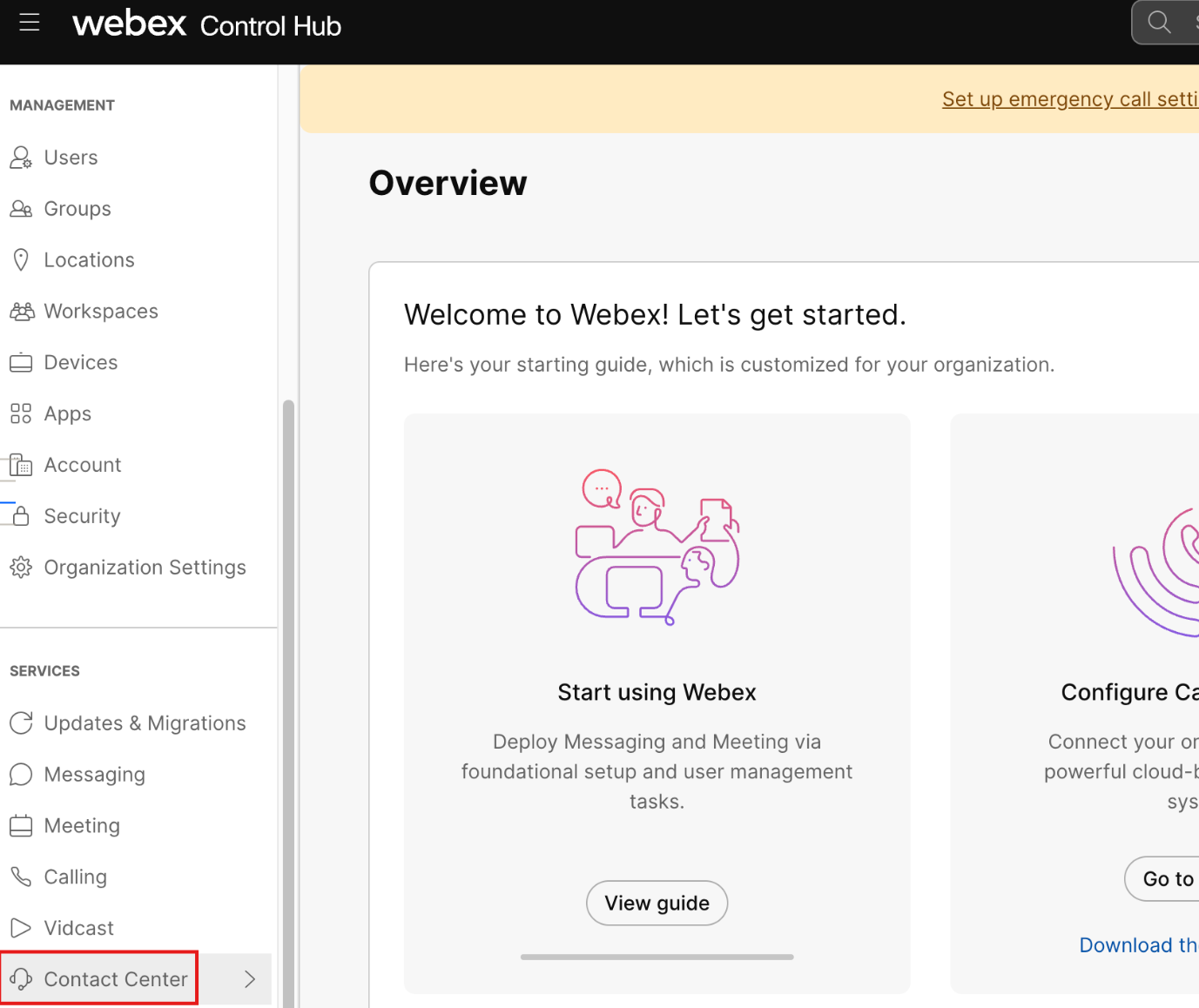
Now click on Contact Center menu item from left panel:
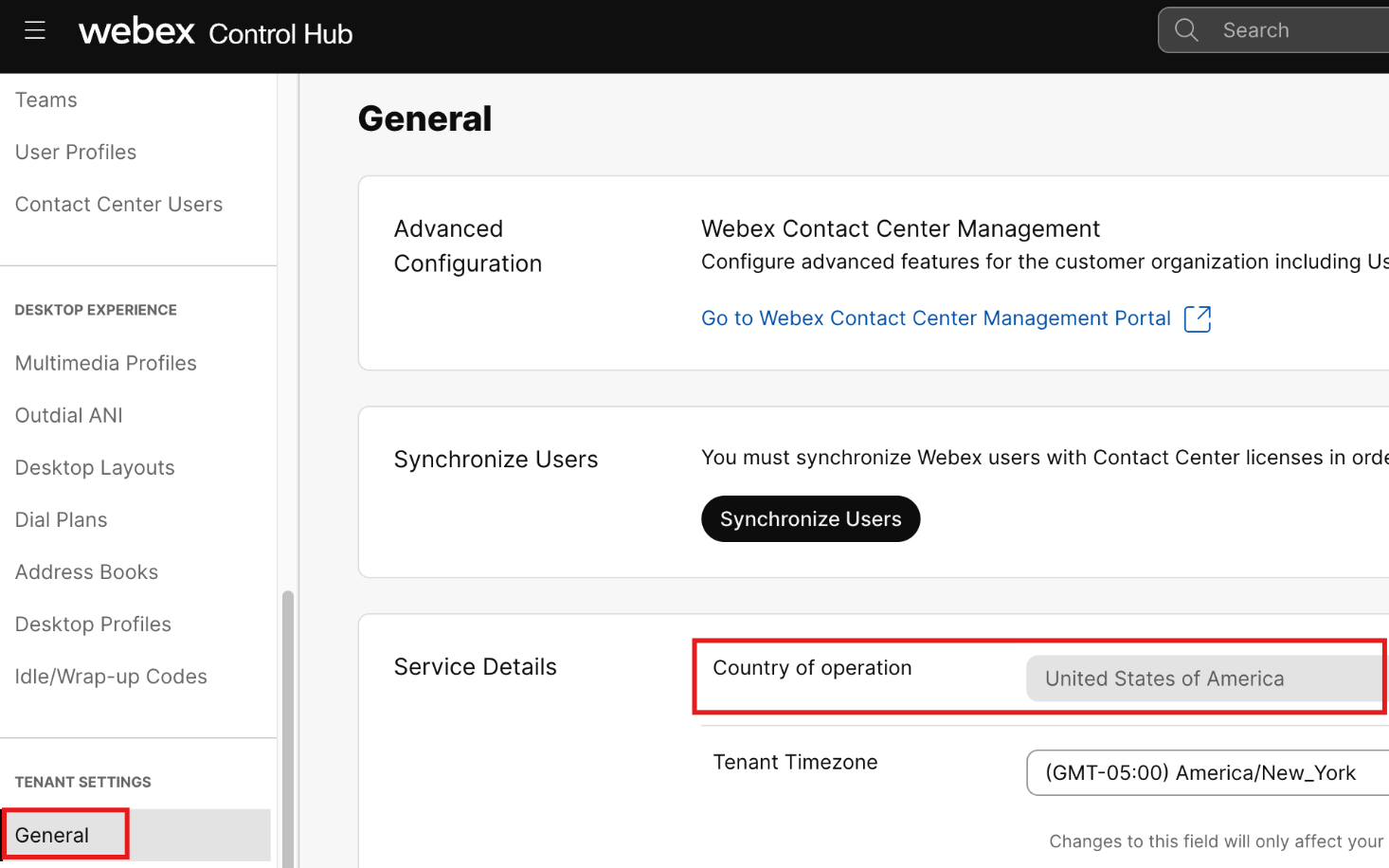
From Contact Center main page, select General left menu item and collect the “Country of operation”. This is required later on in this procedure:
Now select Call Recording Schedules left menu item to access to global recording settings applied to all agents or for a specific team of agents. Within this page, you can create a new schedule or amend an existing one. See below sample, where “always-on” schedule is created:
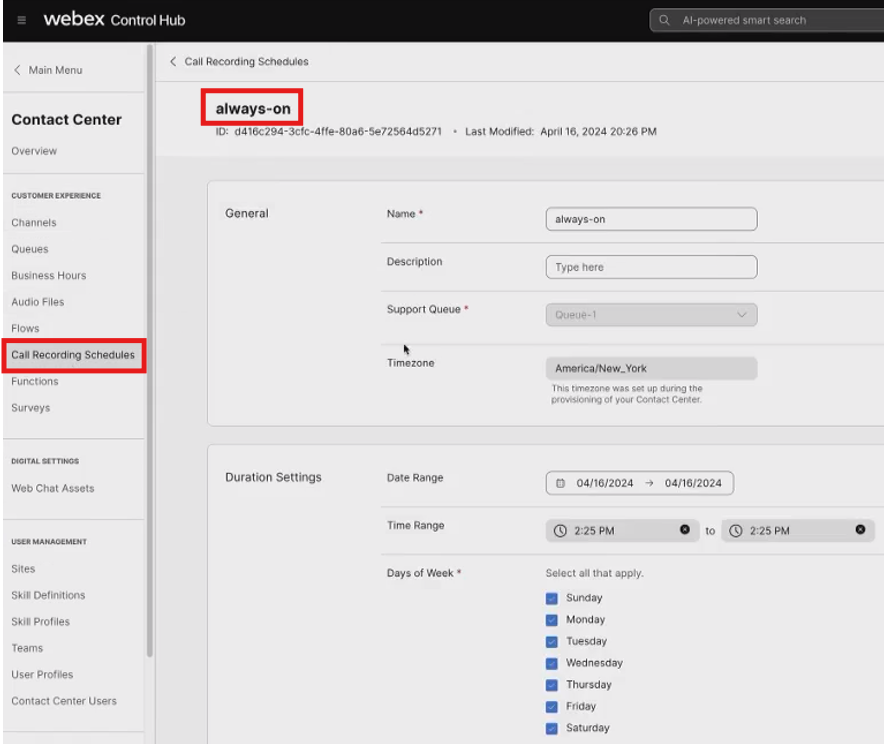
From Recording Schedule you can tweak several parameters like:
-
Date/time intervals where calls are recorded
-
Enable pause/resume
-
Define the percentage of calls to be recorded. If a value below 100% is selected, the “on-demand” buttons to start/stop recording are enabled on Agent Desktop client.
-
Apply filters by Sites, Teams, Agents, etc.
Multiple Call Recording Schedules can be created, for different agents' teams.
Configurations from Webex Developers Portal
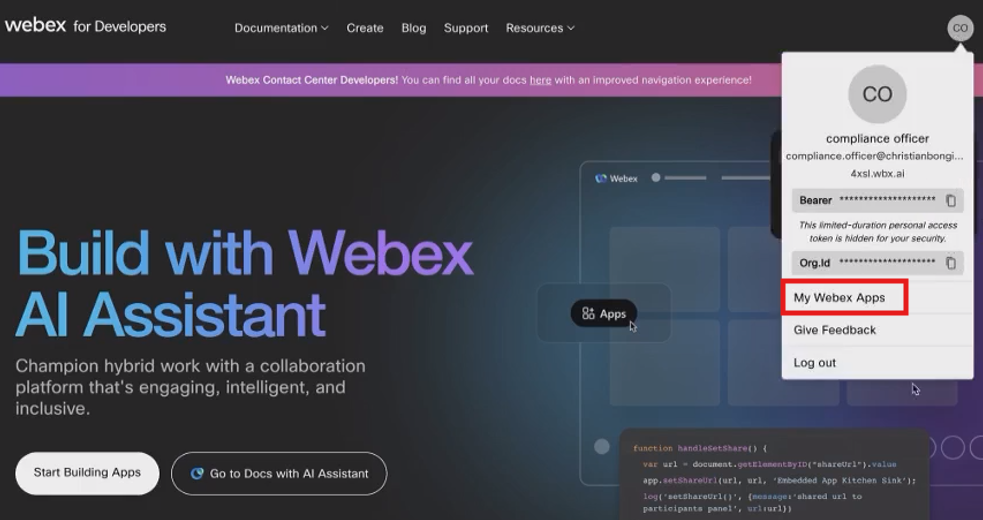
Please access to Cisco Webex Developers Portal by using the Compliance Officer account credentials, click on top-right account icon and select My Webex Apps from pull-down menu:
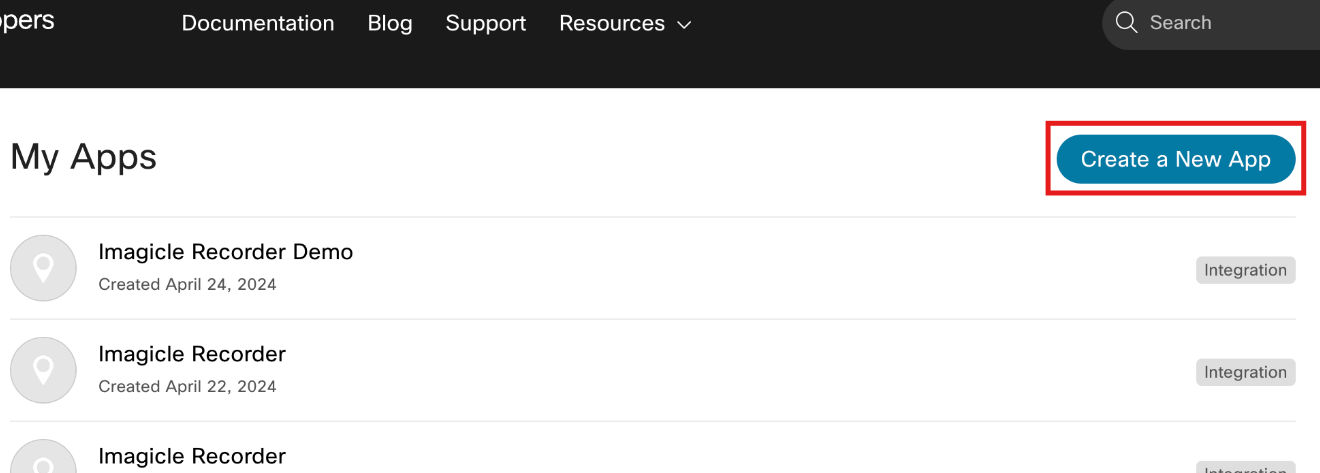
A list of existing apps appears. Just click on Create a New App button:
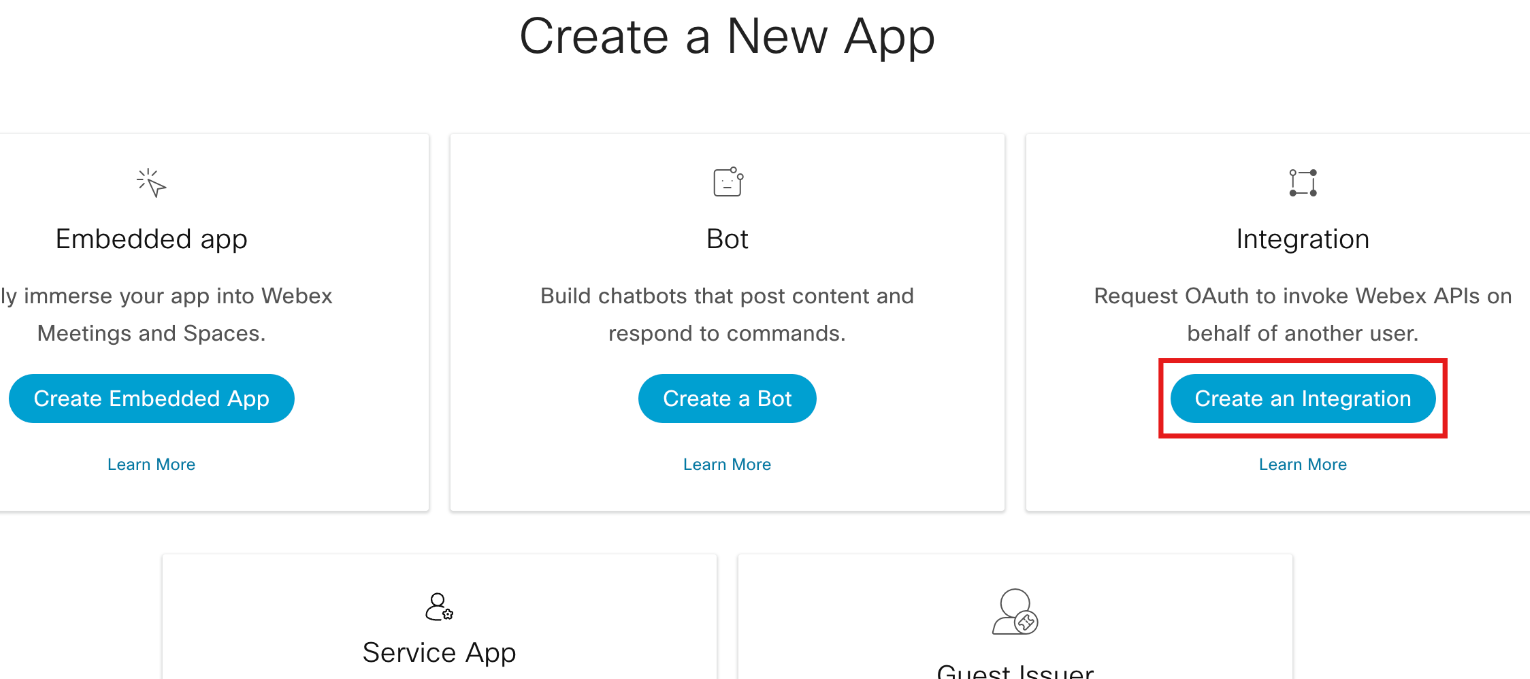
The portal invites you to select the app type among different options. Please click on Create an Integration:
The following page appears:
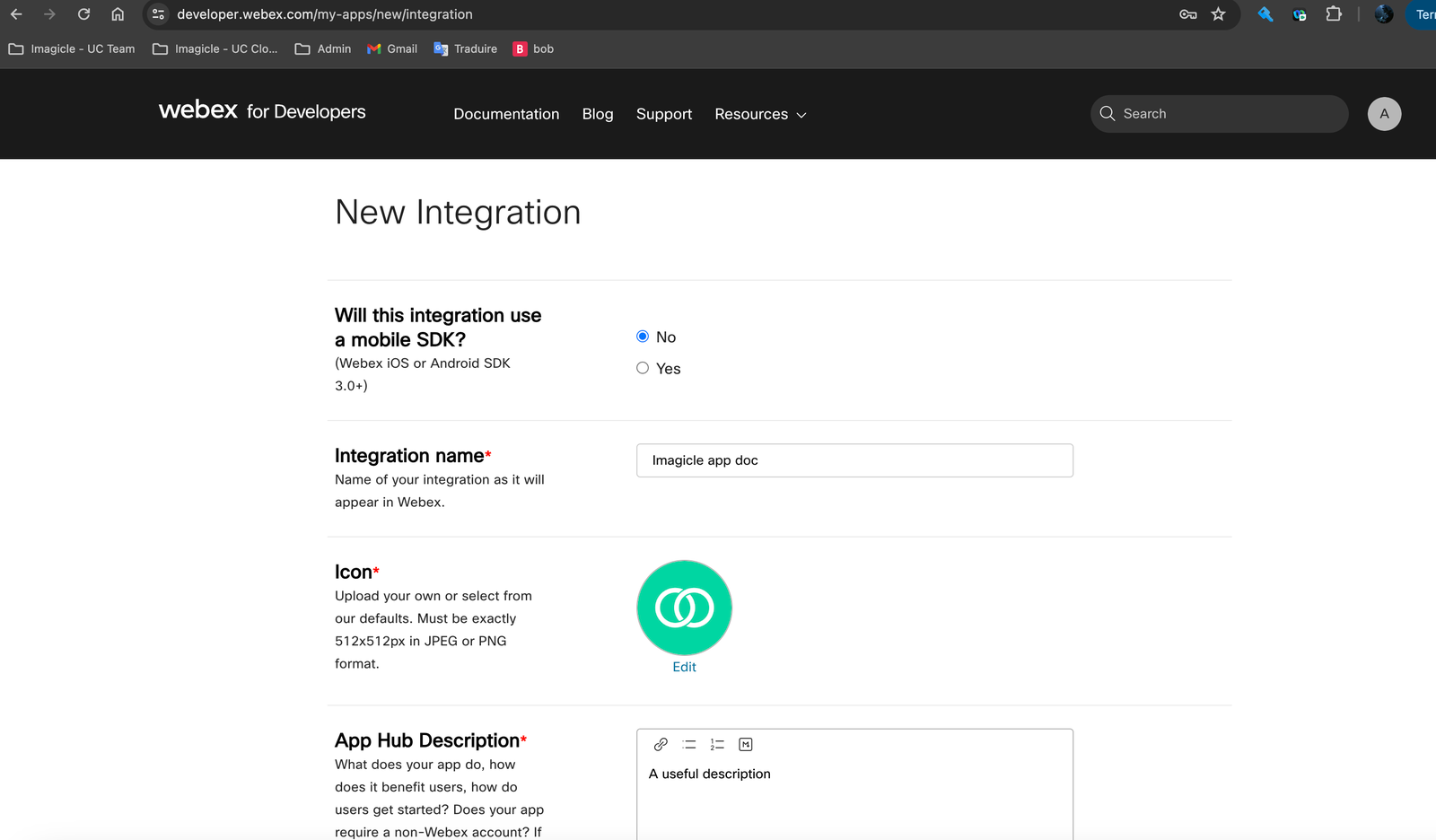
Enter the following data:
-
Integration use a mobile SDK : No
-
Integration name : the name you prefer (like Imagicle Recorder)
-
Select an icon or upload the one you prefer
-
App Hub Description: a description of the app (like “Imagicle Integration to retrieve Webex Contact Center Recordings”)
Scroll down for more parameters:
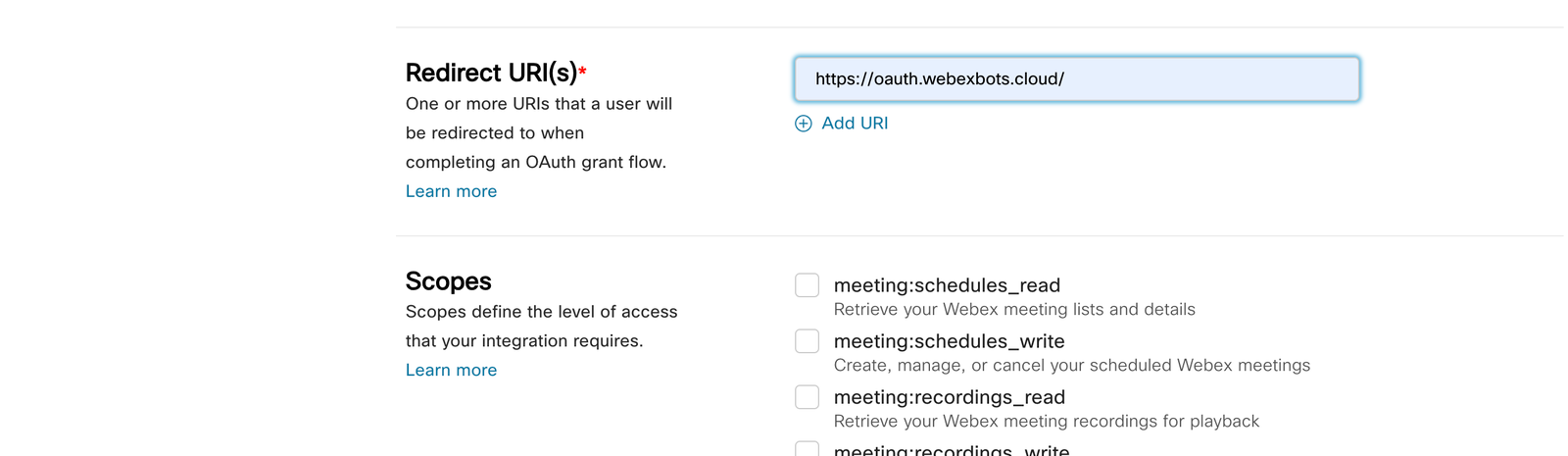
Enter two Redirect URI(s):
and select the following Scopes:
-
cjp:config_read
-
spark-admin:people_read
Once done, validate by clicking on Add Integration. See below resulting web page sample:
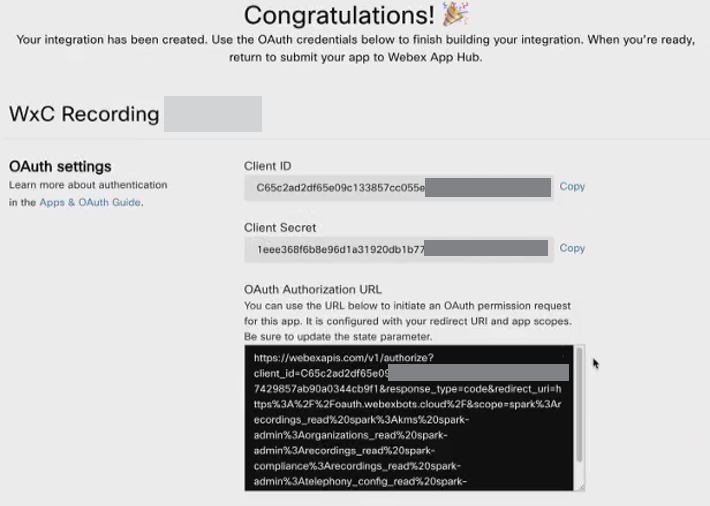
Please copy now the Client ID and Client Secret. They are required later on in this procedure.
Authorize the Integration
Copy above OAuth Authorization URL into an incognito/private web browser panel and hit enter.
Login with admin credentials to display the authorize page:
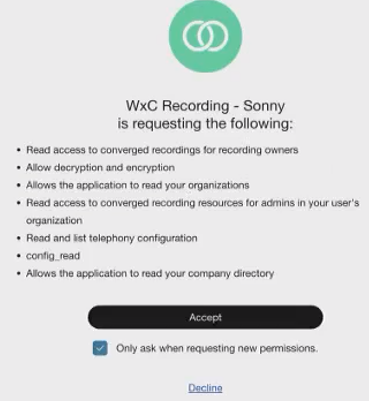
When you click Accept button, you are redirected to the following web form:
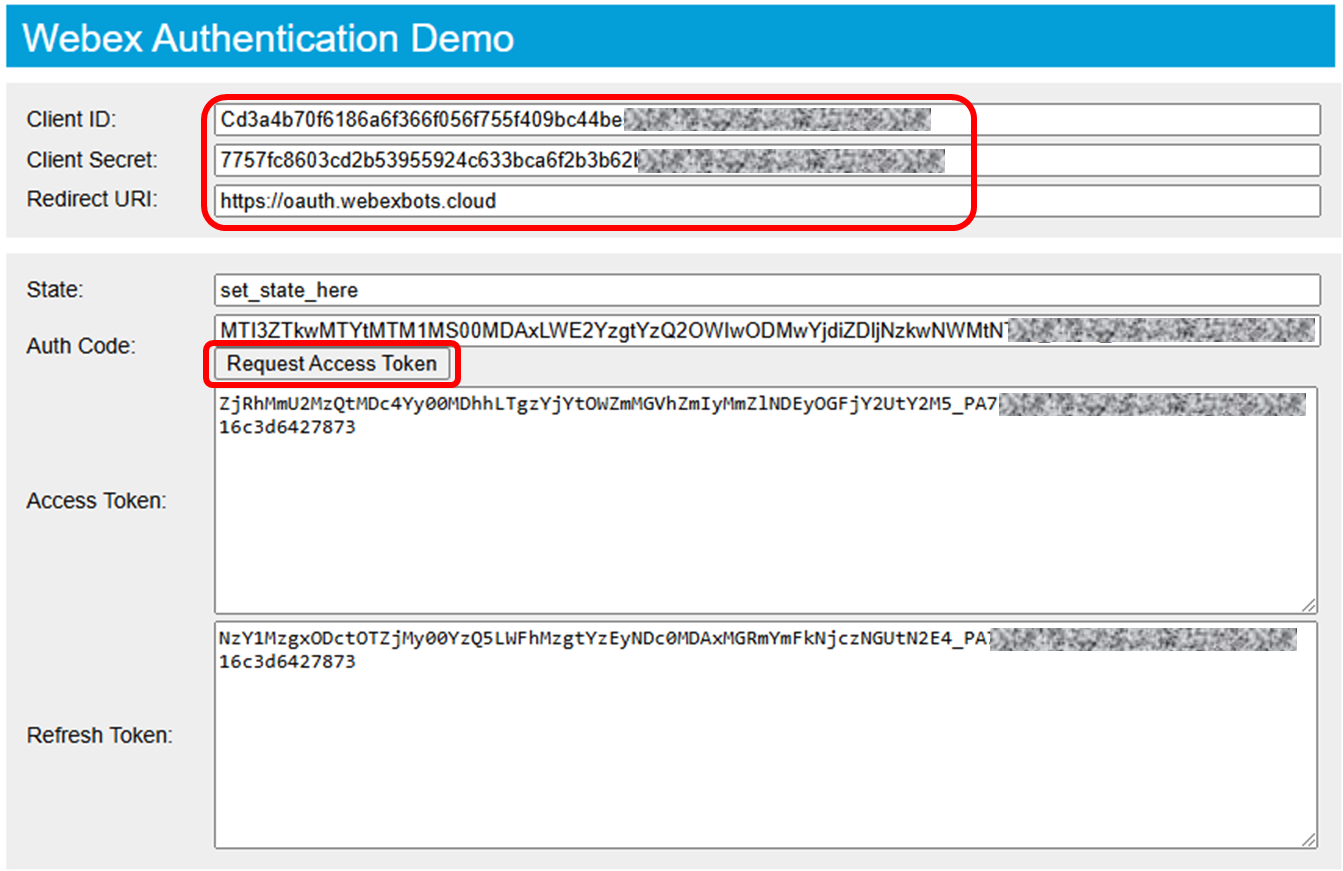
Please insert early collected Client ID, Client Secret and the following Redirect URI: https://oauth.webexbots.cloud
Then hit Request Access Token button to get both Access and Refresh Token. Copy them into a notepad.
Final Stage
Please send to Imagicle Support the following details:
-
Webex Org ID
-
Country of operation (region)
-
Integration’s Client ID
-
Integration’s Client Secret
-
Refresh Token
Imagicle applies required authorizations to retrieve recordings from Cisco Webex CC Cloud, so you can safely access them from Imagicle UCX Platform web portal.
Call Recording Gadget for Agent Desktop clients
Please be aware that you can enable an Imagicle Call Recording custom tab for your Webex CC users. The procedure is highlighted in this KB.
If the Imagicle gadget displays own buttons to start/stop & pause/resume recording, please ignore them. In a Webex CC environment, recording-related softkeys are already embedded in the native Webex CC Agent Desktop GUI and they appear when required.