
Web Portal Access
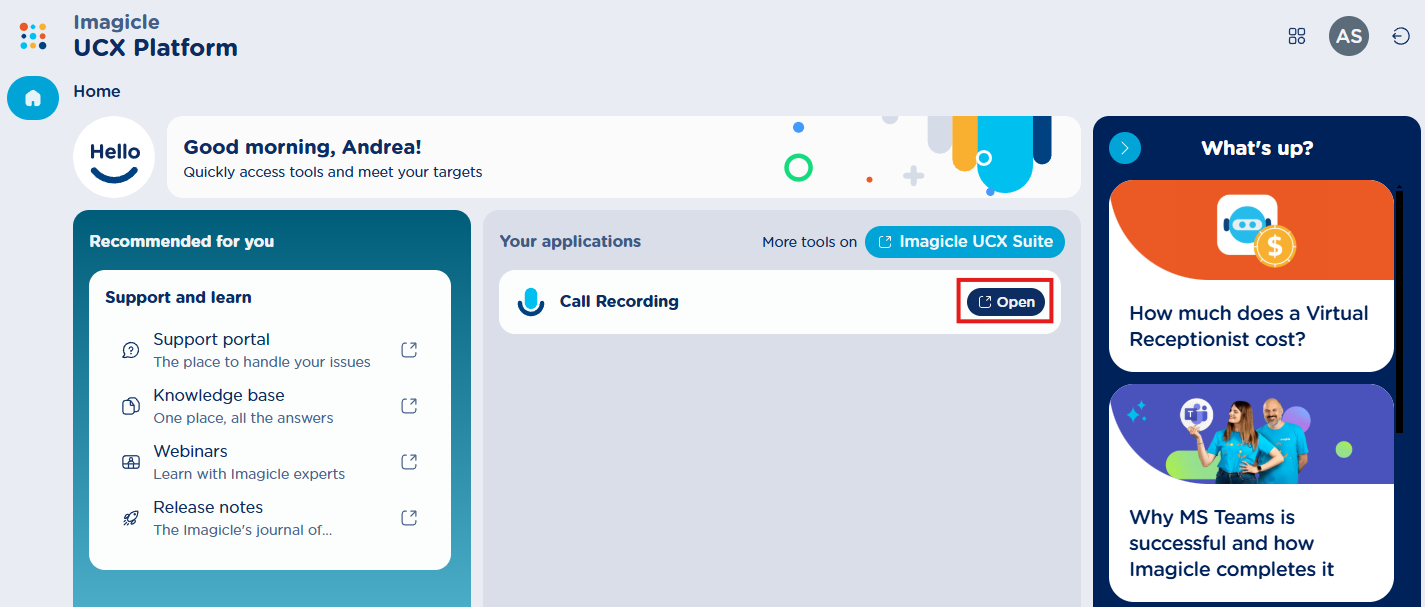
The access to Imagicle Compliance and AI Quality Recording is available within Imagicle UCX Platform web portal by selecting relevant option, as highlighted in below screenshot. By leveraging their standard login credentials, with or without SSO, each user accesses the UCX Platform web portal with own, specific permission level.
Username is always the email address. If your company is leveraging Single Sign-On authentication, then your login is redirected to your Identity Provider for multi-factor authentication, where applies.
Compliance Recording Dashboard
Once authenticated, user accesses to Compliance Recording Dashboard page, which shows statistical data about the user’s behaviors, in terms of volume of recorded calls, relevant duration and evaluated agent’s score. More details are available here.
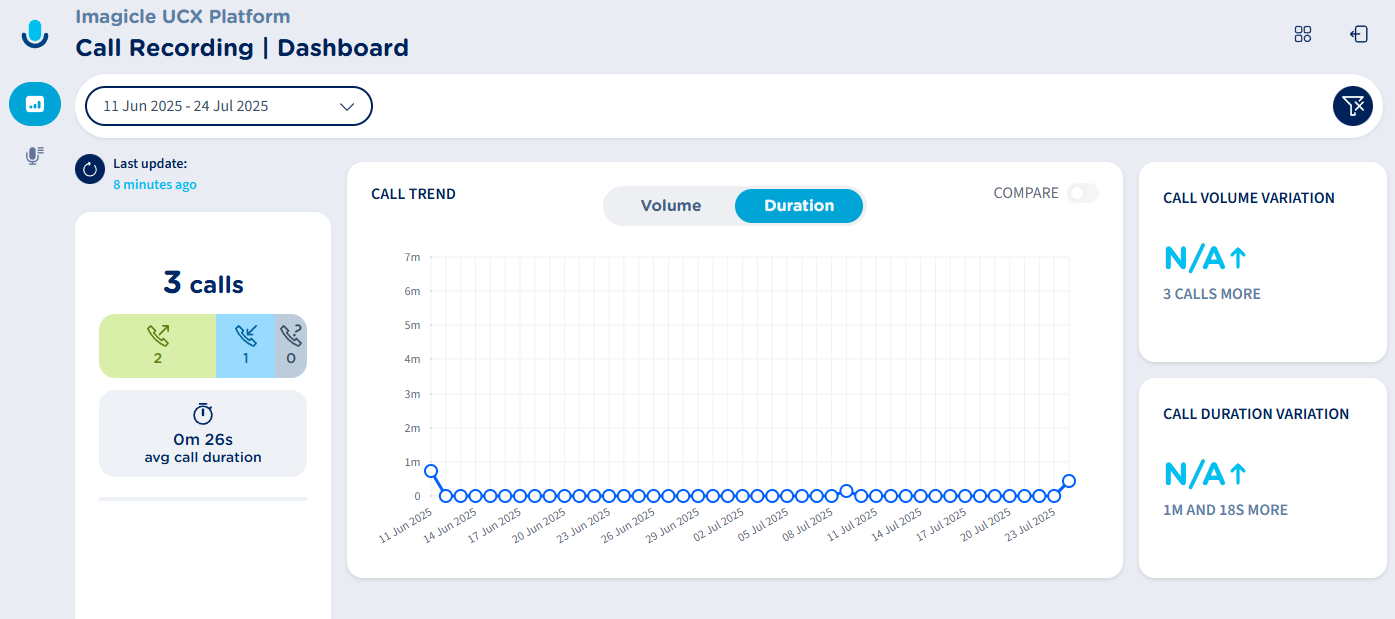
If the user is associated to a Recording AI Insights license profile, then she/he can also access to additional AI-based Dashboard widgets related to Sentiment Analysis trends and ranking. More details here.
Recordings Page
Next available menu item is Compliance Recording’s Recordings page, which shows the list of all available recordings performed by the user. Below you can see an Imagicle Compliance Recording’s conversations page sample:
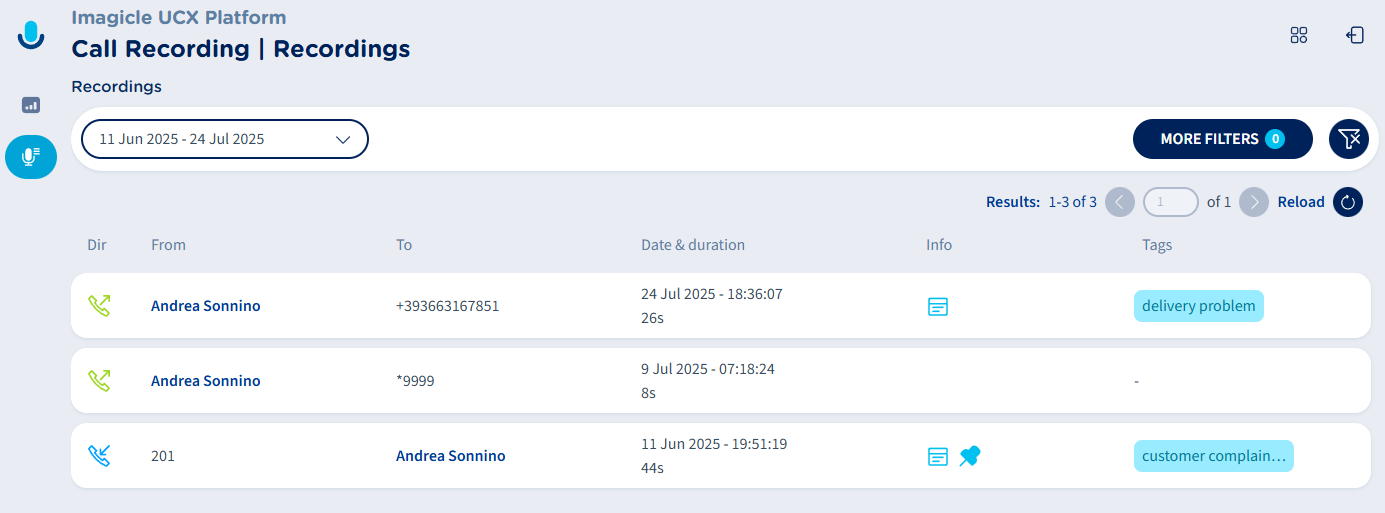
Depending on Compliance and AI Quality Recording license assigned to the user, he/she can view different information associated to each recording. Please consult below KB links for more details:
-
Compliance and AI Quality Recording - CORE/PRO user’s license profile
-
Compliance and AI Quality Recording - AI Insights user’s license profile
Other menu options
On left-side bar, two options are available:
-

-

On top-right corner, you can find two icons:
-

-

Cisco Webex/Agent Desktop Access
Imagicle Compliance Recording for UCX Platform also provides a gadget integrated in both Webex Desktop client and WxCC Agent Desktop web interface (if enabled by the administrator).
In both clients, the user finds a 
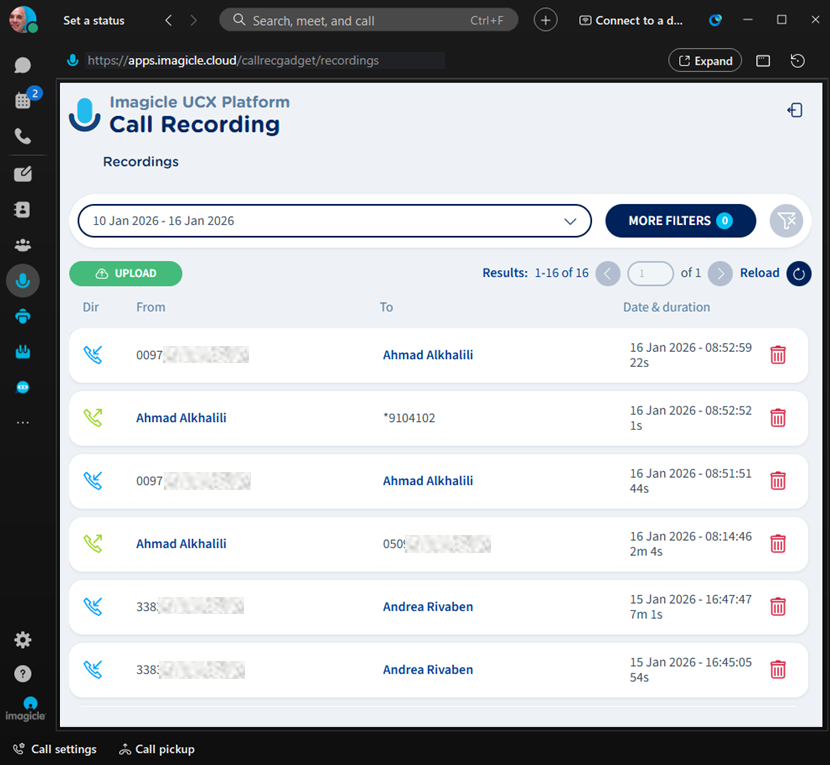
Displayed recording data is almost the same as web portal’s Recordings Page.
Microsoft Teams App
Imagicle Compliance Recording for UCX Platform also provides an App integrated in Microsoft Teams client (if enabled by the administrator).
The user finds a
See here for more details.
Recording details & playback
From gadget’s and MS App’s Recordings page, you can click on any available recording to access relevant details page, embedding an audio player. See below screenshot sample:
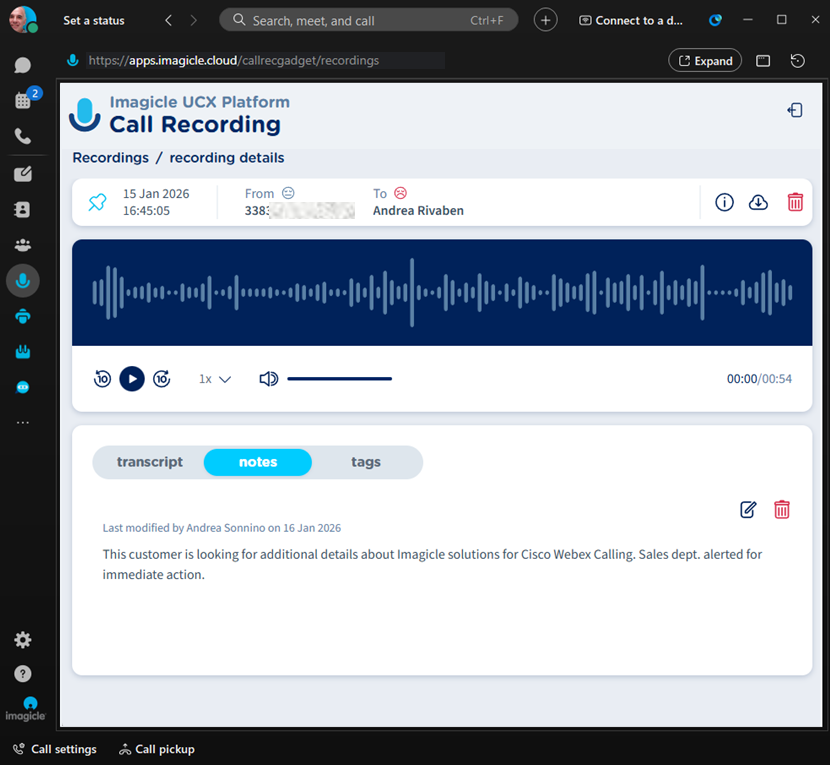
Recording Details are very similar to those found in web portal. From here you can access to:
Additional Content
-
Is Microsoft Teams HIPAA Compliant? The missing piece in Call Recording
-
Teams Compliance Recording: Securing your Microsoft Teams Contact Center