
AI-based Sentiment Analysis Setting
Imagicle AI-based sentiment analysis feature automatically evaluates the emotional tone of calls, tagging transcriptions as Positive, Neutral, or Negative at the overall, per-speaker, and single call segment level. This lets supervisors quickly spot tense or problematic interactions—like an angry customer paired with a calm agent—and take corrective action to improve customer satisfaction and agent performance.
This optional feature must be enabled by a tenant administrator, by hitting relevant menu item from Compliance Recording Settings page:
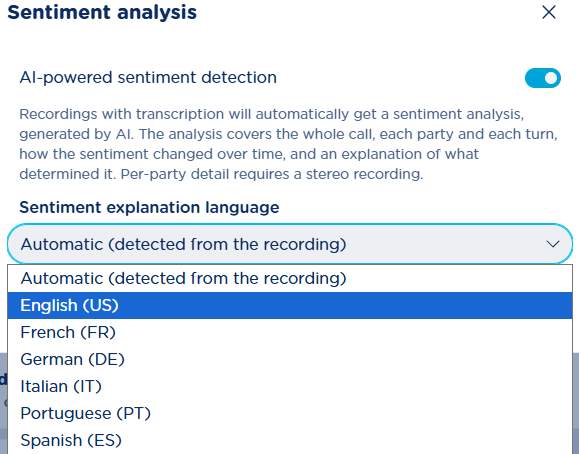
Please select the sentiment explanation language, meaning a description about how the actual overall sentiment has been determined by the AI algorithm. You can just leave the “autodetect” option (suggested). Then toggle the top-right switch and hit Update.
Recordings Page
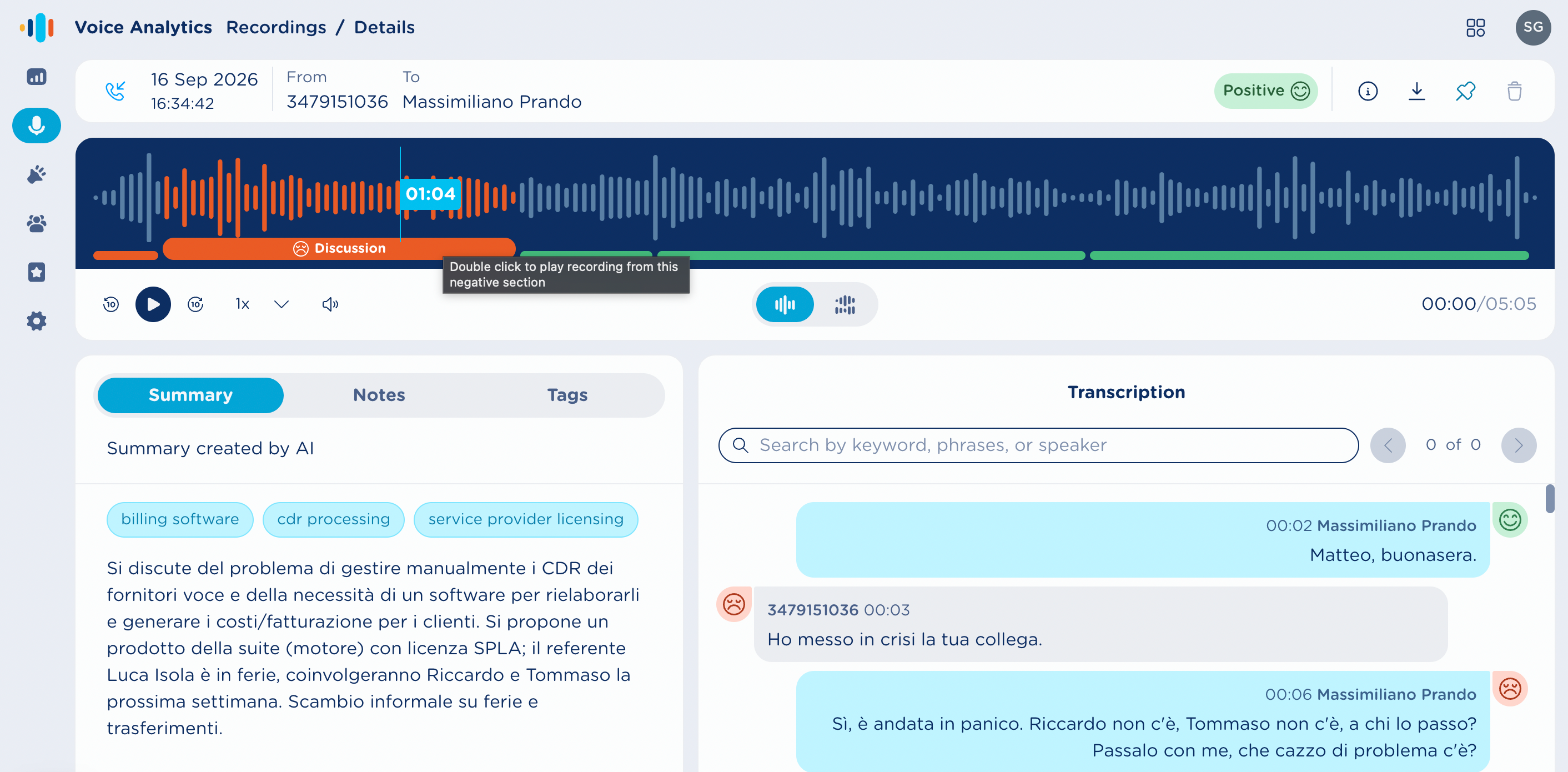
From AI Insights Recordings page, you can click on any available recording to access relevant audio transcription and sentiment analysis. See below screenshot sample:
Recording summary header
The following options are included in top header:
-
Call direction:
-
Recording date/time stamp and duration
-
Call parties names and/or phone numbers
-

-
-

-
-

Sentiment Description
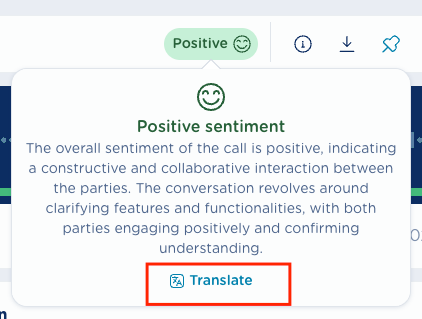
Sentiment badge in the page header includes additional details, accessible while hovering the mouse over the badge. A popover appears with a short explanation of the reasoning behind the result — in other words, the main factors that led the LLM to classify the overall sentiment as positive, negative, or neutral. See below sample:
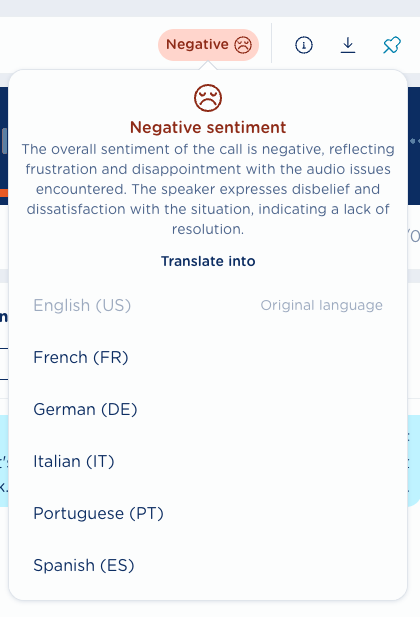
If required, Sentiment description can be translated in a different language by hitting Translate button and select a language different than the one configured in Compliance Recording Settings. See below sample:
If the conversation has a long duration, the sentiment calculation might require some time. You can check current sentiment processing status in relevant badge, which displays the following information:

Metadata details
-
Recording technology → indicates the Calling Platform is use. This field determines the type and structure of the platform-specific IDs associated to each recording.
-
Calling platform ID, → Displays the identifiers associated to each call, depending on the recording technology. It helps matching the recording between Voice Analytics and the native calling platform. If no data is available for a specific field, a dash (
-) is displayed. -
File digest (SHA256) → Displays both audio and screen recording checksum values, to make sure nobody has modified their content. See below:
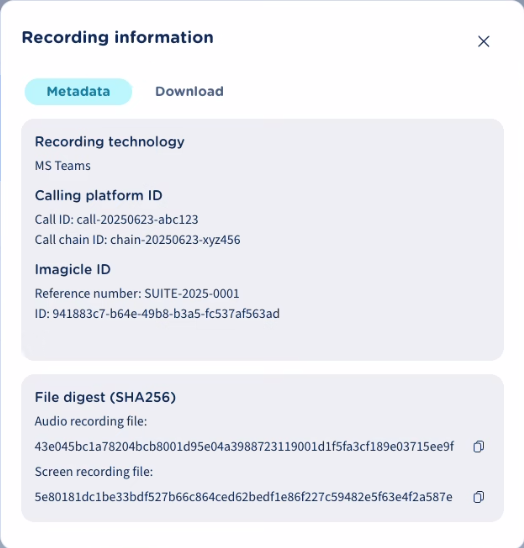
Depending on the recording technology, the available IDs are:
|
Recording Technology |
Field(s) Shown in Metadata |
|
MS Team |
Call ID, Call Chain ID |
|
Webex Contact Center |
Call Session ID, Queue Name |
|
Webex |
Call ID, External Tracking ID |
|
Generic |
Local Call ID, Remote Call ID |
|
Dial In |
- |
|
SIPREC |
Local Session ID, Remote Session ID |
|
Media Forking |
Local Call ID, Remote Call ID, Session ID |
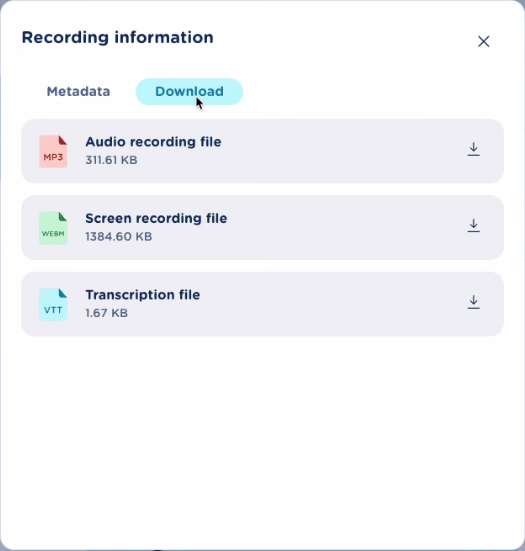
Download tab
To download audio, screen recording and recording transcription.
Audio Player
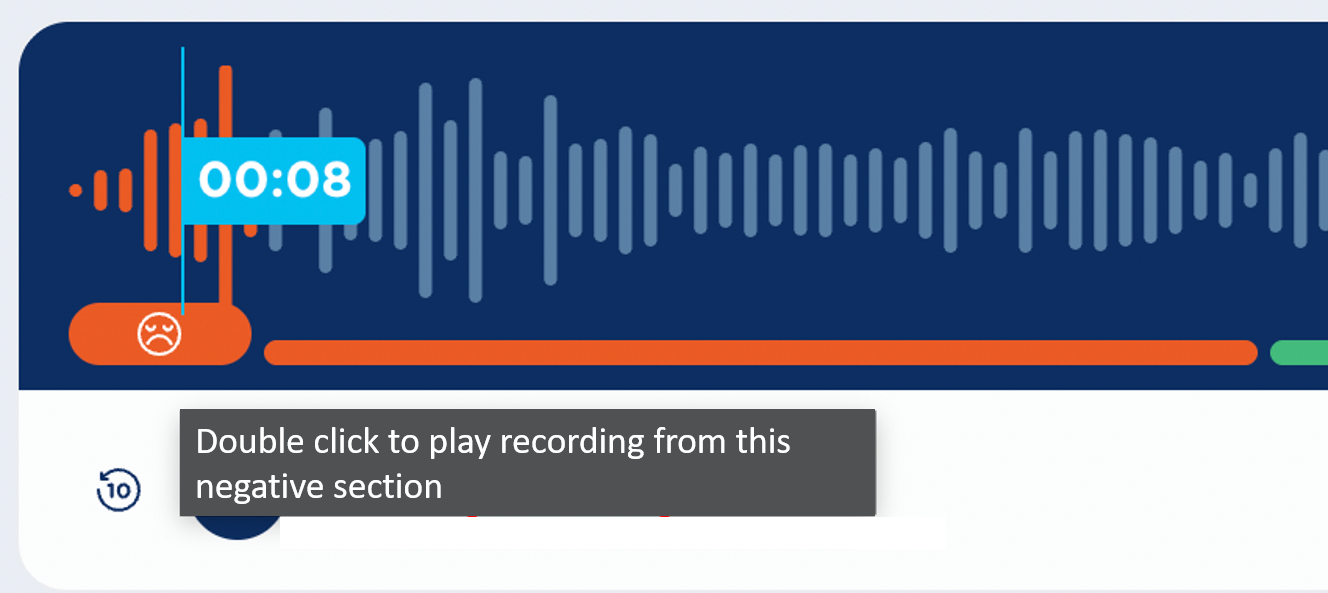
With Compliance and AI Quality Recording - AI Insights license, the embedded audio player includes the sentiment segmentation throughout the call.
This provides an immediate visual overview of which portions of the conversation were classified as positive, negative, or neutral sentiment.
When hovering over the waveform area corresponding to a specific segment, that portion of the waveform is highlighted using the sentiment color. The segment also displays the corresponding sentiment icon.
Users can double-click on a conversation segment to trigger audio playback from the beginning of that specific section, as indicated in the tooltip. See below sample:
Transcript Panel
The LLM engine embedded in AI Insights license profile can analyze the transcription content of the whole conversation and single sections, to detect the “mood” of involved call parties and rate it as negative, neutral or positive. Please make sure relevant feature is enabled in Settings page.
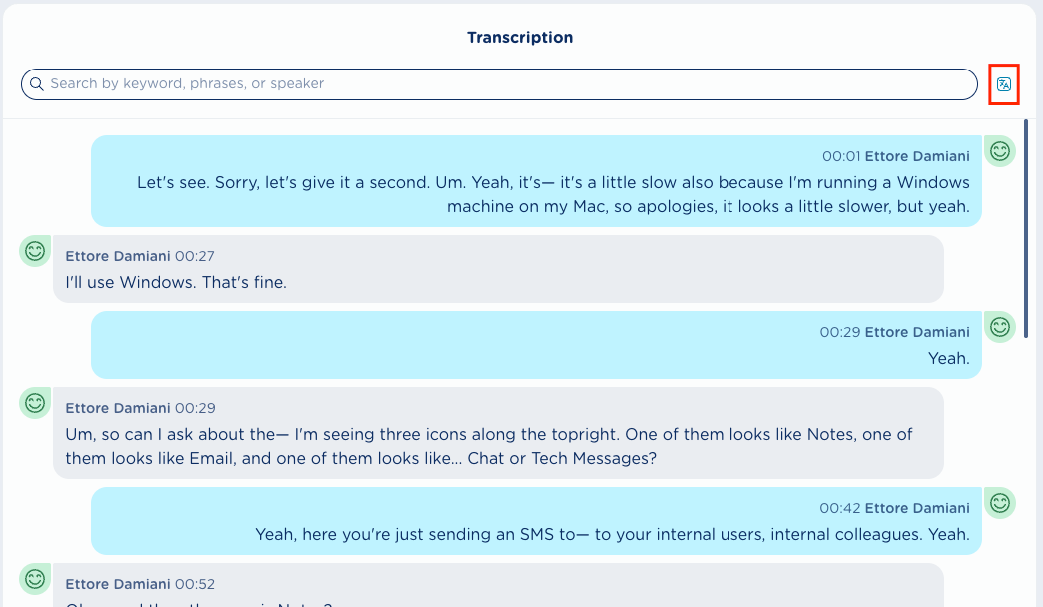
Each conversion segment includes involved call party, a time stamp, voice transcription and sentiment analysis emoticon:
-

-

-

A Translate icon 
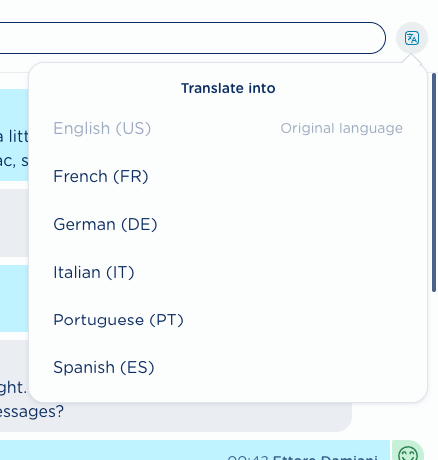
The translation language is session-aware: once a transcription has been translated, if the user leaves the page, navigates elsewhere, and then returns to the same recording, the transcription is displayed with previously selected translation language, until the page/app is refreshed or the session expires.
Please note that PII Redaction tokens are not translated.
Recorded MP3 audio file upload
Recordings performed on Imagicle UCX Suite are automatically uploaded to Compliance Recording AI Insights web portal. If you have some recordings performed before purchasing AI Insights subscription, you still have the chance to manually upload these MP3 audio files, once exported from Imagicle UCX Suite’s Compliance Recording “Search & Play” web portal or gadget. Please consult Imagicle UCX Suite’s Compliance Recording User Guide for more details.
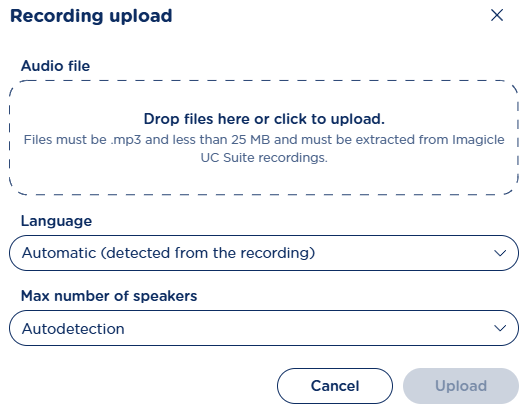
The 
-
Audio file → Drag & drop your MP3 file in this area or click to open file system dialog to locate the file within your workstation.
-
Language → Conversation language to be transcribed. You can manually choose language or let internal engine detect the correct one.
-
Max number fo speakers → Number of call parties. You can manually select the number of parties or let internal engine detect the correct one.
When a new MP3 file is uploaded, Compliance and AI Quality Recording engine immediately starts the transcription and sentiment analysis jobs, which might require few minutes, depending on call duration.
Please note that foreign MP3 files, not coming from Imagicle Compliance Recording application, or files greater than 25 Mbytes are rejected by the application.
Compliance and AI Quality Recording - AI Insights license is based on overall amount of analyzed conversation minutes available to each user or company-wide. If the maximum amount of minutes has been reached, the application might refuse new recordings automatic/manual upload. This information is available on top header of each Compliance Recording web page. See below sample:

Short videoclip