Next menu item is reserved to customers owning a Call Recording PRO license and it provides the access to the Evaluation Surveys page, which allows administrators to create and manage evaluation forms used for agent scoring.
Admins can:
-
Create, search, edit, preview and delete evaluation forms
-
Define visibility rules that determine who can see and compile them, based on groups and call characteristics.
See below Screenshot sample:
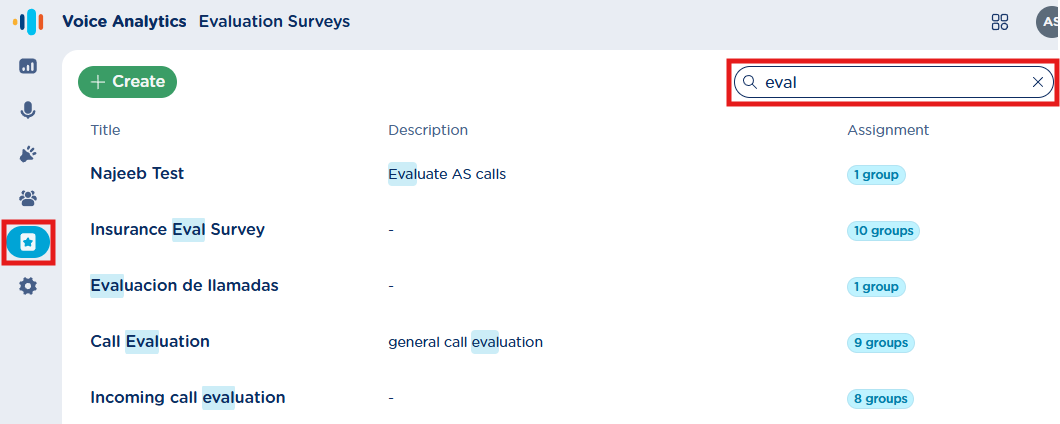
The list of surveys is searchable by Title and Description.
For each survey item, the following details are displayed:
-
Title → Assigned evaluation survey title
-
Description → A brief description of the specific survey
-
Assignment → A badge showing the number of recording groups who can access this evaluation survey. Please hover the mouse on the badge to see the list of assigned groups.
-
Last updated → Date/time stamp of last survey update by the named administrator.
Modify a survey
To modify and existing evaluation survey, just click on relevant line to access the configuration. Various configuration options are explained in below New survey creation section.
Delete a survey
To delete a survey, first make sure there are no evaluations for the same, submitted by supervisor to any group member. If that’s the case, please select the evaluation survey from the list and click on top-right pull down menu to display the Delete survey option. See below:
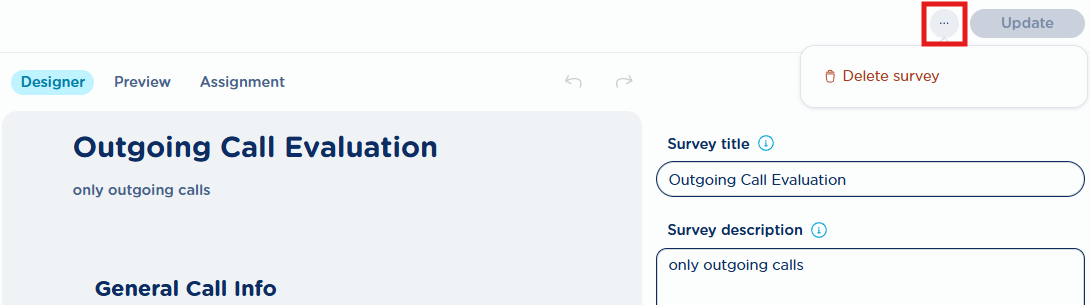
A confirmation dialog pops-up, to ask for permanent deletion.
New survey creation
By clicking on green “+ Create” button or by editing an existing survey, the following pop-up window appears. See below sample:
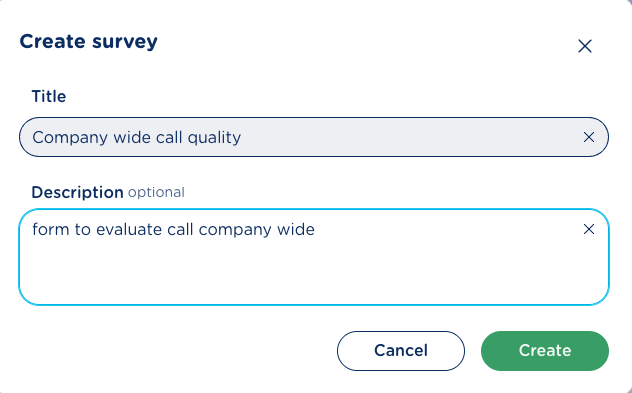
Please assign a Title and a Description of your choice and hit Create. The survey Designer page appears:
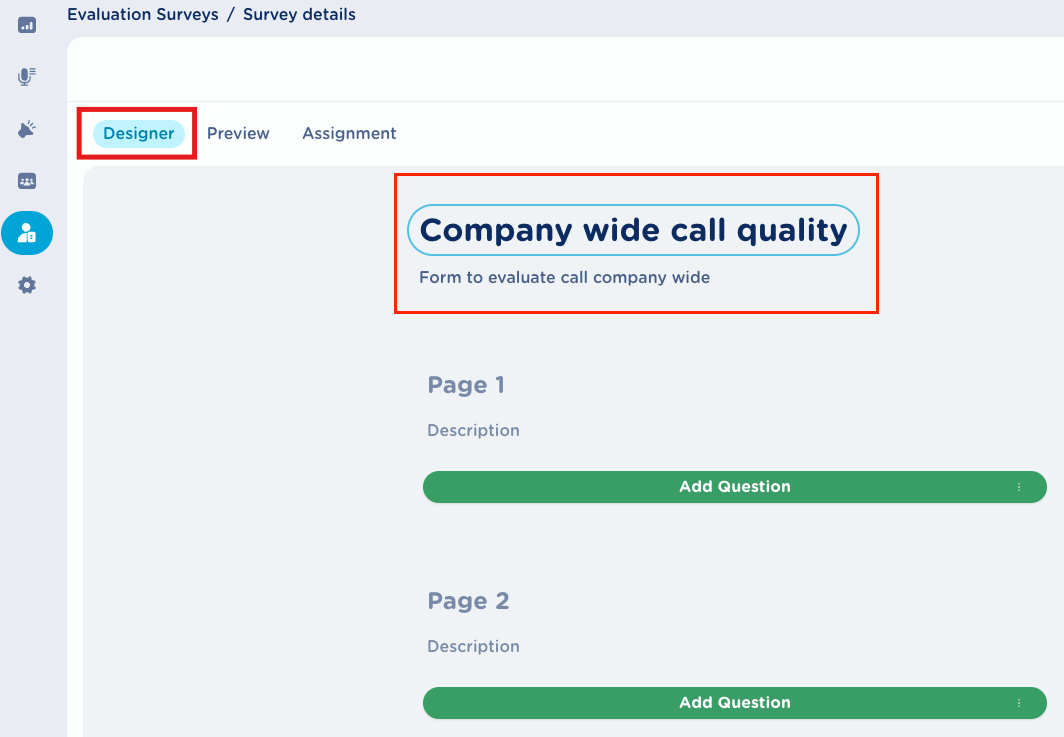
In the Designer tab, the administrator can build a survey based on a single page or multiple pages. In the designer, they simply click Add question within the desired page section (for example, Page 1 or Page 2). When a question is added to the last available page, the system automatically creates a new page, allowing the admin to continue adding more questions as required.
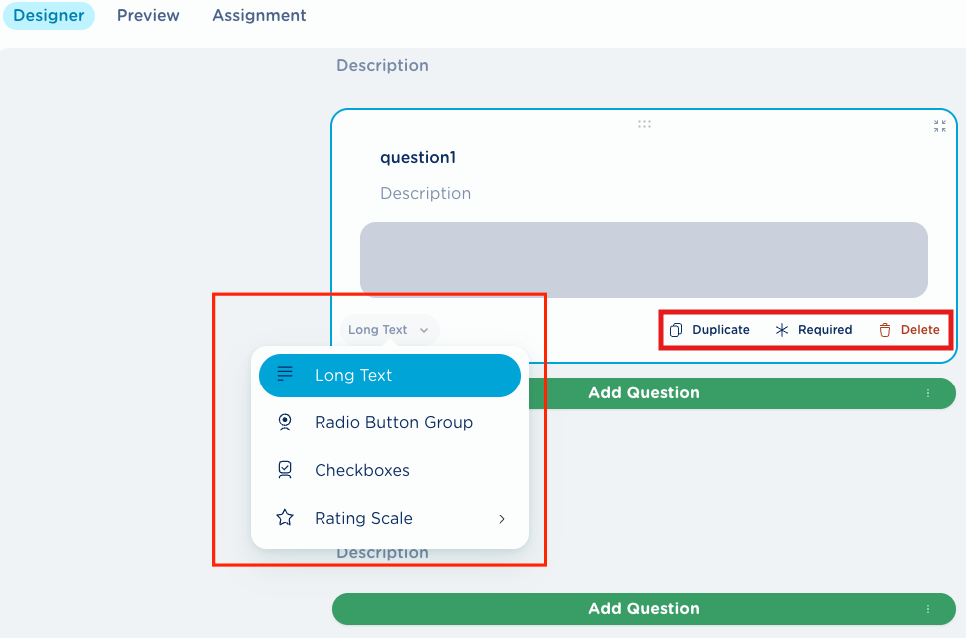
All question types share a few common elements, starting with the action buttons located in the lower-right corner of the question box. Using these buttons, the admin can duplicate the question, mark it as required (must be answered when the form is compiled), or delete the question. In the lower-left corner of the question box, another button lets the admin choose the question type from the available options:
-
Long Text
-
Radio Button Group
-
Checkboxes
-
Rating Scale, including the sub-options:
-
Labels
-
Stars
-
Smileys
-
Long Text
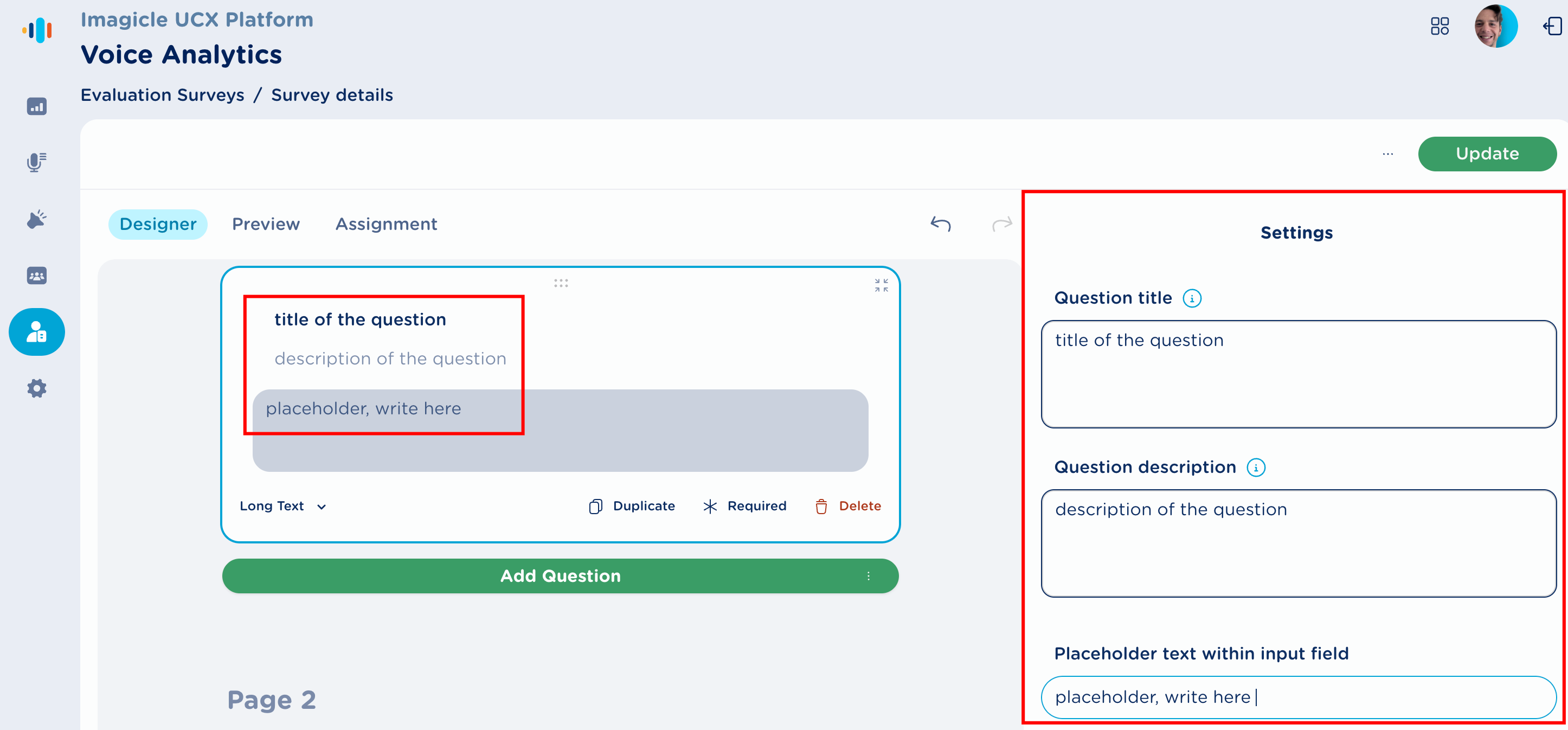
Long text questions allow the supervisor to provide an open-ended, free-text answer. To create a long text question, the admin can either enter the question text and a description directly in the question box, or use the settings panel, where they can define a title and a description and also set a placeholder for the answer text input. See below sample:
Radio Button Group
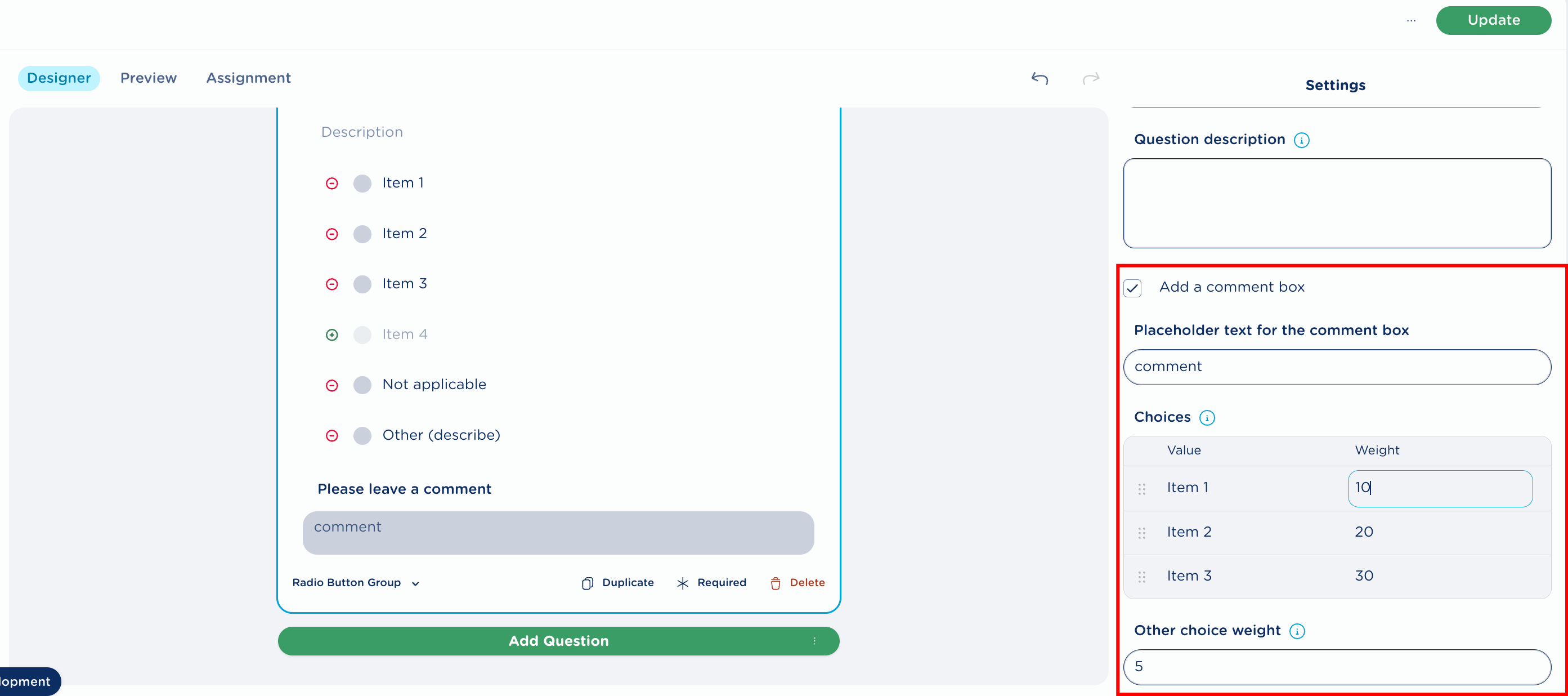
In this case, the admin can set the title and description in the same way as for long text questions. When defining the available options, the admin can add or remove individual answer items using the + and – icons available to the left of each option.
This question type also includes two special answers:
-
Not applicable -> if selected, it means the question is excluded from the score calculation.
-
Other → allows to enter an additional option that was not configured by the admin.
Radio button questions can be used to calculate the agent score. For this purpose, the admin must assign a weight to each answer through the settings panel and mark the question as required; otherwise, the score is not calculated. The weight assigned to each answer must be an integer. In the settings panel for this question type, there is also a flag that, when enabled, allows the admin to add a comment field to the question, like a sort of placeholder. See below samples:
Checkboxes
Checkbox questions share the same features as radio button questions. The only difference is a Select all option: when chosen by the supervisor, it automatically selects all the options available in the question. Page layout is the same as previous Radio Button Group.
Rating Scale
This question type is further divided into three subtypes, based on the kind of answer options it provides: Labels, Stars, and Smileys.
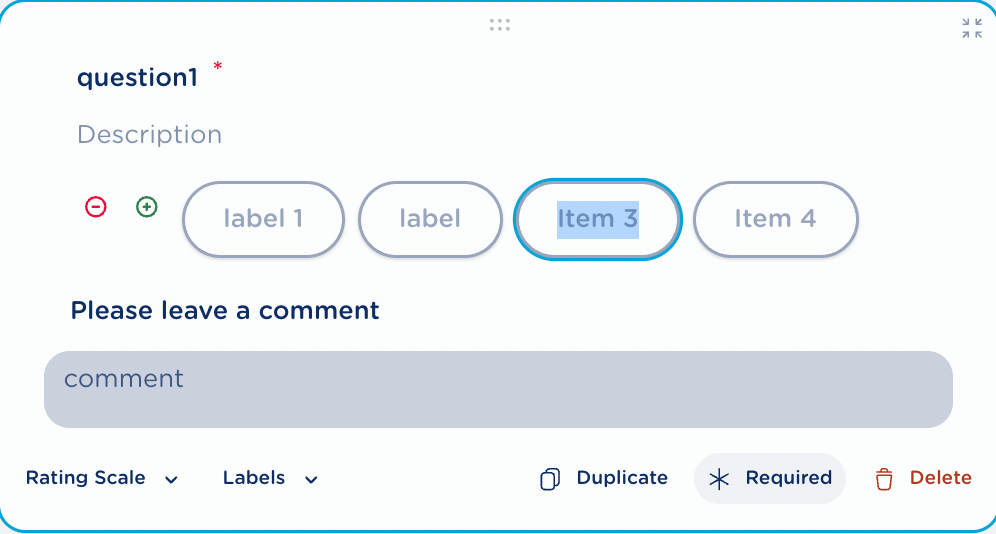
In Labels questions, each answer option is defined by entering a custom text label. This subtype cannot be used for score calculation.
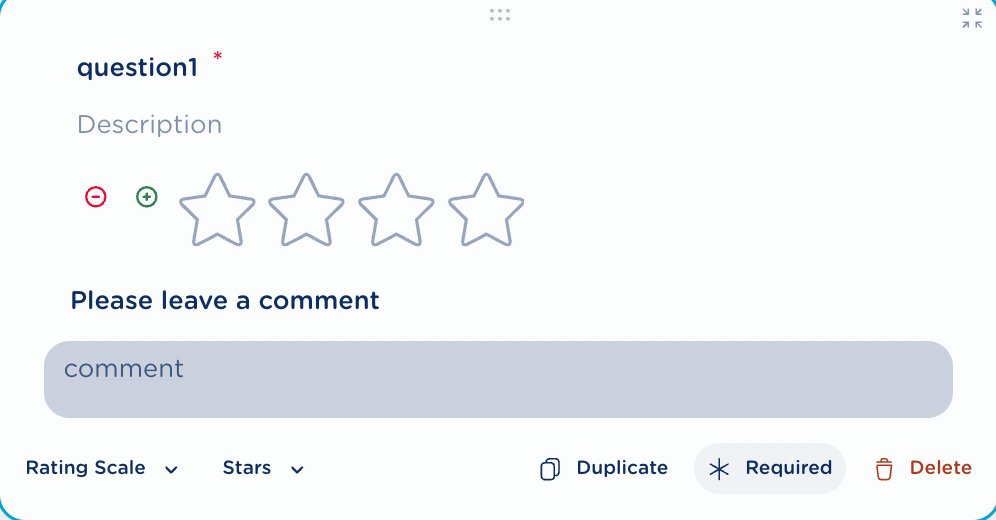
In Stars questions, the answer options are represented by stars. This subtype can be used to calculate the score and, since the score is a percentage from 0 to 100, each star has an incremental value calculated as 100 divided by the total number of stars.
The same logic applies to Smileys questions, with the difference that the options are facial emoticons ranging from the saddest to the happiest.
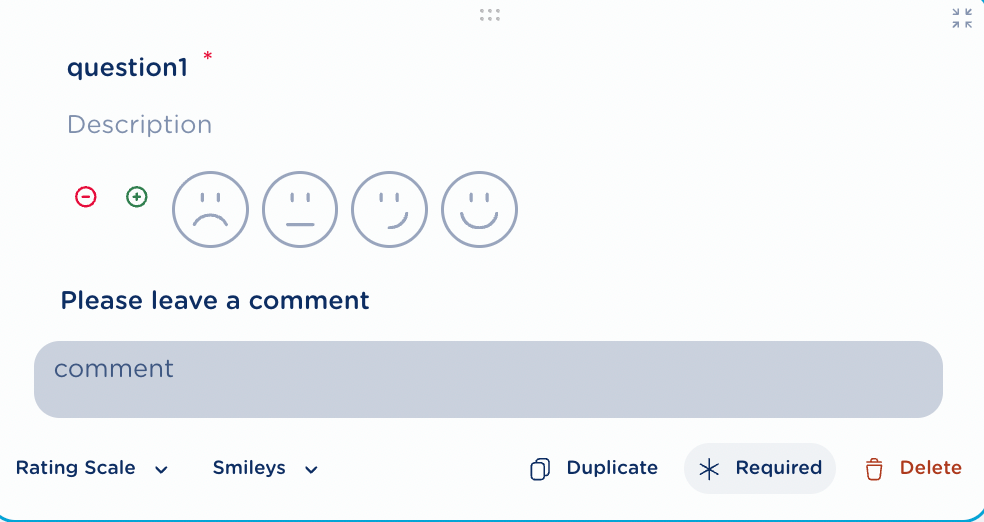
For all of these question types, options can be added or removed using the + and – icons positioned to the left of each smiley, star, or label option.
Do not forget to hit UPDATE button to save the evaluation survey!
Evaluation Survey Preview
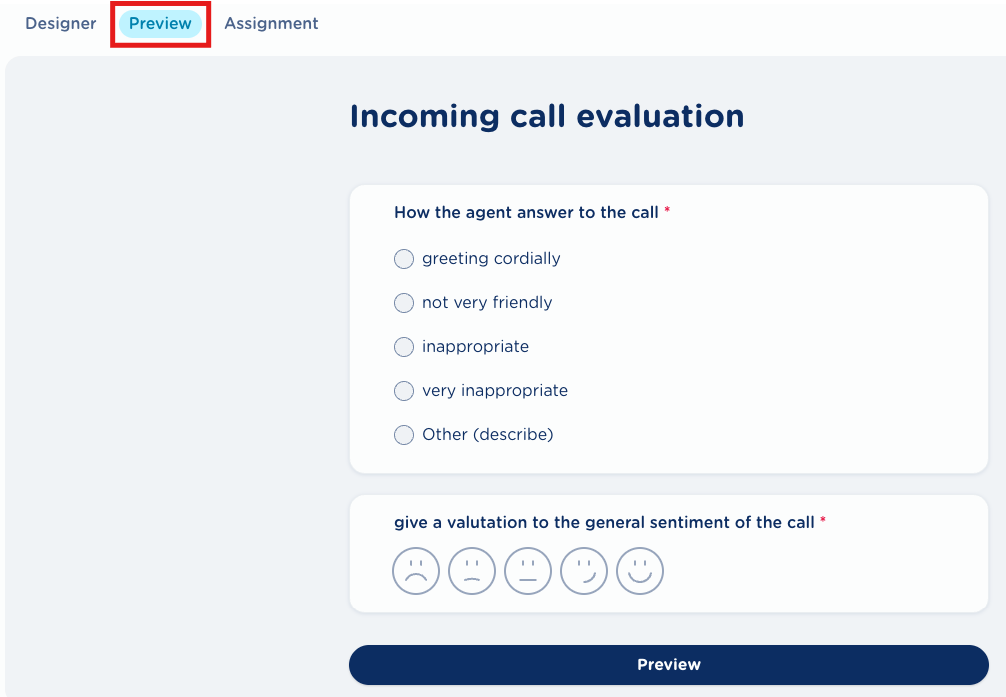
During an evaluation survey creation or by editing an existing survey, you can select the Preview tab to simulate how the form looks like in the recording details page, when a supervisor should answer to the evaluation form. See below sample:
Evaluation Survey Assignment
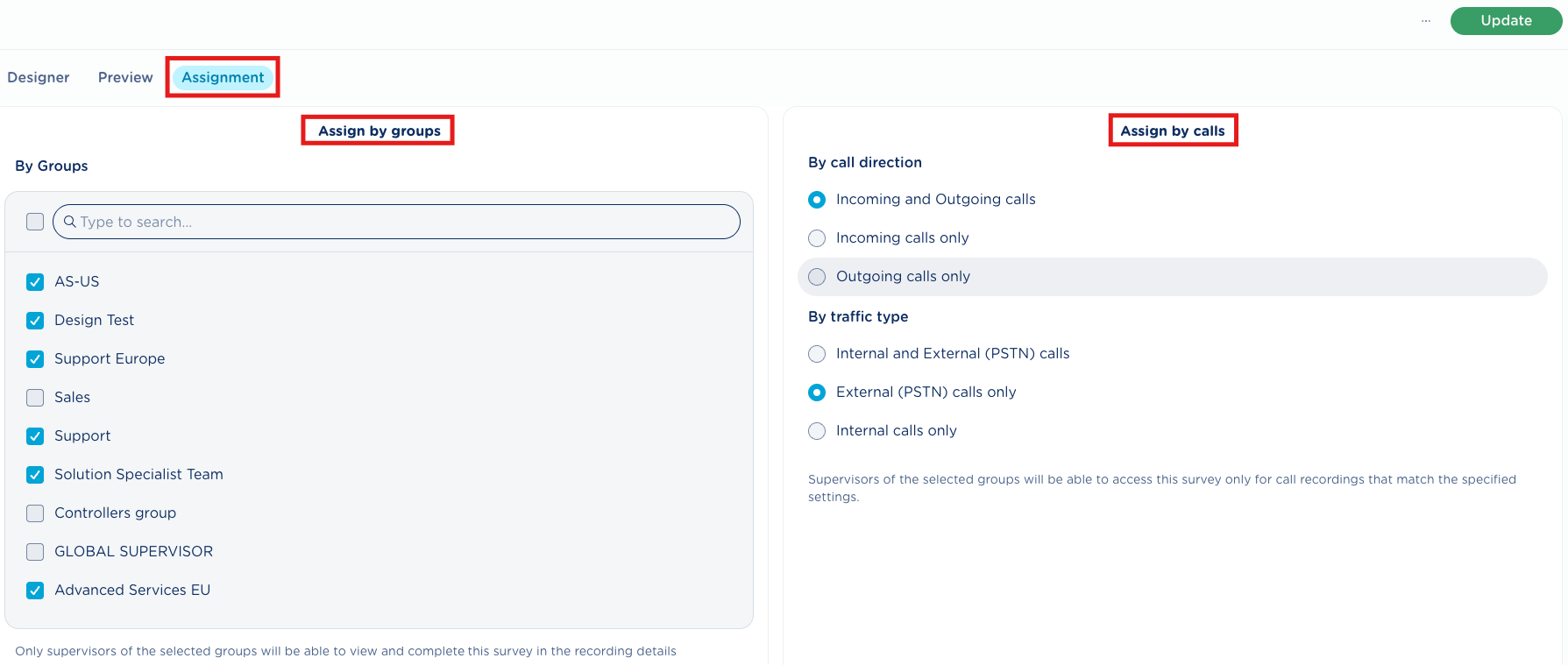
Once the evaluation survey has been properly configured, the administrator can manage the permissions for the survey form, defining who can access and compile it. This is accomplished by assigning the survey to recording group(s) and by choosing which calls the form applies to, based on specific call characteristics.
Assign by groups
A form can be assigned to one or more groups. Only supervisors who belong to the assigned groups can view and compile the form, for calls involving own group users.
Assign by calls
Admin can also further restrict the form availability by applying call filters. These filters allow the form to be only accessible for calls matching the selected criteria, such as call direction (incoming or outgoing) and traffic type (internal or external PSTN calls). Supervisors can compile the evaluation form for calls that meet these conditions.
Hit UPDATE to save assignment settings.
See below sample: