Next available menu item is Call Recording’s Recordings page, which shows the list of all available recordings performed by one or multiple users. Below you can see an Imagicle Call Recording’s conversations page sample:
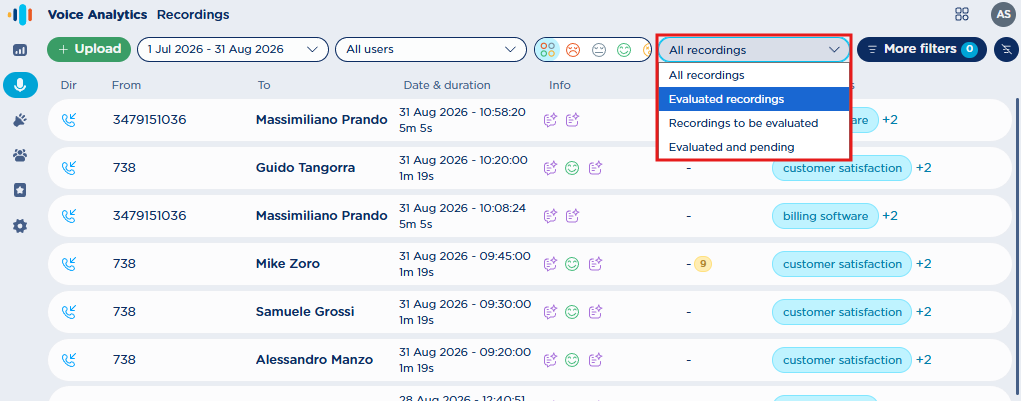
For each recording entry, the following data is available:
-
Dir → Call direction:
-
From → Calling Party name or phone number
-
To → Called Party name or phone number
-
Date & duration → Date/time stamp, call duration
-
Info → Can include the following icons:
-

-


-

-

-
-

-

-
-
Agent score → This is the average agent score percentage, based on evaluation survey(s) compiled by the Supervisor.
-
Topics → Topics matched by AI (Recording AI Insights license required)
-
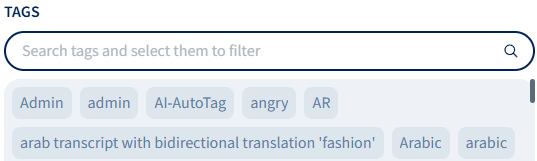
Tags → Tag(s) manually added inside the conversation
On top page header, you can apply a recording evaluation filter, by selecting on of below items:
-
All recordings – No evaluation filter is applied.
-
Evaluated recordings – Displays recordings with all completed surveys.
-
Recordings to be evaluated – Displays recordings with at least one pending survey.
-
Evaluated and pending recordings – Displays both evaluated recordings (with all surveys evaluated) and pending (with at least one survey still to be compiled).
Recording Filters
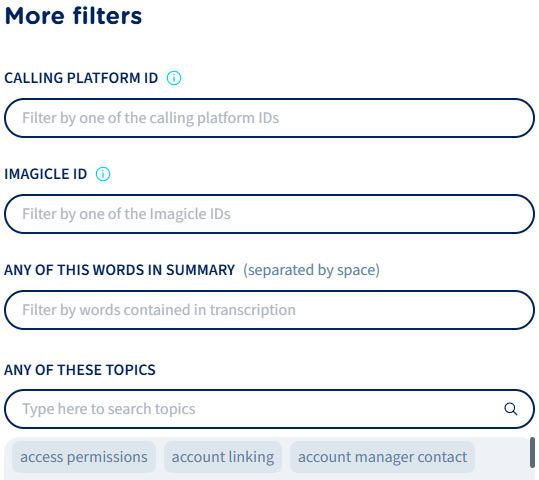
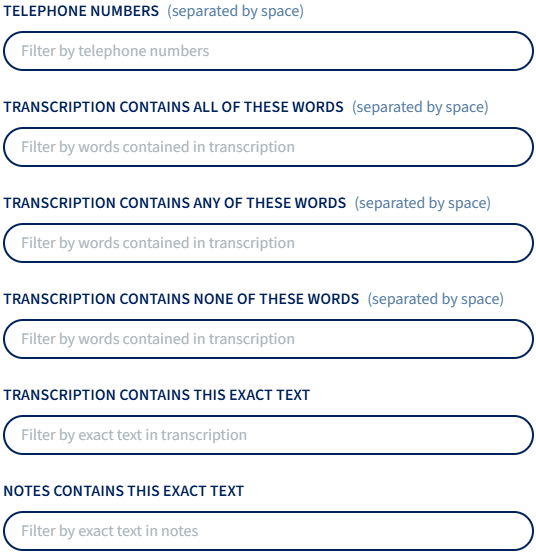
A MORE FILTERS button allows to apply additional search criteria across all recordings. See below:
-
This is the native recording identifier coming from the Calling Platform.
-
This is the unique recording identifier assigned by Imagicle UCX Platform.
Recording details, evaluations & playback
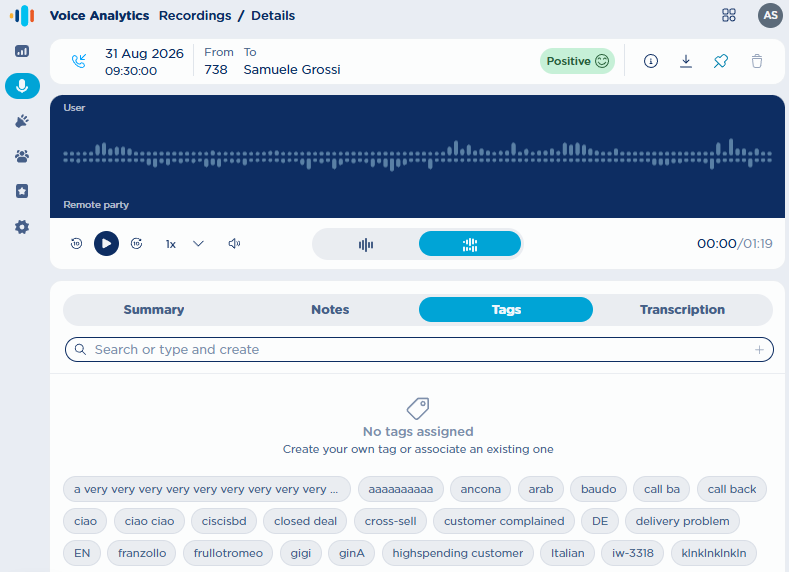
From Call Recording’s Recordings page, you can click on any available recording to access relevant details page, embedding an audio player. See below screenshot sample:
Recording summary header
The following options are included in top header:
-
Call direction:
-
Recording date/time stamp and duration
-
Call parties names and/or phone numbers
-
-

-
-

Recording Metadata
Metadata tab
-
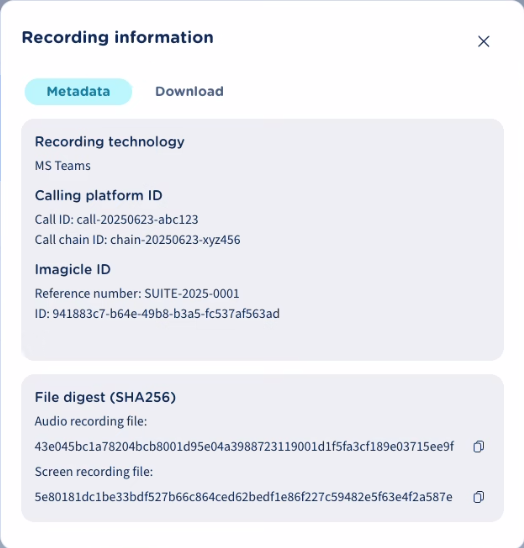
Recording technology → indicates the Calling Platform is use. This field determines the type and structure of the platform-specific IDs associated to each recording.
-
Calling platform ID, → Displays the identifiers associated to each call, depending on the recording technology. It helps matching the recording between Imagicle Recorder and the native calling platform. If no data is available for a specific field, a dash (
-) is displayed. -
File digest (SHA256) → Displays audio recording checksum value, to make sure nobody has modified its content.
Download tab
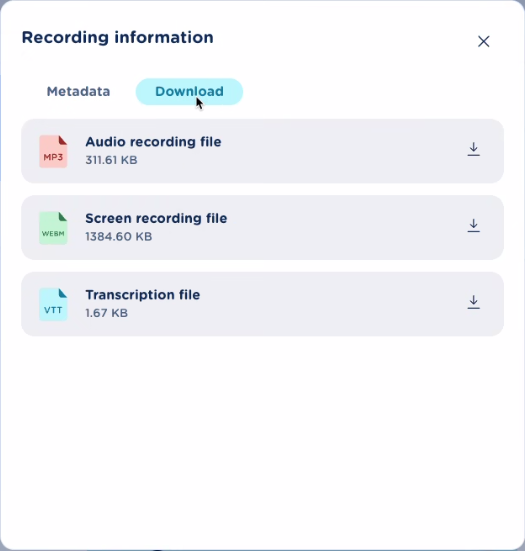
To download audio recording in MP3 unencrypted format.
Audio Player
An embedded audio player allows to listen to the whole recording content. Two different graphic layouts:
-

-

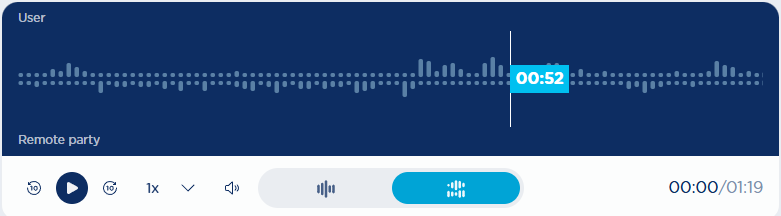
If a screen recording is associated to the call (Recording PRO/Insights only), a “ 
Evaluation Survey panel (Recording PRO only)
When reviewing a recording, supervisors can display the evaluation scorecard directly from the recording details view. This evaluation section appears besides the Notes/Tag panel and it is only visible to the supervisor of the recording’s group. From the evaluation panel, supervisor can see the list of available evaluation forms, each showing its current status through a badge indicating whether it is still pending or already completed (done). When scoring is available, score information also appears under the survey title. At the top of the evaluation area, two summary metrics are displayed:
-
Overall Agent Score, which is the average score the recording user has received across all recordings, based on evaluations submitted by the supervisor currently viewing;
-
Score for this recording, which represents the user’s average score for that specific recording.
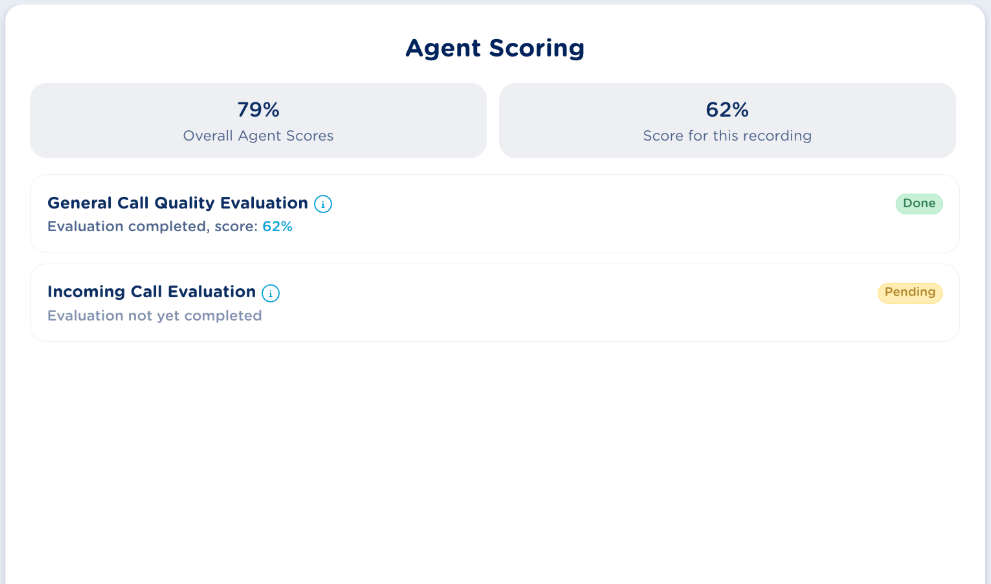
Scores are always personal, meaning each supervisor can only view the scores generated from their own evaluations. If no scored evaluations have been submitted yet, the overall score is shown as “-”, and it updates automatically as soon as at least one scored evaluation is submitted.
Submitting a survey
Supervisors can manually compile and submit a survey only when all mandatory questions have been answered. If a supervisor exits the evaluation without submitting it, any answers entered are discarded. After the first submission, the evaluation is marked as Done. Submitted evaluations can be updated at any time: changes affect only the stored answers and, when applicable, the score, while the evaluation status remains unchanged. The system automatically calculates a percentage score (0–100) based on the supervisor’s responses to all required weighted questions; this score becomes visible in the recording details after submission and is recalculated automatically every time the supervisor updates the evaluation, replacing the previous value. While an evaluation is still Pending, no score is shown; once it is Done, the survey details display either the score or the message “score not available” depending on whether the survey has some required weighted questions or not.
See below sample of an evaluation survey ready to be submitted:
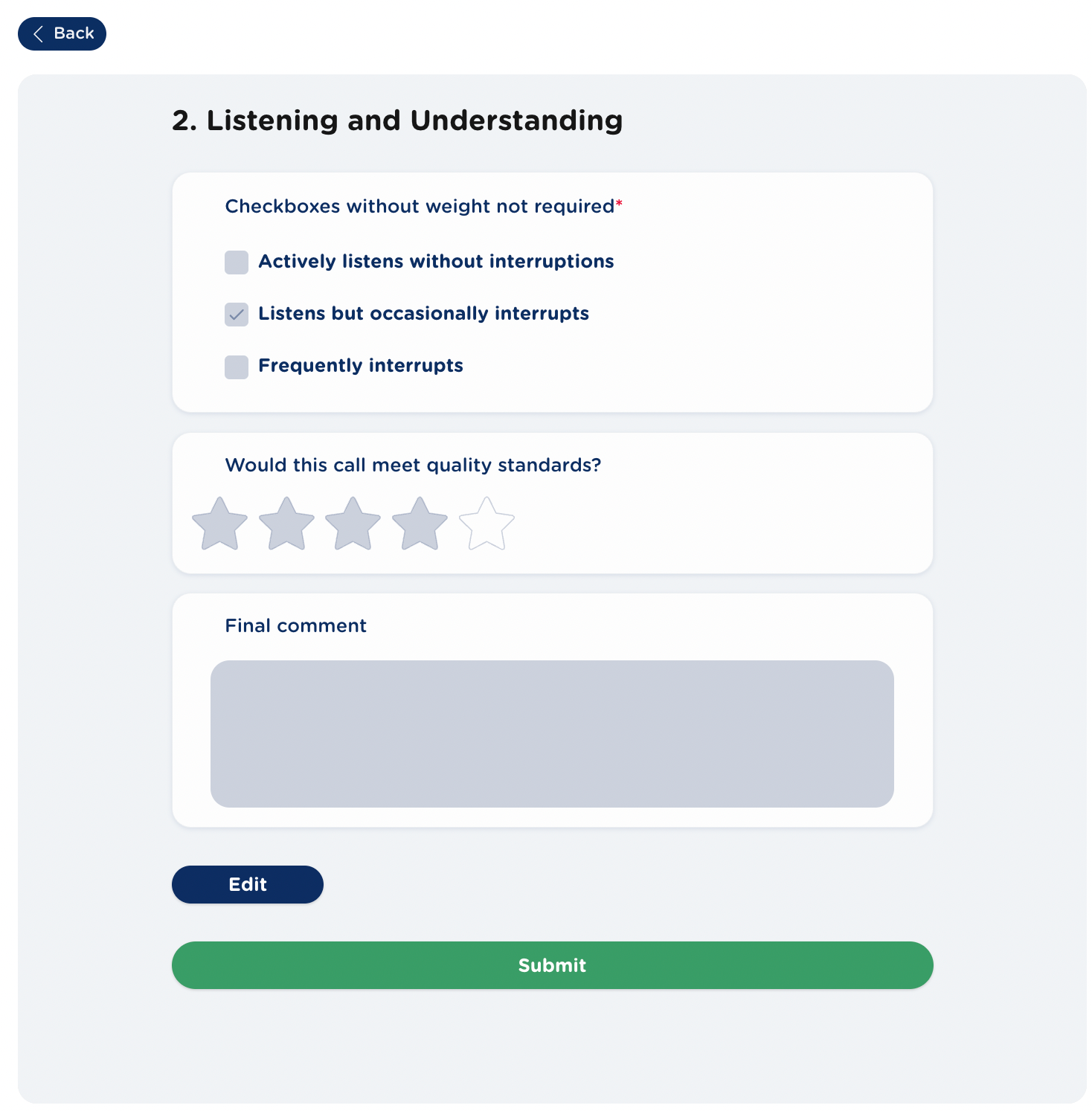
Please bear in mind Imagicle also offers AI-Assisted Agent Scoring feature, where AI can suggest the score to apply to the evaluated call. This feature requires Recording AI Insights license profile.
Score Calculation Logic
In this paragraph we explain the score calculation logic. First, only certain question types can contribute to the score:
-
checkboxes
-
radio button groups
-
rating scales (using labels, stars or smileys)
In addition, for a question to be included in a survey’s score calculation:
-
it must be marked as required
-
the answer should not be “Not Applicable”
The score is calculated differently depending on the question type.
Radio button questions
-
when creating a radio button question, the admin can assign a weight to each possible answer except for “Not Applicable”.
-
The score for a radio button question is calculated as the weight of the answer selected by the supervisor divided by the maximum weight for that question (given by the max weight assigned to an answer), multiplied by 100 to express the result as a percentage.
-
For example, if Question 1 has answers A, B, and C with weights 10, 15, and 20 respectively, then the score for selecting A is calculated as 10/20×100=50%
Checkbox questions
-
when creating a checkbox question the admin can assign a weight to each possible answer except for “Not Applicable”.
-
The score calculation logic is different from the radio button groups one, since multiple answers can be selected. In this case, the score is the sum of the weights of the selected answers divided by the maximum weight for the question (given by the sum of all available weights for that question), multiplied by 100. For example, if a checkbox question has options A, B, C, and D with weights 5, 10, 15, and 20, and the supervisor selects B and D, the score is calculated as (10+20)/(5+10+15+20)×100=60%.
Rating scale questions
-
Here the admin does not assign weights; instead, the weight of each star or smiley is computed by dividing the maximum value (100%) by the number of options in the question. For example, if a question has 5 stars, each star is worth 20%. As a result, if the supervisor selects 3 stars, the score for that question will be 60%.
Notes and Tags
Note panel allows the user to manually add a text note indicating the subject of the conversation and other valuable information. This note is searchable from Recordings page.
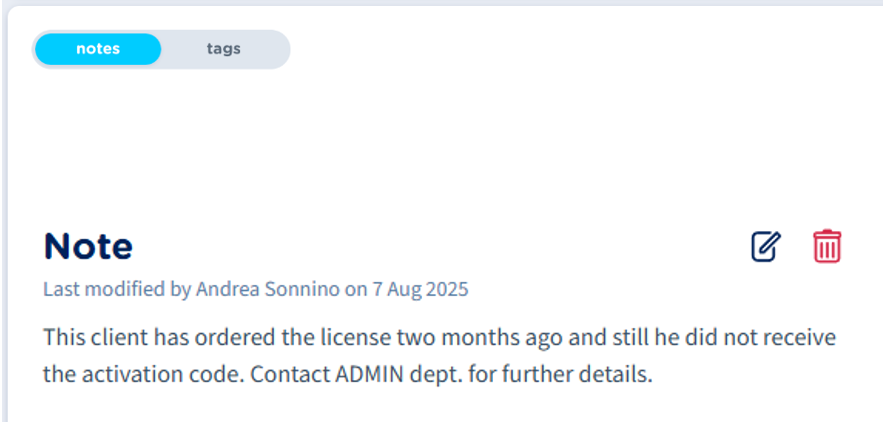
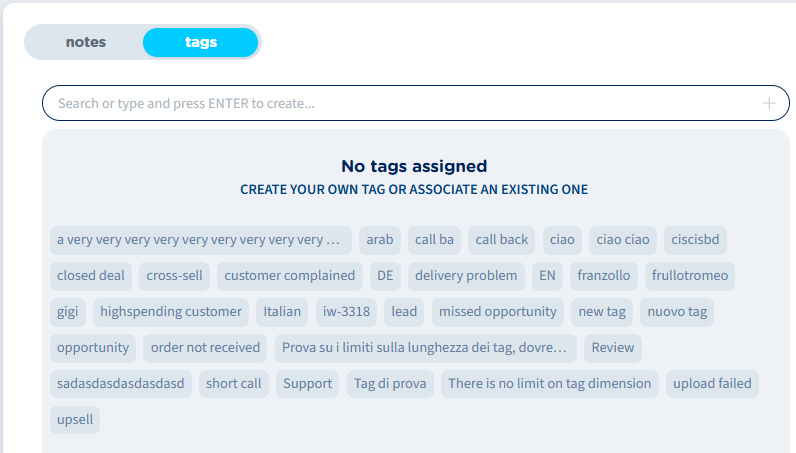
Tags panel allows to manually add specific tags to the recording, for an easier retrieval of several recordings matching one or multiple tags.