
Automatic Tagging Setting
Thanks to this feature, you can enable or disable automatic tagging and configure its rules, so that recordings uploaded by an application user with a Compliance and AI Quality Recording AI Insights license are tagged automatically according to the defined rules. All rules are accessible by clicking on relevant Compliance Recording Settings menu item. See below:
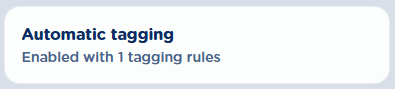
Automatic tagging is applied to all recorded conversations once the Automatic tagging feature is turned on.
All Automatic Tagging actions, like enabling/disabling the feature or add/remove rules are tracked in UCX Platform Audit Trail.
Automatic tagging rules assignment
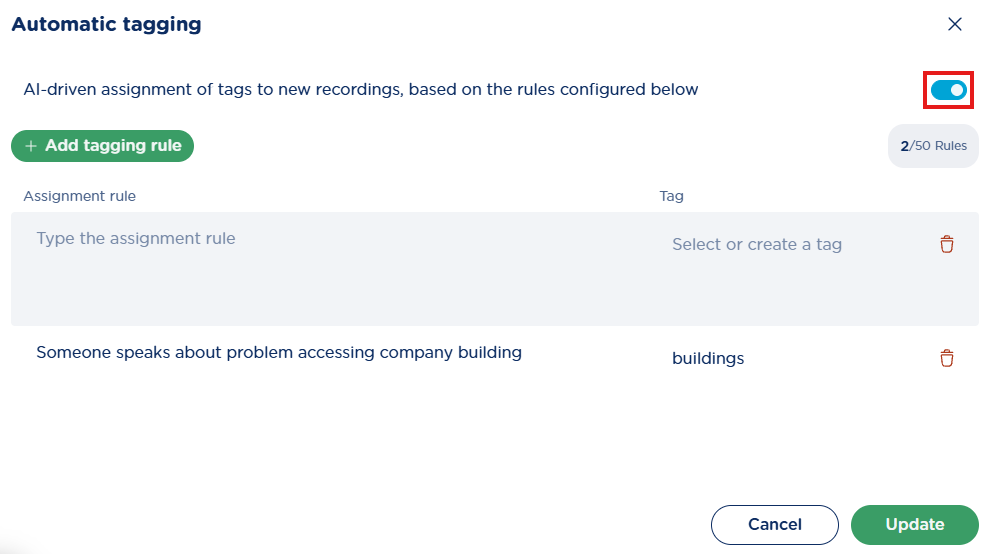
This web page includes on top-right the switch to turn on this AI-based feature. Moreover, it includes the list of tagging rules you wish to apply to recorded conversations. By default, the list is empty and you can fill it with up to 50 different rules.
You can remove or modify existing rules, or add a new one by click on top-left 
button.
The following fields must be filled for each rule:
-
Assignment rule: this is the sentence, example or topic the AI follows when it analyzes the recording to decide whether to associate the tag.
-
Tag: this is the tag name which appears in the Tags panel once AI has matched an item in the Automatic tagging list.
Please be aware that Assignment rule field is crucial to obtain the expected tag association. That’s why it is highly suggested to provide clear examples to guide the AI in understanding the conversation topics.
Once a new rule has been added or amended, please hit bottom-right 
Rules validation & processing phase
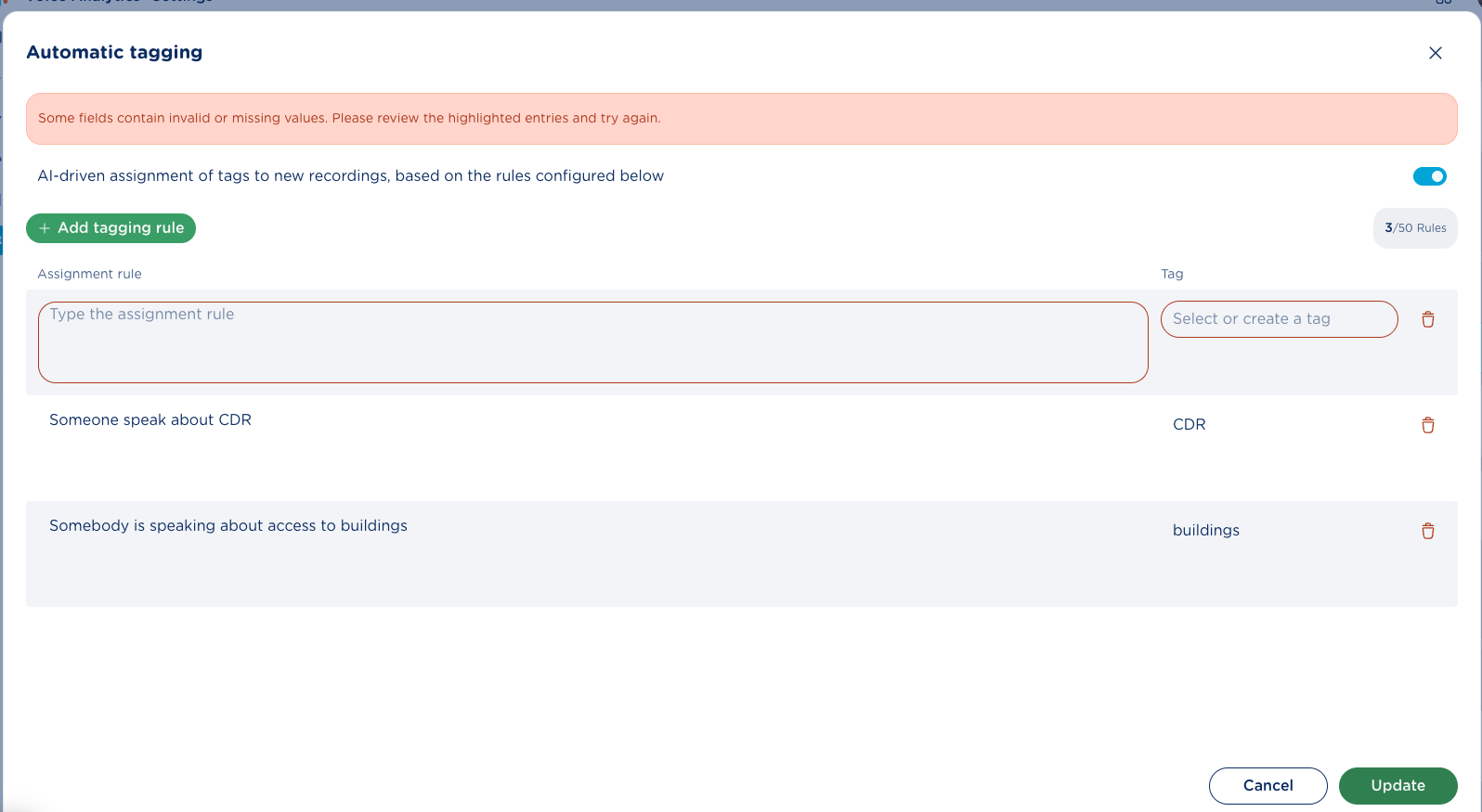
When you update your Automatic tagging rule list, the system automatically checks that both fields are properly filled before saving.
Make sure your text stays within the allowed limits: Assignment rule up to 2,000 characters, Tag must be between 2 and 250 characters.
Tag name is case-sensitive and can’t be the same as an already defined manual tag and viceversa.
If any field doesn’t meet these requirements, the system guides you to fix it, so you can successfully apply your changes.
Tags display on Compliance Recordings page
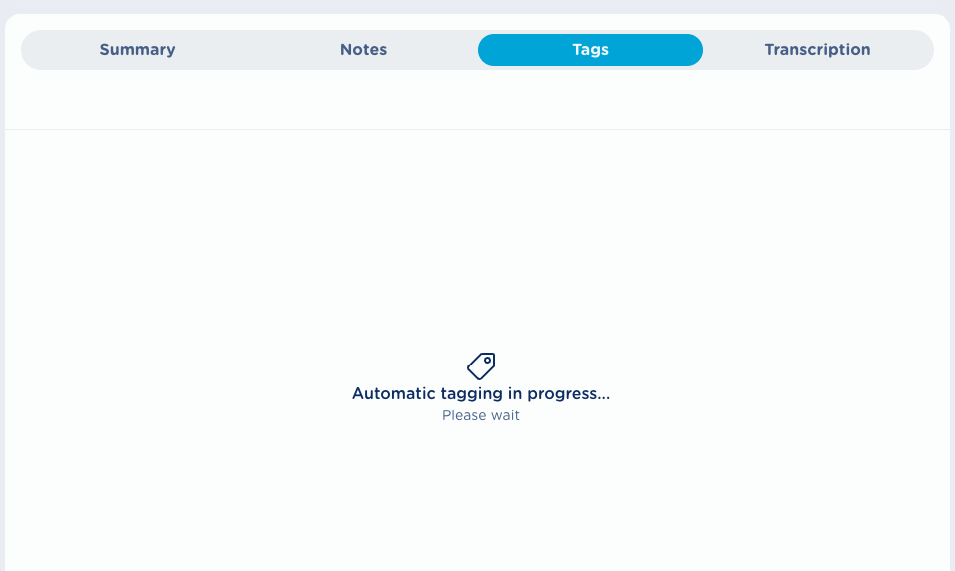
When Automatic tagging is active and a new recording is performed, Tags panel goes through a short processing phase before displaying detected tags. While this is happening, the panel shows an “In Progress” message. See below:
Once processing is successfully accomplished, the detected tags are displayed, together with manually added tags. More details available here.
Please be aware that Automatic Tagging feature is NOT retroactive. It is applied to new recordings performed after it has been enabled.