
Overview
This article describes how to leverage Imagicle UCX Platform’s Call Recording within Microsoft MS-Teams desktop, web and mobile clients, by using a specific Imagicle template.
There are two possible ways to enable Imagicle Recorder in MS-Teams:
-
by provisioning the app at Corporate level to all MS-Teams user
-
by locally install the template in own MS-Teams client.
Please find below both procedures.
Procedure for Corporate provisioning to all users
Please download this ZIP archive. It includes the following files:
-
manifest.json
-
outline.png
-
color.png
Upload Imagicle applications in MS-Teams Admin Center
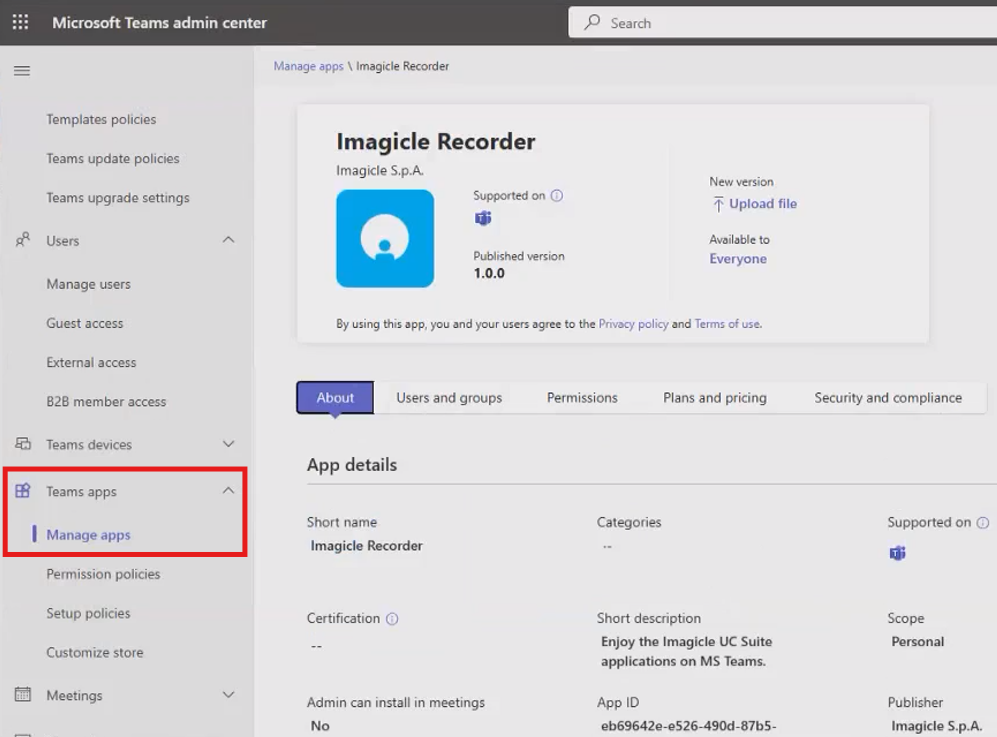
Access to Microsoft Admin Center → Teams Apps → Manage apps → Upload
Select the zip file and verify that the app "Imagicle Recorder" is published.
Enable Imagicle apps in all MS-Teams clients
Now all Corporate MS-Teams user can leverage Imagicle apps. They just have to click on button available in left pane. A list of items appears. Search for "Imagicle" and select relevant entry:

The following window appears:
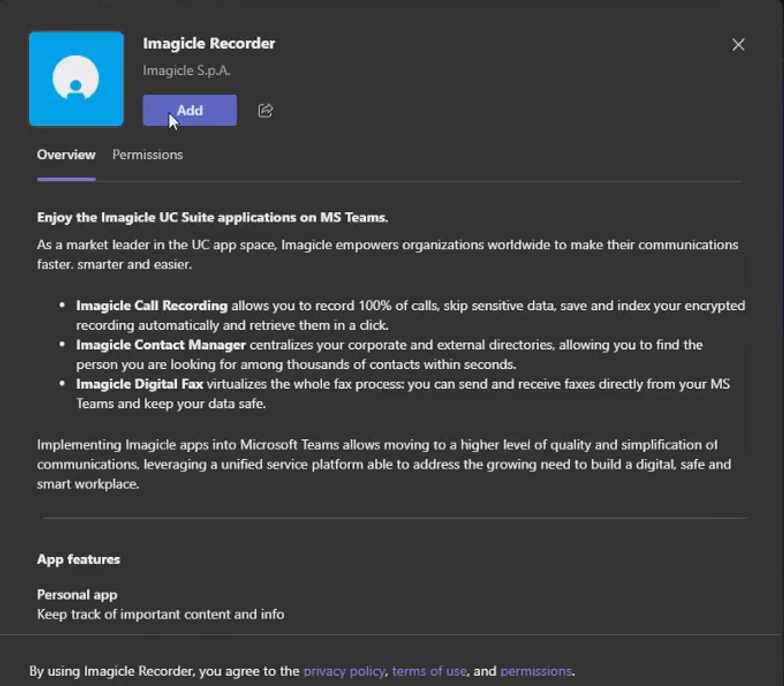
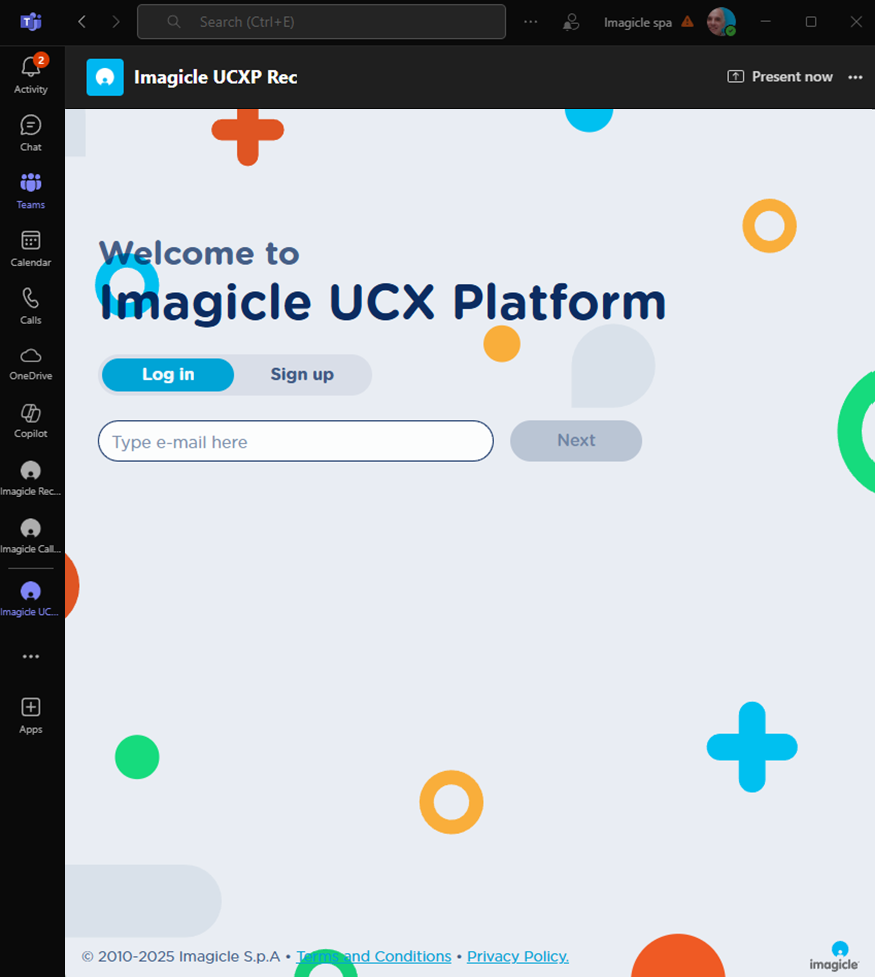
Hit Add to actually add Imagicle apps to MS-Teams' left pane:
Imagicle App access on M365 GCC environments
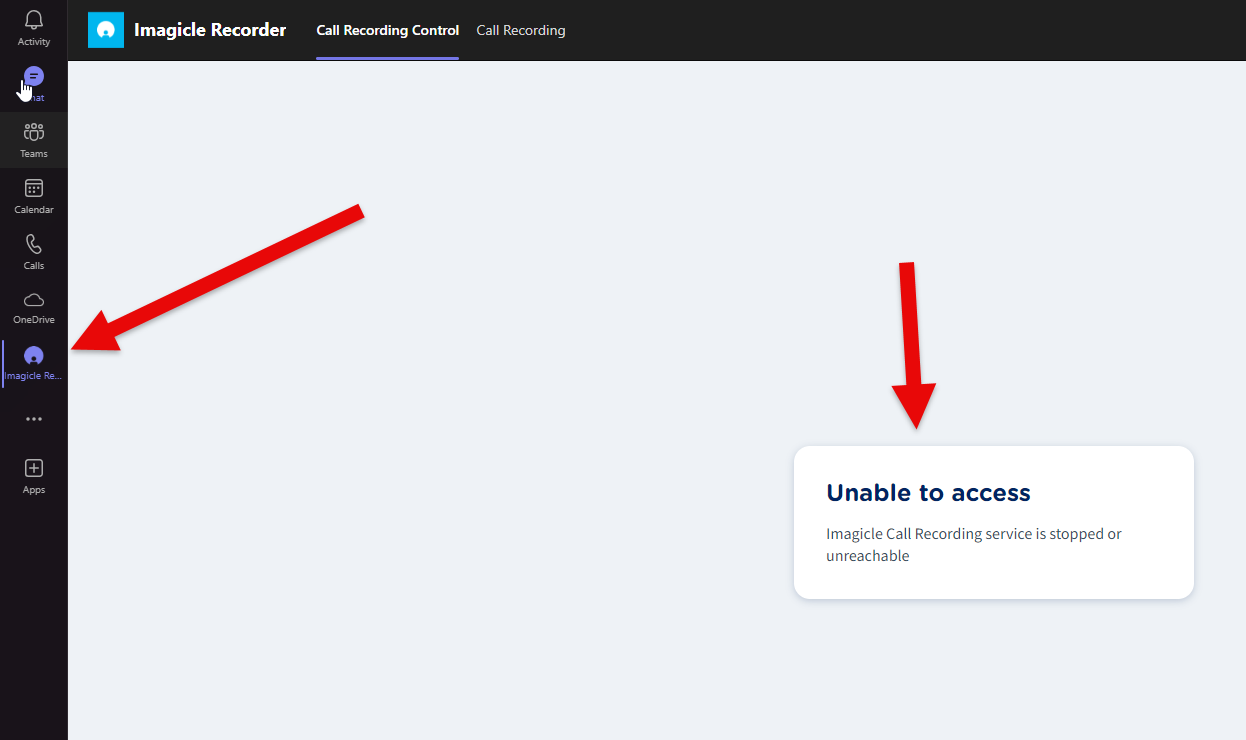
In such govt. environments, you might get an "Unable to access" error upon app access. This is happening because third-party apps are blocked by default:
Please consult relevant Microsoft documentation for more details.
Procedure for local template installation in one client
Please download this ZIP archive. It includes the following files:
-
manifest.json
-
outline.png
-
color.png
Upload Imagicle applications in MS-Teams client
Launch MS-Teams client on a PC and click on “App” button available in left pane. A list of items appears. Hit More apps link at the bottom of the list, to get the applications browser:

Hit "Upload a custom app" option and choose the ZIP archive. If the template does not contain any error, you get the following message:
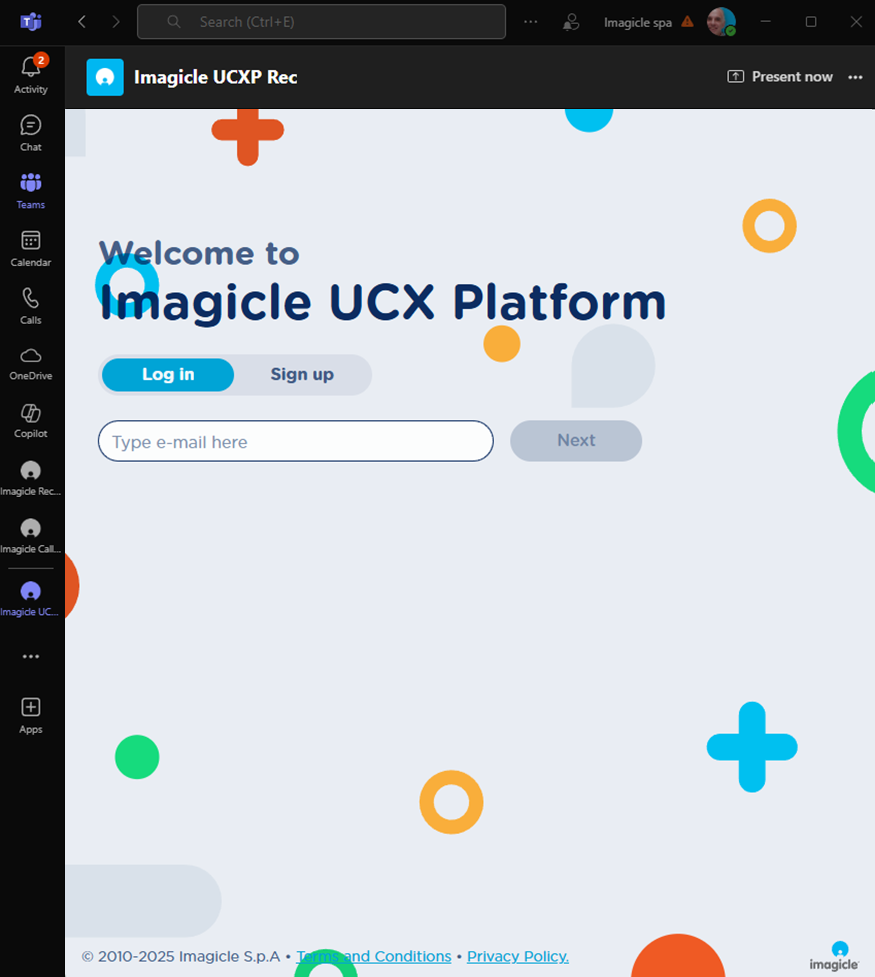
Hit Add to actually add Imagicle apps to MS-Teams' left pane:
Troubleshooting
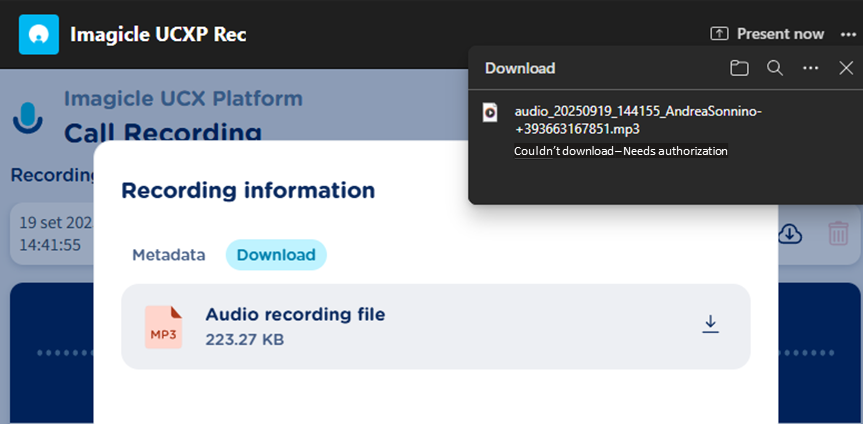
Can't download recorded conversations
It might happen that you get the error “Couldn’t download – Needs authorization” while trying to download a recording:
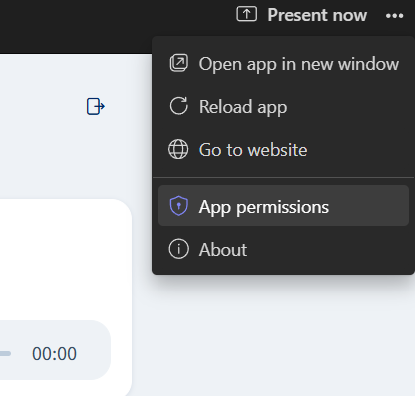
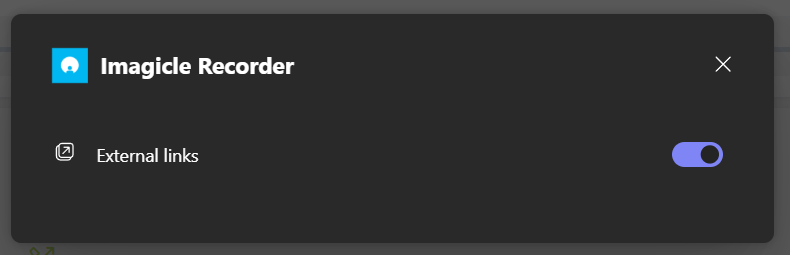
To override the problem, please click on "App permissions" to enable the access to external links:
⇒
Additional hints and tips
If the Imagicle apps in MS-Teams are behaving in erratic way, not allowing to access some data or to perform some tasks, it might be the case you need to clean-up MS-Teams client's cache.
Please access to this folder on your PC: %appdata%/Microsoft/Teams and delete all content. Then restart the client.