
Requirements
-
Admin-level access to MS Teams PowerShell
-
Admin-level access to Microsoft Azure CLI.
-
Imagicle specific Main Application ID and Pair Application ID for your Region, to be requested to Imagicle team
If the Imagicle Cloud instance is hosted in your own Private Azure Cloud, then please go to this KB article.
Procedure
MS-Teams Tenant Onboarding
The Imagicle team requires your MS Teams TenantID to start the onboarding process on the UCX Platform.
In the meantime, you can proceed with the following configurations, to be applied from Windows PowerShell.
Azure App Installation
Please run PowerShell as Administrator on your Windows workstation and login to Azure. If the command fails, make sure you have installed Azure Command Line Interface (CLI) package. You can install it by running this PS command:
winget install --exact --id Microsoft.AzureCLI
If Azure CLI is installed, you can login to Azure by using this command:
az login
Alternatively, you can also login without a valid Azure subscription:
az login -–allow-no-subscriptions
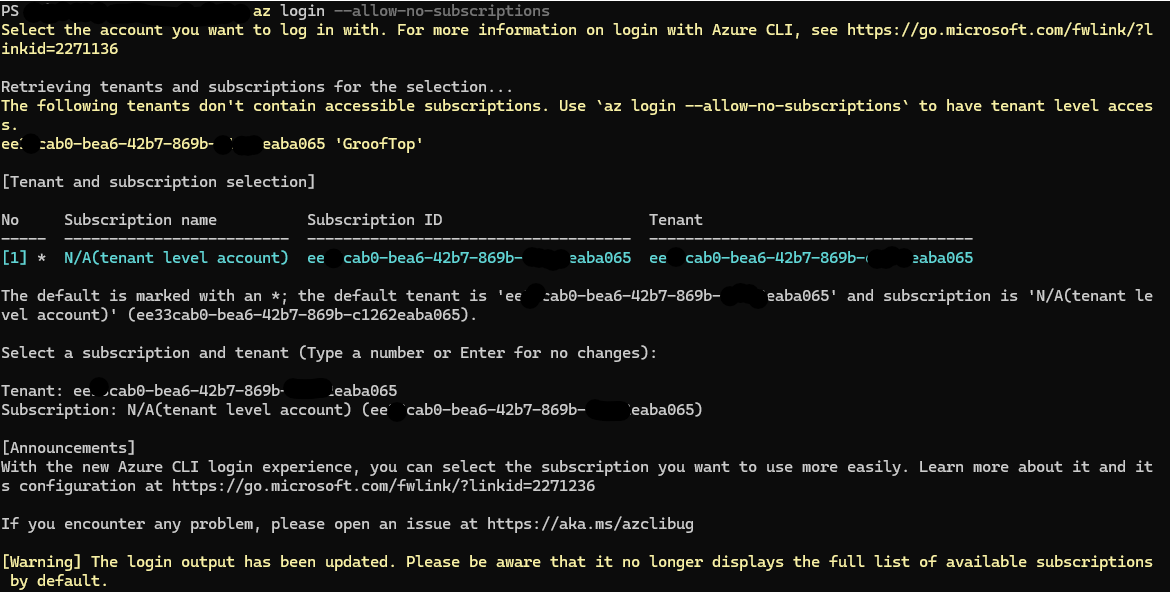
When asked to choose the subscription, just hit enter.
Enter the following command to create an Azure Service Principal:
az ad sp create --id $ApplicationId
where $ApplicationId is the MAIN AppID provided by Imagicle.
Now repeat same command, using PAIR AppID:
az ad sp create --id $ApplicationIdPair
Admin Consent
MAIN Admin Consent
Now launch a web browser in private “incognito” mode and enter the following web URL:
https://login.microsoftonline.com/$TenantId/v2.0/adminconsent?client_id=$ApplicationId&scope=https://graph.microsoft.com/.default
-
$TenantIdis the customer’s Microsoft Tenant ID. -
$ApplicationIdis the MAIN AppID provided by Imagicle.
You are prompted to login through the same Global Admin account used for .
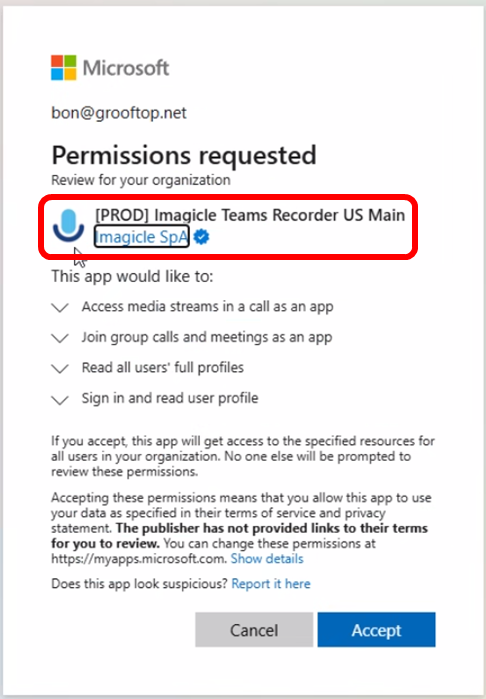
Once logged in, you get the following window where you are requested to authorize Imagicle to:
-
Receive audio streams from an ongoing call
-
Join a Group Call or meetings
-
Read all users' profiles
-
Sign in and read user’s profile
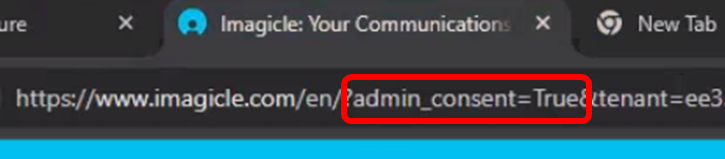
URL is redirected to Imagicle web site. Please check that new URL includes the statement admin_consent=True, meaning the permissions have been granted. See below:
PAIR Admin Consent
Launch again the browser in private “incognito” mode and enter the following web URL:
https://login.microsoftonline.com/$TenantId/v2.0/adminconsent?client_id=$ApplicationIdPair&scope=https://graph.microsoft.com/.default
-
$TenantIdis the customer’s Microsoft Tenant ID -
$ApplicationIdPairis the PAIR AppID provided by Imagicle.
You are prompted to login through the same Global Admin account used for onboarding.
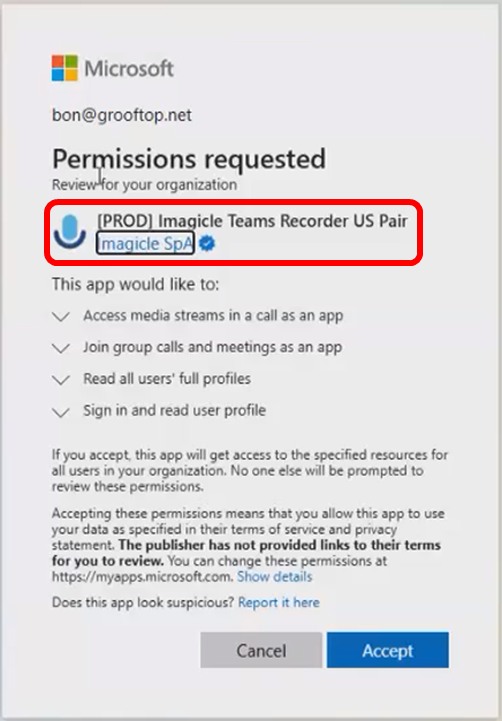
Once logged in, you get the following window where you are requested to authorize Imagicle to:
-
Receive audio streams from an ongoing call
-
Join a Group Call or meetings
-
Read all users' profiles
-
Sign in and read user’s profile
URL is redirected to Imagicle web site. Please check that new URL includes the statement admin_consent=True, meaning the permissions have been granted. See below:
Application Instance & Policy Recording
Open PowerShell and connect/login as Administrator to Microsoft Teams using the command:
Connect-MicrosoftTeams
Configurations for MAIN Imagicle Recording Application
Enter the following PowerShell commands replacing the variables as described below::
$AppInstance = New-CsOnlineApplicationInstance -UserPrincipalName $VirtualUser -ApplicationId $ApplicationId -DisplayName $AppName
-
$VirtualUsershould be a new unique UPN within your Tenant’s domain. As a guideline, Imagicle suggests to enter a username like "imagicle_call_recording@yourdomain.com". You can't use an existing UPN associated to an MS Teams user. -
$ApplicationIdis the MAIN AppID provided by Imagicle. -
$AppNameis a name of your choice, like “ImagicleCallRecording”
New-CsOnlineApplicationInstance command might fail with an error (read here for more details). Please make sure the virtual user is associated to an online MS-Teams Tenant.
Now proceed with next command (no need to replace anything, just copy-paste and run it):
Sync-CsOnlineApplicationInstance -ObjectId $AppInstance.ObjectId -ApplicationId $AppInstance.ApplicationId
If the operation results in a “NoContent” error, just ignore it.
Now it is time to create a new Compliance Recording Policy:
New-CsTeamsComplianceRecordingPolicy -Identity imagicle_rec -Enable $true
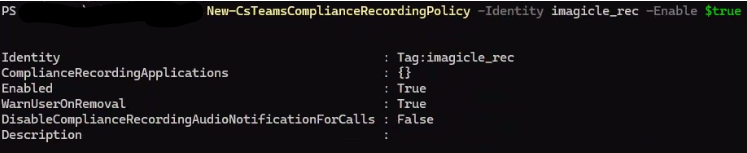
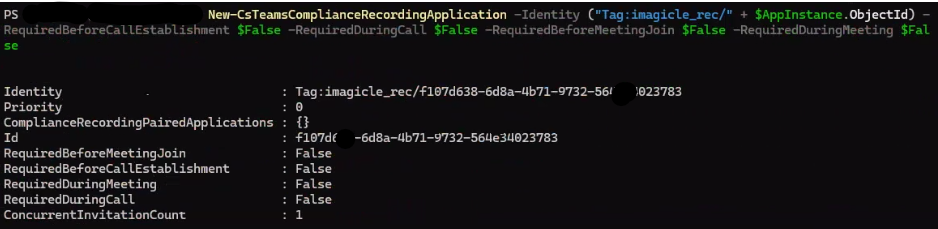
Next command creates a Recording Application, coupling recording policy to the previously created Online Application Instance:
New-CsTeamsComplianceRecordingApplication -Identity ("Tag:imagicle_rec/" + $AppInstance.ObjectId) -RequiredBeforeCallEstablishment $False -RequiredDuringCall $False -RequiredBeforeMeetingJoin $False -RequiredDuringMeeting $False
Configurations for PAIR Imagicle Recording Application
Enter the following PowerShell commands replacing the variables as described below:
$AppInstancePair = New-CsOnlineApplicationInstance -UserPrincipalName $VirtualUserPair -ApplicationId $ApplicationIdPair -DisplayName $AppNamePair
-
$VirtualUserPairshould be a new unique UPN within your Tenant’s domain. As a guideline, Imagicle suggests to enter a username like "imagicle_call_recordingHA@yourdomain.com". You can't use an existing UPN associated to an MS Teams user. -
$ApplicationIdPairis the PAIR AppID provided by Imagicle. -
$AppNamePairis a name of your choice, like “ImagicleCallRecordingHA”
Now proceed with next command:
Sync-CsOnlineApplicationInstance -ObjectId $AppInstancePair.ObjectId -ApplicationId $AppInstancePair.ApplicationId
Now it is time to create a new Compliance Recording Policy:
New-CsTeamsComplianceRecordingPolicy -Identity imagicle_recHA -Enable $true
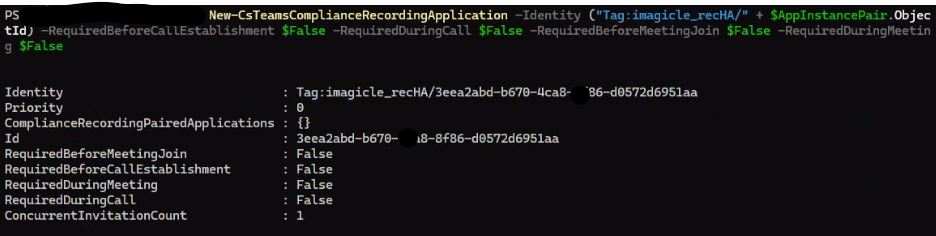
Next command creates a Recording Application, coupling recording policy to the previously created Online Application Instance:
New-CsTeamsComplianceRecordingApplication -Identity ("Tag:imagicle_recHA/" + $AppInstancePair.ObjectId) -RequiredBeforeCallEstablishment $False -RequiredDuringCall $False -RequiredBeforeMeetingJoin $False -RequiredDuringMeeting $False
Applications Pairing
Please enter the following command to pair both Recording Applications to a single Imagicle Application:
Set-CsTeamsComplianceRecordingApplication -Identity ("Tag:imagicle_rec/" + $AppInstance.ObjectId) -ComplianceRecordingPairedApplications @(New-CsTeamsComplianceRecordingPairedApplication -Id $AppInstancePair.ObjectId)

Grant Recording Enablement to MS-Teams users
Now it's time to assign newly defined Recording Policies to a Call Recording user, by executing the following commands as many times as the number of users to enable:
Grant-CsTeamsComplianceRecordingPolicy -Identity $UserUPN -PolicyName imagicle_rec
$UserUPN is the MS Teams user’s UPN and it is case-sensitive!
If you wish to disable the audio prompt (announcement) to notify remote party about ongoing audio recording, please execute the following command:
Set-CsTeamsComplianceRecordingPolicy -Identity imagicle_rec -DisableComplianceRecordingAudioNotificationForCalls $true
Same for redundant Recording Policy:
Set-CsTeamsComplianceRecordingPolicy -Identity imagicle_recHA -DisableComplianceRecordingAudioNotificationForCalls $true
Once done, you can double check proper Recording Policy association to a user by issuing the following command:
Get-CsOnlineUser $UserUPN | ft sipaddress, tenantid, TeamsComplianceRecordingPolicy
Optional Native Call Queues recording enablement
Compliance Recording for Call Queues is a new MS feature that provides the core functionality of compliance recording avoiding multiple announcements being heard by the caller. Compliance recording for call queues is configured at the queue-level and results in the entirety of a call queue call being recorded, rather than just one participant. It is only available for conference-mode call queues.
First you need to create a Compliance Recording Template:
New-CsComplianceRecordingForCallQueueTemplate -Name $Name -Description $Description -BotApplicationInstanceObjectId $AppInstance.ObjectId -PairedApplicationInstanceObjectId $AppInstancePair.ObjectId
-
$Nameis a template name of your choice, like “ImagicleQueueRecording” -
$Descriptionis a template description of your choice -
$AppInstance.ObjectIdis the same unique Object ID previously used for Imagicle Recording Main app. See here. -
$AppInstancePair.ObjectIdis the same unique Object ID previously used for Imagicle Recording Pair app. See here.
Next, you need to associate the template to the Native Call Queue you wish to record:
Set-CsCallQueue -Identity $CallQueueId -ComplianceRecordingForCallQueueTemplateId $TemplateId
-
$CallQueueIDis the ID of an existing native call queue. -
$TemplateIdis the previously created template ID.
Limitations
-
A call queue call is always recorded (ALWAYS ON)
-
When the call is over, the agent is the owner of the recording in the peered application. If the agent does not exist, the recording is dropped.
-
There is no % of recorded calls for call queue calls, because only the peered user is known.
-
If the agent leaves the call, after inviting somebody else, he/she can still start/stop the recording within the Call Recording App.
-
If a user already has their own recording policy, that policy is ignored for calls handled by the queue.
-
For calls not involving the native queue, the user’s personal recording policy still applies.
-
The welcome message can’t be recorded.
Configurations in Imagicle UCX Platform web portal
Please make sure that the all recording-enabled users are provisioned on the Imagicle UCX Platform with the correct “Phone Number" field populated with user’s UPN (same as "email" field). More details here.
Imagicle App for MS Teams Desktop/Web/Mobile clients
Imagicle provide an app for MS-Teams client. Please follow this link for the configuration.