
Voice Analytics Recordings Page
Next available menu item is Voice Analytics Recordings page, which shows the list of all available recordings performed by one or multiple users. Below you can see an Imagicle Voice Analytics Conversations page sample:
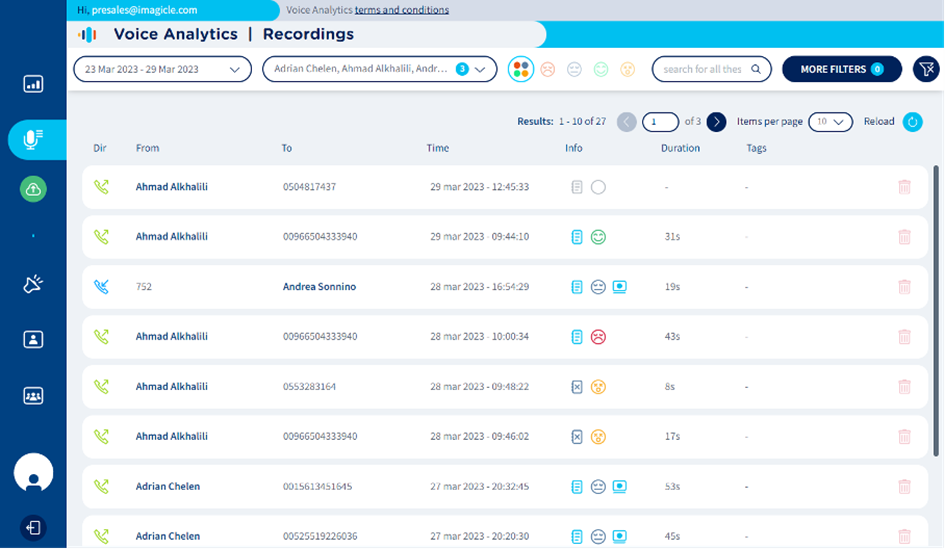
For each recording entry, the following data is available:
Dir → Call direction:
 = Inbound;
  = Outbound
From → Calling Party name or phone number
To → Called Party name or phone number
Time → Date/time stamp
Info → Icon
 to indicate transcription status; emoticon
  to indicate evaluated overall sentiment analysis status; icon
  indicates a screen recording is available for this call. Icon
  indicates that a text note has been added to this recording; If these
  icons appear, then the call is too short for any evaluation analysis.
Duration → Call duration
Tags → Matched tag(s) inside the conversation
Delete → Trash icon to delete a recording entry
On top page header, you can apply filters on conversations list, similar to those highlighted in Dashboard section:
Keyword/sentence search → allows to search for specific text across all transcribed recordings.
Sentiment filters (multiple options can be selected):
 → Any sentiment
 → Negative sentiment calls only
 → Neutral sentiment calls only
 → Positive sentiment calls only
 → Sentiment data not available
MORE FILTERS → allows to apply additional search criteria across all imported/transcribed recordings. See below:
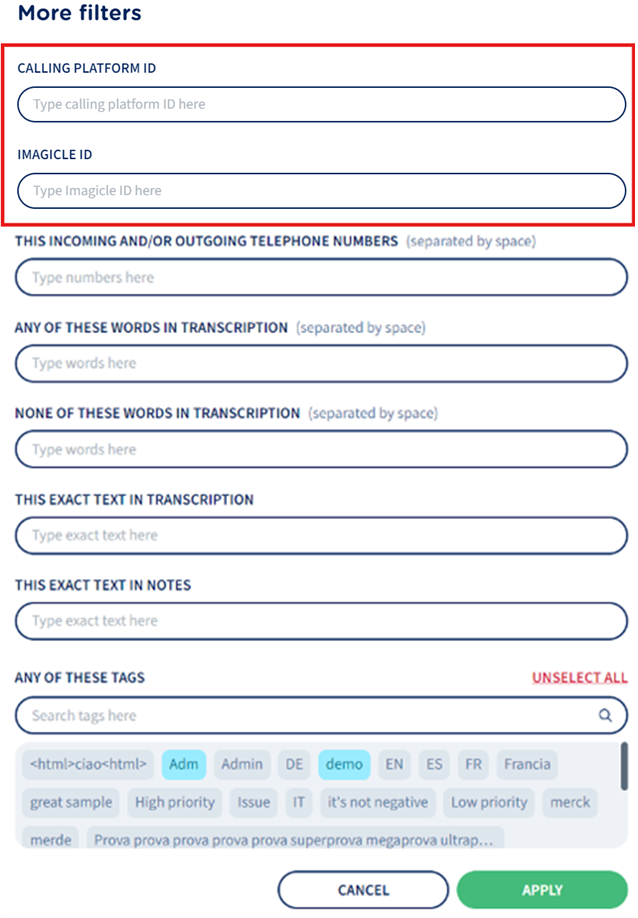

If PII Redaction is enabled, the original sensitive information is no longer searchable. Instead, you can search by replacement tokens defined in your rules. For example, searching for EMAIL returns all recordings where email addresses has been redacted.
Recorded MP3 audio file upload
Imagicle UCX Suite allows to automatically upload all recorded conversations to Voice Analytics web portal. If you are leveraging an UCX Suite version older than v2022.Winter.1 or you have some recordings performed before purchasing Voice Analytics subscription, you still have the chance to manually upload these MP3 audio files, once exported from Imagicle Call Recording “Search & Play” web portal or gadget. Please consult Imagicle UCX Suite’s Call Recording User Guide for more details.
The  button is available under the recording filters section. Once hit, below dialog pops-up:
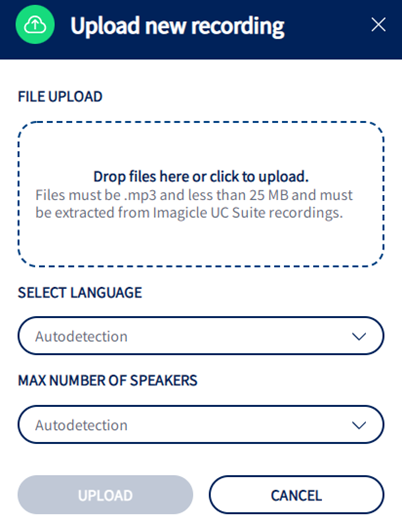
FILE UPLOAD → Drag & drop your MP3 file in this area or click to open file system dialog to locate the file within your workstation.
SELECT LANGUAGE → Conversation language to be transcribed. You can manually choose language or let internal engine detect the correct one.
MAX NUMBER OF SPEAKERS → Number of call parties. You can manually select the number of parties or let internal engine detect the correct one.
When a new MP3 file is uploaded, Voice Analytics engine immediately starts the transcription and sentiment analysis, which might require few minutes, depending on call duration.
Please note that foreign MP3 files, not coming from Imagicle Call Recording application, or files greater than 25 Mbytes are rejected by Voice Analytics engine.
Voice Analytics subscription is based on overall amount of analyzed conversation minutes available to each user or company-wide. If the maximum amount of minutes has been reached, the application might refuse new recordings automatic/manual upload. This information is available on top header of each Voice Analytics web page. See below sample:

Voice Analytics Recording Transcription and Sentiment Analysis
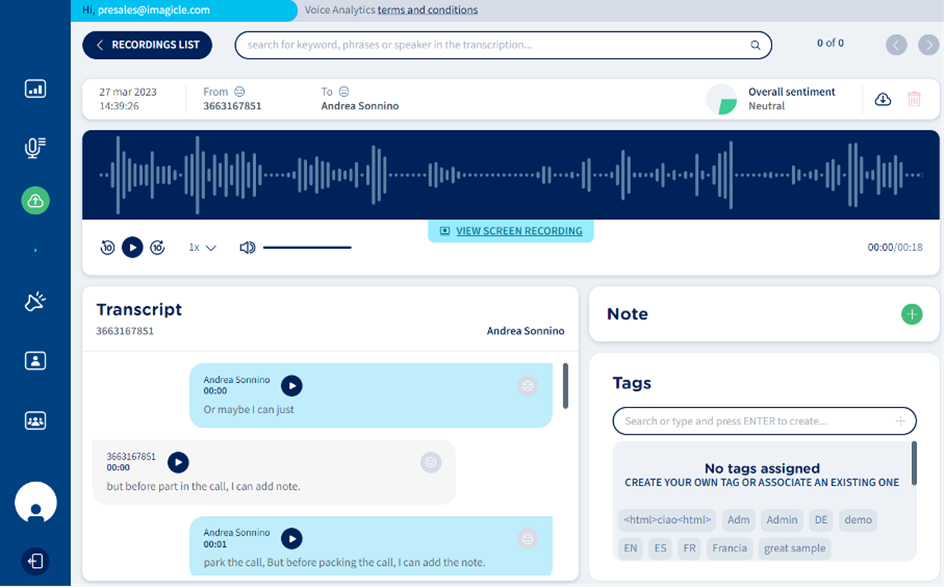
From Voice Analytics Recordings page, you can click on any available recording to access relevant audio transcription and sentiment analysis. See below screenshot sample:
Recording summary header
The following options are included:
Keyword/sentence search → allows to search for specific text within selected recording. See below:
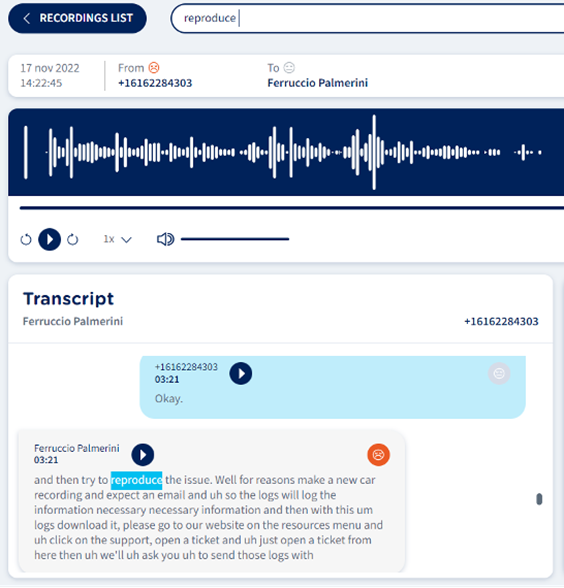
Recording date/time stamp
Call parties names/phone numbers
Overall sentiment, considering both local and remote parties
Information button
 to display recording metadata and download data:
Metadata tab
Recording technology → indicates the Calling Platform is use. This field determines the type and structure of the platform-specific IDs associated to each recording.
Calling platform ID, → Displays the identifiers associated to each call, depending on the recording technology. It helps matching the recording between Voice Analytics and the native calling platform. If no data is available for a specific field, a dash (
-) is displayed.File digest (SHA256) → Displays both audio and screen recording checksum values, to make sure nobody has modified their content. See below:
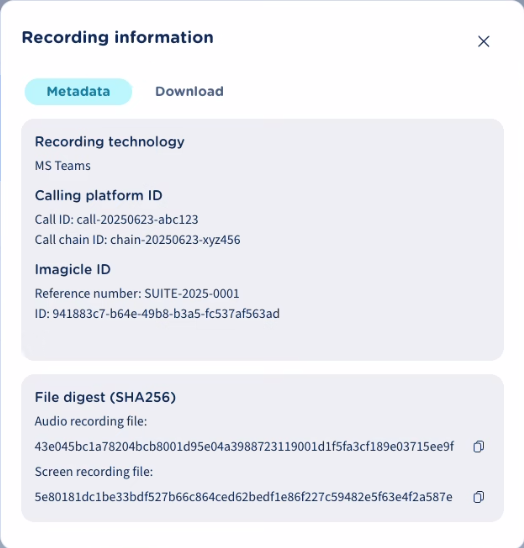
Depending on the recording technology, the available IDs are:
Recording Technology | Field(s) Shown in Metadata |
MS Team | Call ID, Call Chain ID |
Webex Contact Center | Call Session ID, Queue Name |
Webex | Call ID, External Tracking ID |
Generic | Local Call ID, Remote Call ID |
Dial In | - |
SIPREC | Local Session ID, Remote Session ID |
Media Forking | Local Call ID, Remote Call ID, Session ID |
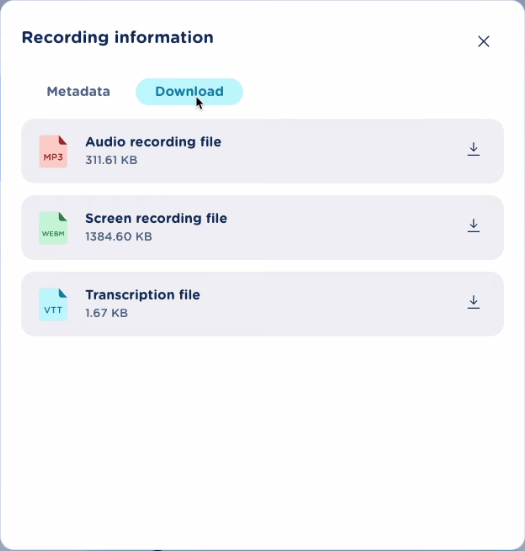
Download tab
To download audio, screen recording and recording transcription.
Transcription export button
 . Click this button to display same above download tab.
Audio Player
Under recording summary panel, you can find a graphic pattern representing audio recording over a blue background. This is actually an audio player, which allows to listen to the whole recording content. If a screen recording is associated to the call, a “ VIEW SCREEN RECORDING” link appears underneath the audio player. If you click on it, a new video viewer window pops-up, allowing to simultaneously watch audio+screen recording.
Transcript Panel
The AI engine embedded in Voice Analytics application can analyze the transcription content of the whole conversation or single sections, to detect the “mood” of involved call parties and rate it as negative, neutral or positive.
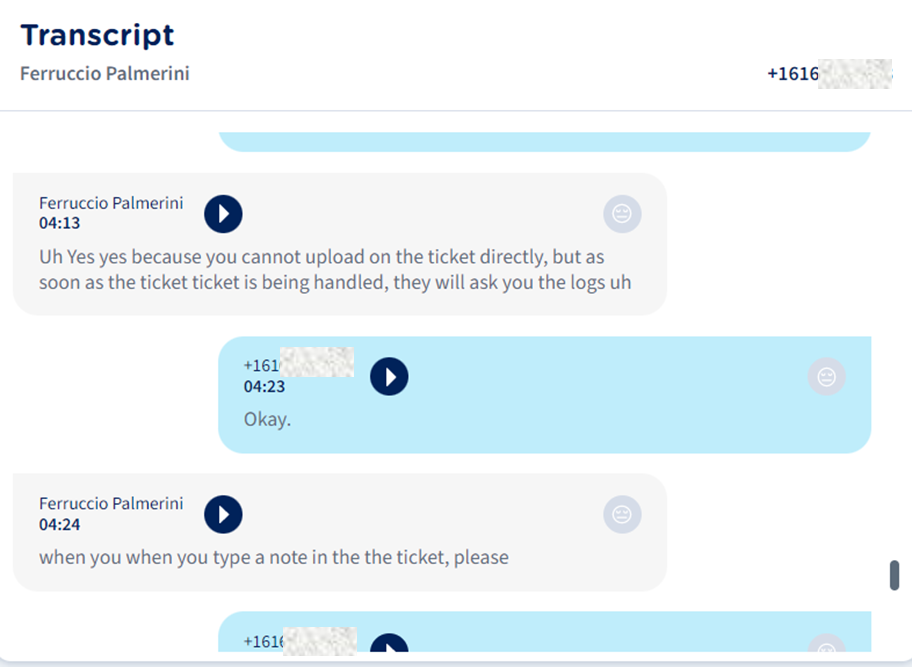
Transcript Header → Includes call parties names/phone numbers.
Conversion segments → Each leg includes involved call party, a time stamp, play audio button, voice transcription and sentiment analysis emoticon:
 Smile (positive) mood
 Neutral mood
 Sad (negative) mood
Notes and Tags
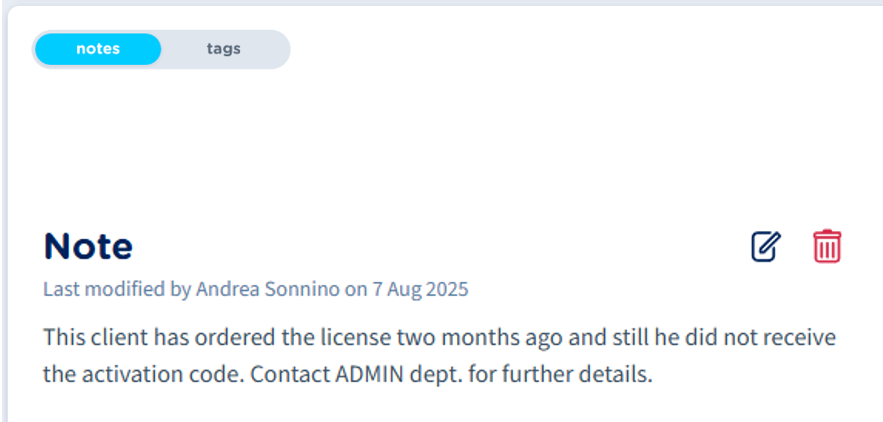
Note panel allows the user to add a text note indicating the subject of the conversation and other valuable information. This note is searchable from Recordings page.
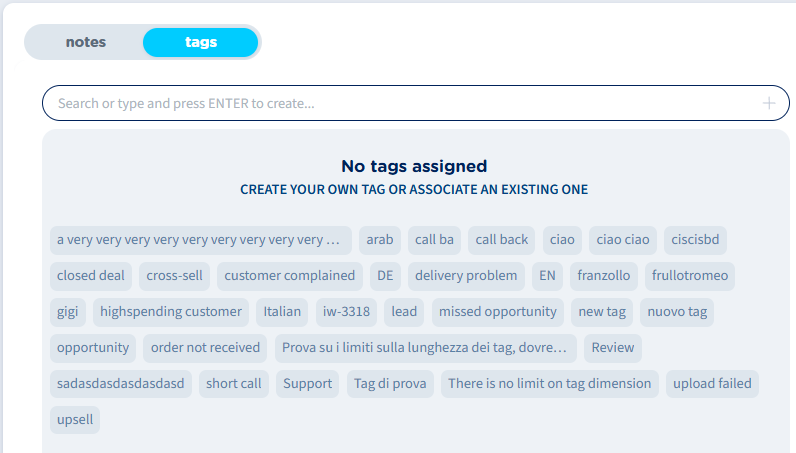
Tags panel allows to add specific tags to the recording, for an easier retrieval of several recordings matching one or multiple tags.
Evaluation Survey Panel
When reviewing a recording, supervisors can display the evaluation scorecard directly from the recording details view. This evaluation section appears besides the Notes/Tag panel and it is only visible to the supervisor of the recording’s group. More details are available in this KB article.