
This article gives tips for managing multiple WhatsApp numbers, especially when each number must be tied to a different service.
Prerequisites
-
Confirm the WhatsApp integration works with the first number by following the instructions here.
-
Add the extra numbers to the Meta WhatsApp Account Manager. Starting a chat with an added number should, by default, apply the same handling as the first number.
How to trigger different departments
To trigger different services or operator groups for different phone numbers, go through the following steps:
Define multiple departments
Define a department for each service you want to manage. Each department should trigger a chatbot or route the chat to an operator group, depending on your preference.
For this article, suppose you have two departments: Help Desk and Sales.
Collect the phone number IDs
-
Log in to the Facebook developer account, then select the WhatsApp integration app created for Smartflows.
-
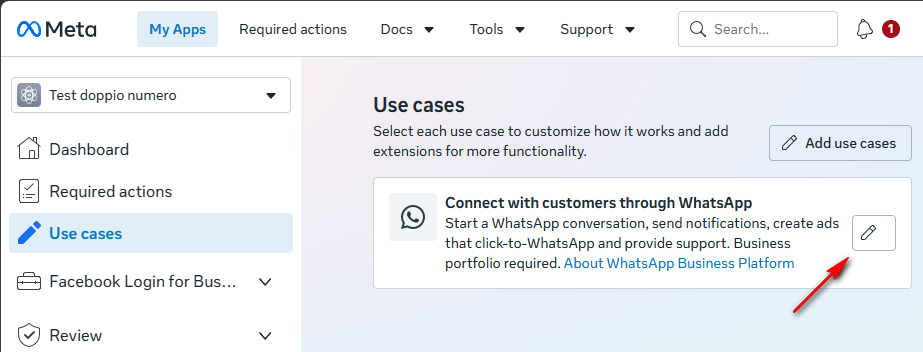
Select Use cases in the left-side menu, then Customize the WhatsApp use case:
-
Select API Setup in the leftside menu.
-
Select the first phone number and take note of the associated phone number ID, it will be needed for the next step:
-
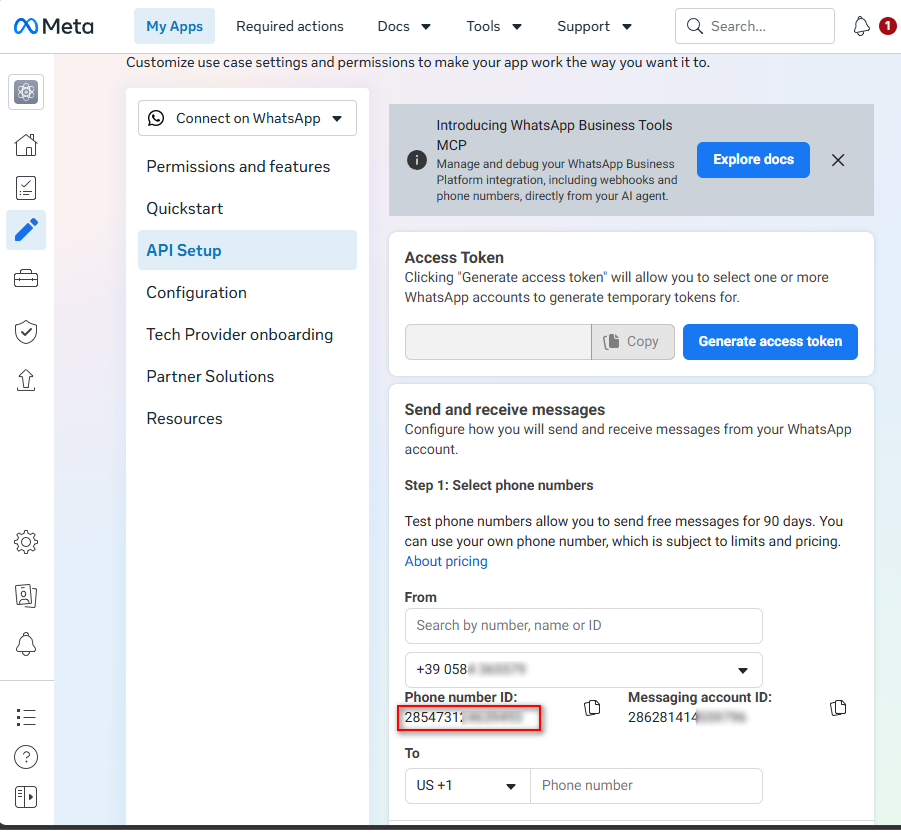
Repeat the same for each additional phone number that you need to manage.
3. Create a routing chatbot
-
Create a new AI automation chatbot named “Routing Chatbot”. A sample one is attached at the bottom of this article, you can download it and import into your Smartflows project.
The purpose of this chatbot is looking at the Whatsapp phone number received the incoming chat and route it to the proper department.
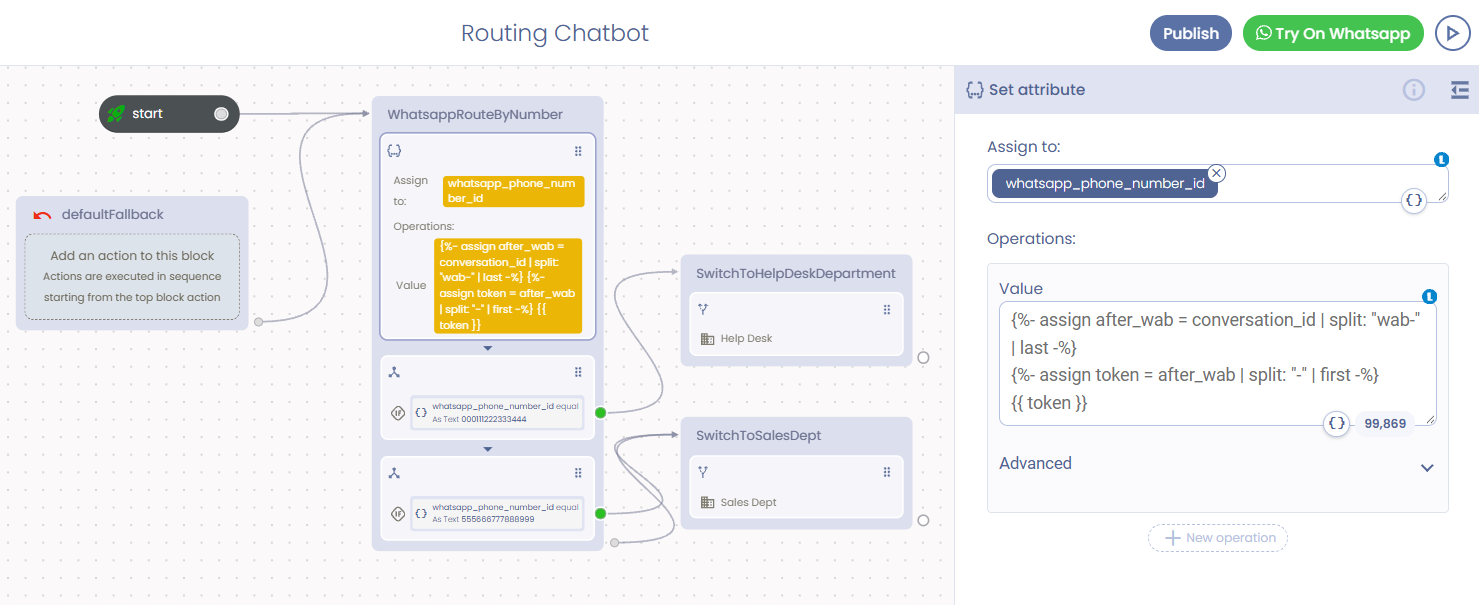
The bot should go through the following actions:
-
-
Extract the WhatsApp phone number ID from the requestId attribute and store it in a new attribute (whatsapp_phone_number_id) using a Set Attribute action with this value:
{%- assign after_wab = conversation_id | split: "wab-" | last -%}
{%- assign token = after_wab | split: "-" | first -%}
{{ token }}
-
-
-
Decide based on the extracted whatsapp_phone_number_id. Use a Condition action for each phone number: compare the extracted whatsapp_phone_number_id (as text) with the phone number id annotated in the previous step.
-
Each condition should trigger a Change Department action, to jump to the destination department (Help Desk or Sales in our example).
-
-
Publish the Routing Chatbot
-
Create a new department called Whatsapp (if it doesn't exist) to trigger the Routing Chatbot just created:
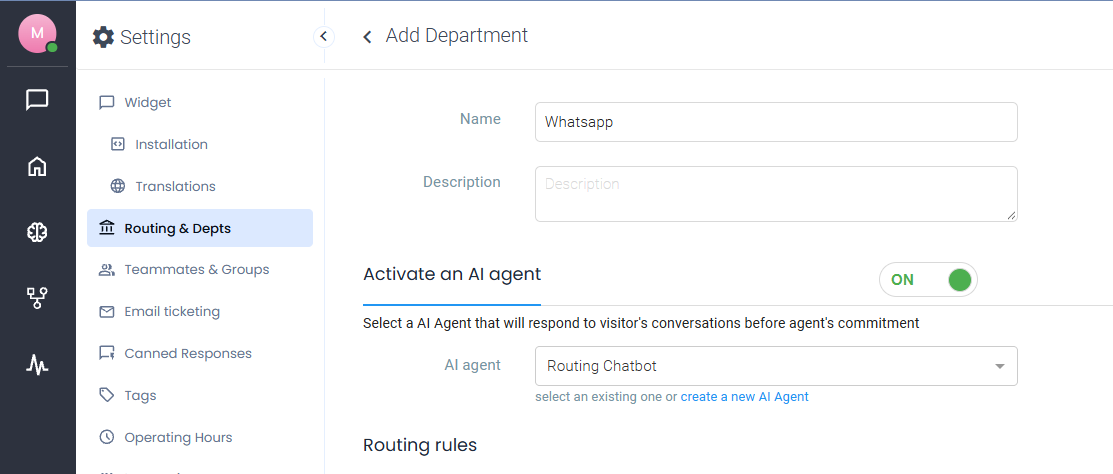
Creation of Whatsapp department
-
In the project integration settings, for Whatsapp integration, ensure the Whatsapp department is triggered:
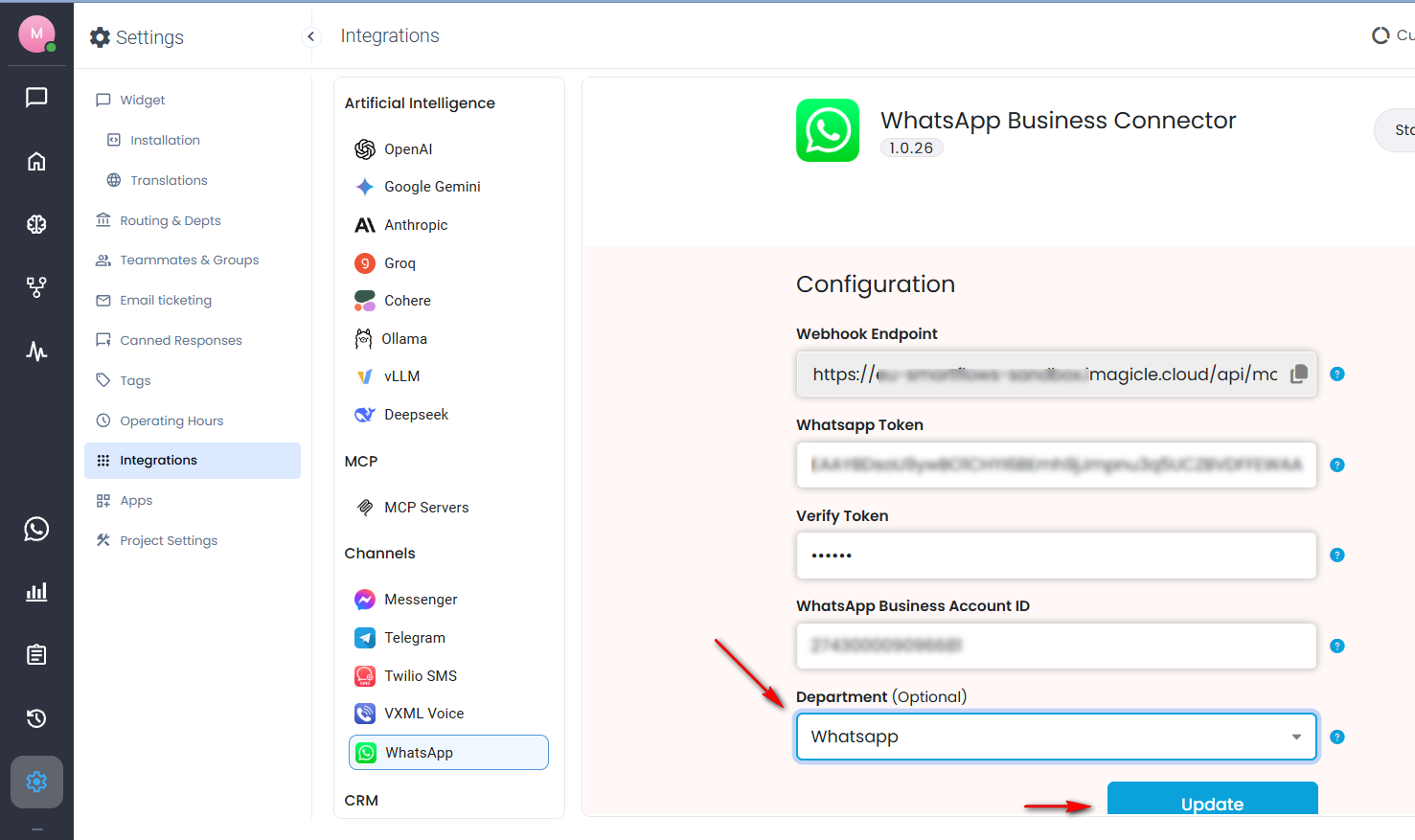
Finally, test the configuration by starting a new chat to each configured phone number.
Sample Routing Chatbot