
Logon and access
The access to Imagicle AI Receptionist is available within Imagicle UCX Platform web portal by selecting relevant option, as highlighted in below screenshot. By leveraging own standard login credentials, with or without SSO, admin user accesses the UCX Platform web portal including all Imagicle on-prem and Cloud-based applications.
Username is always the email address. If your company is leveraging Single Sign-On authentication, then your login is redirected to your Identity Provider for multi-factor authentication, where applies.
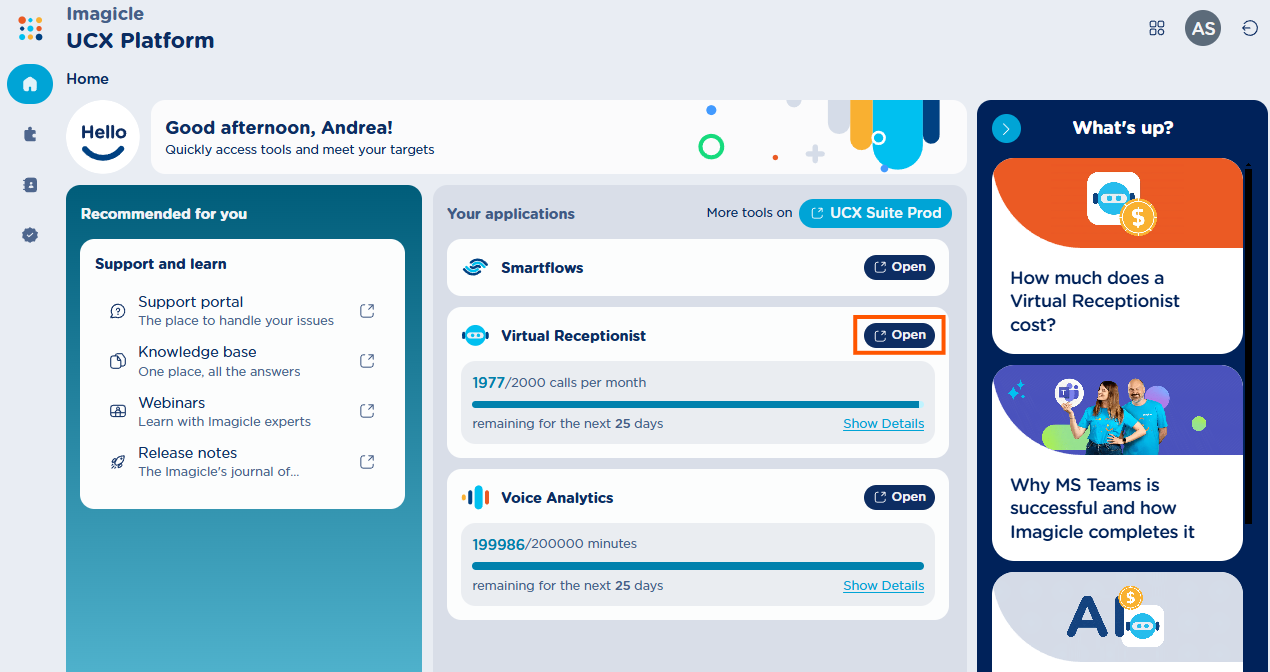
AI Receptionist interface is only accessible to Administrators. Standard users can’t access its web portal.
All web pages within UCX Platform portal are displayed by leveraging web browser’s language. Currently supported languages are: English, French, Italian, Spanish, German, Gulf Arabic.
Receptionist Service List
Once authenticated, admin accesses to the Receptionists page, where all configured AI Receptionists (if any) are listed, together with their names, descriptions, languages and last update date stamp.
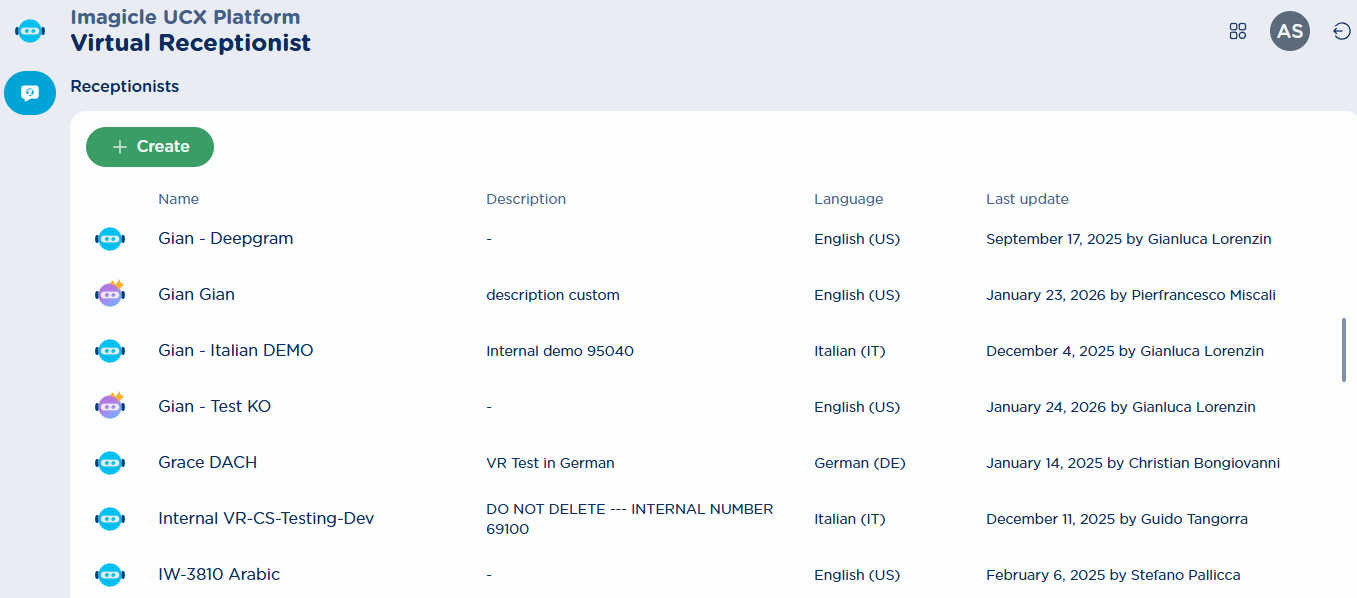
To create a new AI Receptionist service, please click on + Create . To amend an existing AI Receptionist, just click on relevant entry to display settings.
All configurations presented in the following chapters are applied immediately, as soon as they are saved.
Service creation
When you create a new AI Receptionist, a window pops-up asking to choose the Virtual Receptionist service type you want to create: Scripted or Autonomous:
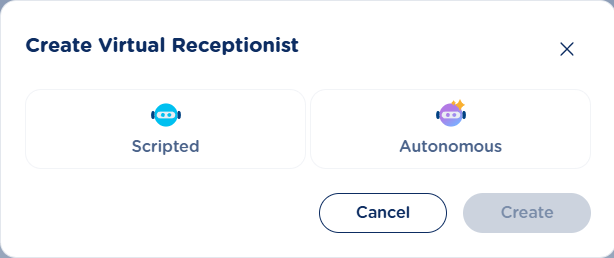
Note that after creating a AIR service of a specific type, you cannot convert it to another type.