
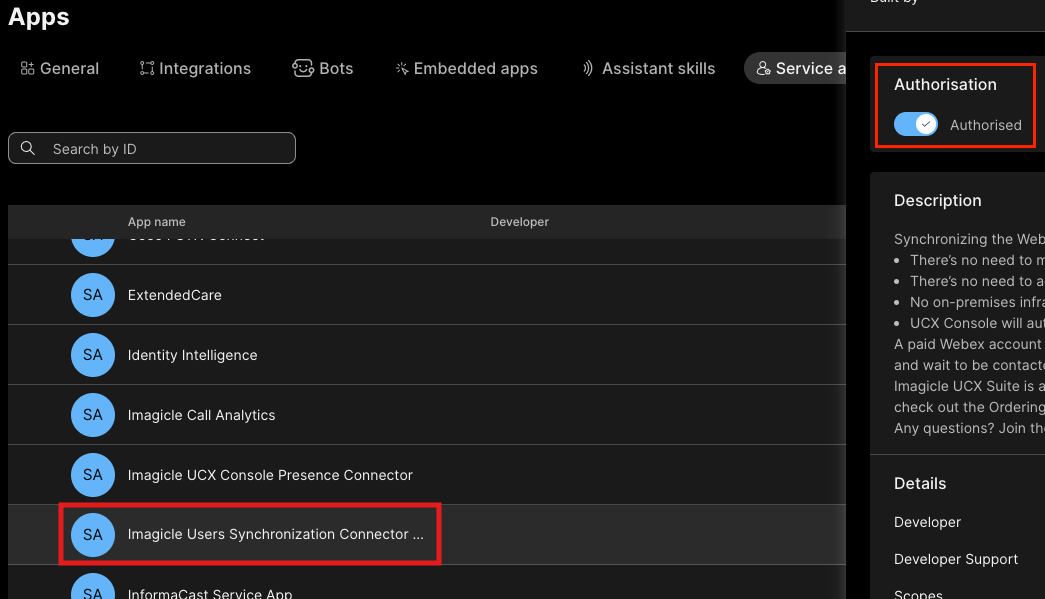
Before configuring the connector against Webex Control Hub, please access to its web portal with full admin credentials and go to Management → Apps → Service Apps.
Search for “Imagicle Users Synchronization Connector”, select it and click Authorize to complete the authorization. See below:
Once done, you can go back to UCX Platform portal and select Webex data source from pull-down menu and toggle the authorization switch.
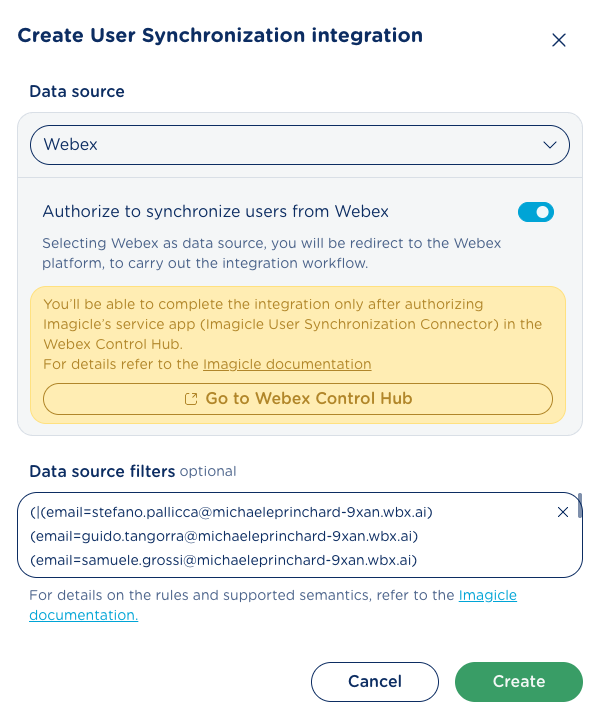
You can optionally configure data source filters to import selected users only. Filters are highly recommended for organizations with large directories.
Available fields to be filtered:
-
email - User’s email address
-
department - User’s department
-
Location - User’s office location
-
phoneNumber - User’s primary work phone number
-
UserType - the following types can be filtered:
-
user
-
auto-attendant
-
call-queue
-
hunt-group
-
virtual-line
-
workspace
-
fax-workspace
-
Basic Filter Syntax
|
Operator |
Description |
Examples |
|
= |
Equals |
(department=Sales) |
|
* |
Wildcard |
(email=*@company.com) (phoneNumber=+1555456*) |
|
& |
AND operator |
(&(department=Sales)(location=NYC)) |
|
| |
OR operator |
(\|(department=Sales)(department=Marketing)) |
|
! |
NOT operator |
(!(department=Temp)) |
For further information about the LDAP filters syntax, please refer to this article.
Once done, hit Create button to validate Data source filters.
Please note that above Webex Synch integration panel includes a yellow button to access Webex Control Hub. This option can be used to authorize the “Imagicle Users' Synch Connector”, if not previously done.
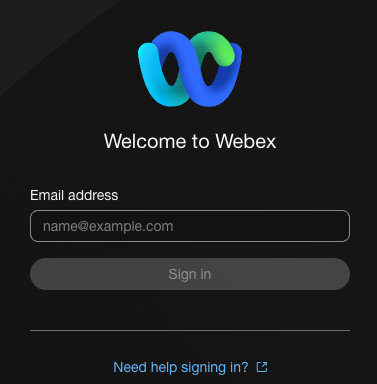
The web session is redirected to Webex login page, where full admin credentials must be entered:
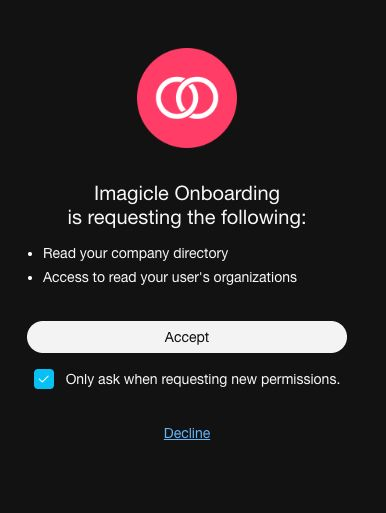
Once logged in, a new pop-up window asks you to Review the permissions requested by the Imagicle application and eventually Grant consent for the application to access your directory:
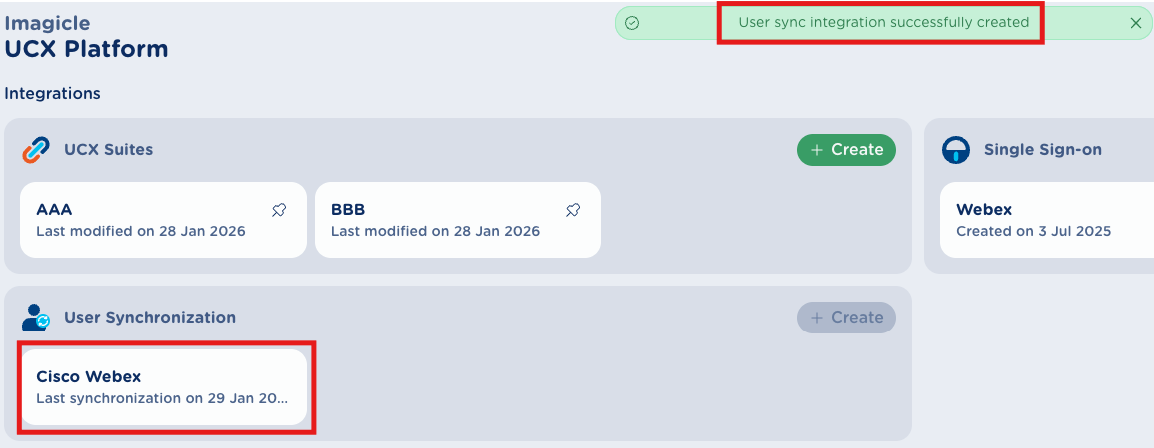
If the authorization is successfully accomplished, you are redirected back to the Integrations page, a success message is displayed on top and the new User Synchronization integration white ballon appears in the list. See below:
If otherwise the integration fails, you might get the following red error message:
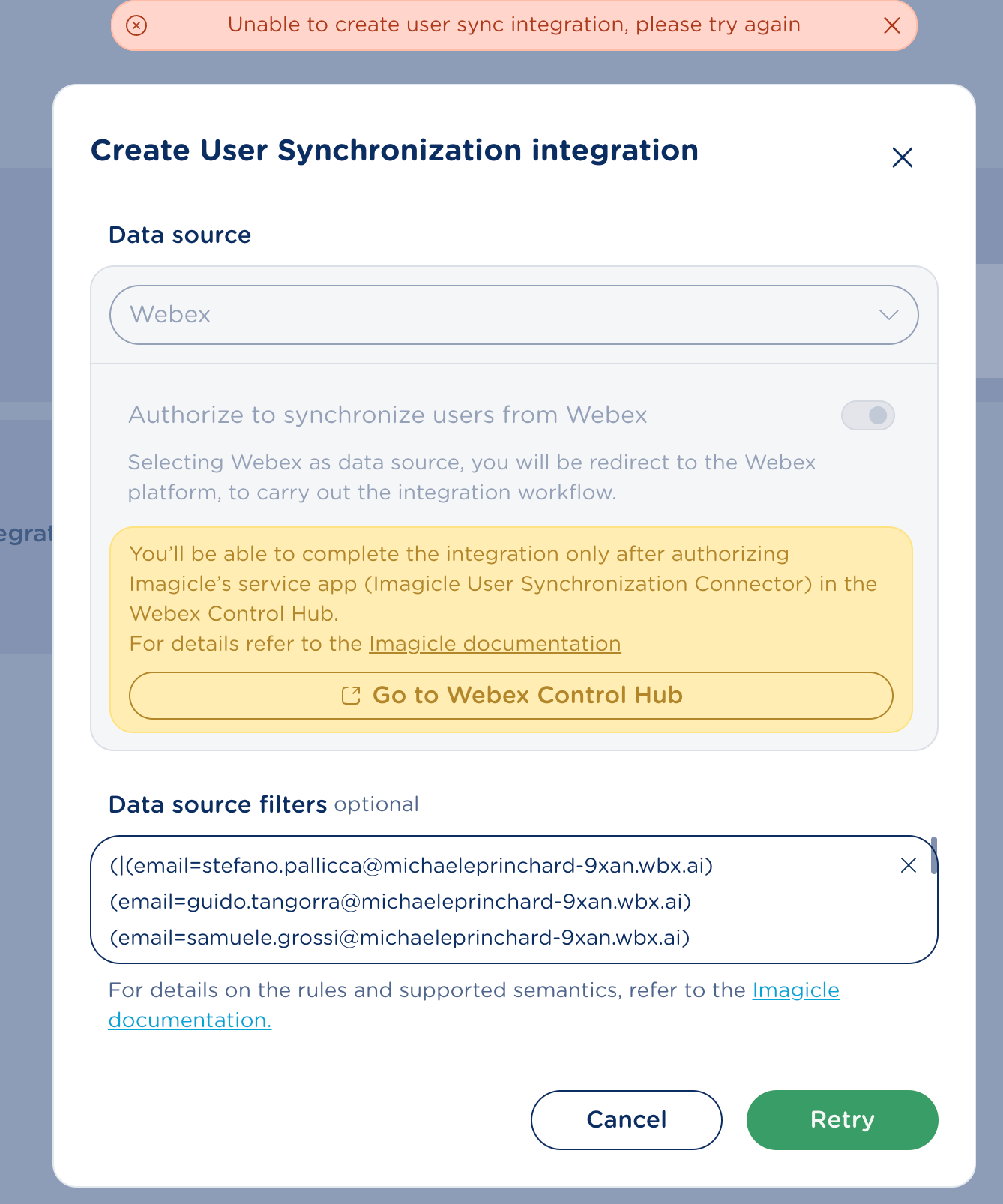
Make sure you entered a Webex Full Admin credentials and try again.
Another typical error message is the following:
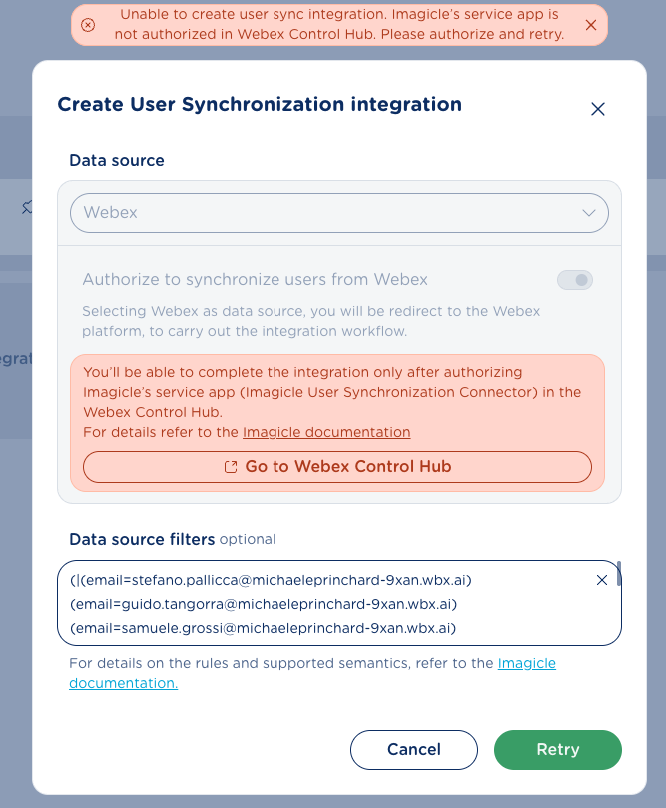
This is happening because you forgot to authorize the “Imagicle Users' Synch Connector”, as mentioned at the beginning of this chapter. Please access to Webex Control Hub by using embedded button, toggle Authorization switch and try again.
Integration status and details
New Webex balloon included in User Synchronization panel contains the synch status:
-
Data source (Webex or Entra ID)
-
Last synchronization date/time
If you click on Webex balloon, you can view the integration details:
-
Data source
-
Webex Org ID
-
Synchronization status:
-
In progress
-
Last synchronization completed (date/time)
-
Synchronization not started yet
-
-
Data source filter (the LDAP filter currently applied)
See below sample:
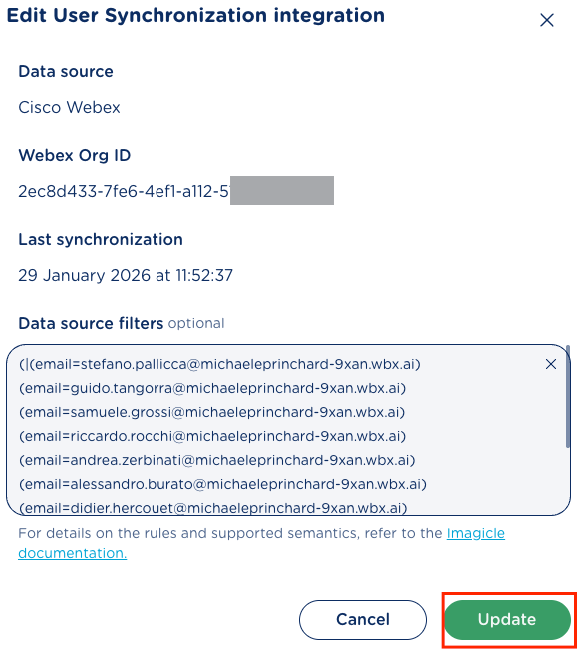
If required, you can tweak the filter on the fly and hit Update to apply changes.
Users' synch against Cisco Webex runs every six hours and, in the worst case, UCX Platform users are updated every 12 hours.
Webex users imported through UCX Platform connector are shared with UCX Cloud Suite instances integrated within the UCX Platform.