
Select Entra ID data source from pull-down menu and toggle the authorization switch.
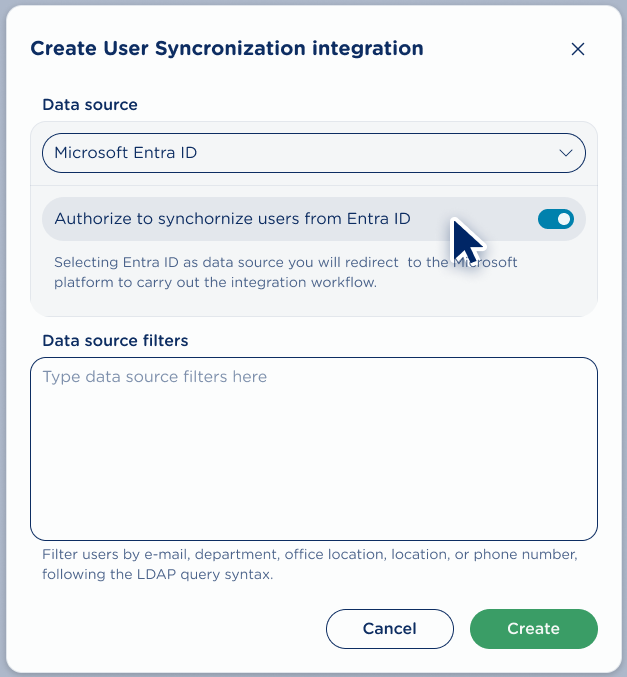
You can optionally configure data source filters to import selected users only. Filters are highly recommended for organizations with large directories.
Available fields to be filtered:
-
email - User’s email address
-
department - User’s department
-
officeLocation - User’s office location
-
location - User’s city/location
-
phoneNumber - User’s primary work phone number
Basic Filter Syntax
|
Operator |
Description |
Examples |
|
= |
Equals |
(department=Sales) |
|
* |
Wildcard |
(email=*@company.com) (phoneNumber=+1555456*) |
|
& |
AND operator |
(&(department=Sales)(location=NYC)) |
|
\| |
OR operator |
(\|(department=Sales)(department=Marketing)) |
|
! |
NOT operator |
(!(department=Temp)) |
For further information about the LDAP filters syntax, please refer to this article.
Once done, hit Create button to validate Data source filters.
If the filter includes invalid data, an error message "Invalid LDAP filters" is displayed. Please correct filter data and try again.
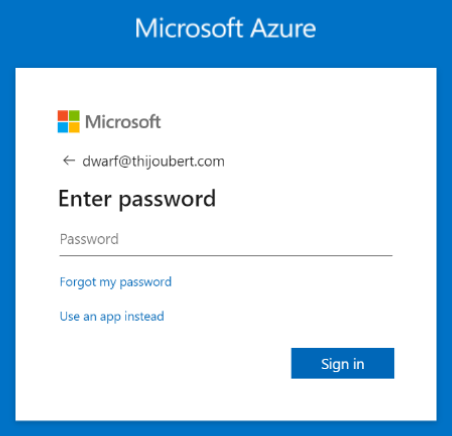
You are redirected to Microsoft’s authentication page. Please enter your Microsoft Entra ID credentials to sign in:
A new pop-up window asks you to Review the permissions requested by the Imagicle application and eventually Grant consent for the application to access your directory:
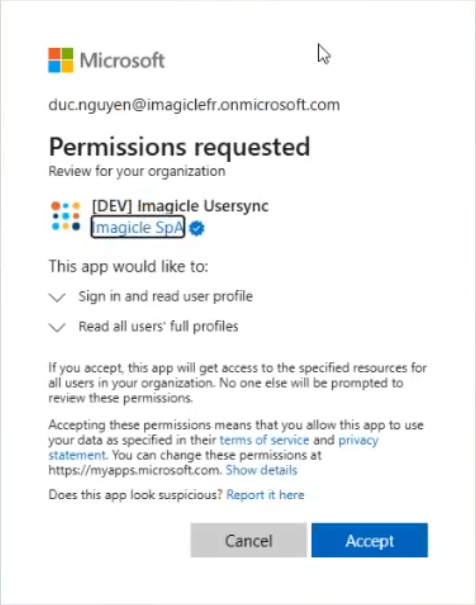
Ensure you have sufficient privileges to consent on behalf of your organization.
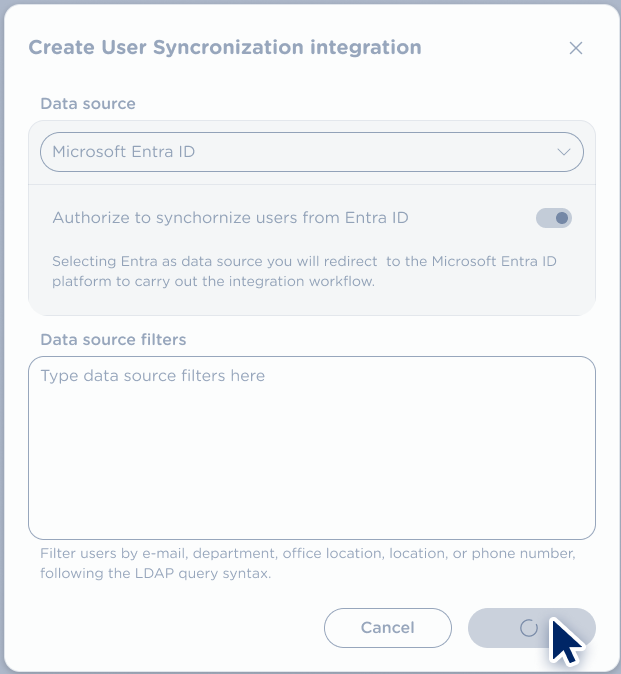
After the successful authentication, the integration window is greyed out and it hangs for few seconds while the system processes your authentication and creates the actual integration. Create button turns to a “loading” animated icon, as below sample:
If the integration process fails, the following window is displayed:
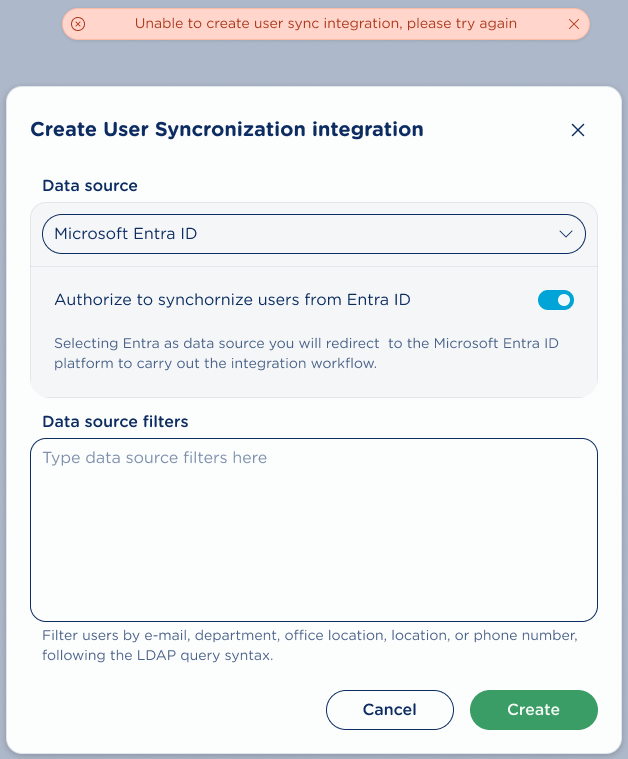
Please review entered data and try again until successful.
Users' synch against Entra ID runs in almost real-time (max two minutes delay), so UCX Platform users are always up to date.
Entra ID users imported through UCX Platform connector are NOT shared with UCX Suite instances integrated within the UCX Platform.