
Imagicle Emergency Notifications Voice Alerts provides some logs related to own transactions and services. If you are encountering any problem related to the application, you can easily download these logs from web portal: Support → Zip logs
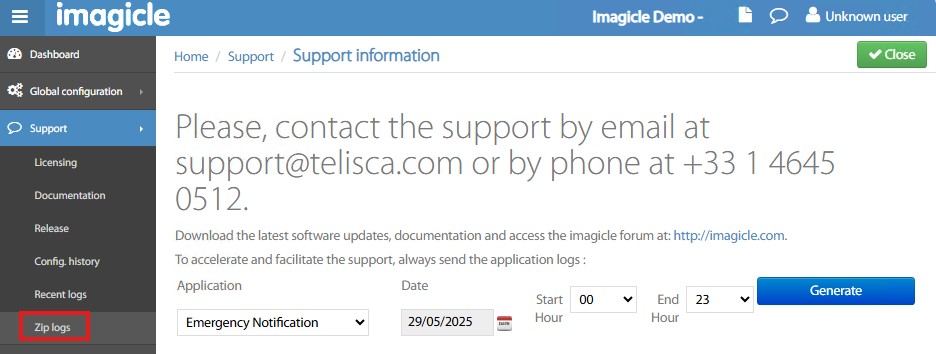
Just select “Emergency Notification” from pull-down menu, add the date when the failure occurred and the time frame. Click on Generate to download a ZIP file to be sent to Imagicle Tech Support.
Troubleshooting hints
Why alert is not received by all contacts?
Points to check on contact’s definition.
-
Is the contact activated?
-
Is the alert sent during contact office hours?
-
Does the contact have almost one defined channel like phone, sms or mail?
-
Is alert have been accepted or declined with DTMF (if enabled).
Points to check on contacts list definition.
-
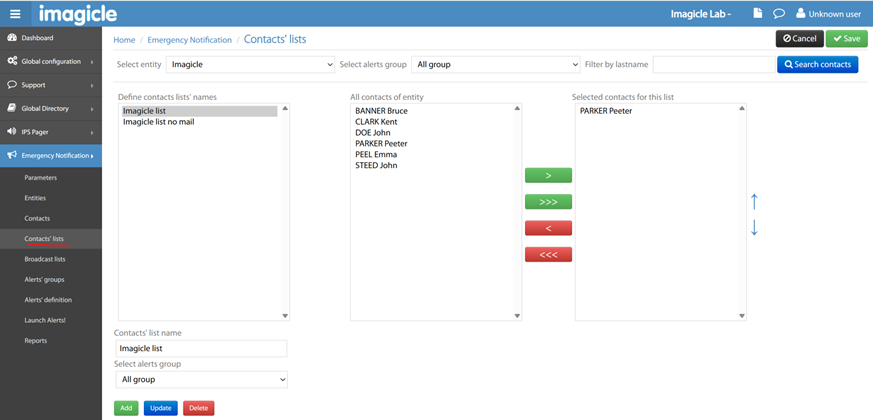
Are the contacts to be reached part of the targeted contacts list?
(It’s possible to select contacts one by one or all from the middle list and push them to the right one.)
Points to check on Cisco UCM side.
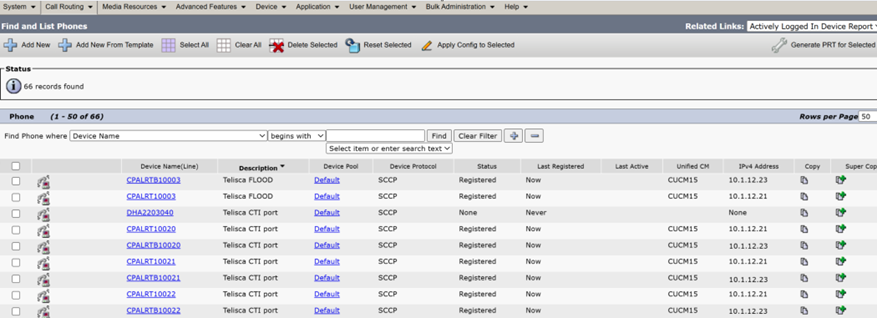
Below, a sample of CTI ports defined on entity level with a “Fast Fail Over” mode enabled. DN is set to 2 CTI ports. Device names including “B” are supervised by the backup node. If an active/standby switchover happens, there won’t be any delay since CTI ports are already supervised. Each CTI port must have a status like “Registered” on primary or backup server.
When a switchover or a service restart is required?
For each alert, there is a CTI port used to trigger it and a bunch of other CTI ports to reach contacts.
In case of alerts are not sent anymore or no audio heard on devices, there could be an issue on CTI ports supervision. There may be no other way besides restarting the CTI service.
CTI service restart requires, for most of configuration (100 CTI ports), 50 seconds to turn back to active. If it’s a single server configuration, you have no other way than directly restart the service.
Otherwise, if you don’t want to stop production for this delay, force switch to backup server from Hot Stand By page, uncheck First server auto restart as Active to display “Standby” and “Active” buttons and click on “Standby” or “Active” to set backup to “enable” state. See below sample:
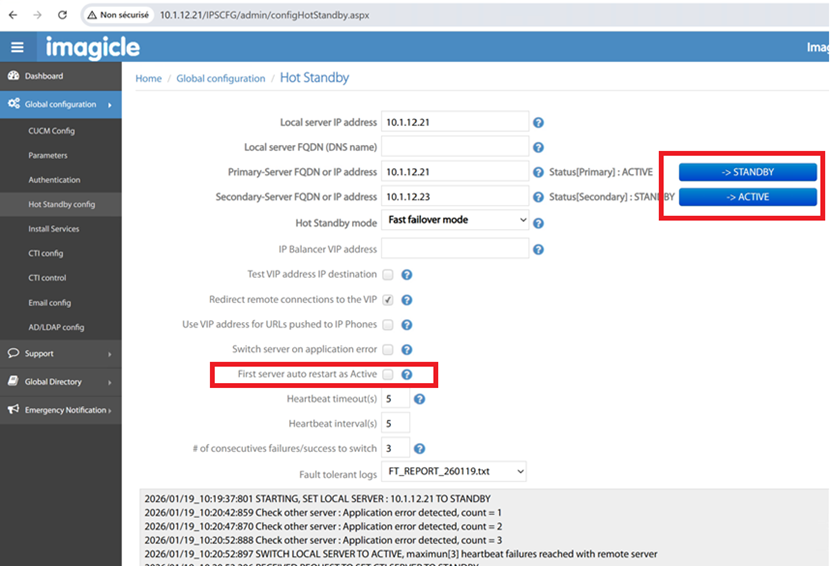
Then you can restart CTI server service. Once service is fully loaded, you can switch back primary server to “active” and flag again First server auto restart as Active, then save changes. Primary is automatically set back to active.
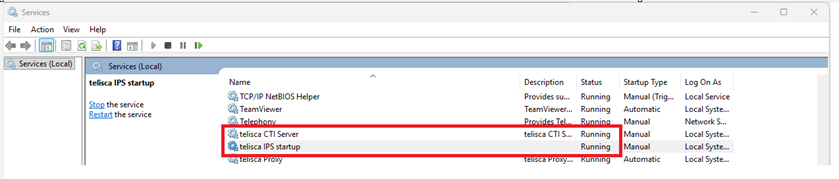
CTI-related Windows services
See below both CTI Server and IPS Startup services. The latter is used to monitor if the CTI server is up and running.
More troubleshooting logs
If you wish to consult Imagicle M/A relevant logs, you can find them in below file system paths:
-
C:\inetpub\wwwroot\IPSCFG\LOGS\IPSCFGWS_dddddd_hh.log -
C:\inetpub\wwwroot\IPSCFG\LOGS\TACTI_dddddd_hh.log
where dddddd is the log date; hh is the log time.