
Overview
Imagicle UCX console for MS Teams uses the Microsoft ACS stack to handle incoming calls from Imagicle ACD queues. The client implements a softphone as an additional user device and runs alongside the MS Teams client.
When using the Imagicle UCX console to handle incoming calls, consider the following facts:
-
The Imagicle UCX console controls and monitors voice calls placed or answered through it. Calls handled by the MS Teams client or a hardphone cannot be controlled by the Imagicle client.
-
Presence status on MS Teams does not reflect the Imagicle UCX console call status: when a call is active on the Imagicle client, the user does not appear in conversation on the MS Teams client and can still receive calls there.
-
To determine if a user is idle or busy, the Imagicle ACD queues consider only calls established on the Imagicle UCX console. As a consequence, users adopting the Teams client (and ready for the Imagicle queues) can receive calls from the Imagicle ACD queues.
Best practices
Please review the following key guidelines, relevant to ACS-based UCX Console for Microsoft.
Do not answer calls from MS-Teams client
When the UCX Console client is running on operator’s PC, all calls handling shall be performed on UCX Console client, already including own softphone functionalities.
When a call comes in (direct call or through an Imagicle ACD queue), both devices ring.
As mentioned above, if the call is answered from MS-Teams client:
-
the Imagicle UCX Console looses the call control and the presence update
-
the Imagicle ACD can engage the user with another call, coming from the queue (even if already busy on MS-Teams client).
In short, the Teams client shall be used only for:
-
instant messaging
-
join/setup meetings
-
place/Answer video calls.
Disable Headset Automations in Microsoft Teams
Console users must disable the "Sync device buttons" option in their MS Teams client:
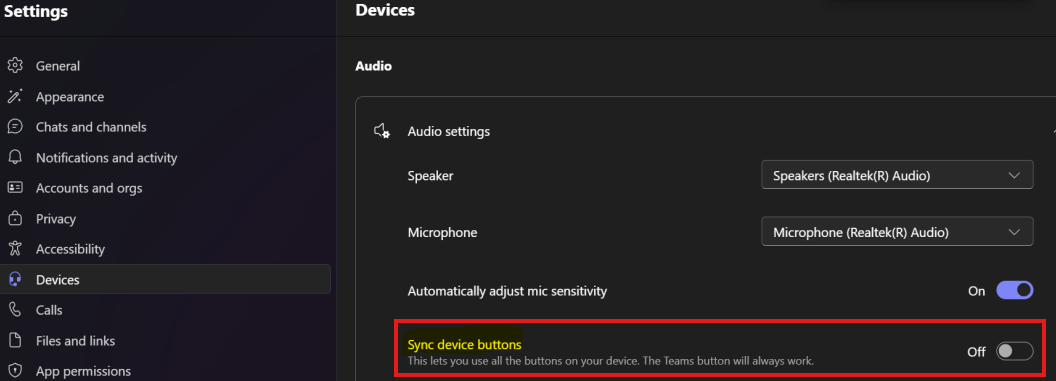
This prevents calls from being accidentally answered in MS-Teams client, instead of the ACS console, avoiding unexpected behaviors.
Correctly configure Microsoft Teams voicemail
If voicemail is enabled, set its no‑answer timeout longer than Advanced Queuing timeout.
For queues leveraging Broadcast distribution algorithm, we strongly recommend to entirely disable automatic call forward to voicemail for queue operators, otherwise calls are marked as “Served” even when answered by MS voicemail feature.
Enable Noise/Echo Suppression
Starting from 2026.Spring.1 UCX Console release, a flag is available within “Audio” options to toggle the native Teams noise/echo cancellation. Please enable this feature for the best user experience.
Known Microsoft Teams issue: persistent ringing
There is an ongoing MS Teams issue causing the Microsoft client keep ringing even after the ACS console has answered the call. This issue is on the Teams side, reported also by users not using our ACS console (see this recent thread).
Current workaround is to disable ringing alerts for incoming calls/meetings in MS-Teams client.
Network configuration
Ensure the network flows reported in this KB article are allowed between the operator’s PC and MS-Teams Cloud. In particular, the first rule is specific for ACS (the other ones are supposed to be already in place for the MS-Teams native client)