
Overview
This article describes how to leverage Imagicle UCX Suite’s AI Voice CORE web client within Microsoft MS-Teams desktop and mobile client, by using a specific Imagicle template.
There are two possible ways to enable Imagicle apps in MS-Teams:
-
by provisioning the apps at Corporate level to all MS-Teams user
-
by locally install the template in own MS-Teams client.
Please find below both procedures.
Procedure for Corporate provisioning to all users
Please download this ZIP archive. It includes the following files:
-
manifest.json
-
outline.png
-
color.png
Please edit manifest.json with Notepad++ and replace URL:SUITE placeholder with Imagicle UCX Cloud Suite's FQDN and relevant port 443 to reach web portal.
{
    "$schema": "https://developer.microsoft.com/en-us/json-schemas/teams/v1.7/MicrosoftTeams.schema.json",
    "manifestVersion": "1.7",
    "version": "1.0.0",
    "id": "4322486b-968d-4616-aebc-a8941de84fa8",
    "packageName": "com.imagicle-cc.msteams",
    "developer": {
        "name": "Imagicle S.p.A.",
        "websiteUrl": "https://www.imagicle.com",
        "privacyUrl": "https://www.imagicle.com/go/msteamsprivacy",
        "termsOfUseUrl": "https://www.imagicle.com/go/msteamslegalterms"
    },
    "name": {
        "short": "Imagicle Contact Center",
        "full": "Imagicle Contact Center"
    },
    "description": {
        "short": "Enjoy the Imagicle  Contact Center applications on MS Teams.",
        "full": "As a market leader in the UC app space, Imagicle empowers organizations worldwide to make their communications faster, smarter and easier.\nImagicle Contact Center allows an agent to monitor and manage incoming call traffic across their queues, with the ability to view, reserve, or pick up calls routed to their device.\nImplementing Imagicle apps into Microsoft Teams allows moving to a higher level of quality and simplification of communications, leveraging a unified service platform able to address the growing need to build a digital, safe and smart workplace."
    },
	"icons": {
        "color": "color.png",
        "outline": "outline.png"
    },
    "accentColor": "#00ABE5",
    "staticTabs": [
        {
            "entityId": "contactmngr",
            "name": "Calls",
            "contentUrl": "https://[URL_SUITE:PORT]/gadgets/contactcenter#/msteams",
            "websiteUrl": "https://www.imagicle.com",
            "scopes": [
                "personal"
            ]
        }
    ],
    "permissions": [
        "identity",
        "messageTeamMembers"
    ],
    "validDomains": [
		"[URL_SUITE]",
		"www.imagicle.com"
    ],
    "devicePermissions": [
        "openExternal"
    ]
}
Once above placeholder have been correctly set, save file and replace it within the original ZIP file.
Upload Imagicle applications in MS-Teams admin portal
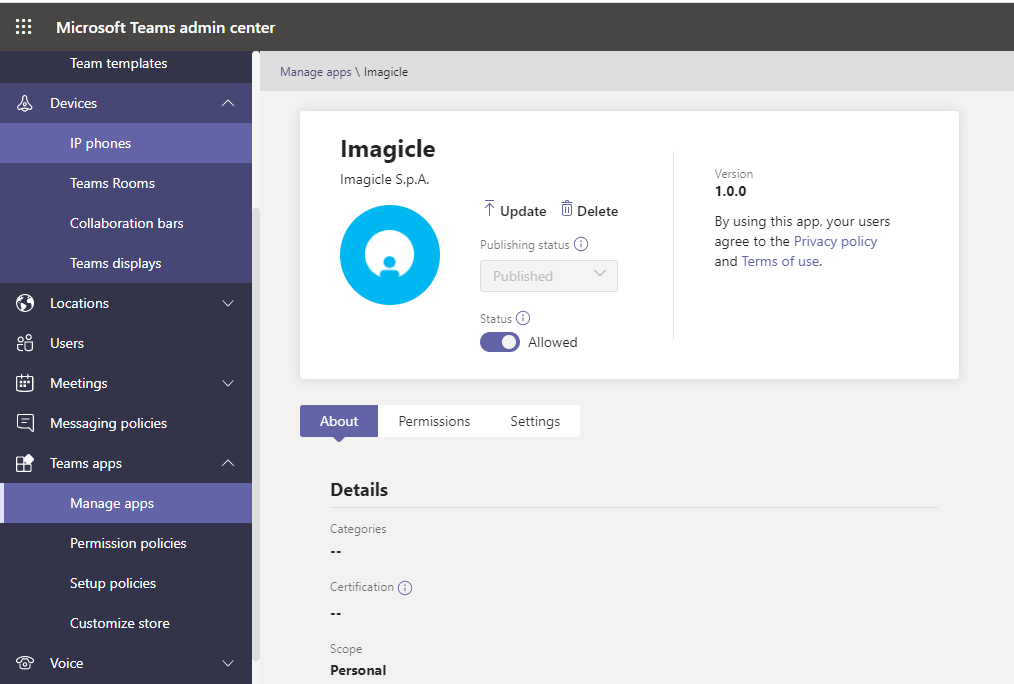
Access to MS Admin Center web portal and go to Teams Apps -> Manage apps -> Upload
Select the zip file and verify that the app "Imagicle Contact Center" is published.
Enable Imagicle app in all MS-Teams clients
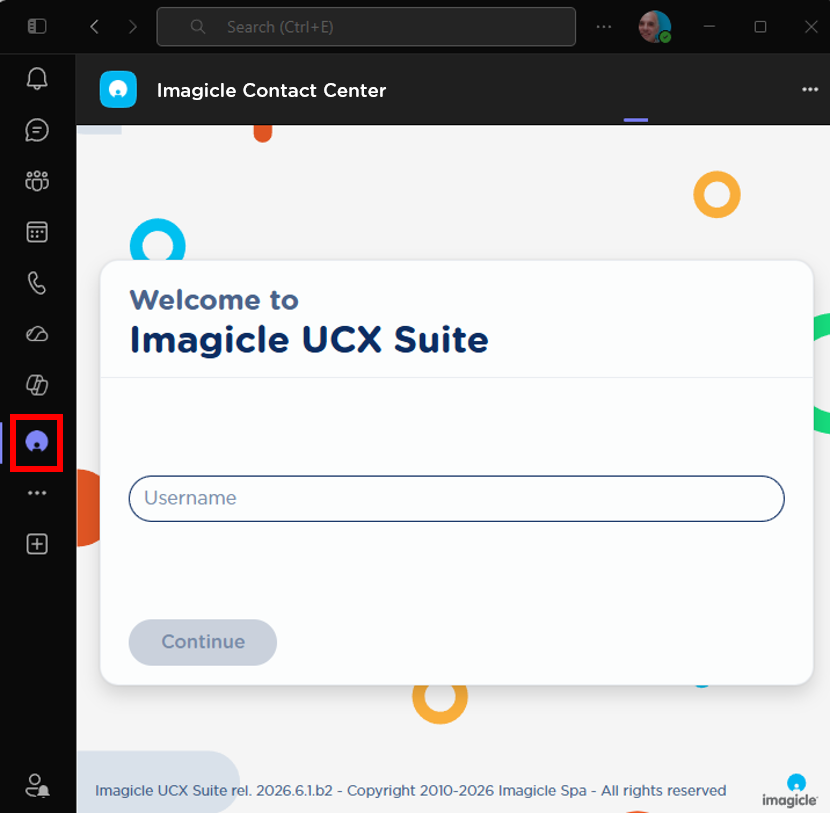
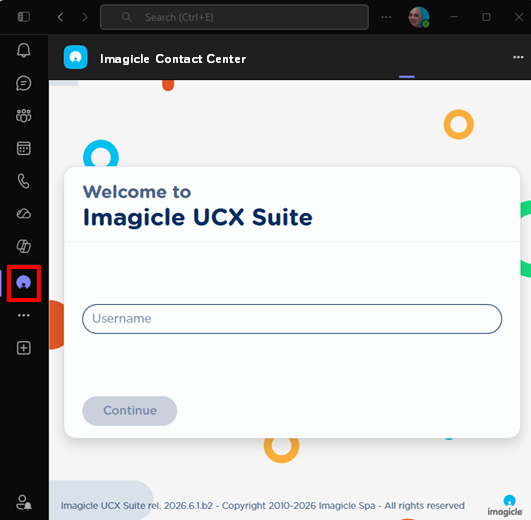
Now all Corporate MS-Teams user can leverage Imagicle AI Contact Center from their MS-Teams client. They just have to click on 
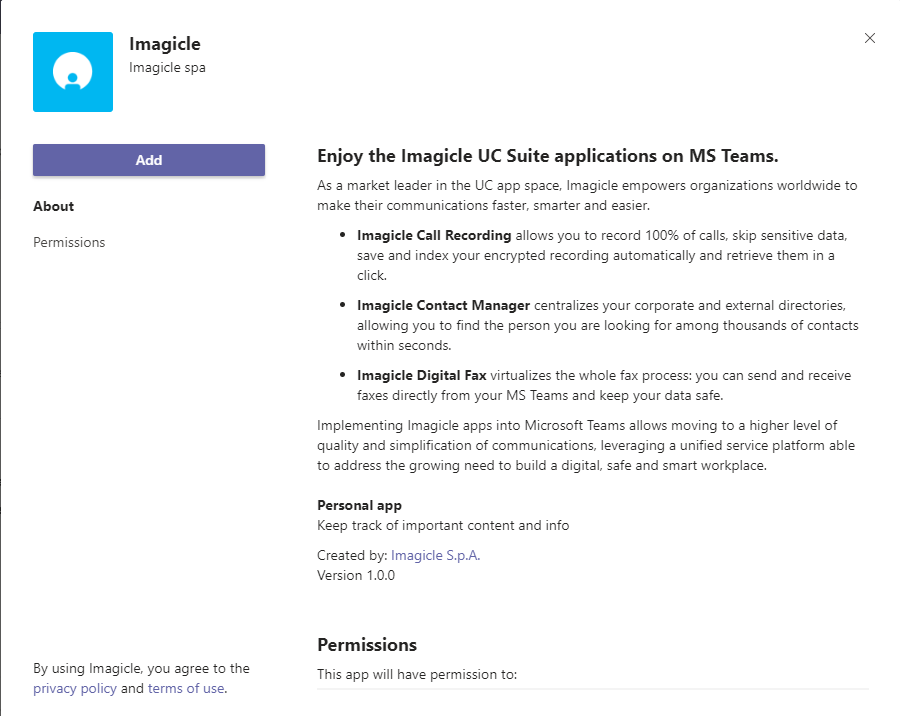
Hit Add to actually add the Imagicle app to MS-Teams' left pane:
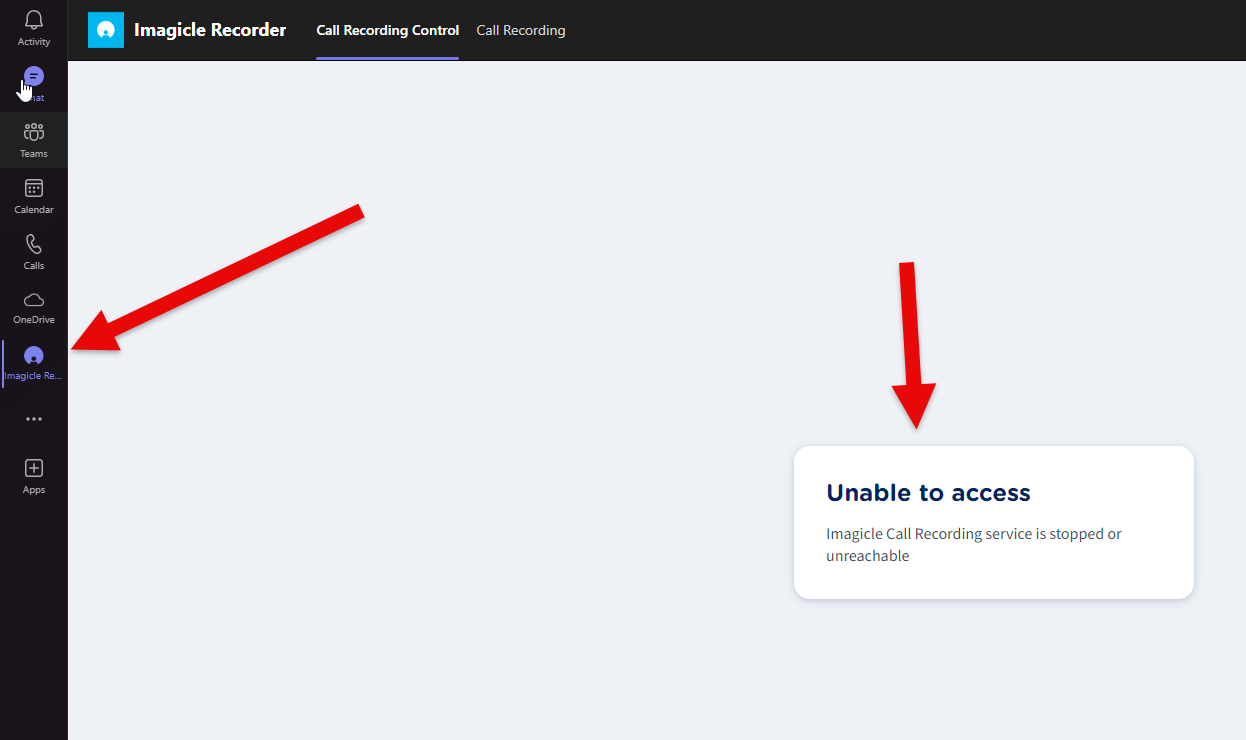
Imagicle App access on M365 GCC environments
In such govt. environments, you might get an "Unable to access" error upon app access. This is happening because third-party apps are blocked by default:
Please consult relevant Microsoft documentation for more details.
Procedure for local template installation in one client
Please download this ZIP archive. It includes the following files:
-
manifest.json
-
outline.png
-
color.png
Please edit manifest.json with Notepad++ and replace URL:SUITE placeholder with Imagicle UCX Cloud Suite's FQDN and relevant port 443 to reach web portal.
{
    "$schema": "https://developer.microsoft.com/en-us/json-schemas/teams/v1.7/MicrosoftTeams.schema.json",
    "manifestVersion": "1.7",
    "version": "1.0.0",
    "id": "4322486b-968d-4616-aebc-a8941de84fa8",
    "packageName": "com.imagicle-cc.msteams",
    "developer": {
        "name": "Imagicle S.p.A.",
        "websiteUrl": "https://www.imagicle.com",
        "privacyUrl": "https://www.imagicle.com/go/msteamsprivacy",
        "termsOfUseUrl": "https://www.imagicle.com/go/msteamslegalterms"
    },
    "name": {
        "short": "Imagicle Contact Center",
        "full": "Imagicle Contact Center"
    },
    "description": {
        "short": "Enjoy the Imagicle  Contact Center applications on MS Teams.",
        "full": "As a market leader in the UC app space, Imagicle empowers organizations worldwide to make their communications faster, smarter and easier.\nImagicle Contact Center allows an agent to monitor and manage incoming call traffic across their queues, with the ability to view, reserve, or pick up calls routed to their device.\nImplementing Imagicle apps into Microsoft Teams allows moving to a higher level of quality and simplification of communications, leveraging a unified service platform able to address the growing need to build a digital, safe and smart workplace."
    },
	"icons": {
        "color": "color.png",
        "outline": "outline.png"
    },
    "accentColor": "#00ABE5",
    "staticTabs": [
        {
            "entityId": "contactmngr",
            "name": "Calls",
            "contentUrl": "https://[URL_SUITE:PORT]/gadgets/contactcenter#/msteams",
            "websiteUrl": "https://www.imagicle.com",
            "scopes": [
                "personal"
            ]
        }
    ],
    "permissions": [
        "identity",
        "messageTeamMembers"
    ],
    "validDomains": [
		"[URL_SUITE]",
		"www.imagicle.com"
    ],
    "devicePermissions": [
        "openExternal"
    ]
}
Once above placeholder have been correctly set, save file and replace it within the original ZIP file.
Upload Imagicle application in MS-Teams client
Launch MS-Teams client on a PC and click on button available in left pane. A list of items appears. Hit More apps > 
Hit "Upload a custom app" option and choose the ZIP archive. If the template does not contain any error, you get the following sample message:
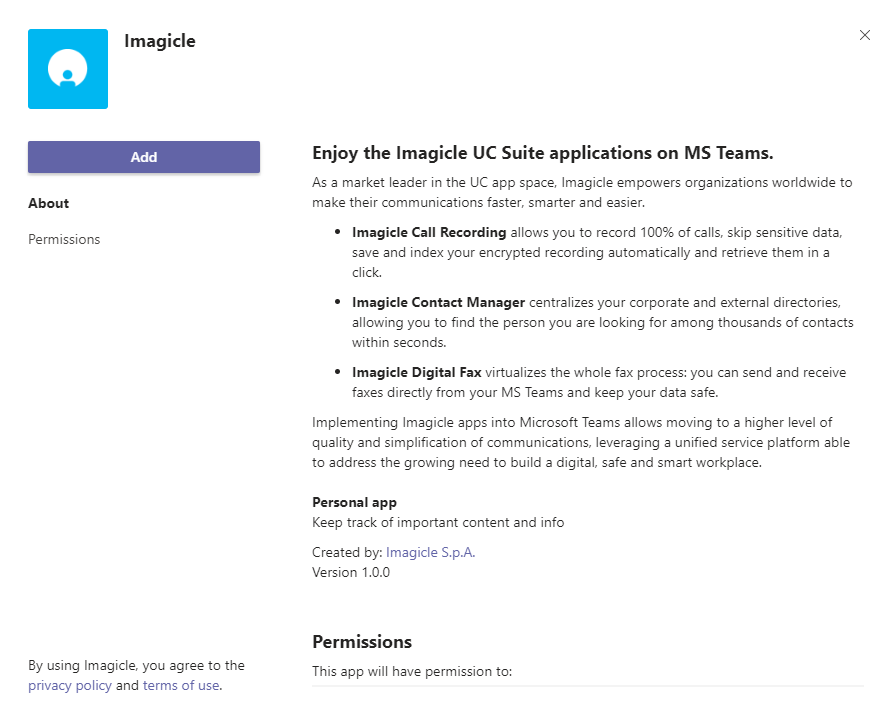
Hit Add to actually add Imagicle Contact Center app to MS-Teams' left pane:
If the template is faulty, you get the following message, where you can click on "Copy error" to copy the error details in PC clipboard:

Trusted Digital Certificate Creation
MS-Teams accepts third party applications available through https access, together with a valid, trusted Digital Certificate.
Imagicle UCX Suite includes by default a self-signed certificate, not suitable for MS-Teams apps.
To add a trusted certificate in Imagicle UCX Suite, please follow the procedure highlighted here.
Procedure on MS-Teams client's workstation
Open Digital Certificate and import it for Current user. Hit Browse and select Trusted Root Certification Authorities installation path.
Additional hints and tips
When the user clicks on other tab (messages, calls, other app, etc…), the app’s client context is lost, and consequently, the SignalR channel closes. Browser cookies are retained, so when the user returns to the application, the session is still active, and there’s no need to login again.
If the Imagicle apps in MS-Teams are behaving in erratic way, not allowing to access some data or to perform some tasks, it might be the case you need to clean-up MS-Teams client's cache.
Please access to this folder on your PC: %appdata%/Microsoft/Teams and delete all content. Then restart the client.
Please make sure that Microsoft domains are added in Imagicle UCX Suite IIS trusted sources, otherwise the Imagicle gadget doesn't work as expected. More details are available here.