
PII Redaction Setting
Thanks to this privacy-related feature, you are allowed to configure up to 50 different rules to be applied on recorded and transcribed conversations. If a rule is matched, relevant audio is silenced and the transcription is replaced by a token. All rules are accessible by clicking on relevant Call Recording Settings menu item:
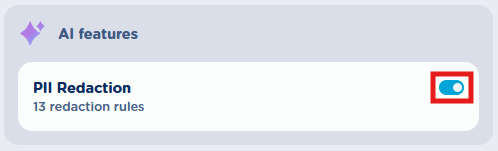
Redaction rules are applied to all recorded conversations once the PII Redaction switch is turned on, like above sample.
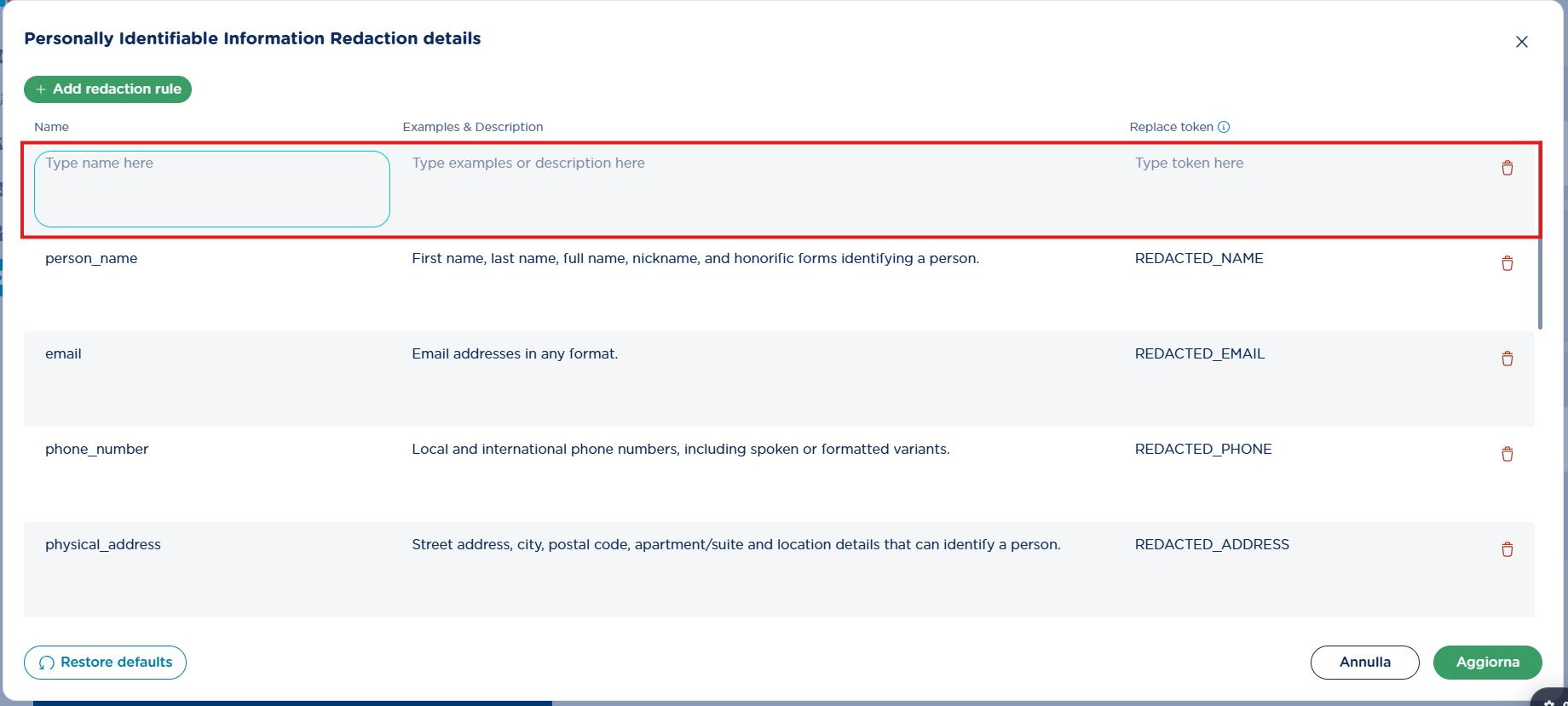
Personally Identifiable Information Redaction details
This web page includes the list of redaction rules you wish to apply to recorded conversations. By default, it comes with 15 predefined rules including typical personal information to be masked for privacy purposes. Default rules include:
-
Names, surnames, titles
-
Location addresses
-
Email addresses
-
Phone numbers
-
Birth date
-
Bank account ID
-
Credit card number
-
etc.
You can remove or modify existing rules, or add a new one by click on top-left 
The following fields must be filled for each rule:
-
Title: this is a short, self-explaining label that identifies the type of information you’re targeting, such as a name, phone number, or email address.
Examples & Description: this is where you provide the context about the data you want to redact. Including a realistic example helps clarify the intent of the rule and improves how it is interpreted by the AI engine.
-
Replace token: this is the placeholder that appears in place of the original data in transcriptions. To keep the context consistent and easy to read, this value should be short, written using letters and underscores only, and it automatically appears in uppercase letters (like
EMAILorPHONE_NUMBER).
Please be aware that Examples & Description field is crucial to obtain the expected redaction results. That’s why it is highly suggested to provide as many examples as possible, to guide the AI in understanding your intents.
Once a new rule has been added or amended, please hit bottom-right 
A 
Rules validation & processing phase
When you update your PII Redaction configuration, the system automatically checks that everything is filled in correctly before saving.
Make sure all required fields are filled and your text stays within the allowed limits: titles can be up to 40 characters, descriptions up to 200 characters, and the “Replace token” value up to 20 characters.
For the “Replace token” field, the format is intentionally simple to keep things consistent across all redactions. No need to worry about capitalization: anything you type is automatically converted to uppercase letters. Numbers, spaces, and special characters aren’t supported, so if they’re included, you’ll be asked to adjust the value before saving.
If any field doesn’t meet these requirements, the system guides you to fix it, so you can successfully apply your changes.

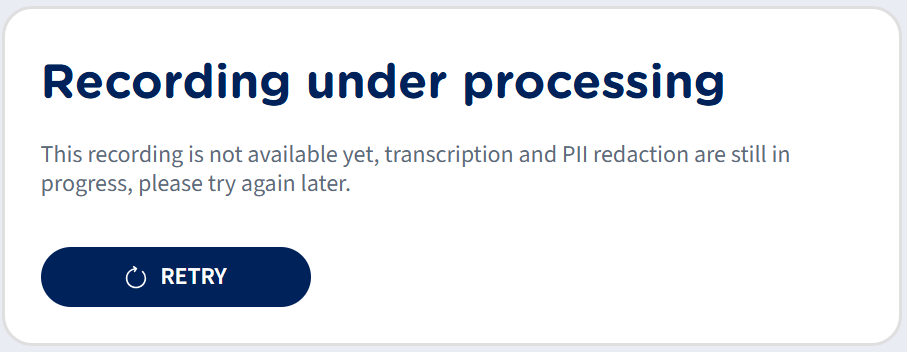
When PII Redaction is active, each recording goes through a short processing phase before it’s fully available. During this time, the system is identifying and masking any sensitive information based on your configured rules.
While this is happening, the recording is marked as “In Progress” in the recordings list. See below:

If you click on the recording, a status card appears indicating that redaction is underway:
Once processing is successfully accomplished, the recording becomes available, with sensitive information safely masked.
In the audio playback, any redacted content is replaced with silence. In the transcription, same portions appear as replacement tokens such as EMAIL or PHONE_NUMBER, based on how your rules are configured.
This behavior is consistent everywhere: whether you’re viewing the recording in the platform or downloading the audio or transcript, the redacted content is kept masked. See few examples in this KB article.
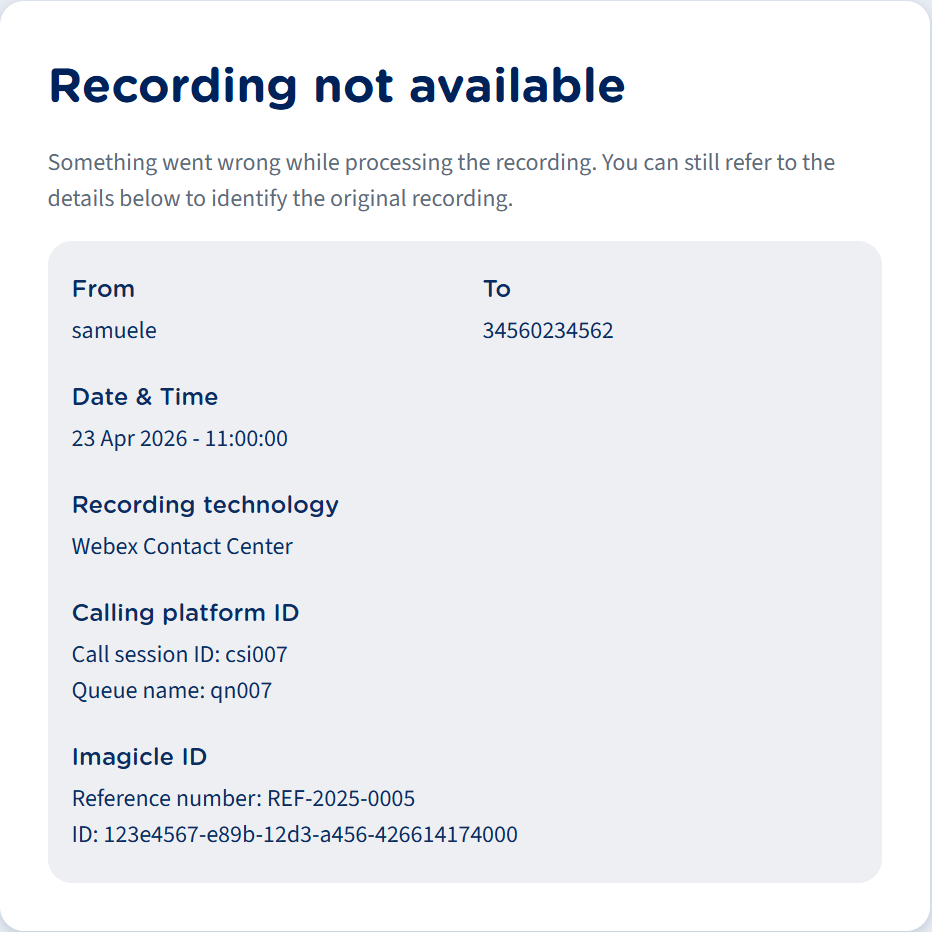
In the unlike event of a redaction failure, the system clearly states that the recording couldn’t be processed. You see it marked with and error icon in the recordings list. See below:

You can’t access or delete the recording; if you click on it, you’ll see a simplified view with the recording’s basic information, indicating that the redaction process didn’t complete successfully:
Redacted transcriptions in Recordings Page
PII Redaction feature replaces sensitive data provided during the conversation with tokens. Each token can be associated to a specific data like credit card number, bank accounts, surnames and any other sensitive information to be kept hidden for privacy purposes.
The end result of such AI redaction is a transcription like below sample:
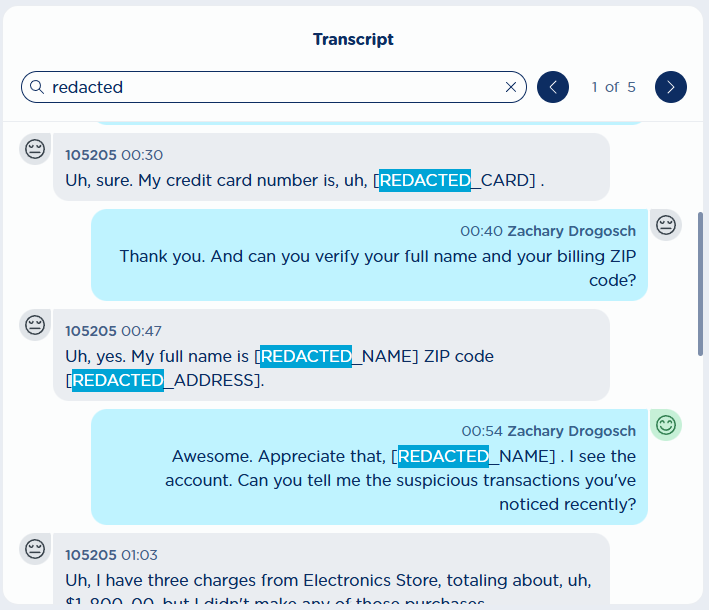
To easily spot redacted details, you can use several token identifiers all sharing the same prefix “REDACTED”
Redacted audio
When you playback recorded audio, you can hear silenced intervals while PII Redaction is applied. Same rules are included in MP3 files downloaded from Recordings page.
Short videoclip