
Upgrading to the latest version requires: performing a full backup, installing the latest installation package over the existing installation, and checking the configuration. Detailed procedures follow. Before updating, please ensure you have downloaded the right package and that it is covered by a maintenance agreement (see below).
Version Numbers and Version Compatibility
The UCX Suite has a main version number that applies to the whole installation package.
The version number is the one you may find in the filename of the installation package. It is composed by four parts: Major Version, Release season, Build and Hotfix.
For instance, version 2020.1.1.h2 means UCX Suite version 2020 Winter build #1, hotfix 2.
You may always upgrade to the latest version, even when Major version is not the same. E.g. you can install 2020.3.1 over 2015.1.1. In any case, all the applications are backwards compatible.
Imagicle requires the specific applications being upgraded to be covered by a Maintenance Agreement. Please refer to the official website for more information about available ImagicleCare plans.
Requirements before updating
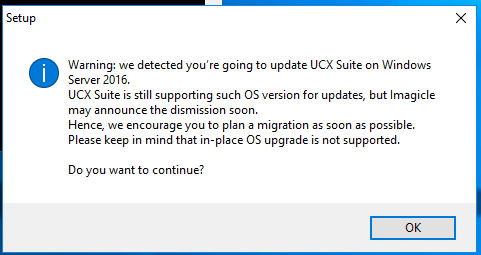
Starting from Imagicle 2026.Spring.1 release, MS SQL Server 2017 Express is replaced with MS SQL Server 2025 Express. Imagicle installations running on Windows Server 2019/2022 are automatically upgraded to SQL Server 2025. If you have an Imagicle installation running on Windows Server 2016, you can still update your installation, with the following warning:
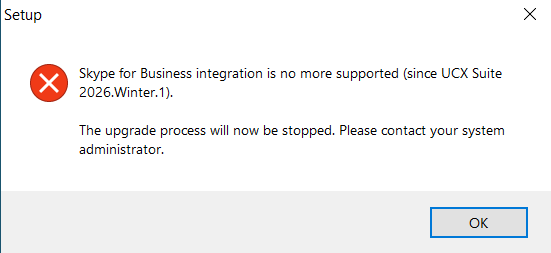
Imagicle UCX Suite 2026.Spring.1 for Microsoft environments does not support Skype for Business telephony environment anymore. SfB has been declared End of Support since October 14th 2025. If you try to update a UCX Suite where SfB configurations are applied, you get the following warning and the update stops:
Please contact Imagicle Support for further details.
Special recommendations when upgrading to 2026.Spring.1 release or above
SQL Server Express instance update
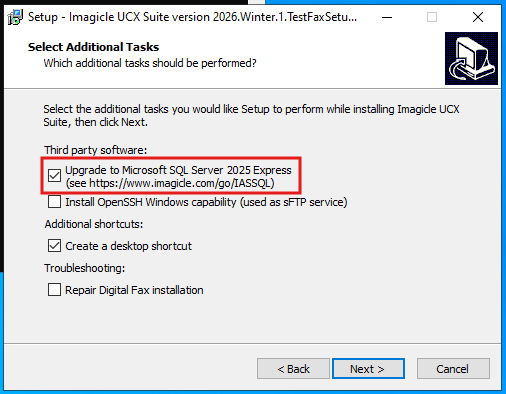
When upgrading from release 2026.Winter.1 or older to 2026.Spring.1 or above, setup package prompts you to install a local MS-SQL Server 2025 Express Edition instance, if not yet available. This is highly recommended, because SQL Server 2017 Express is not supported on most recent Windows Server versions and will reach its end of life soon. You can accept the installation or you can keep existing SQL Server instance by unchecking relevant SQL install option.
The SQL Server update for an existing installation is performed in place, so no additional steps, such as moving the database, are required. The process is transparent.
See below screenshot:
Custom VoiceXML migration
2026.Spring.1 update introduces a breaking change in Vxml scripts syntax, disabling the existing scripts previously running.
If you are using Imagicle Queue Manager with customizations in place (custom scripts interacting with the database or external tools, voicemail transfers while in queue, or customized IVRs), you must migrate these scripts before updating to version 2026.Spring.1.
A verification procedure must executed prior to proceed with the actual release update. This is highlighted in this KB article, together with further actions to properly migrate existing Vxml scripts.
Update procedure
To update an existing installation to the latest build:
-
Perform a Backup with the Backup and Restore tool
-
Install the new package over the existing one, on the same machine
-
Choose the same installation folder
-
Reboot the server
Upgrading Imagicle Call Analytics also requires to fully run the Configuration Wizard to the last step.
Cluster installations require a slightly different procedure, detailed in the High Availability section.
Database check
Going forward with update wizard, depending on starting Imagicle release, it might be requested to perform several server reboots, to allow the installation of additional Microsoft components. Always reboot as required.
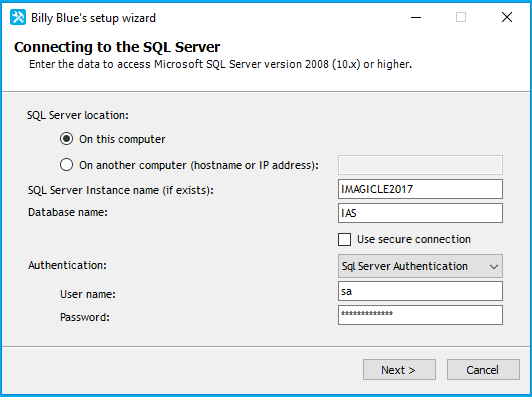
During setup wizard, you will be prompted to check SQL instance configuration. Just confirm existing parameters by click Next. See below screenshot sample:
Imagicle services turn-off during upgrade
While updating an Imagicle UCX Suite, you are prompted to choose how to turn off Imagicle services:
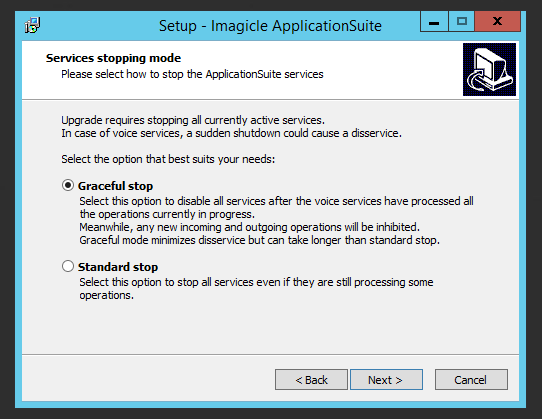
If “Standard stop” option is chosen, Imagicle services are suddenly stopped as usual, without caring about ongoing calls, fax, recordings.
If “Graceful Stop” option is chosen (default), Imagicle services are stopped when all ongoing calls are accomplished.
Once the installation process starts, a new window pops-up, informing that you need to wait for all calls to be accomplished. If you don't want to wait a long time, you can still decide to force Imagicle services to stop, by hitting relevant button:
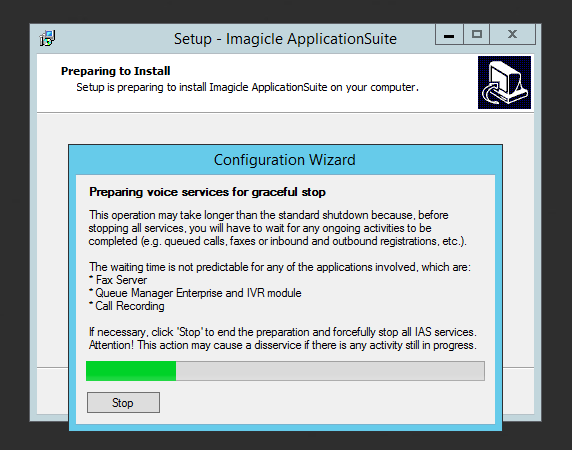
While waiting for all calls to be completed, all new inbound/outbound calls are rejected by the node subjected to update. Other HA nodes, if included in an Imagicle cluster, can still handle calls.
Once graceful stop process is over (or after having hitted “Stop” button), UCX Suite update proceeds with all usual steps.
Repairing an existing installation
To repair an existing installation, install the same package (i.e. same version number) over the existing one just like in the case of a minor upgrade.
Repairing Digital Fax installation
During the update, the Setup program could ask you if you want to repair the existing Digital Fax installation. This means creating the virtual serial ports and the virtual modems again.
If Digital Fax is already correctly installed and running, do not select the repair option. Repairing a working installation may cause problems and need an actual repair later.
Changing the default language
To change the default language for the UCX Suite, perform a Repair Installation and make a different choice.
The default language affects the web interface, the Attendant Console interface and the audio files of the users for whom the "user language" field in the User Management is blank.
Note - Users' welcome messages for the VoiceMail application will remain in the old language even if installing a complete UCX Suite package in a different language.
License status and configuration after the update
Once an application is registered on a machine, the registration is persistent among different versions even after uninstalling and reinstallation. There is no need to register again if you perform an upgrade of the UCX Suite package on the same machine.
Imagicle might releases new applications when a new UCX Suite package is issued. New applications might replace the old ones. Old applications may also be discontinued but not replaced.
On the technical side, an application is considered new when it has brand new features which dramatically improve the user experience. On the commercial side, a new application has a different commercial code and different activation token. New and replaced applications require a new license.