The Imagicle AI Contact Center Voice Core web client (also called the Contact Center Gadget) is the web application used by contact center agents to log in, manage their status and handle calls delivered by Advanced Queueing. It can be opened directly in the browser, or embedded as a gadget inside Cisco Webex or Microsoft Teams.
The application is accessible at: https://{UCX_SUITE_FQDN}/gadgets/contactcenter
Login
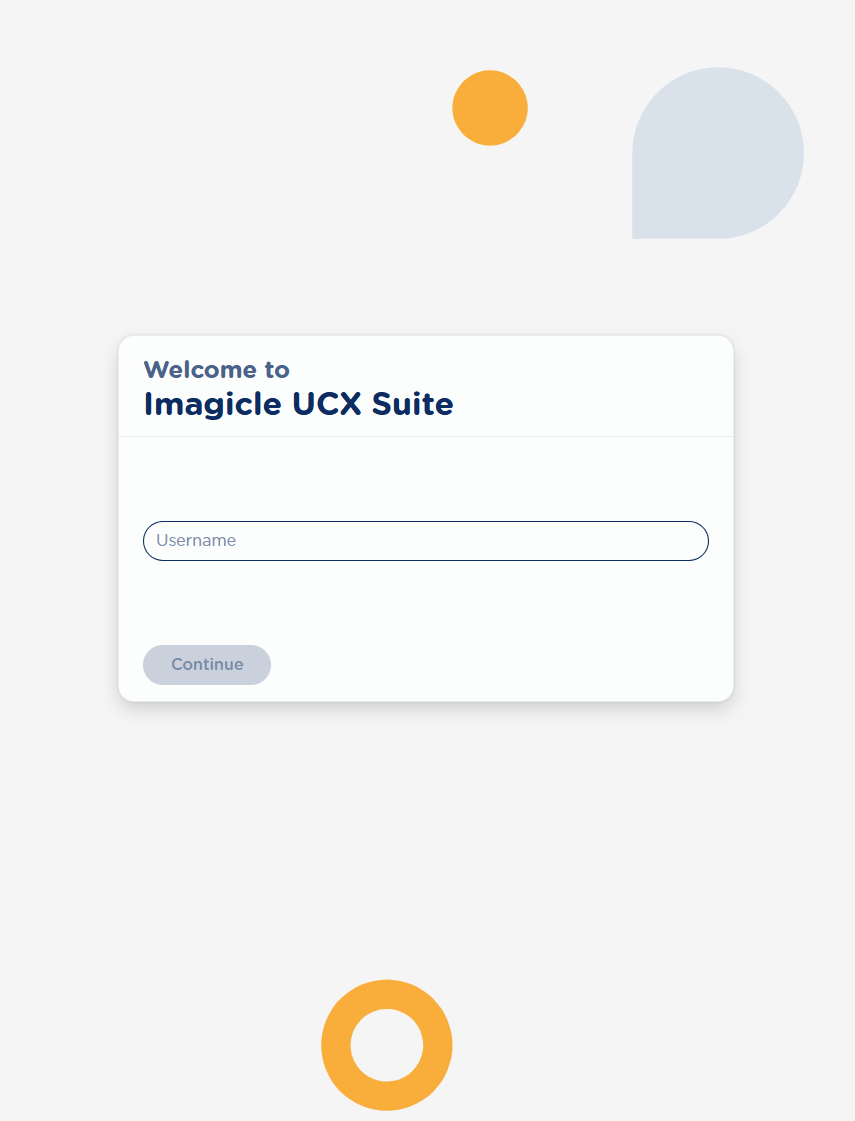
Any UCX Suite user who is an operator of at least one queue can log in to the Contact Center using the same credentials used to access the other features of the suite.
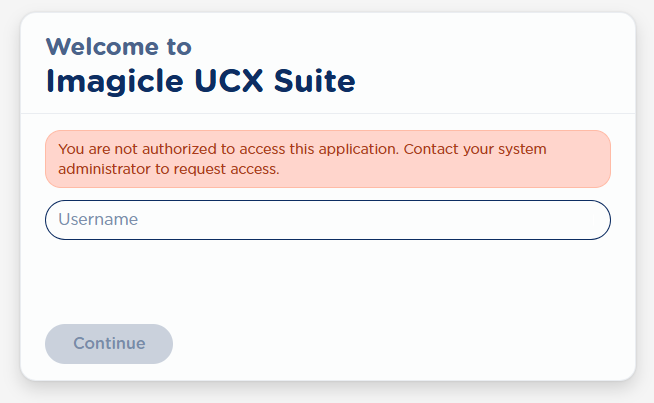
If a user is not associated with at least one queue, login fails and the following error is shown: "You are not authorized to access this application. Contact your system administrator to request access."
Logout and application logs
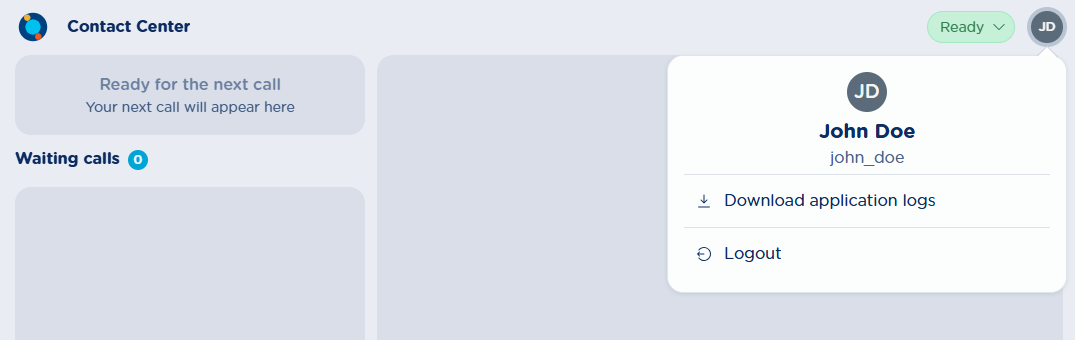
To log out, open the user menu by clicking the user avatar in the top right corner and select the logout option. From the same menu you can also download the application logs.
Agent status
At any time, a user logged into the Contact Center can view their global queues status in the top left corner. Clicking the status banner opens a multiple-choice list allowing the user to select a new global status.
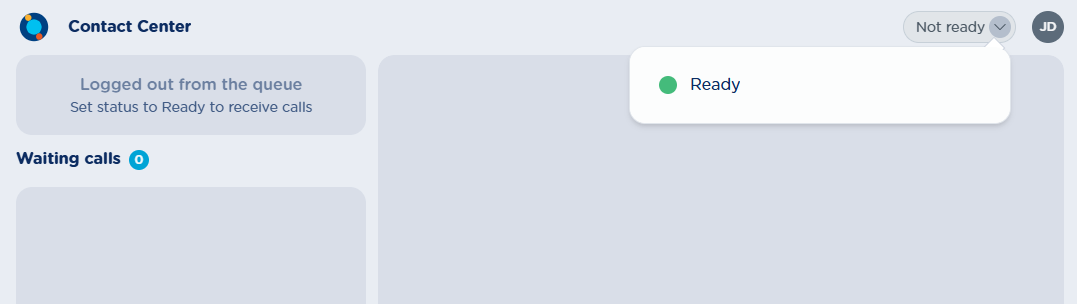
The possible global states are:
|
Global status |
Description |
|
Ready |
User ready on all queues |
|
Partially ready |
User ready only on a subset of queues, not ready in the remaining ones |
|
Pause |
User is in pause (on all queues, or on a subset of queues while not ready in the remaining ones) |
|
Wrap Up |
User is in Wrap up (on all queues, or on a subset of queues while not ready in the remaining ones) |
|
Not ready |
User is not ready in any queue |
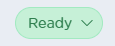
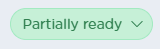
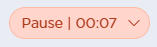
Each state is associated with a color to make it easier to read at a glance:
Ready / Partially ready – displayed in green
Pause / Wrap Up – displayed in red

Not ready – displayed in light grey

Pause reasons
If pause reasons have been configured for the tenant, the generic Pause button is replaced by a dedicated button for each configured pause reason.
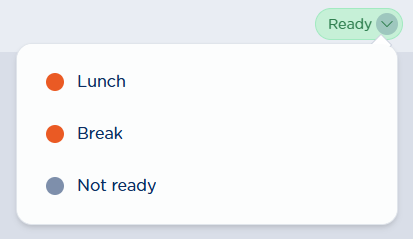
For details on how pause reasons are configured, please check this KB article.
Real-time status update
If the operator's status changes for any reason (for example a Wrap-up call terminates, or a supervisor logs the agent out), the global status shown in the application is updated in real time without any action from the user.
If pause reasons are added, removed, or modified while a user is logged in, the change is not reflected immediately: the user needs to log in again for the updated pause reason list to appear.
Active call details
When Advanced Queueing delivers a call to the operator, the Contact Center gadget shows the active call details through two panels:
-
Active call panel: shown in the top left, it displays the caller's name and phone number, a VIP badge (if the caller is flagged as VIP), the current call status (Incoming, Answered, Connected, Completed) and the name of the queue that delivered the call.
-
Contact details panel: shown on the right side, it displays a summary of the call and the contact information retrieved from the directory, including the directory the contact was found in (for example "Contact details from Main directory") and any populated custom fields. Only public directories are used to resolve the contact; operator-local directories are not used.
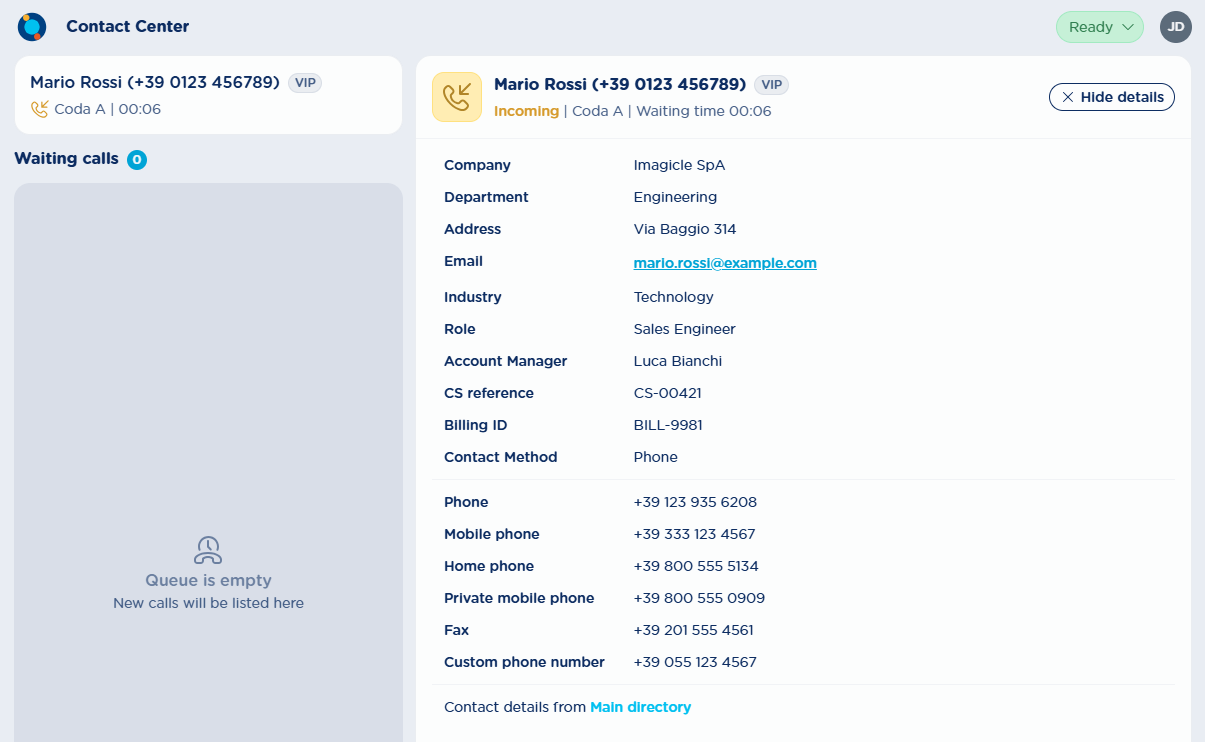
The contact details panel can be hidden using the "Hide details" button on its top right. Clicking the active call panel in the top left will show the call details again in the right panel.
The information shown depends on whether the server can monitor the operator's phone through CTI.
Scenario 1: Phone monitoring available
-
The call status updates in real time as the call progresses (ringing, connected, completed).
-
The exact moment the operator answers or hangs up is detected.
-
While the call is connected, a live conversation timer is displayed.
-
When the call ends, it is shown in Completed status with its final duration.

Scenario 2: Phone monitoring not available
-
The gadget can only detect whether the operator has answered the call.
-
Once answered, the call is shown in Answered status, but no duration information is available.

-
The gadget cannot detect when the call ends.
-
The call remains visible in Answered status until either a new call is delivered to the operator, or the operator manually dismisses it using the Dismiss button.
No active call
When there is no active call, the active call panel shows a placeholder message reflecting the operator's current global status:
|
Global status |
Placeholder message |
|---|---|
|
Ready / Partially ready / Wrap-up |
Ready for the next call – Your next call will appear here |
|
Pause |
Pause active – No calls will be offered while on pause |
|
Not ready / Logged out |
Logged out from the queue – Go Ready to receive calls from queue |
Missed call
If a call is offered to the operator (Ringing) but ends before being answered, it is treated as a missed call: the call details are immediately removed and the panel returns to the placeholder message. No summary of the missed call remains visible.
Known limitations
-
Multiple simultaneous offerings: the gadget does not support scenarios where Advanced Queueing offers more than one call at a time to the same operator.
-
Diverted/forwarded calls: whether the operator can see the conversation time for a call answered elsewhere depends on how the call was forwarded (to another operator, to a monitored free target, or to a non-monitored/non-target number).
-
Call pickup by another party: similarly, whether conversation time is visible depends on who picked up the call routed to the logged-in operator.
-
Remote party change: the gadget does not update contact details if the remote party changes during a call.
Queued calls list
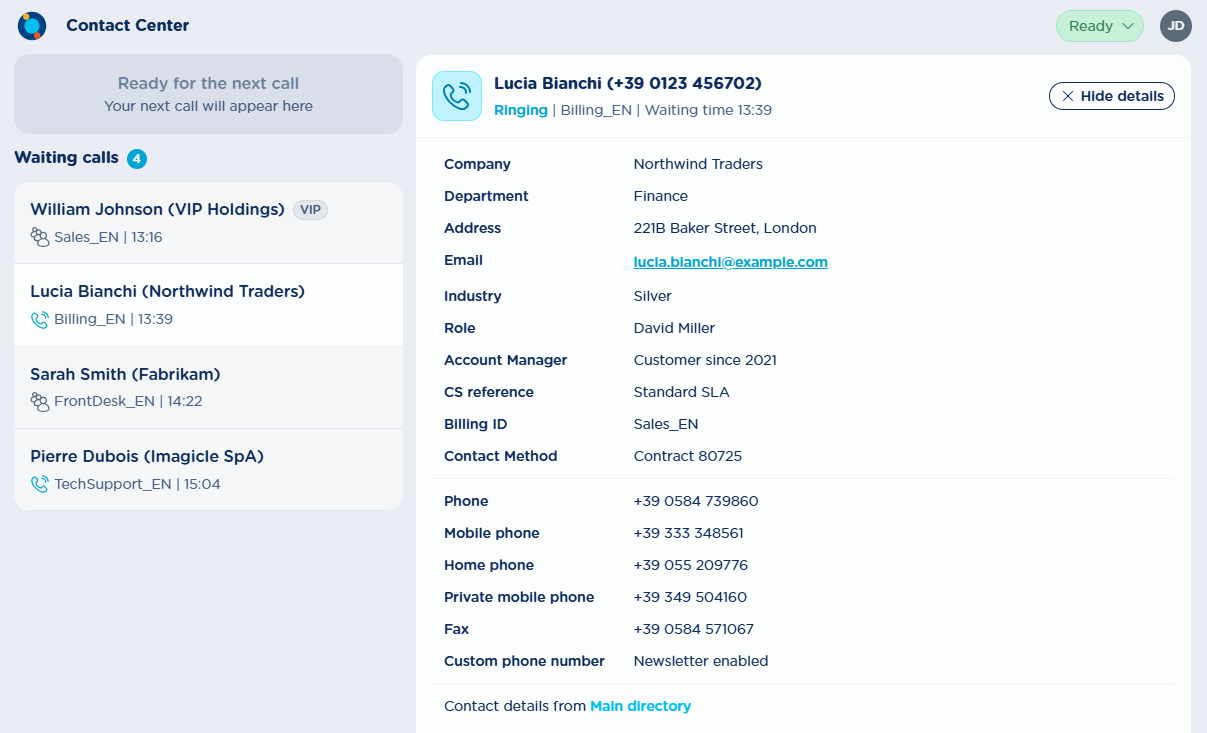
Queued calls are shown in the "Waiting calls" panel on the left side of the screen, with a badge showing the current number of queued calls. This panel does not distinguish between queues. Clicking a queued call shows its details in the call details panel on the right.
The contact information shown for a queued call depends on what is known about the caller: a known colleague's name, company or department, a VIP badge if applicable, or otherwise a phone number or "Unknown". Each queued call also shows:
-
The call status: "Waiting" or "Ringing" (or an equivalent icon)
-
The name of the queue the call is in
-
The time elapsed since the call entered its current status
Known limitations
-
Contact resolution happens asynchronously: a call may appear in the queued calls panel before its contact details are resolved, even if the contact exists in a local directory. Details are completed on a later event, such as a priority change, a new queued call, or a status change.
-
If a user is added to or removed from a queue, the change is not received in real time; a new login is required for it to take effect.
Booking and picking up calls
This feature is tight to “On Demand (pull)” distribution algorithm in Advanced Queuing.
Booked calls
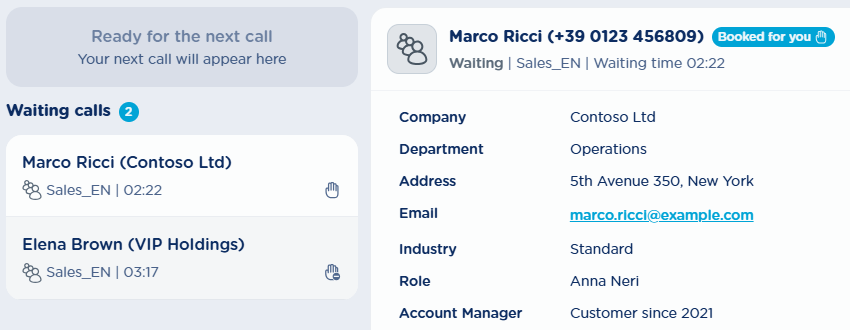
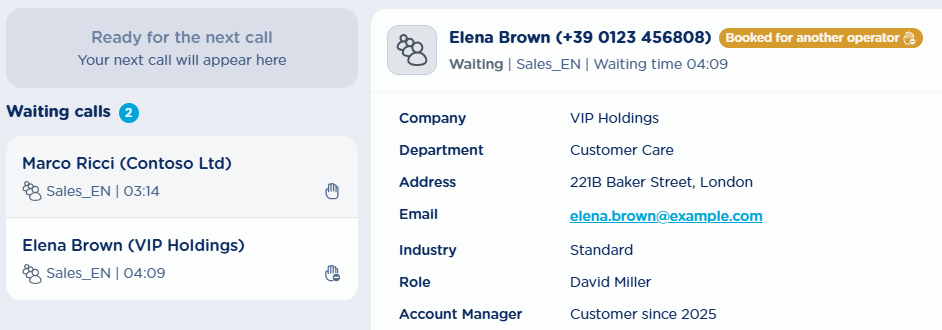
Queued calls can be booked by operators: booking tells the system to offer that call to the booking operator as soon as they become available. A booked queued call shows an icon in the queued calls panel, which differs depending on whether the call was booked by the current user or by another operator.
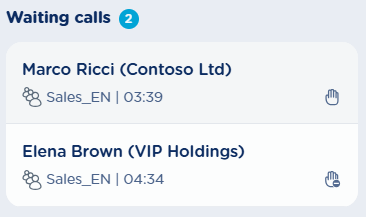
-
The first call has been booked by the current user
-
The second call has been booked by another operator
In the queued call's details, a badge next to the caller's name also indicates that the call is booked and by whom:
Call booked by the user:
Call booked by another operator:
A call can also be booked automatically if the Sticky Agent feature is enabled for the queue: in that case the call appears as booked by the sticky agent as soon as it enters the queue in Waiting state. A booked call stays in that state until the Booking Timeout, or the Sticky Agent Booking timeout, expires.
Booking a call
To book a call, use the "Book" button in the queued call's details, in the call details panel on the right.
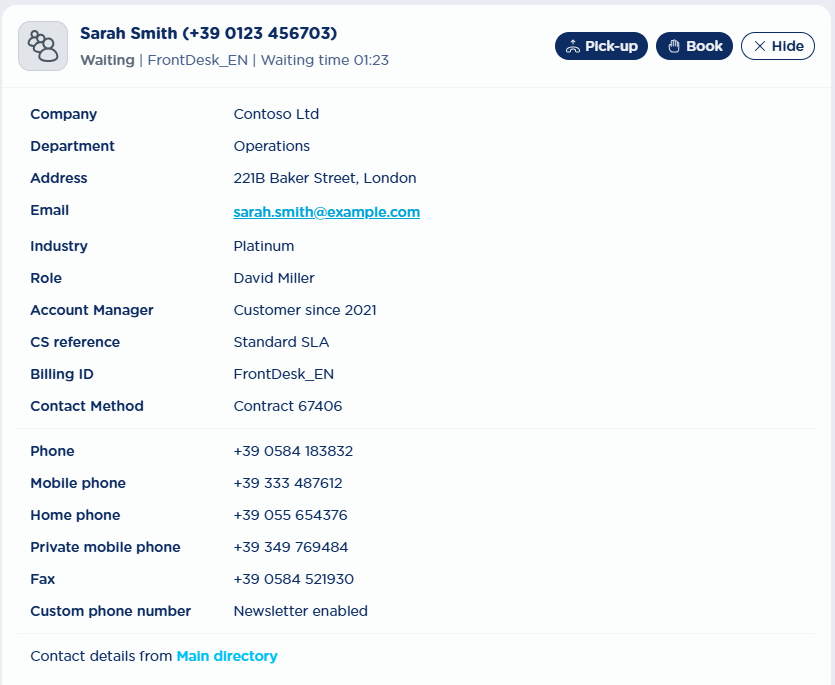
A call can only be booked if it is a queued call and it isn't already booked by another operator.
Picking up a call
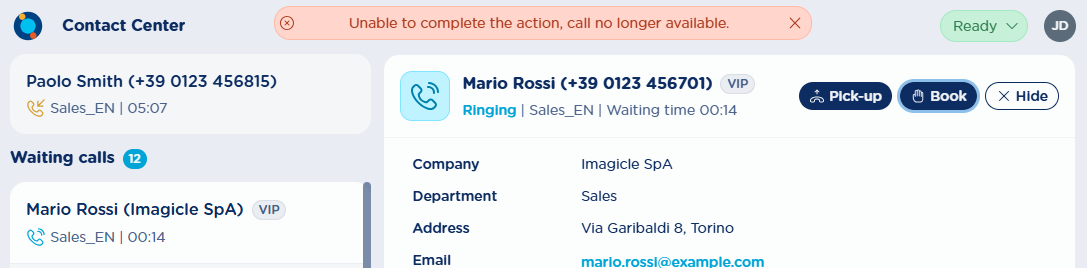
Queued calls that aren't already booked can also be picked up. "Picking up" a call tells the queuing system to offer that call to the operator immediately, as an incoming call. Use the "Pick-up" button in the call details panel; if the call is ringing, you'll be asked to confirm the action, otherwise the call is picked up right away.
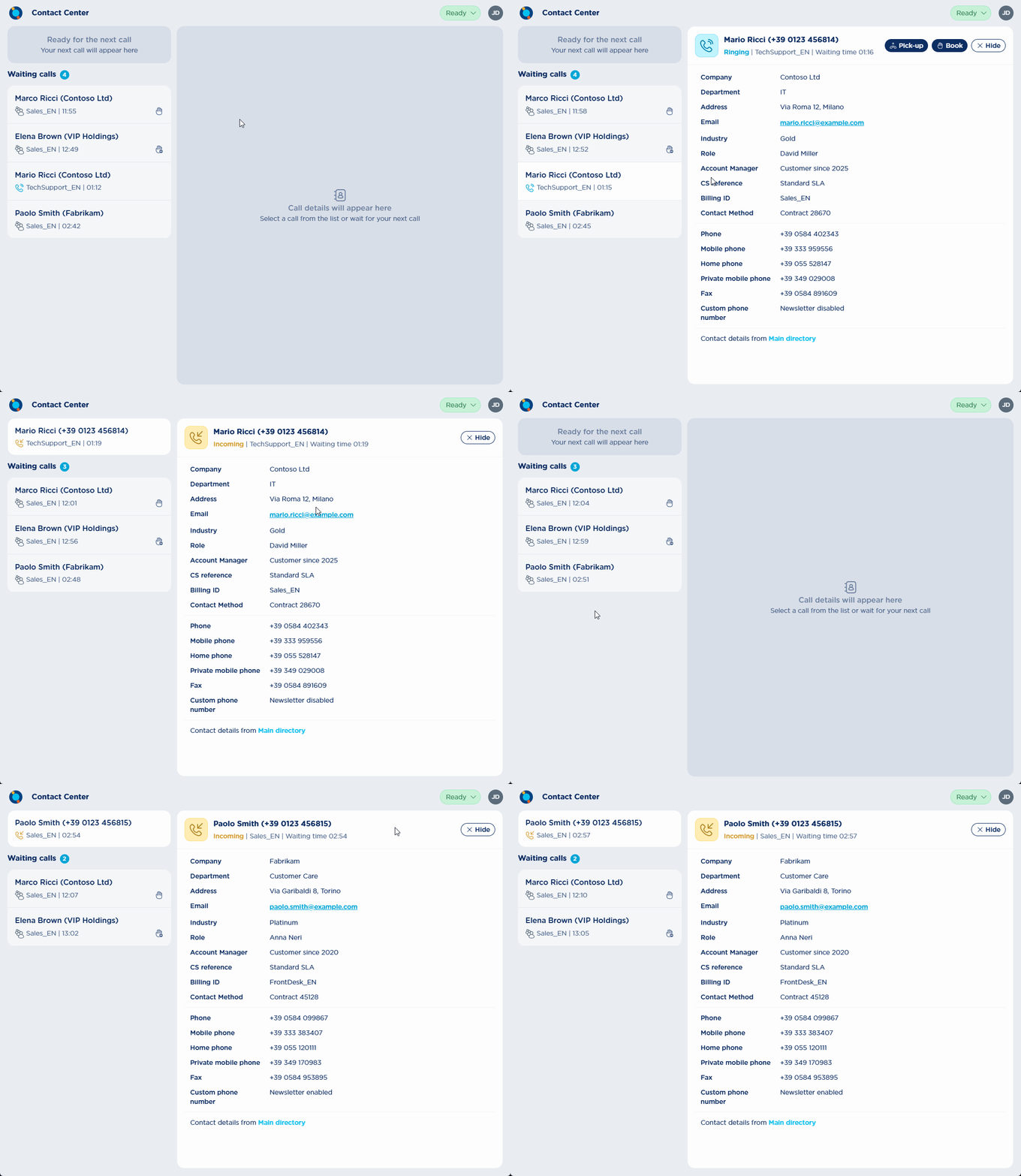
Booking or picking up a call can occasionally fail, for example if the call is no longer available or another operator has already booked or picked it up. When this happens, a toast notification informs the user that the action could not be completed:
Resize behavior
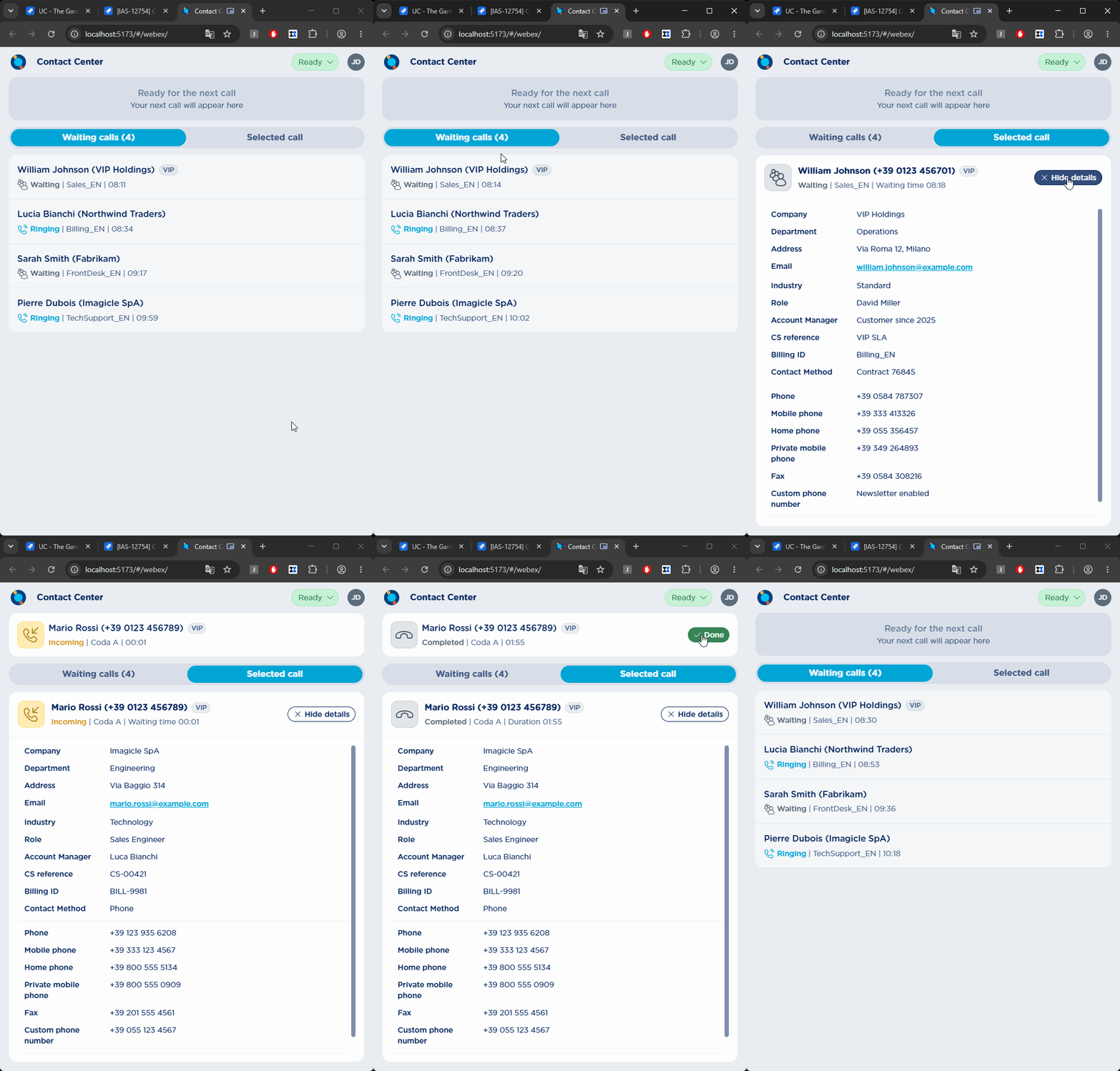
When the application window is resized and its width is significantly reduced, the layout switches to a tab selector at the top, letting the user choose between the queued calls panel and the call details panel.
When a call is offered, the app automatically switches to the "Selected call" tab and shows the offered call's details. Clicking a queued call also switches to that tab. From the "Selected call" tab, clicking "Hide details" returns to the "Waiting calls" tab.
Connectivity notifications
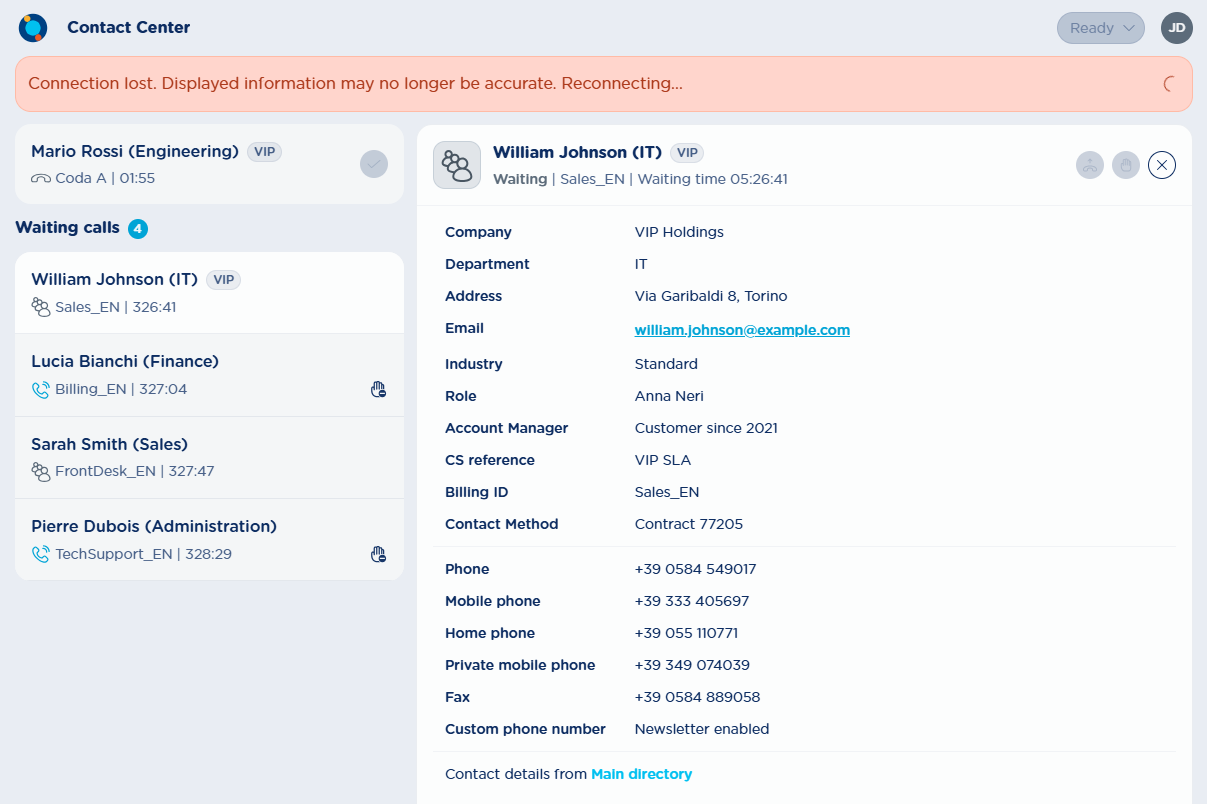
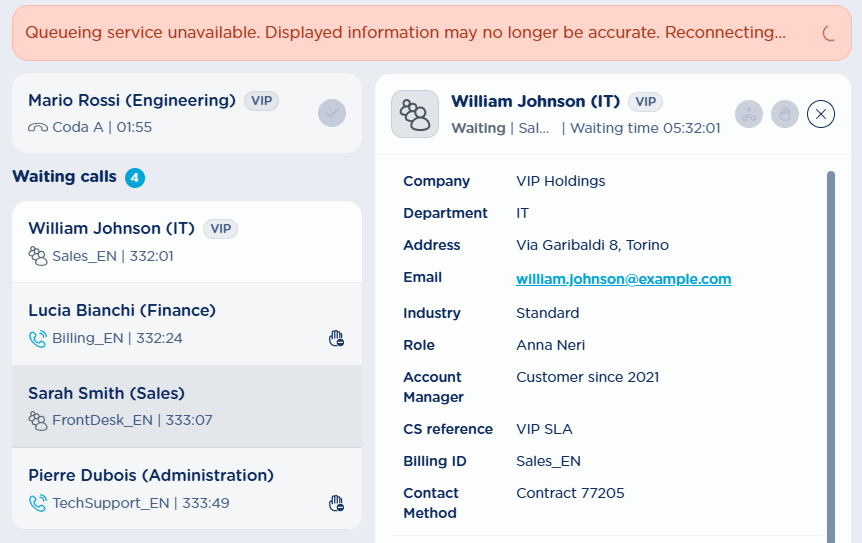
During connection outages, and during Advanced Queueing disservices, the application warns the user that the connection has been lost and disables the relevant actions (pick-up, book, "done" and logout buttons, and the agent status badge). While disabled, these buttons show a tooltip explaining that the action isn't available until the connection is restored. In the meantime, the application automatically keeps trying to reconnect.
Example of a generic network malfunction:
When only Advanced Queueing is unavailable, the message changes accordingly:
Using the gadget in Cisco Webex and Microsoft Teams
Cisco Webex
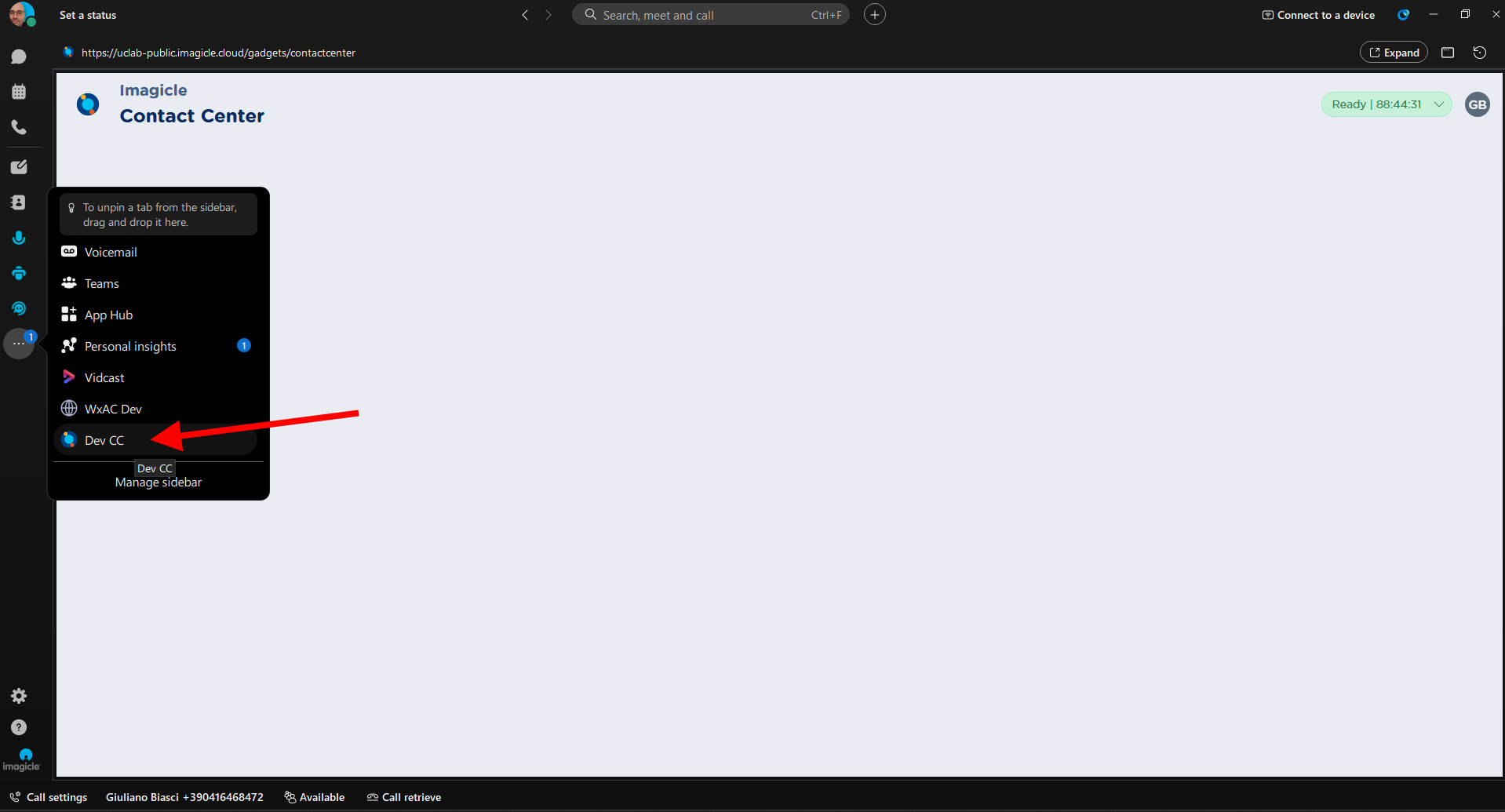
The Contact Center gadget can be integrated into Webex either as an organization-wide app configured by the administrator (instructions in this KB), or as a space-level tab added by a user. Behavior differs slightly between the two:
Organization-wide app (recommended):
-
Navigating to a native Webex tab (messages, calls, contacts): the gadget stays loaded and its connection to the server stays open.
-
Navigating to another integrated web app: the gadget's context is lost and the connection closes, though the session remains active (login is preserved) once you return to it. If the gadget is detached into its own window, its context stays active even while you use other apps.
Space-level tab:
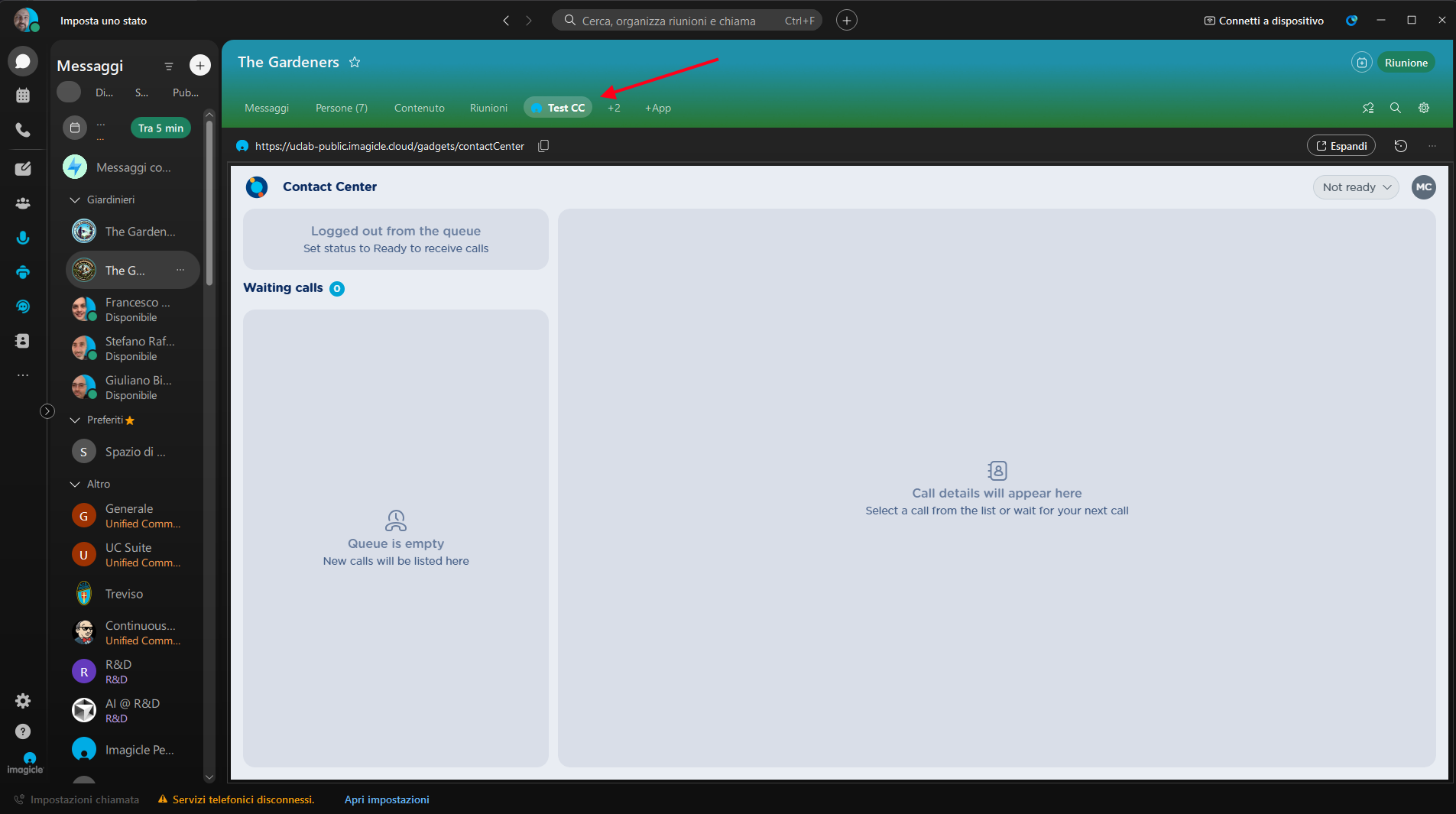
A space-level tab reloads whenever you move to another Webex space, closing the connection to the server. The session is normally preserved, so you generally won't need to log in again, though this cannot always be guaranteed.
Microsoft Teams
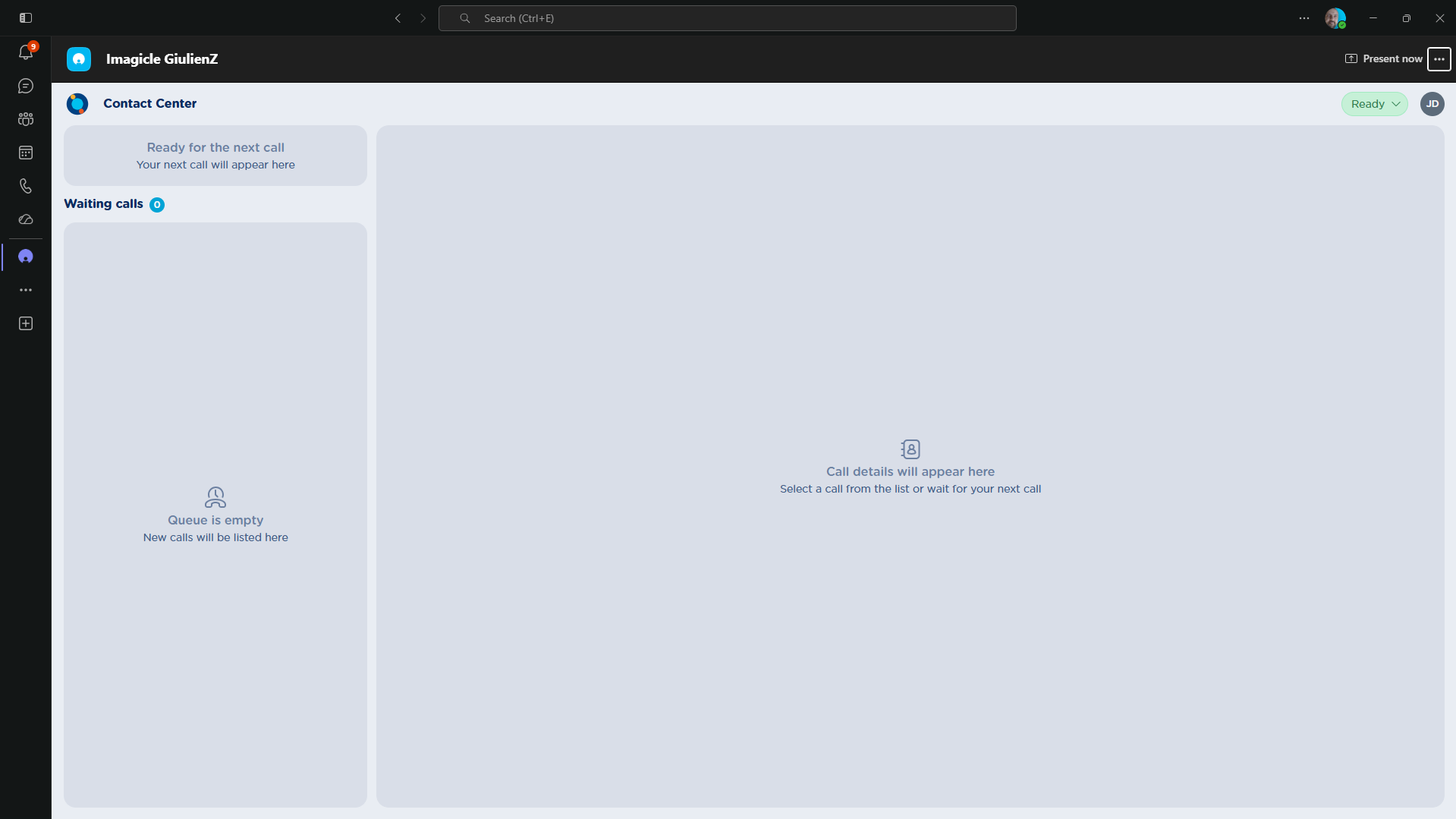
When you switch to another Teams tab (messages, calls, another app, etc.), the gadget's context is lost and its connection to the server closes. The session is preserved, so you won't need to log in again once you return.
More details in this KB article.
Unsupported platforms
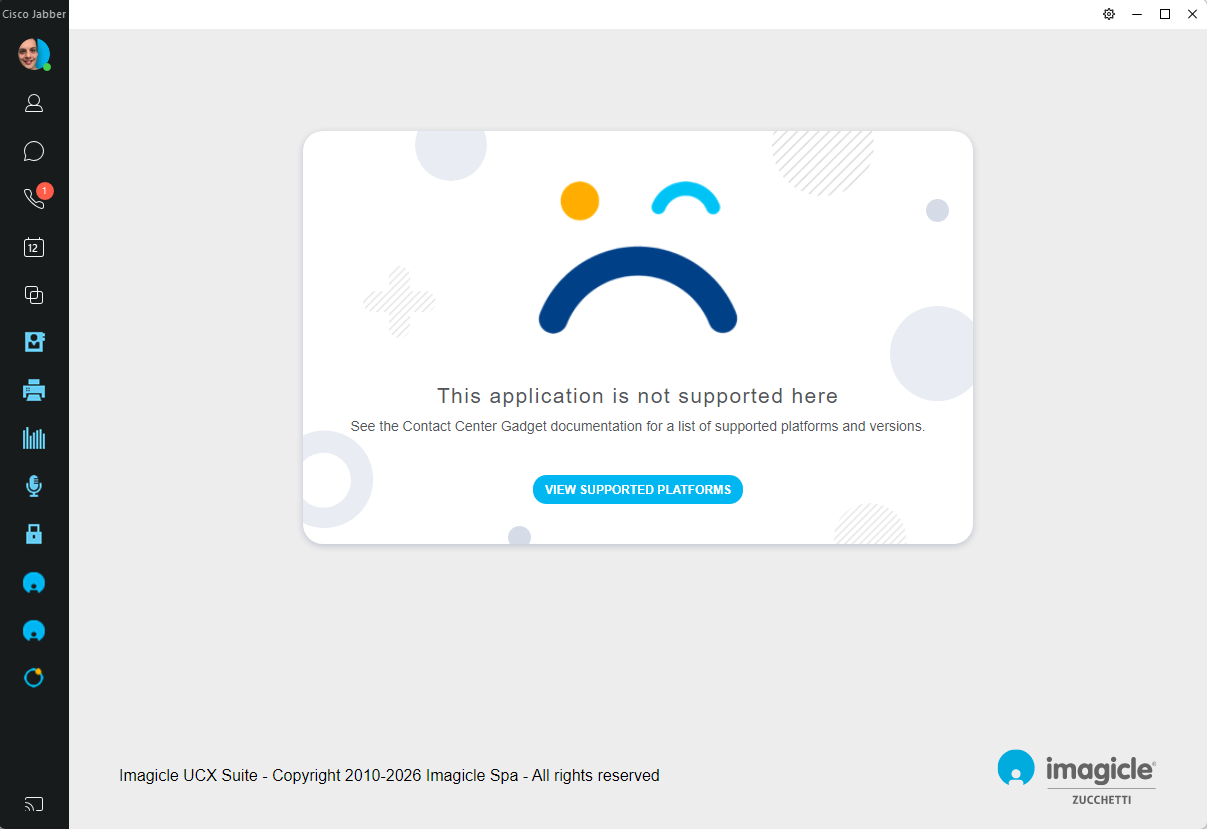
The Contact Center Gadget is currently not supported on the following platforms; a specific message is shown to the user in those environments.
Cisco Jabber